Attendance
Who came and left when, lateness, breaks, the clock-event log and approval of monthly timesheets.
Open in the admin panel/hr/attendance The page header is «Attendance», described as «Shift tracking, event log and employee timesheets». The data comes from the marks employees make themselves: «Clock in», «Break», «Back», «Clock out». Marks are made with a PIN code, a QR code, Face ID or manually by an administrator. The page has three tabs: «Staff», «Time Logs» and «Approval». «Staff» and «Time Logs» are filtered by the current branch chosen at the top.
How to open
- In the sidebar, expand the HR & staff group.
- Click Attendance.
The «Staff» tab #
Shifts for the chosen period: who worked, how many hours, breaks and lateness.
At the top is the period filter (default «Today»; there are also «Yesterday», «Last 7 days», «Last 30 days», custom dates and «All time»). With «Today» selected the list refreshes every 30 seconds. A shift that crosses midnight shows on both days: the day it started and the day it ended.
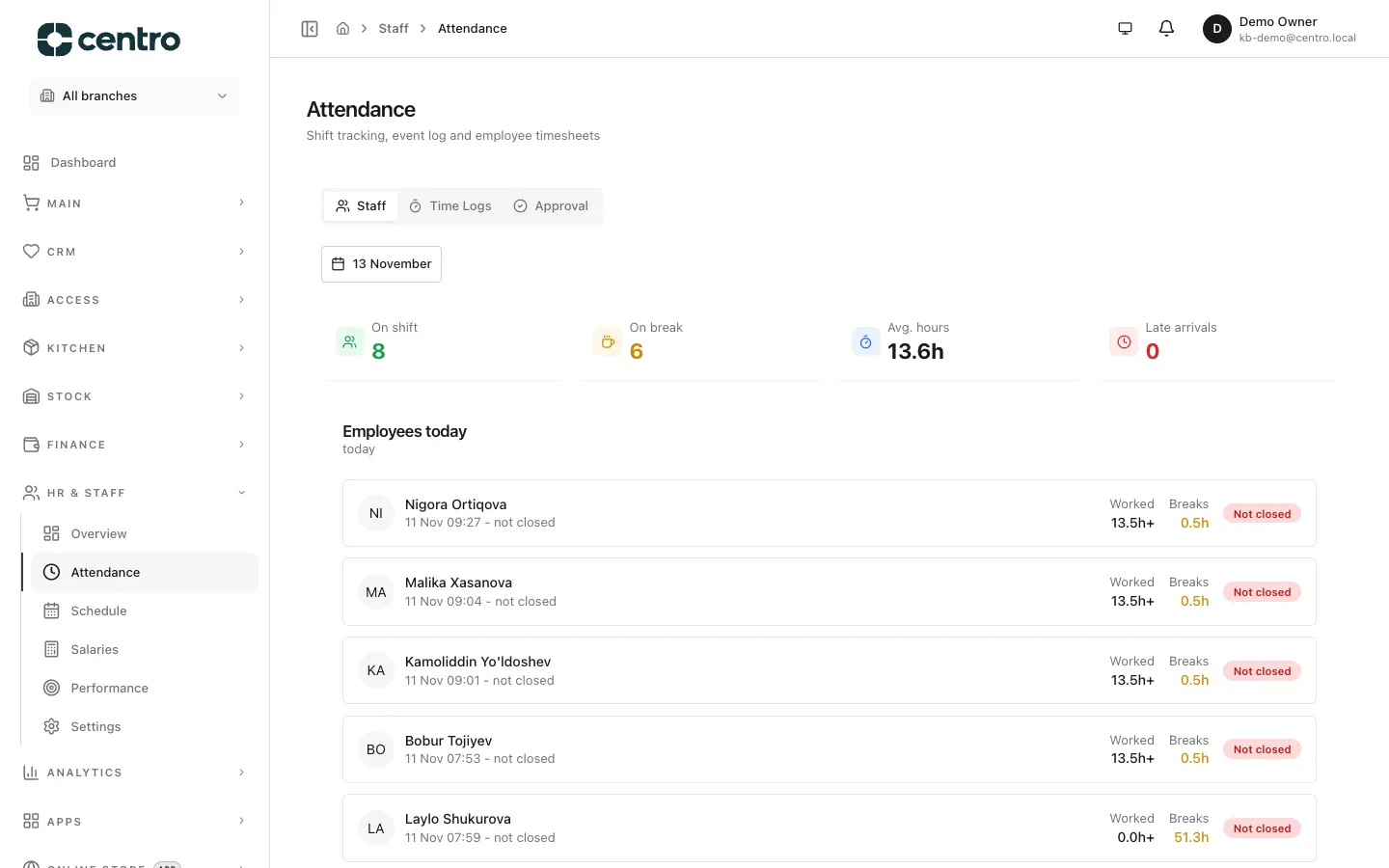
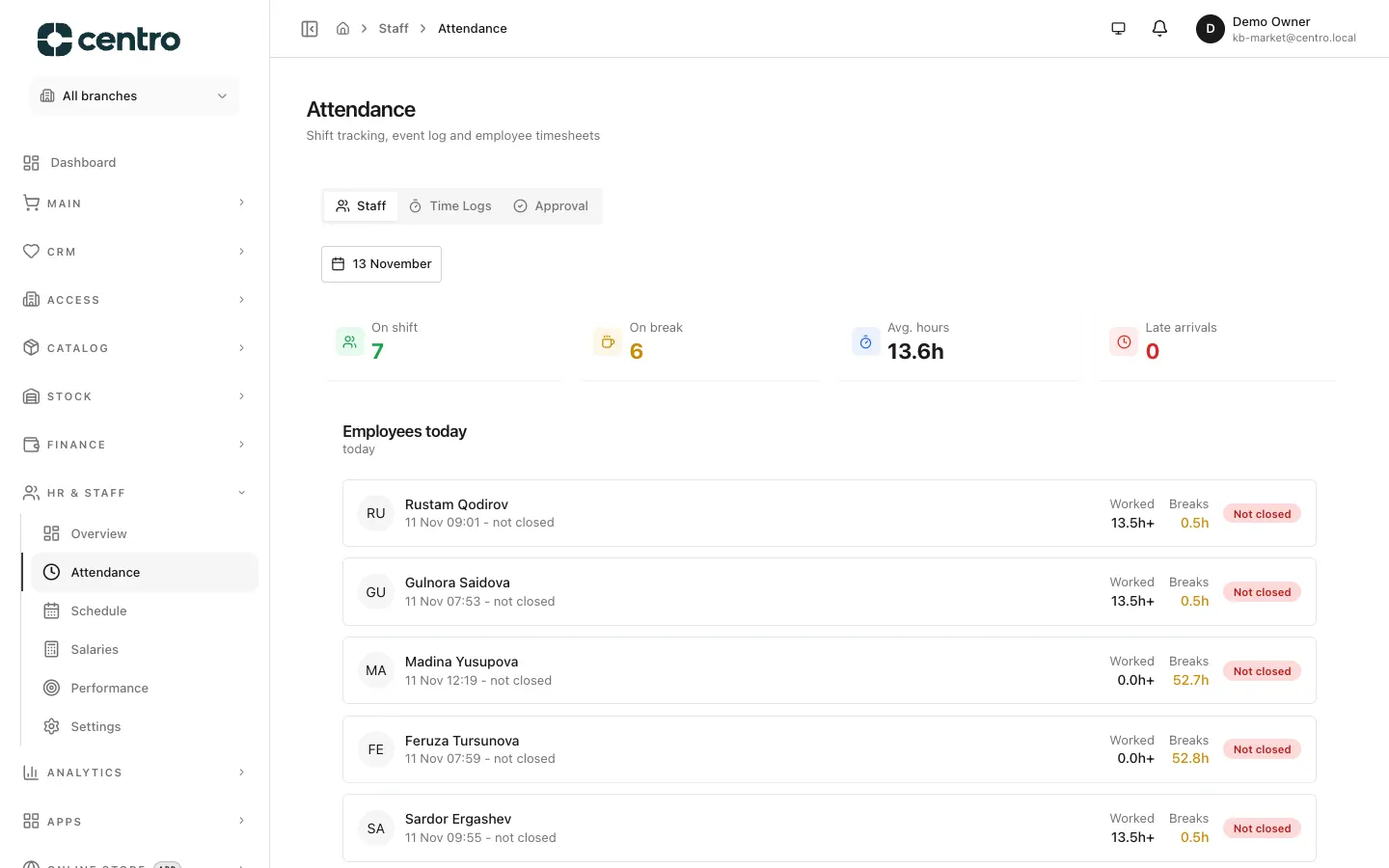
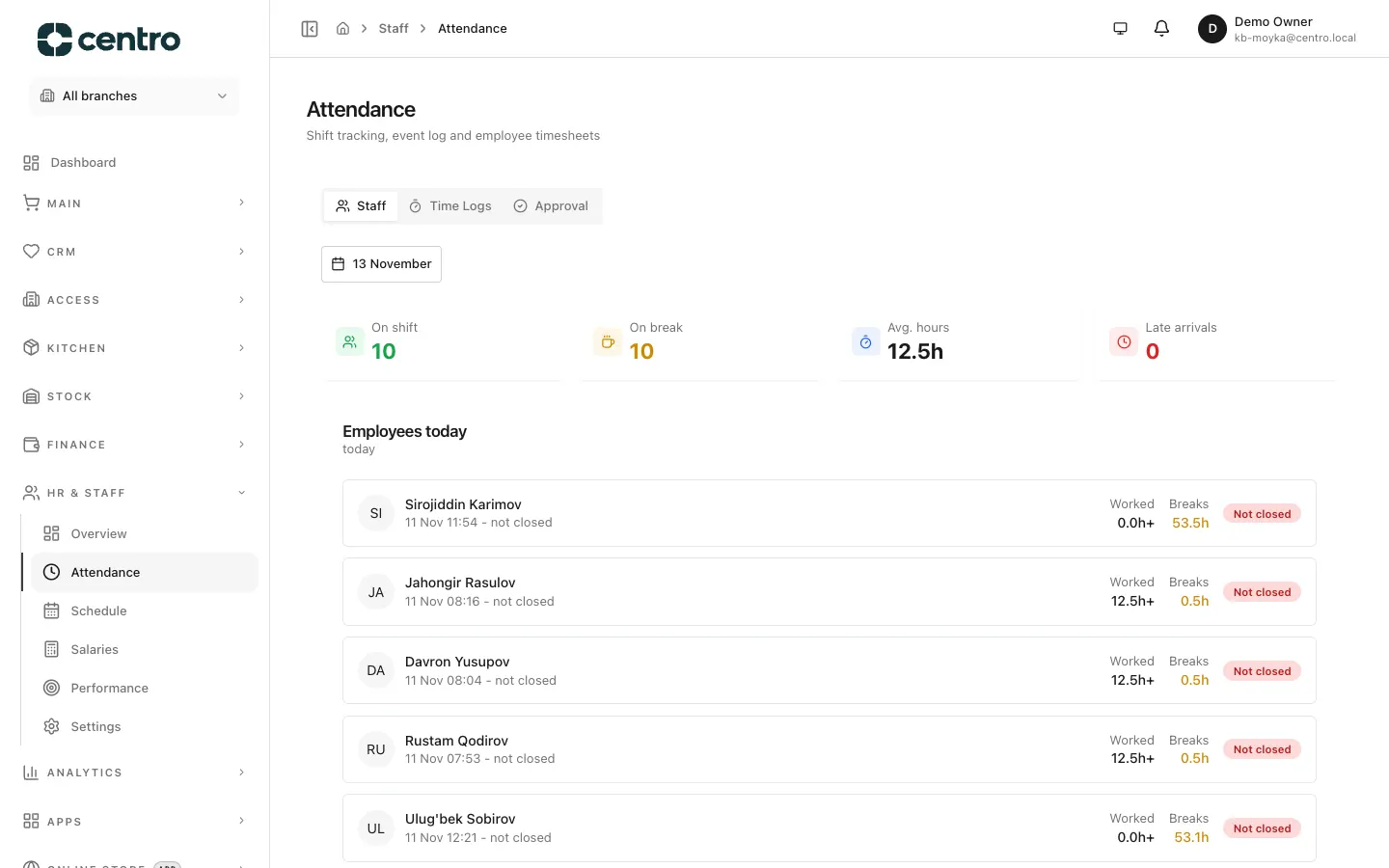
Counters
- «On shift» / «Worked»
- For «Today» — how many shifts are open right now («On shift»). For any other period — all shifts except no-shows («Worked»).
- «On break»
- Open shifts that already have break time.
- «Avg. hours»
- The average length of shifts with more than 0 hours worked, rounded to 0.1 hour. No-shows are not counted.
- «Late arrivals»
- How many shifts started later than the scheduled time.
Tip: The «On shift»/«Worked», «On break» and «Late arrivals» cards act as filters: click a card and only those employees stay in the list, with a button showing their count next to the heading. Click that button or the card again to clear the filter. The «Avg. hours» card is not clickable.
A list row
- Name and time
- Clock-in and clock-out time. If a mark was made on a different day from the one being viewed, the date is added (night shift). Instead of the clock-out you may see: «no clock-in» — the employee never came, «not closed» — the shift exceeded the limit, «on shift» — still working today, «not clocked out» — no clock-out was made.
- «Schedule:»
- The planned start–end of the shift if the employee has a shift on that day in the «Schedule».
- «Worked»
- Hours worked in the shift (for example «7.5h»). A trailing «+» means the shift is not closed and the hours are capped at the maximum shift limit — the real time may be longer.
- «Breaks»
- The total length of breaks (shown only if there was a break).
- Badges
- A red «+15 min» — lateness; «On time» — there is a schedule and no lateness; «Absent» — a no-show. The last badge is the shift status: «On shift», «Not closed» (red), «Completed», «Incomplete» or «Not on shift».
Important: «Not closed» means the employee forgot to clock out. Hours of such a shift are capped at the maximum shift length (16 hours by default). Check and fix such shifts, otherwise wrong hours end up in the timesheet and payroll.
The «Time Logs» tab #
A chronological list of every clock-in, clock-out and break mark.
Unlike shifts, every mark is a separate row here. It is handy for checking when and how an employee clocked in. At the top are the «Search by employee...» field and the period filter (default «Today»).
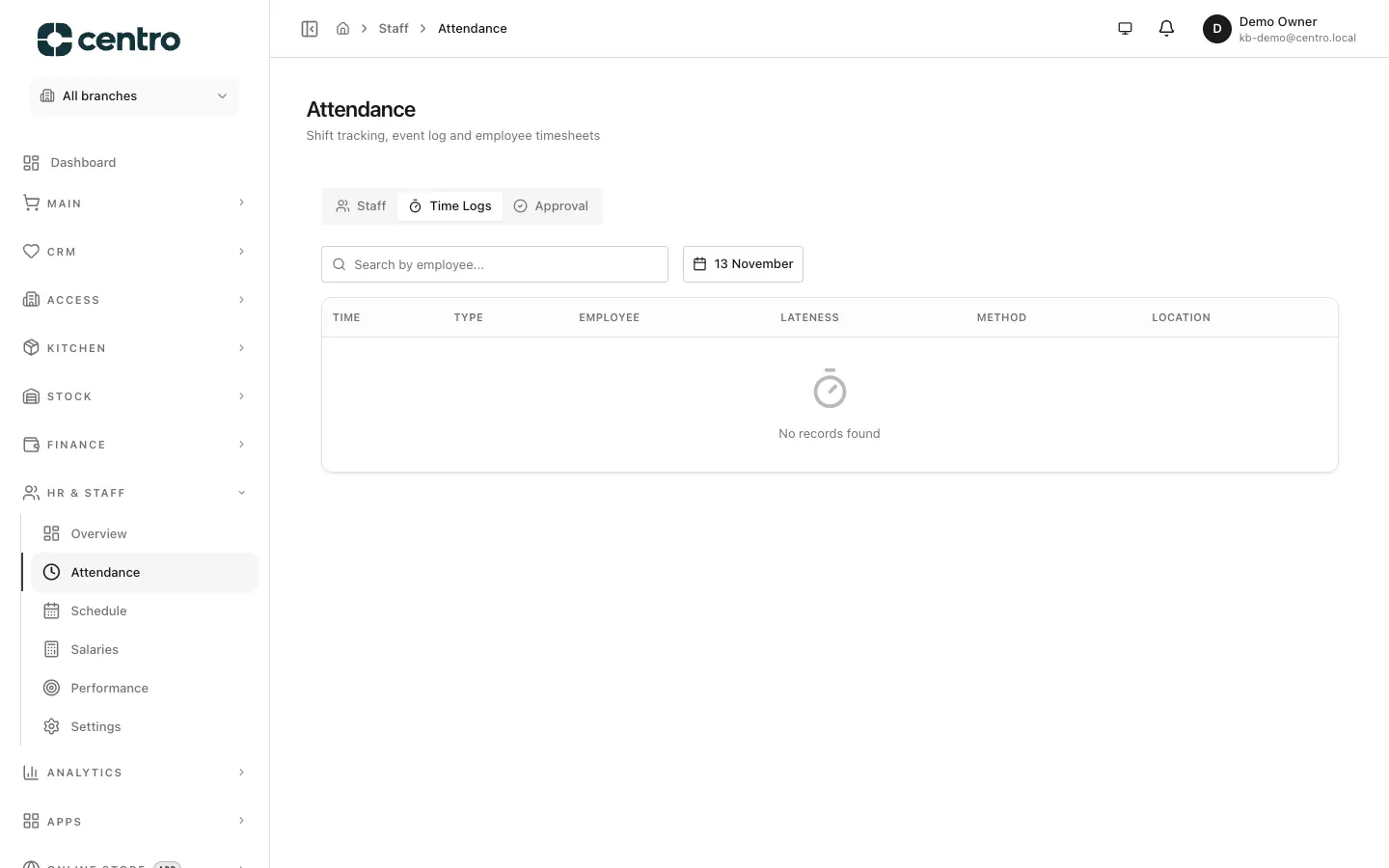
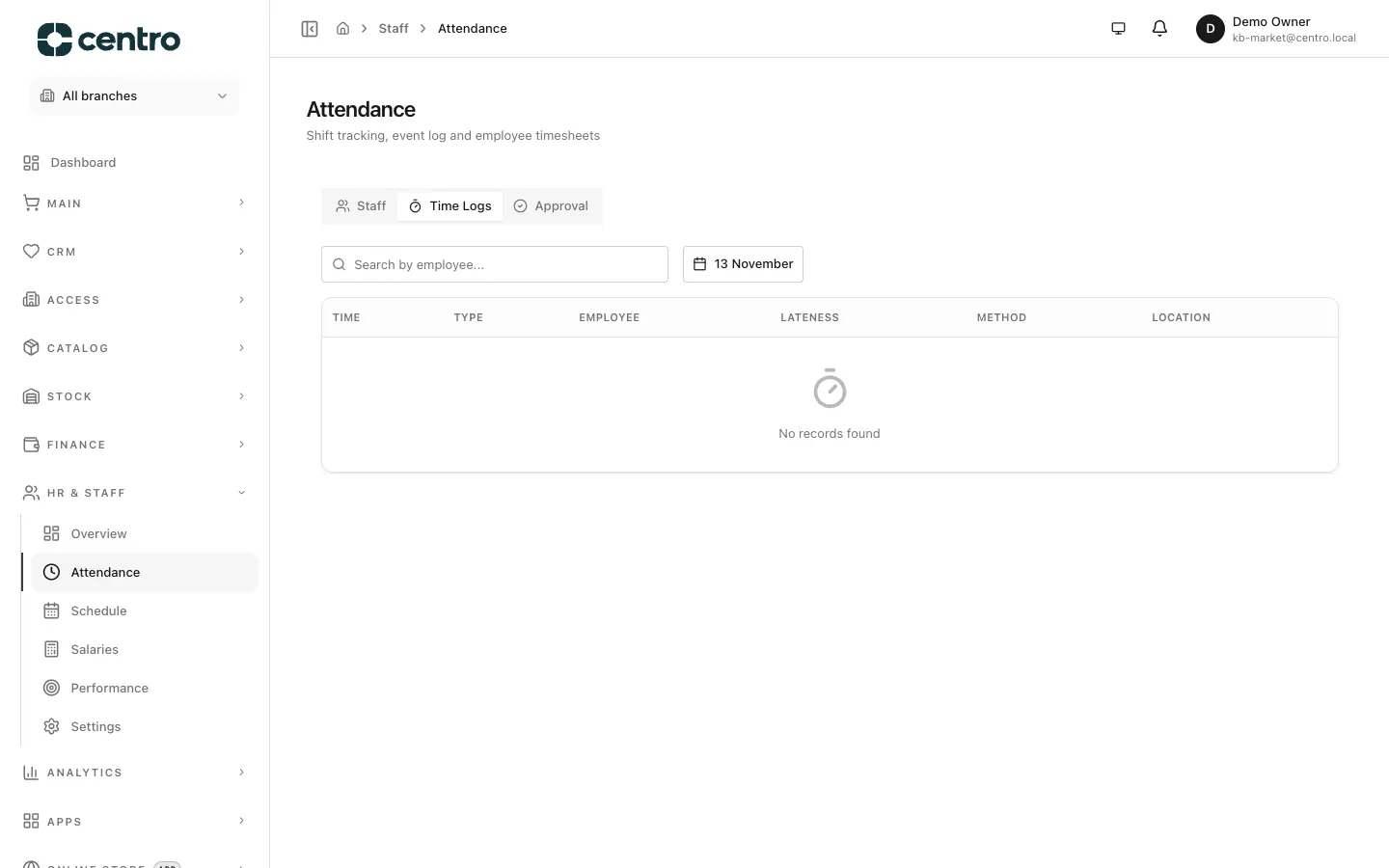
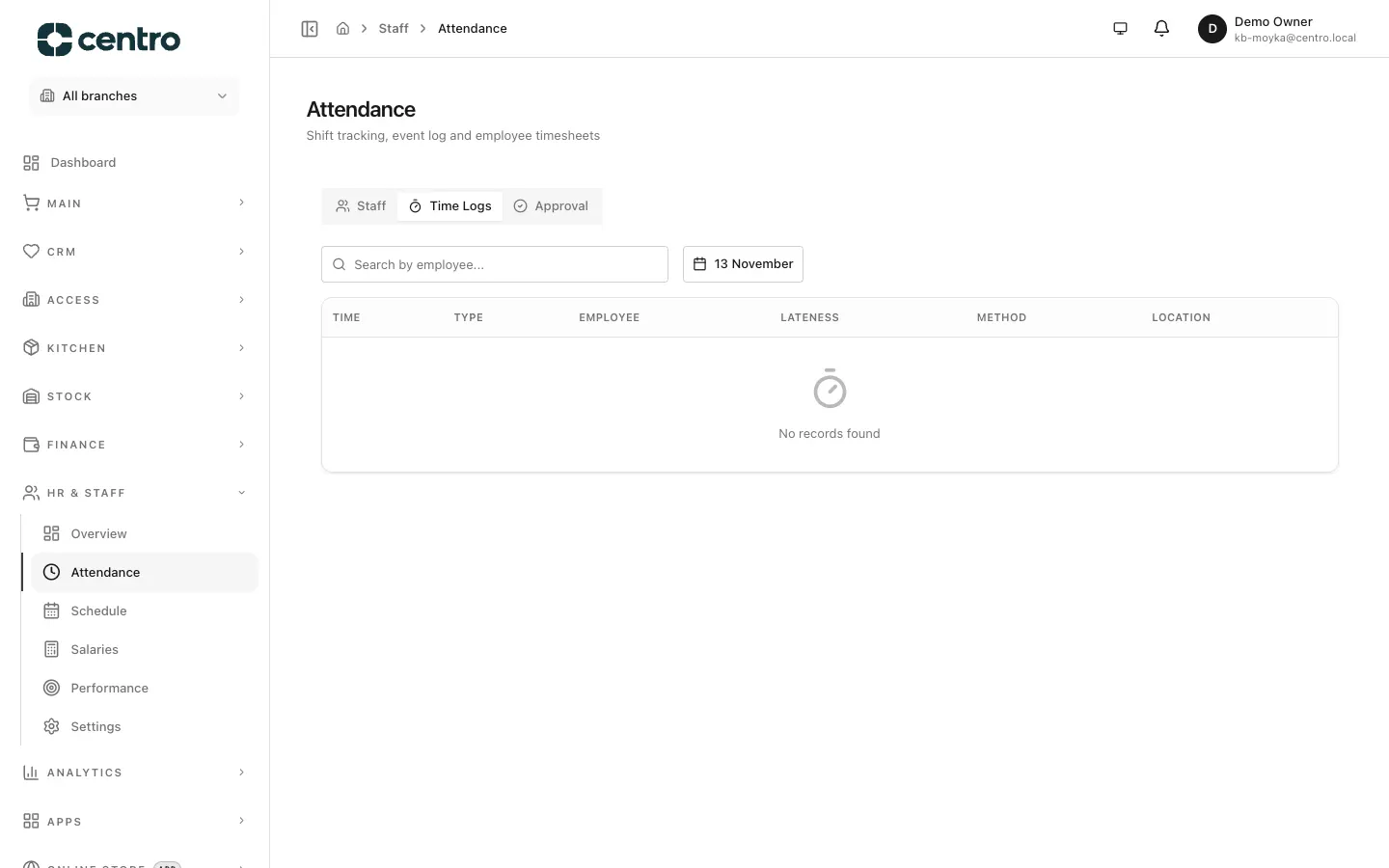
Columns
- «Time»
- The time of the mark, to the second.
- «Type»
- «Clock in» (green), «Clock out» (red), «Break» (yellow) or «Back» (blue) — returning from a break.
- «Employee»
- Who made the mark.
- «Lateness»
- Only for «Clock in»: how much later than the schedule (red «+12 min») or «On time». Without a schedule — «—».
- «Method»
- «PIN code», «QR code», «Face ID» or «Manual» (entered by an administrator).
- «Location»
- The branch where the mark was made.
Important: The table loads at most 100 marks at a time. With a long period older marks may not appear — narrow the period or search by employee (the search only works within the loaded rows).
The «Approval» tab #
Employees’ monthly timesheets: work days, hours, overtime and approval.
A timesheet is one employee’s total hours for a month. The system builds it from the clock marks. Payroll takes the month’s work days, hours and overtime from the timesheet (if there is none, hours are counted straight from the marks), so check and approve the timesheet before running payroll. At the top: search by employee and month and year selectors (default — the current month).
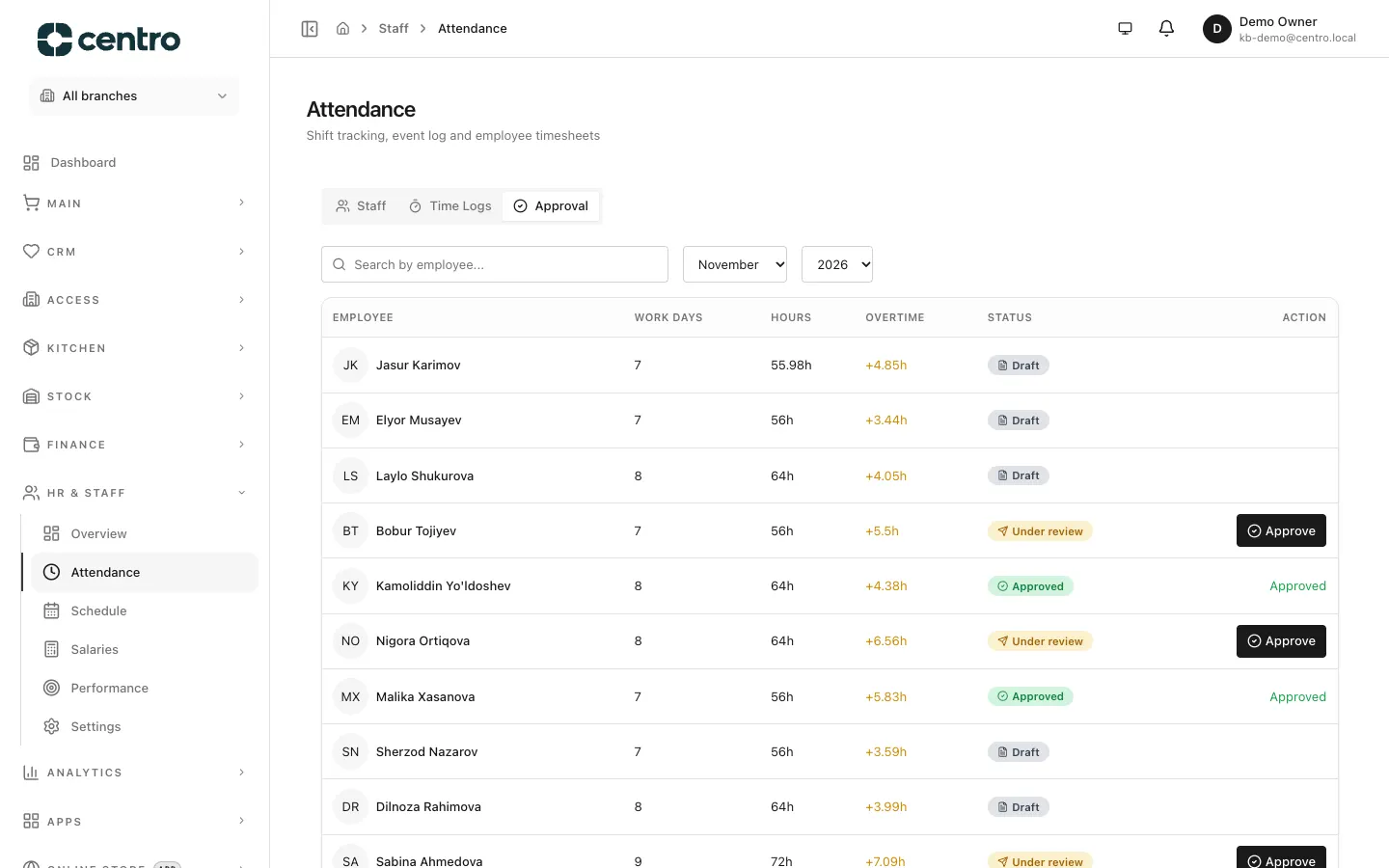
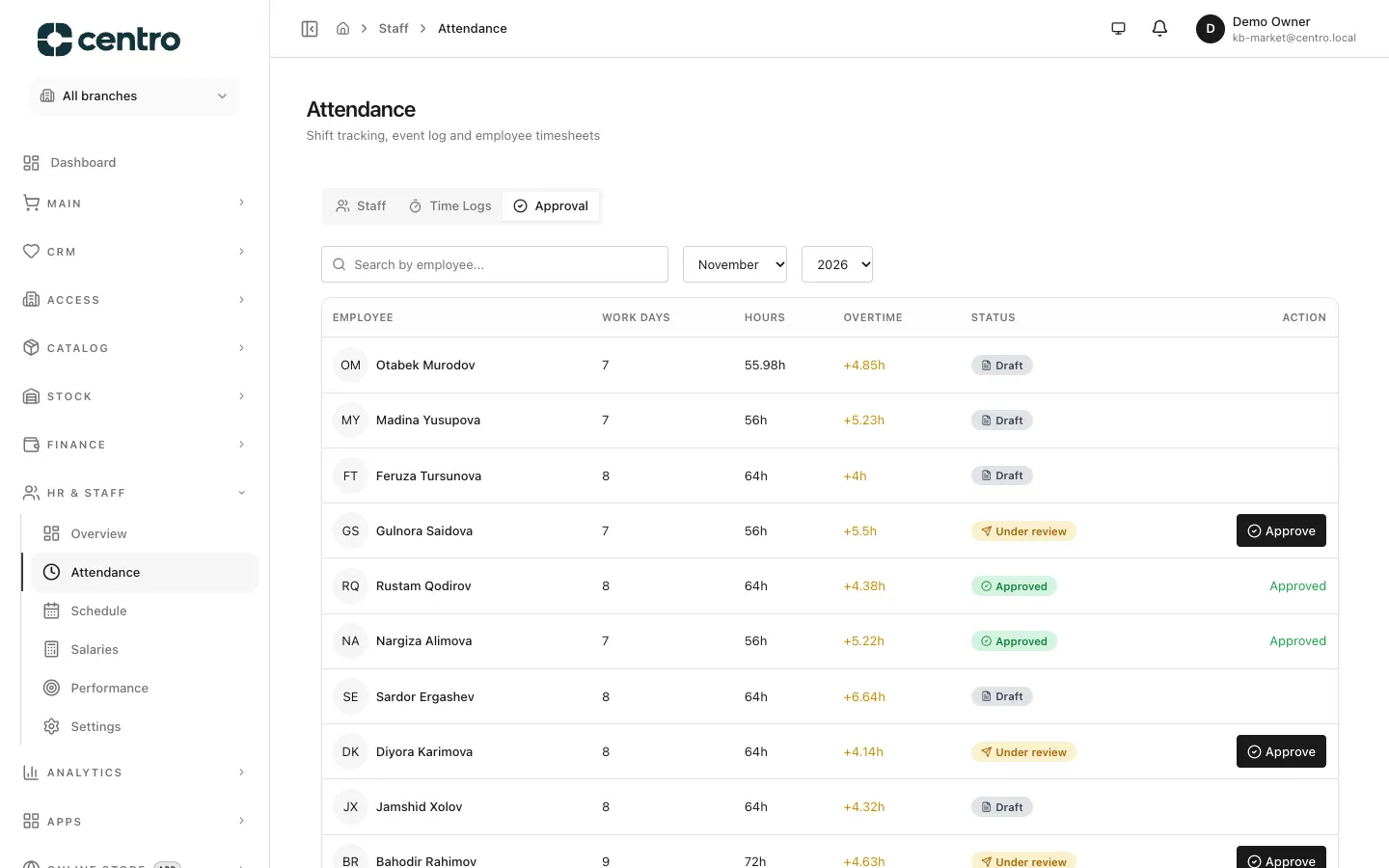
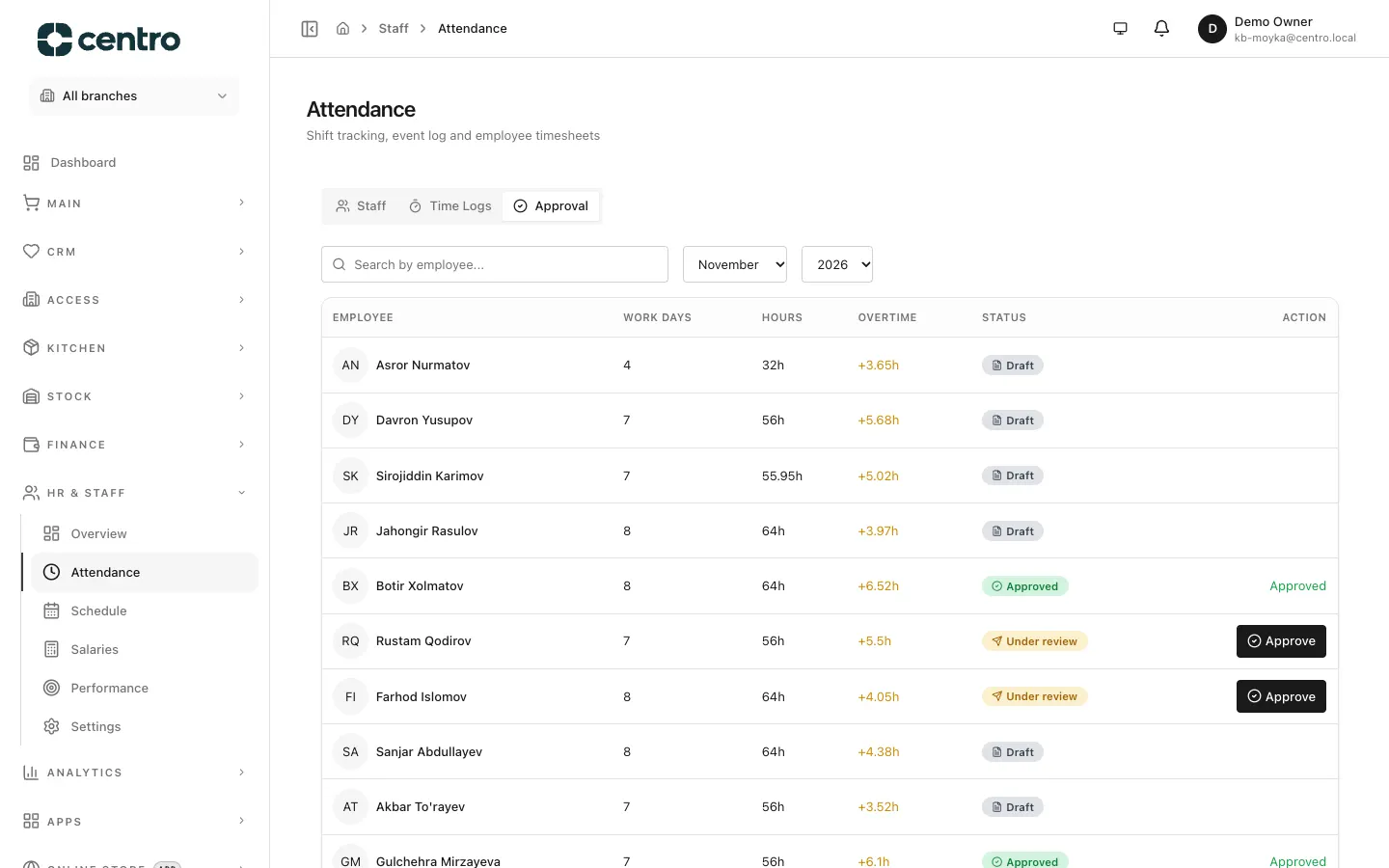
Columns
- «Employee»
- Whose timesheet it is.
- «Work days»
- How many days were worked in the month.
- «Hours»
- Total hours worked in the month.
- «Overtime»
- Hours above the norm (yellow «+Nh»); «—» if none.
- «Status»
- «Draft» — the month is still being collected; «Under review» — sent for approval; «Approved»; «Rejected».
- «Action»
- An «Approve» button for a timesheet that is «Under review»; an approved one shows a green «Approved».
How to approve a timesheet
- Choose the month and year.
- Before approving, check the employee’s shifts on the «Staff» and «Time Logs» tabs — especially «Not closed» shifts.
- In a row with the «Under review» status click «Approve». The «Timesheet approved» message appears and the status changes to «Approved».
Important: Only a timesheet submitted for review can be approved. A «Draft» row has no button. If another user has already changed the status, the error «Only a timesheet submitted for review can be approved. Refresh the page.» appears — refresh the page. An approval cannot be undone from here.