First-run setup (onboarding)
A five-question questionnaire right after registration: the answers are saved, the head branch is created and the organization waits for activation.
Open in the admin panel/onboarding When the owner of a new organization signs in for the first time (after registering by e-mail, phone or Google), Centro asks five questions about the business. Until the questionnaire is saved, every admin page sends you back here. It is not in the sidebar and is shown only once.
How to complete it
- In each question click the matching card or press its number on the keyboard.
- In the multiple-answer questions (2 and 5) tick the answers and press «Continue».
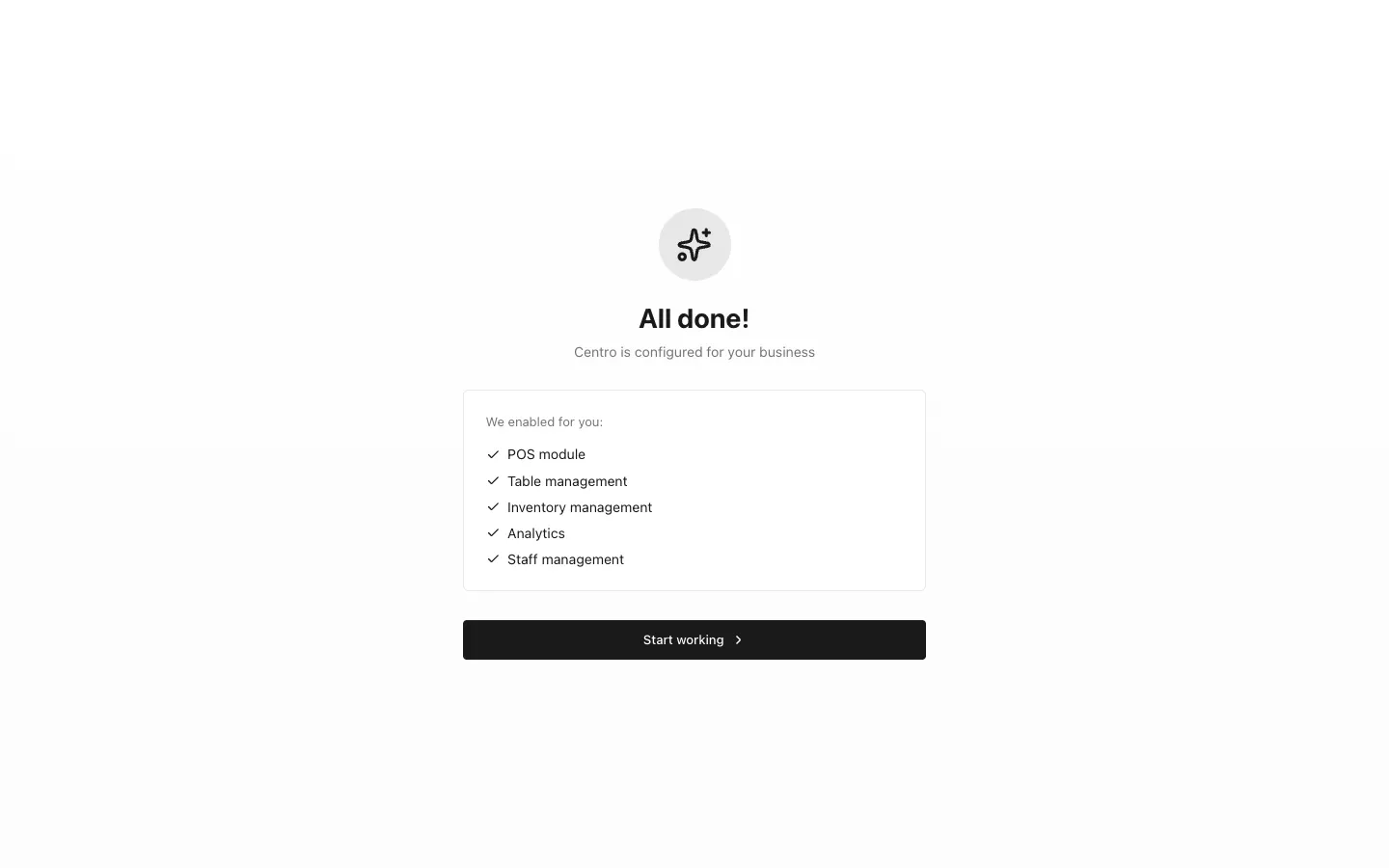
- After question 5 the «All done!» screen appears — press «Start working».
Tip: If the answers cannot be saved, the «Failed to save onboarding» message appears and the question stays on screen — try again without reloading the page.
The five questions #
Business type, how guests are served, number of locations, stage and priorities.
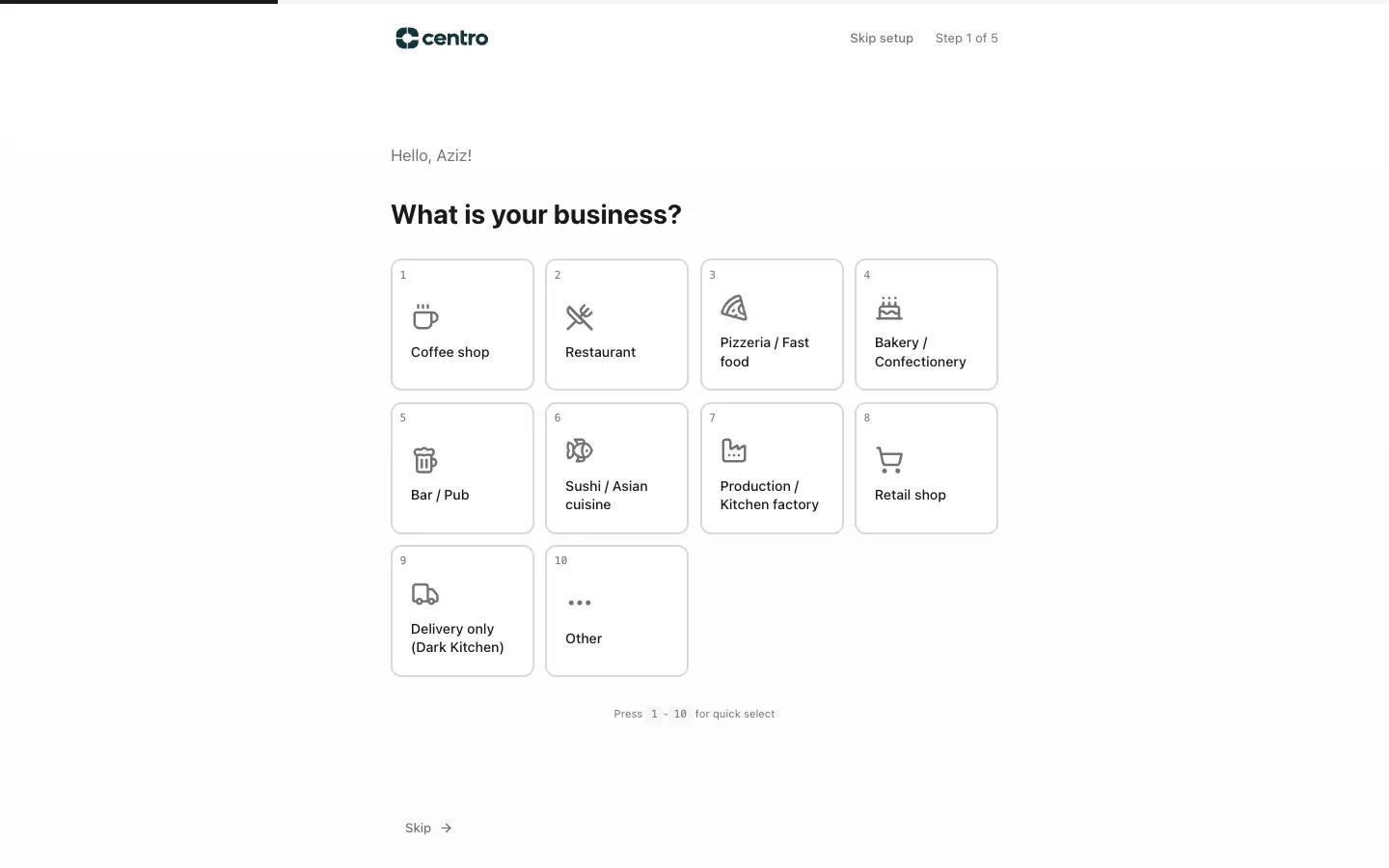
- 1. «What is your business?»
- One answer: «Coffee shop», «Restaurant», «Pizzeria / Fast food», «Bakery / Confectionery», «Bar / Pub», «Sushi / Asian cuisine», «Production / Kitchen factory», «Retail shop», «Delivery only (Dark Kitchen)», «Other». Picking a card moves on to the next question.
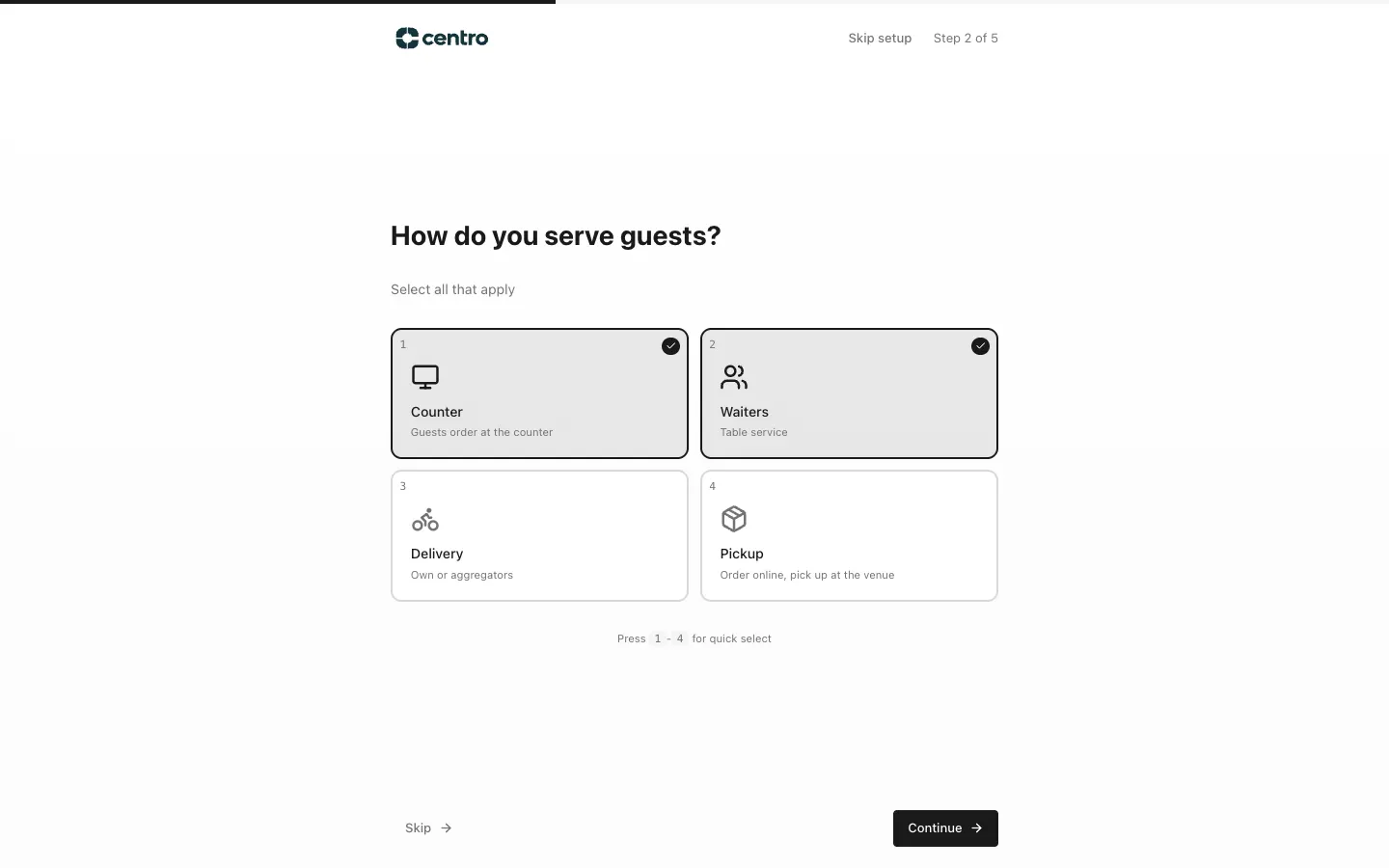
- 2. «How do you serve guests?»
- Several answers («Select all that apply»): «Counter» (guests order at the counter), «Waiters» (table service), «Delivery» (own or aggregators), «Pickup» (order online, pick up at the venue). Pick at least one and press «Continue».
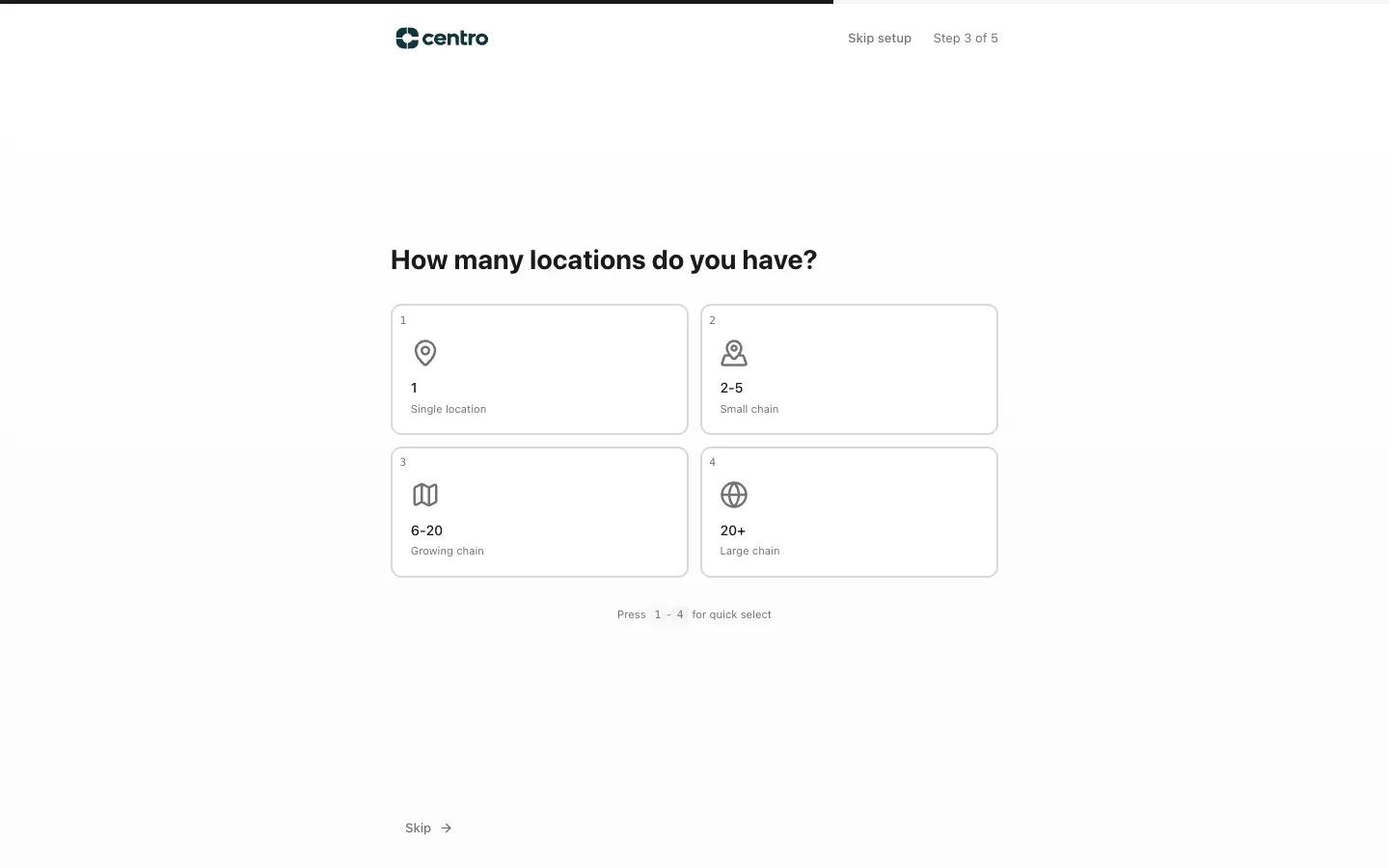
- 3. «How many locations do you have?»
- One answer: «1» (single location), «2-5» (small chain), «6-20» (growing chain), «20+» (large chain).
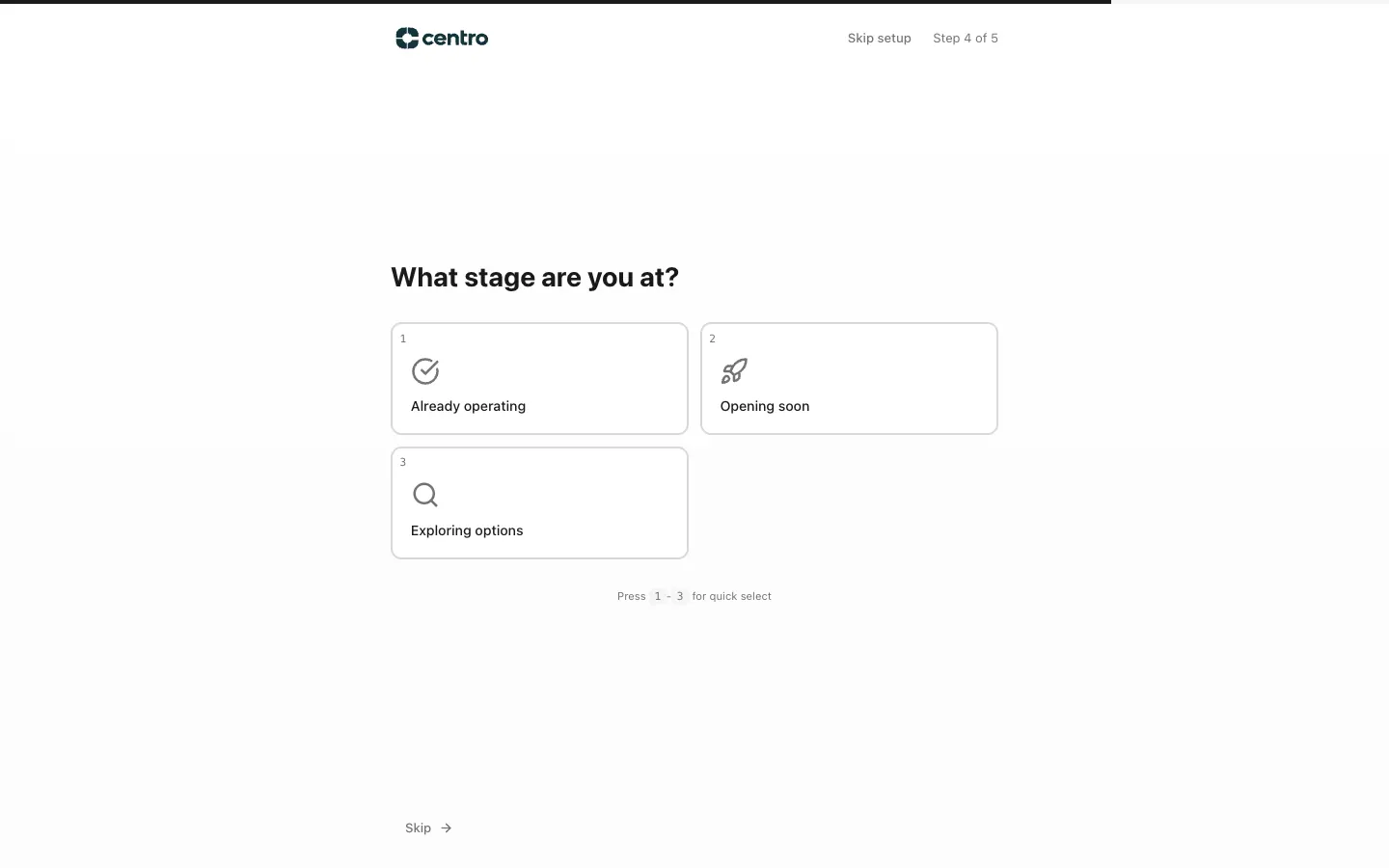
- 4. «What stage are you at?»
- One answer: «Already operating», «Opening soon», «Exploring options».
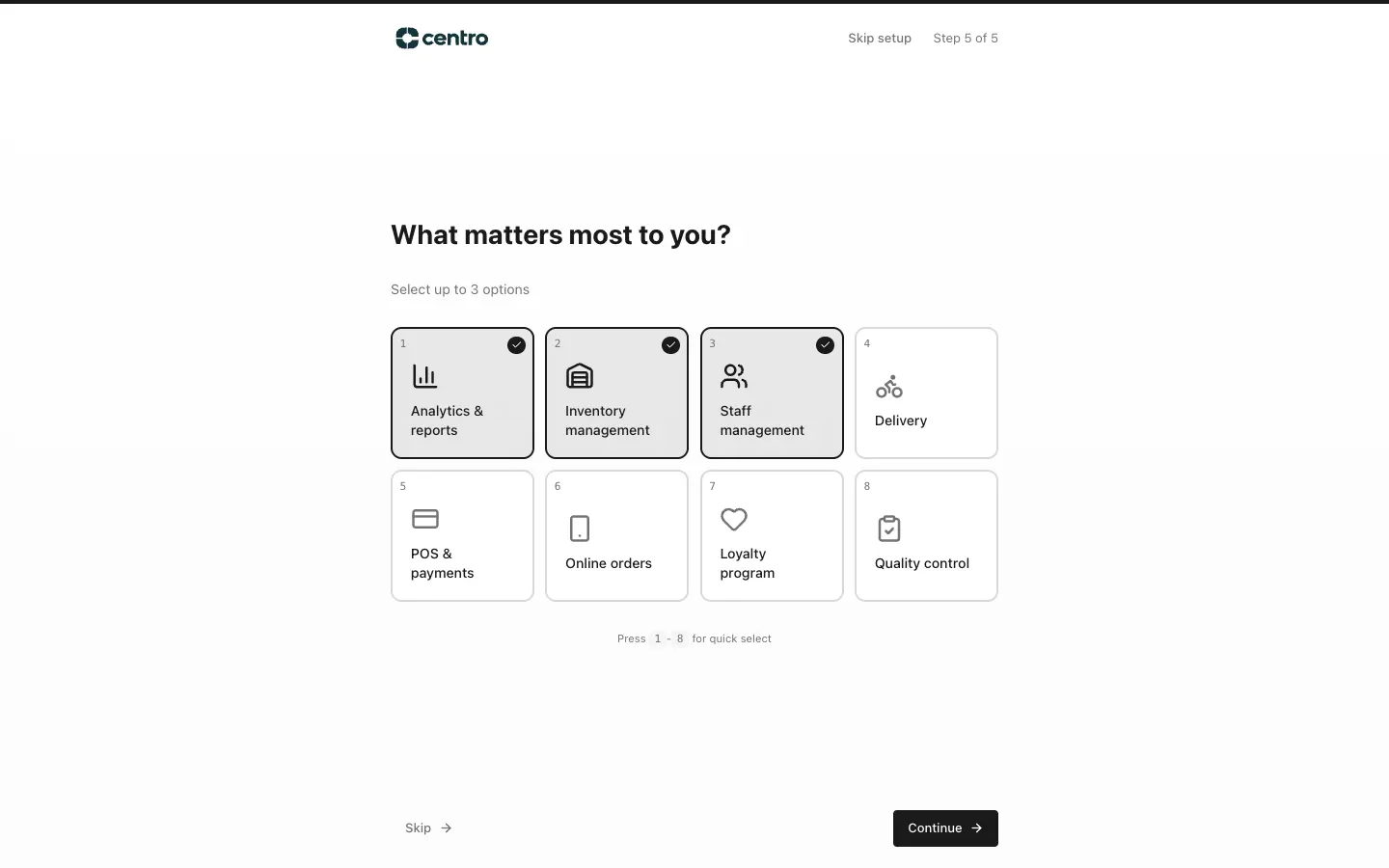
- 5. «What matters most to you?»
- Up to three answers («Select up to 3 options»): «Analytics & reports», «Inventory management», «Staff management», «Delivery», «POS & payments», «Online orders», «Loyalty program», «Quality control». Picking a fourth one drops the one picked first. This is the last step: «Continue» saves the answers.
Tip: There are no right or wrong answers: they are stored in the organization settings and help the Centro team understand your business. They do not restrict access to any section.
A store picks «Retail shop» in the first question. The questions use restaurant wording («guests», «waiters») — for a store the answers are «Counter» and, if needed, «Delivery» and «Pickup». The organization type (store) is chosen not here but on the registration page, and the questionnaire does not change it.
A car wash picks «Other» in the first question and «Counter» as the service type. The questionnaire does not turn on car-wash mode (the car plate on orders): Centro support switches it on in the organization settings.
Choosing, skipping and keys #
How steps advance, the difference between «Skip» and «Skip setup», keyboard shortcuts.
- Header
- The Centro logo, the «Skip setup» button and the counter, e.g. «Step 1 of 5». The thin bar at the top edge of the screen is the progress.
- Answer cards
- Each card shows its number in the top-left corner. The selected card gets a frame and a check mark. In a single-answer question the choice opens the next step at once; in a multiple-answer question clicking again clears the choice.
- «Skip»
- The bottom-left button: leaves the current question unanswered and moves to the next one. On the last step it also saves the answers.
- «Continue»
- Appears only in the multiple-answer questions (2 and 5) and stays disabled until at least one answer is picked.
- «Skip setup»
- Without waiting for the remaining questions, saves the answers picked so far and finishes the setup — just like the last step.
- Keyboard
- Keys 1–9 pick a card (the «Press 1-N for quick select» hint at the bottom), Enter works as «Continue» in a multiple-answer question, Esc as «Skip».
Important: There is no «Back» button: you cannot return to a previous question. On the last step Esc and «Skip» also save the answers at once, and once saved the questionnaire does not open again.
What is saved and what comes next #
The «All done!» screen, the «We enabled for you:» list, what the server creates and waiting for activation.
On saving, the server
- stores the answers in the organization settings and marks the setup as finished;
- creates the head branch named after the organization with the code «MAIN», if there is none yet — venues are created inside it later;
- restarts the «getting started» progress (venue → warehouse → attaching the warehouse to the venue).
The «We enabled for you:» list
- «POS module»
- Always.
- «Table management»
- If «Waiters» was picked in question 2.
- «Delivery module»
- If «Delivery» was picked in question 2 or 5.
- «Inventory management», «Analytics», «Staff management», «Loyalty program»
- For the matching priority from question 5.
Important: This list is a summary of recommendations based on your answers, not a separate switch. Which sections appear in the menu is decided by the plan and add-ons («Billing» → «Plans»), the apps in «Apps» and the permissions of the employee’s position — see the «How to turn the section on» topic in each group.
After «Start working»
- A new organization waits for activation by Centro: the waiting page opens, where you can check the status. If the organization is already active, the admin panel opens right away.
- After activation the «getting started» block on the «Dashboard» and the numbers in the menu (1 — venue, 2 — warehouse, 3 — attaching) show what to do next.
Can it be done again #
The questionnaire is taken once; whatever was skipped is set up in the regular sections.
Once the answers are saved, the /onboarding address no longer opens the questionnaire: an active organization is redirected to the admin panel, one not yet activated to the waiting page. The answers cannot be changed from the admin panel — and there is no need, since they restrict nothing.
Where to set up what you skipped
- Venues and service types (delivery, takeout, dine-in) — «Access» → «Venues».
- Tables and the hall layout — «Floor plan» (from the venue’s «Dine-in» tab).
- Plan, add-ons and apps — «Billing» → «Plans» and «Apps».
- Employees and their permissions — «Access» → «Employees» and «Positions».
Once the organization is activated, the remaining required setup is shown in the «Get started with Centro» checklist on the dashboard — it checks the steps from the data by itself and opens the right section for each. See «Dashboard» → «Get started with Centro».
Tip: The questionnaire language is the one chosen on the registration or login page (it is kept in the browser). To change the organization type (restaurant or store) or turn on car-wash mode, contact Centro support.