From a number to the orders
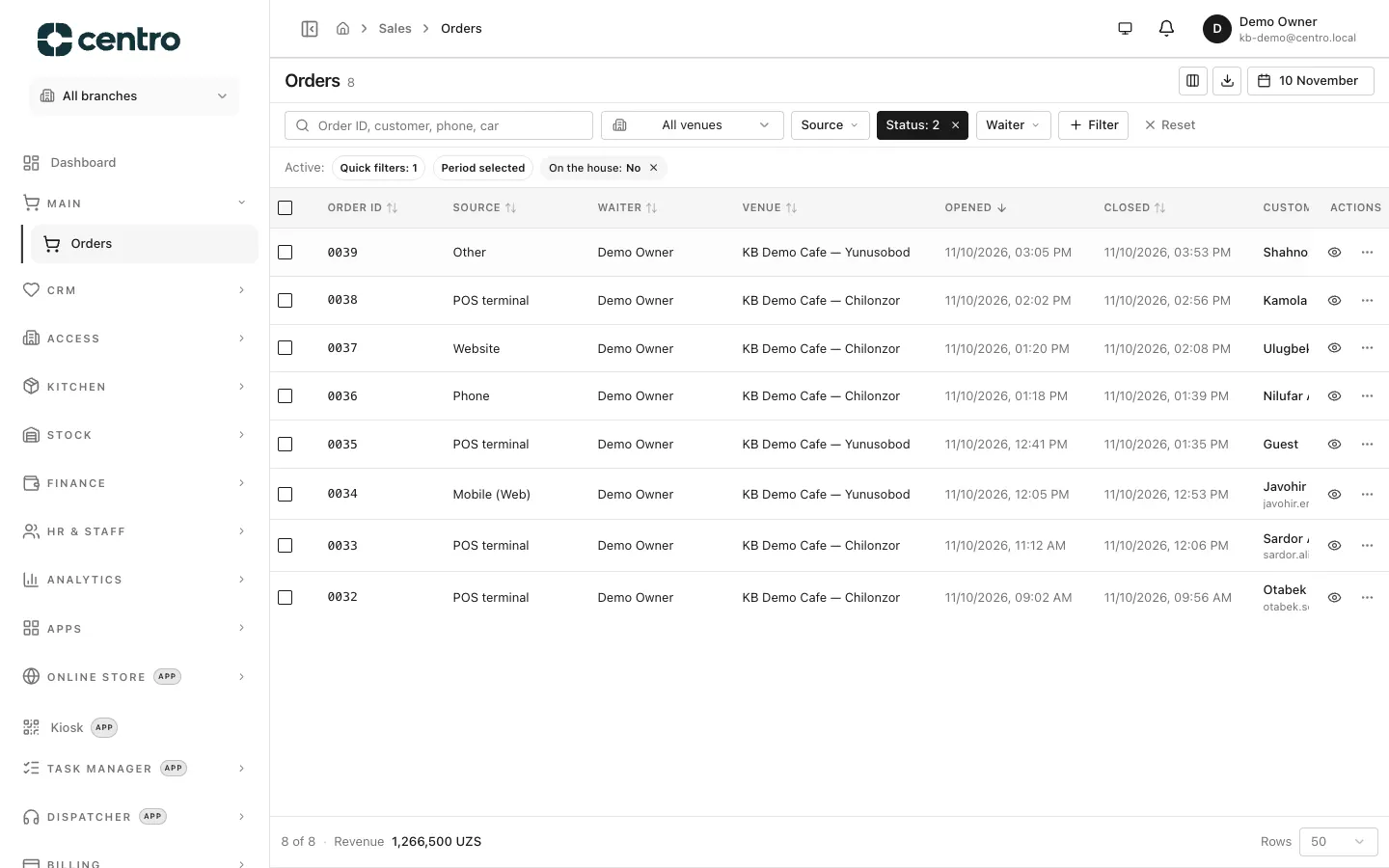
Dashboard numbers open «Orders» with the same period, venue and conditions — you see which orders make up the number.
Clickable places highlight on hover (from the keyboard — Enter or Space). A click opens «Orders» with the dashboard’s period and venue and with the filters the number was calculated by.
What opens
- «Revenue», «Average check»
- Completed and delivered orders (the «Status» quick filter) plus «On the house: No» — orders closed on the house are left out.
- «Orders»
- All orders of the period, with no status filter.
- «Completion»
- Completed and delivered orders.
- «Order status» rows
- «Completed» — completed and delivered; «In progress» — every open status from draft to «On the way» (new, awaiting confirmation, awaiting payment, preparing, ready, courier assigned, etc.); «Problems» — cancelled, returned, refunded and rejected.
- «Sales channels» rows
- The «Revenue» filters plus the channel: for «Dine-in», «Takeaway», «Delivery», «Curbside» — an order-type filter «Delivery: …», for Yandex Eats and Uzum Tezkor — the «Source» filter.
- «Venue performance»
- The card — all of the venue’s orders; «Sales» — its «Revenue» orders; the labels under the status bar — that group of the venue’s orders.
How to check a number
- Choose the period and venue on the dashboard.
- Click the number, for example the «Revenue» card.
- In «Orders» look at the «Active:» row: «Quick filters: N», «Period selected» and the added filters (e.g. «On the house: No»). «Revenue» in the footer matches the card’s number.
- Go back to the dashboard with the browser’s Back button — the period is kept.
Tip: The period is passed by order creation time — the dashboard counts the same way. If the dashboard is on «All time», no period filter is set. The channel filter «Delivery: …» comes only from the dashboard: you can remove it with ✕, but it is not in the «Filter» list (it looks at the order type, while the regular «Delivery» filter looks at the fulfilment method).
Important: The dashboard venue (or the venue card you clicked) is written into the venue selector of the «Orders» page and stays there next time too. To see all orders again, choose «All venues» there; «Reset» clears the filters and the period.