Invoice history
All invoices and payments: statuses, due dates, payment attempts, refunds and documents.
Open in the admin panel/billing/history The page has two tabs: «Invoices» and «Payments». An invoice says what and how much you owe Centro (plan, module, renewal). A payment is each attempt to pay an invoice (successful or not). On the right: the number of invoices and how many are due, the test-mode label and a shortcut to payment methods (the card icon).
How to open
- In the sidebar click Billing → Billing history.
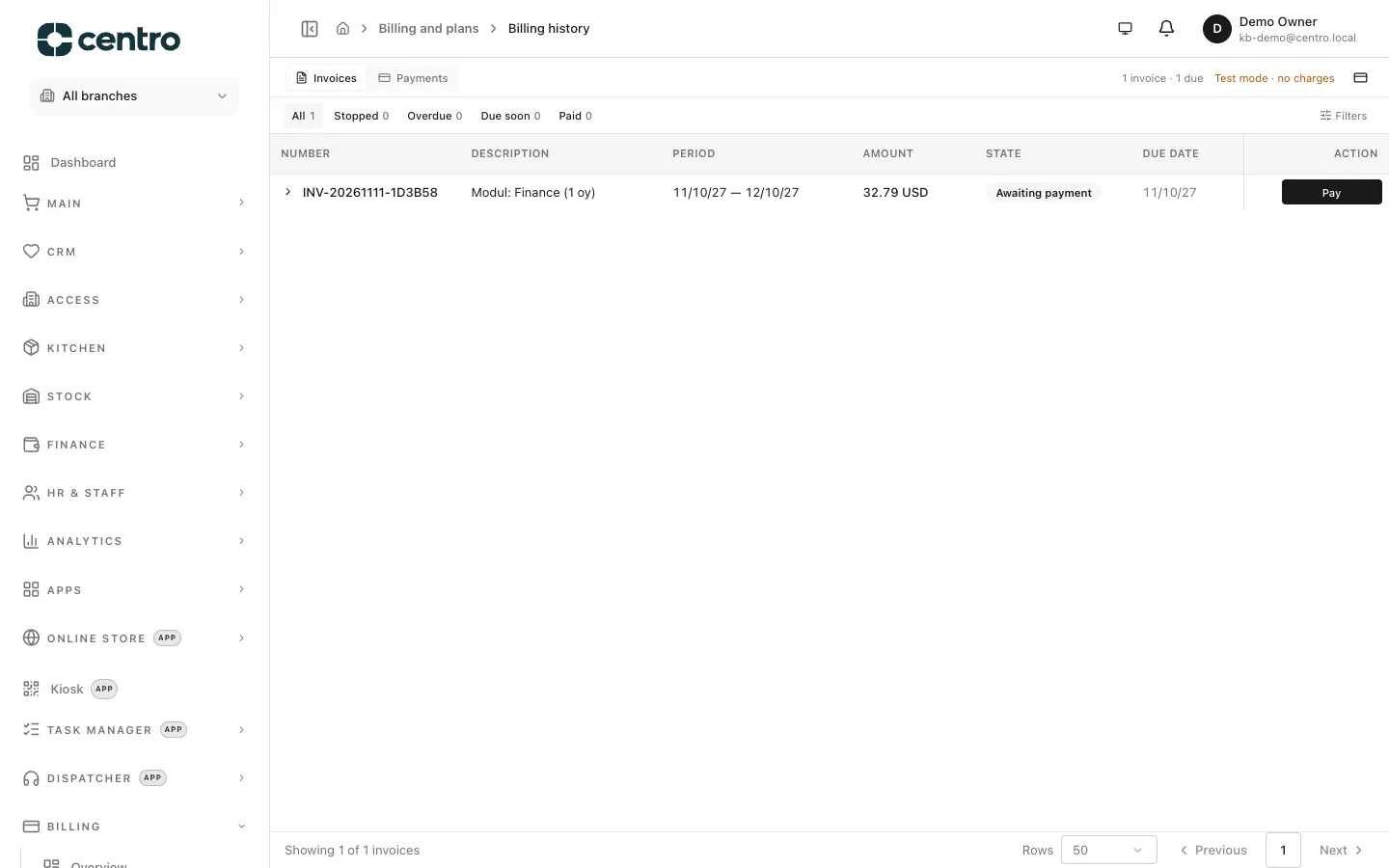
Invoice table columns
- «Number»
- A number like INV-YYYYMMDD-…. The arrow on the left (or clicking the row) expands the payment attempts.
- «Description»
- Text written by the server, e.g. «Modul: Finance (1 oy)».
- «Period»
- The period the invoice pays for (start — end).
- «Amount»
- The total including VAT; hover to see the VAT amount.
- «State»
- For unpaid invoices: «Due soon» (≤ 3 days before the period starts, or today), «Overdue» (within the 3 grace days), «Stopped» (grace is over — access stopped). Otherwise the invoice status: «Awaiting payment», «Paid», «Payment failed», «Voided».
- «Due date»
- For unpaid invoices — the period start date (hover for the stop date); for paid ones — the payment date.
- «Action»
- «Pay» (payment page), «Documents» for paid ones (invoice page and PDF), «Details» for the rest.
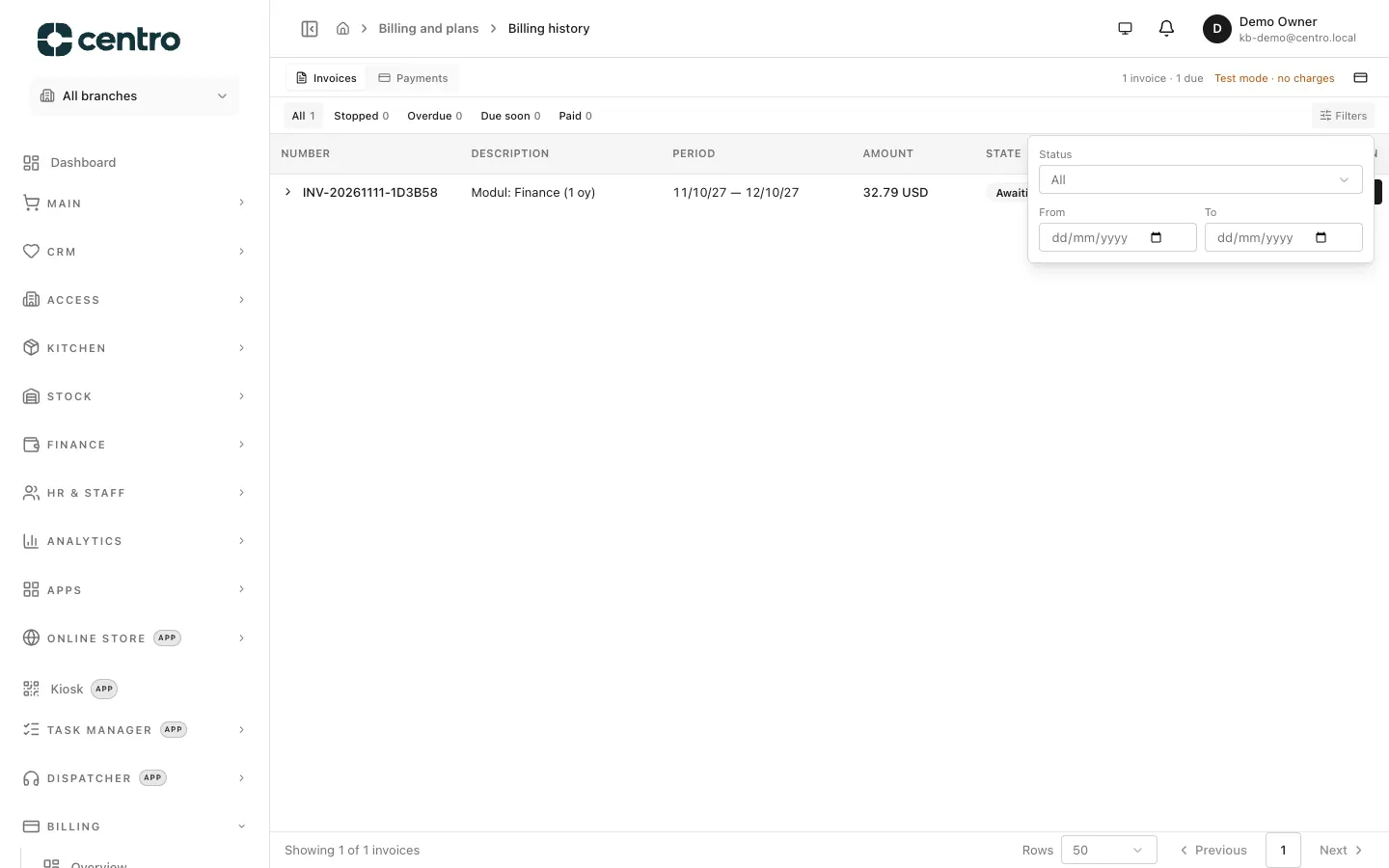
Above the table: quick filters «All», «Stopped», «Overdue», «Due soon», «Paid» (each with a count). «Filters» opens a panel with the status and «From» / «To» dates (by invoice creation date); «Reset» clears them. The list is sorted by urgency: stopped and overdue first, then upcoming, then paid.
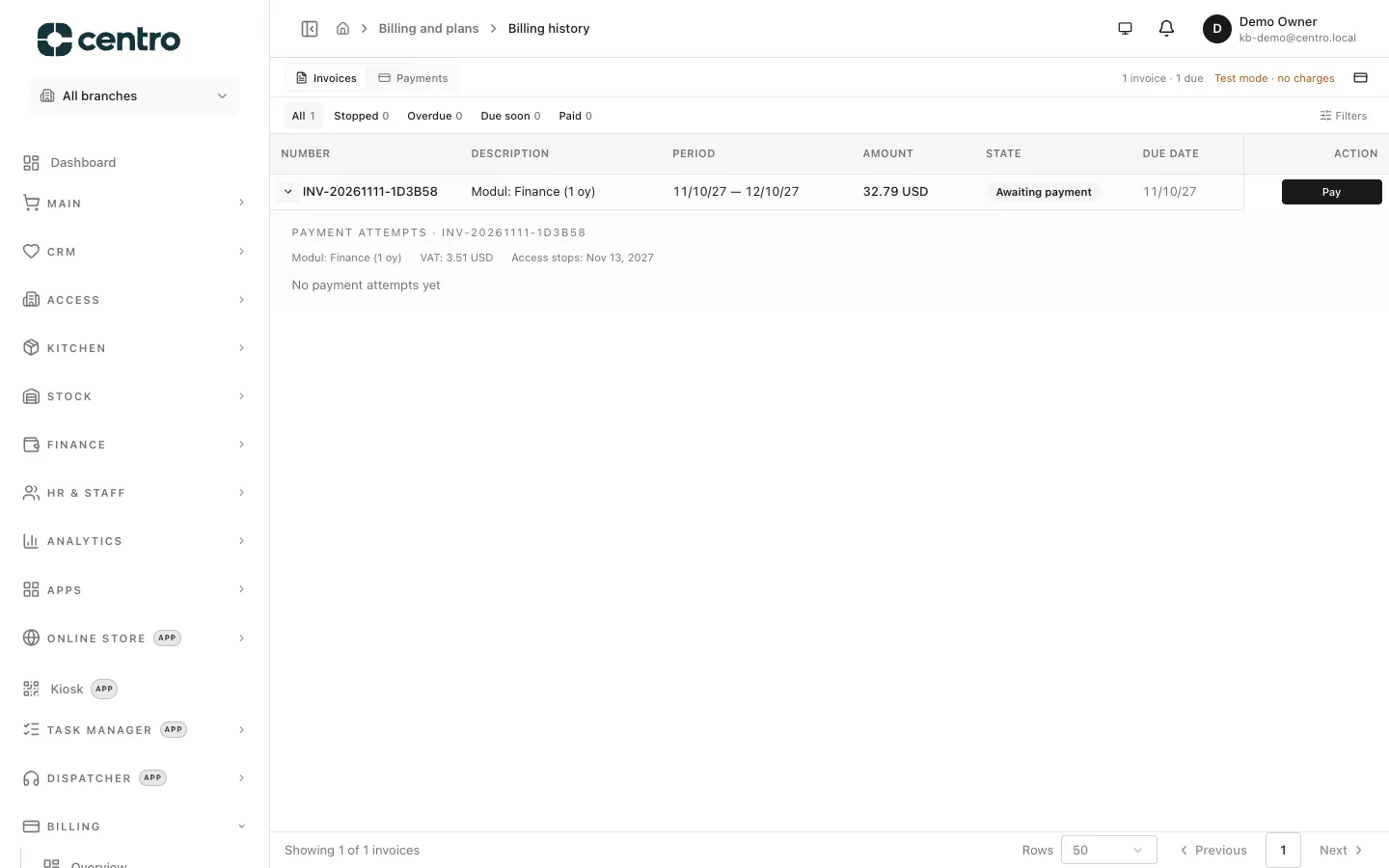
An expanded row shows the description, VAT, the provider document number, «Access stops: …» for unpaid invoices, and «Payment attempts» — time, card (or method), amount, status and the failure reason in plain words.
The «Payments» tab
- Columns
- «Date», «Invoice», «Description», «Method» («Bank card», «Click», «Payme», «Plum (Uzcard)», «Manual», «Cash», «Bank transfer»), «Amount», «Status», «Action» («Receipt» for paid, «Invoice» for the rest).
- «Refunds N»
- Appears when there were card refunds: amount, date, status («Refund completed», «Accepted by the payment system», «Refund failed», «Refund is being processed»), an «Original invoice» link and «Retry» / «Check».
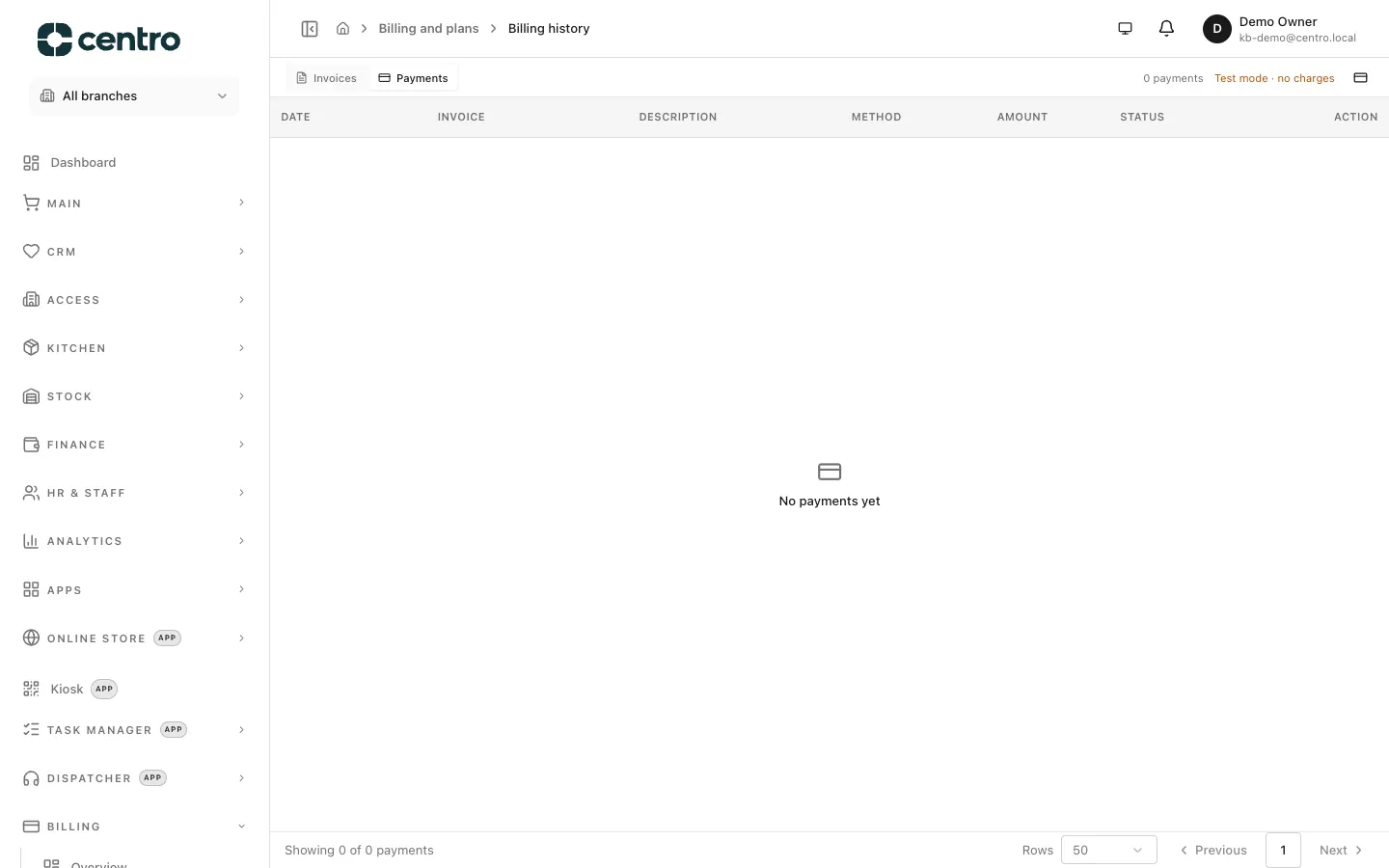
Tip: Nothing has been paid in the demo organization, so «Payments» is empty («No payments yet») and the invoice has no attempts. After the first payment you will see the attempt, a «Receipt» button, the card and the transaction number here, and the invoice becomes «Paid».
How to pay an invoice #
A saved card, a new card that is saved, or a one-time payment; the Airwallex tab, waiting and the result.
The «Pay invoice» page opens from any «Pay» button (overview, history, invoice page, after choosing a plan or module). On the left — the «Payment» options; on the right — «Invoice details»: plan/service, «Term being paid» (for several periods), «Period», «Subtotal», «VAT (12%)», «Total», «Pay by …» and the «Pay …» button.
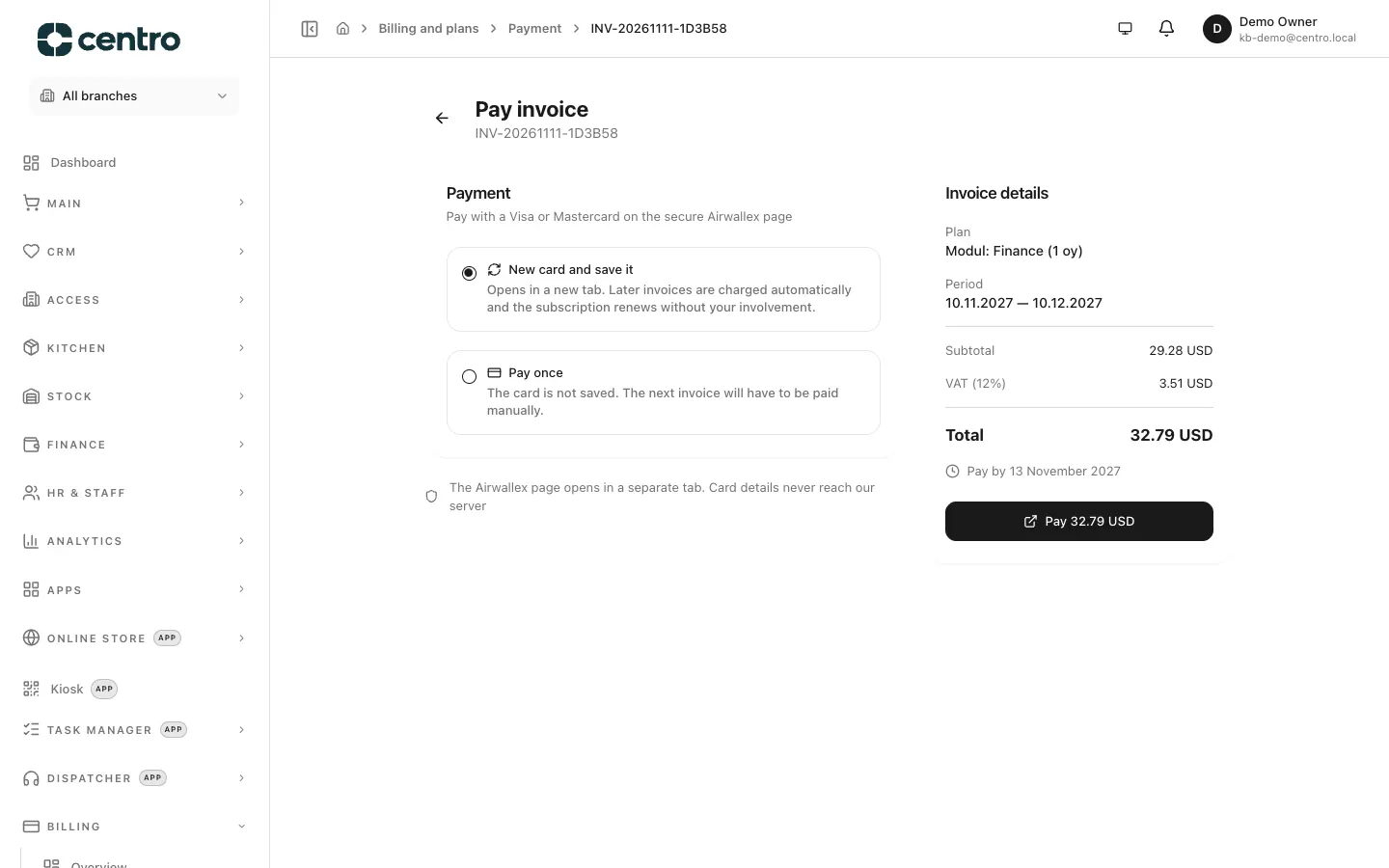
Payment options
- A saved card
- Each saved card is a separate option (marked «default»). It is charged immediately, without the payment page. If there is a card, it is selected by default.
- «New card and save it» / «Another card and save it»
- The Airwallex page opens in a new tab; the card is saved and later invoices are charged automatically — the subscription renews without you. Selected by default when there are no cards.
- «Pay once»
- The card is not saved; the next invoice has to be paid manually again.
Paying with a new card
- Pick the option and press «Pay …». The secure Airwallex page opens in a new tab (Visa or Mastercard). Card details never reach the Centro server.
- The admin tab shows «Waiting for payment». In the Airwallex tab enter the card details and confirm with 3-D Secure. If the Airwallex tab was closed — «Open Airwallex».
- Once the payment is confirmed, the page moves to the receipt (the invoice page) by itself and the plan or module is activated right away. You can close the Airwallex tab.
Other situations
- If the last attempt failed, the waiting screen says «The last attempt failed» — reopen the payment page or pick another card. The reasons appear in the history («Insufficient funds on the card», «The bank declined the charge», etc.).
- If the confirmation is late, the page stays on «Waiting for payment» and keeps checking the payment status by itself. You can stop waiting with «Cancel» — if the payment went through in Airwallex, the invoice still becomes paid; check the result later in «Invoice history».
- «The invoice is already paid» — «View receipt»; «The invoice cannot be paid» — it was voided or replaced by a new one, choose the plan again.
- With a saved card, the «Charge the card» button on the overview pays the first unpaid invoice without the payment page.
Important: In the demo environment Airwallex is in test mode — no real money is charged. In a working organization «Pay …» starts a real payment.
The Airwallex payment tab #
The helper tab that opens when you pay with a new card: the hop to Airwallex and the messages on return.
When you press «Pay …» with «New card …» or «Pay once», the browser opens a new tab and sends it straight to Airwallex’s secure card form. After the payment Airwallex sends this tab back to Centro, where a short message appears; meanwhile the main admin tab watches the invoice status and opens the receipt by itself once the payment is confirmed.
Messages in the tab
- «Opening the secure Airwallex page…»
- A one-second transition screen — then the Airwallex form opens.
- «Payment submitted»
- The card details were accepted. The tab closes by itself after about a second (if not — «Close tab»); the result appears in billing.
- «Payment not completed»
- The payment was cancelled or declined by the bank. Close the tab and try again from the invoice payment page (or choose another card).
- «Could not open the payment»
- The Airwallex page could not be prepared. For an old invoice you see «This old invoice cannot be paid by card. Create a new invoice in USD.» — choose the plan or module again to get a new invoice.
Important: Do not bookmark or reopen this tab’s link: opened without a result mark it creates a new payment attempt in Airwallex. Always start a payment from the «Pay …» button on the invoice payment page.
The invoice page, receipt and official documents #
Invoice details, the receipt after payment, the Airwallex PDF invoice and printing.
The invoice page opens from «Documents» / «Receipt» in the history, or by itself after a payment. In the middle: the amount, «Paid» or «Amount due» and the status badge. Below are cards: «Invoice number», «Payment system number» (if different), «Service», «Period» (monthly/yearly and dates), «Locations», «Invoice date»; a paid invoice also shows «Payment method» (which card paid) and «Transaction». Then the price lines, «Amount excl. VAT», «VAT (12%)» and «Total».
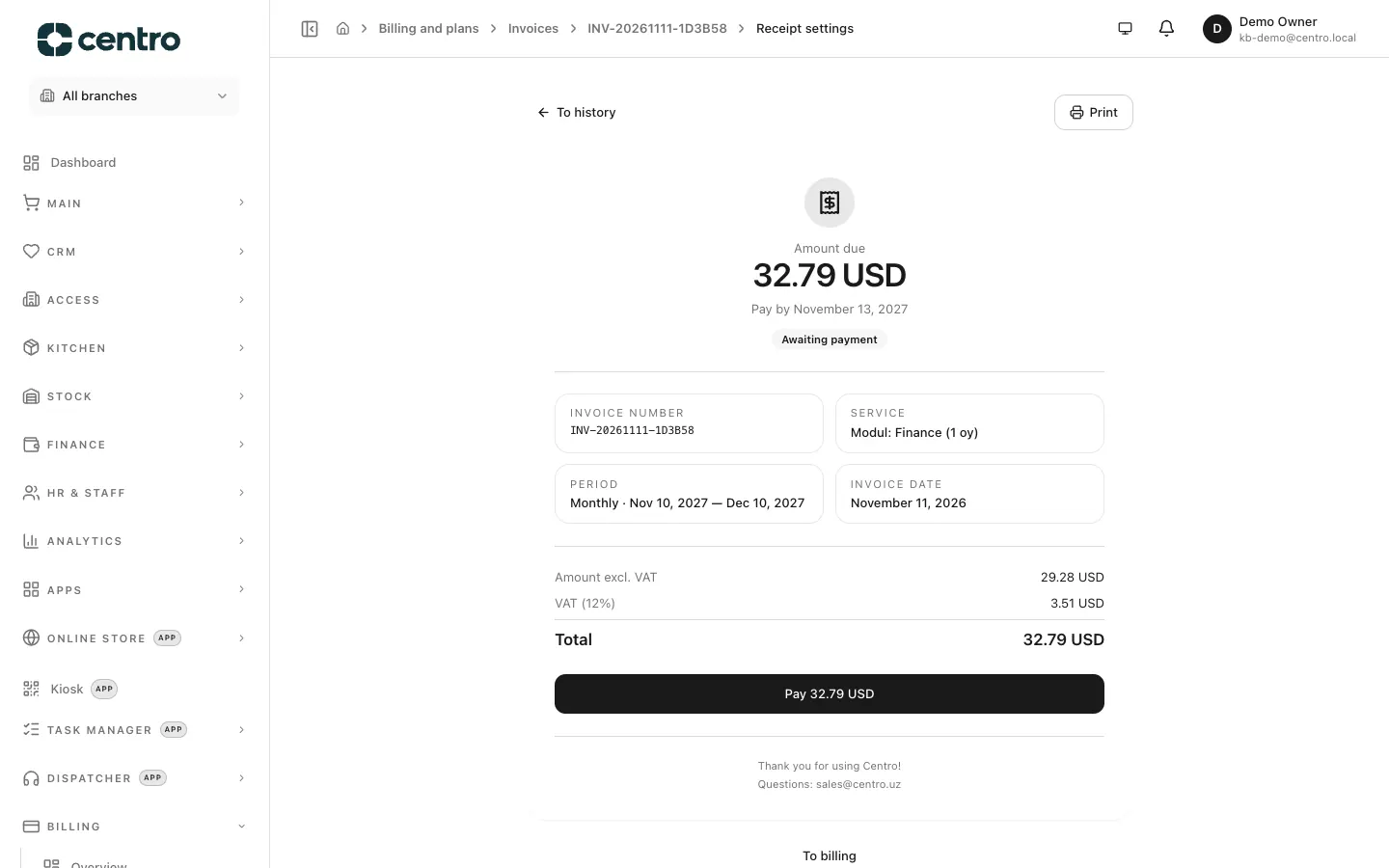
- An unpaid invoice has a «Pay …» button at the bottom — it opens the invoice payment page.
- After payment a green «Payment successful» block appears. The «Official invoice» section gets the tax invoice issued by Airwallex: «Generating» for a few seconds, then «PDF» and «Open», plus «Download invoice (PDF)» and «Open online» at the top.
- «Print» prints only the invoice card (no menu or buttons) — a fallback while the official PDF is not ready.
Invoices on the «base + modules» tariff #
Lines for part of a month, licence lines and interim licence invoices.
- The invoice page, the receipt and the payment page show the lines the same way as the checkout: for part of a month «for 16 of 30 days» and «full month …», with «Charged period: …» on top.
- A licence line says who it was charged for: «kind: name», for example «Waiter app: Aziz Karimov».
- If licence charges reach the threshold during the month, a separate invoice is raised: «Licence charges … – …» — «Licences assigned during the month, charged for the days left in it.». Otherwise these amounts go into the invoice of the 1st.