Payment methods
Saved cards for automatic subscription renewal: linking, the default card, removing.
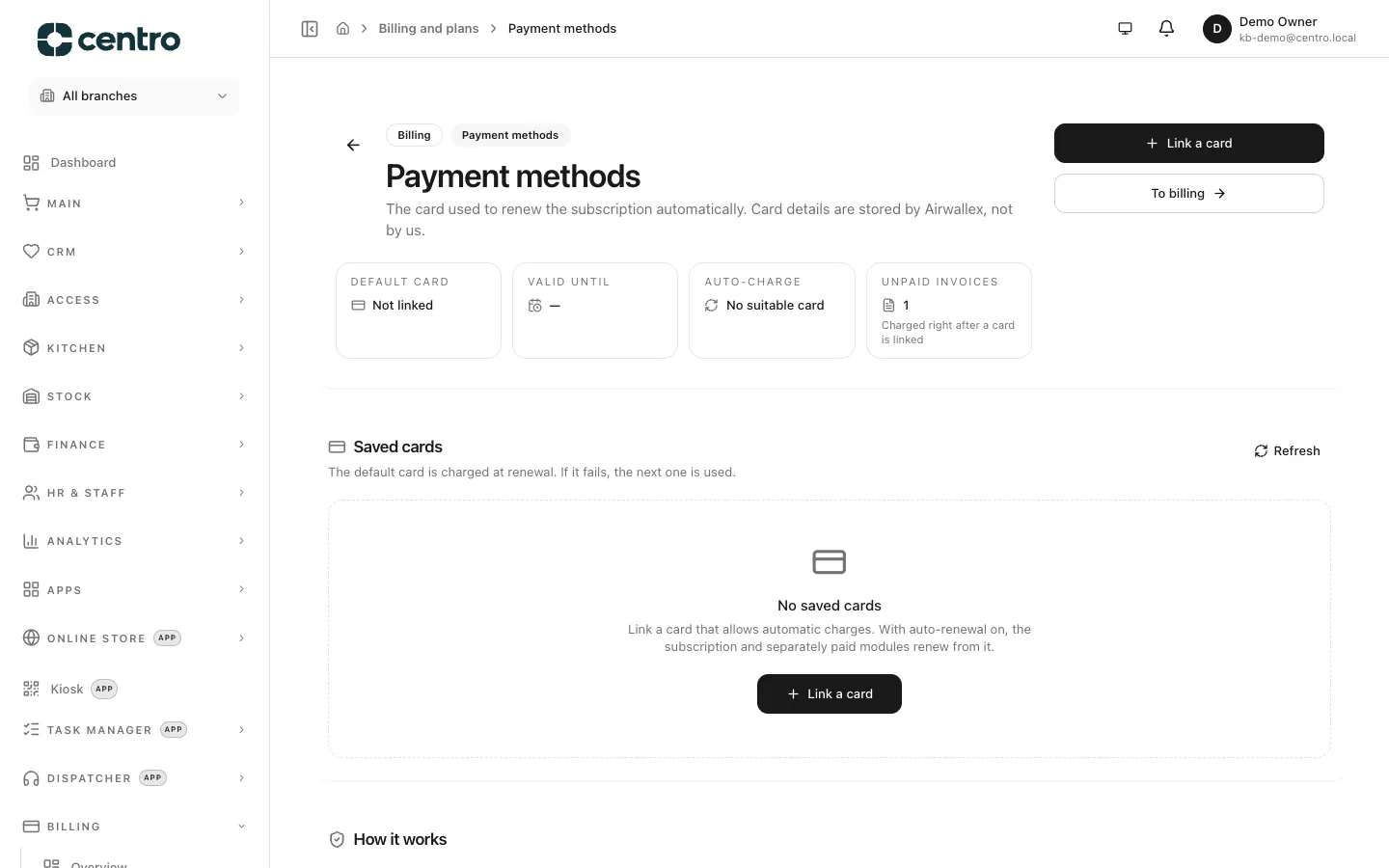
Open in the admin panel/billing/payment-methods This is where the bank cards that automatically renew the Centro subscription and separately paid modules are kept. Card details are held by Airwallex — Centro only knows the provider token. At the top are four tiles: «Default card», «Valid until» (card expiry), «Auto-charge» («Card ready», «Test mode» or «No suitable card») and «Unpaid invoices» (charged right after a card is linked).
How to open
- In the sidebar click Billing → Payment methods (or the «Payment methods» button on the overview).
Linking a card
- Press «Link a card». The secure Airwallex page opens in a new tab and this page switches to «Waiting for card confirmation…».
- Enter the card details in the Airwallex tab. Airwallex verifies the card with 3-D Secure and a zero-amount check.
- After confirmation you see «Card linked» and the card appears under «Saved cards». If no confirmation arrives within 90 seconds, «Card confirmation has not arrived yet» and a «Refresh» button appear; if the bank has not confirmed yet, try again in a minute.
A saved card row
- Card and badges
- Scheme and last 4 digits, «Default», «Test mode»; when auto-charge is not possible — «Link again for auto-charge», «Consent disabled», «Check unavailable» or «No auto-charge». Below: «Valid until …».
- «Make default»
- At renewal the default card is charged first; if it fails, the next saved card is used.
- «Remove»
- After confirmation the card is removed. With no other card the subscription stops renewing automatically — the next invoice must be paid manually. The card shown on already paid invoices stays.
The «How it works» block is a short reminder: Airwallex verifies the card, card details never reach Centro servers, the renewal charge happens on the period end date, and receipts and PDF invoices appear in «Invoice history».
Tip: No card is linked in the demo organization, so you see «No saved cards» and «No suitable card». A card can only be added through the real Airwallex page; once linked it appears in this list, in the «Payment method» card on the overview and as the first option on the invoice payment page.