Plans
Plan cards: price, limits, app seats and features; comparison, choosing a term and add-on modules.
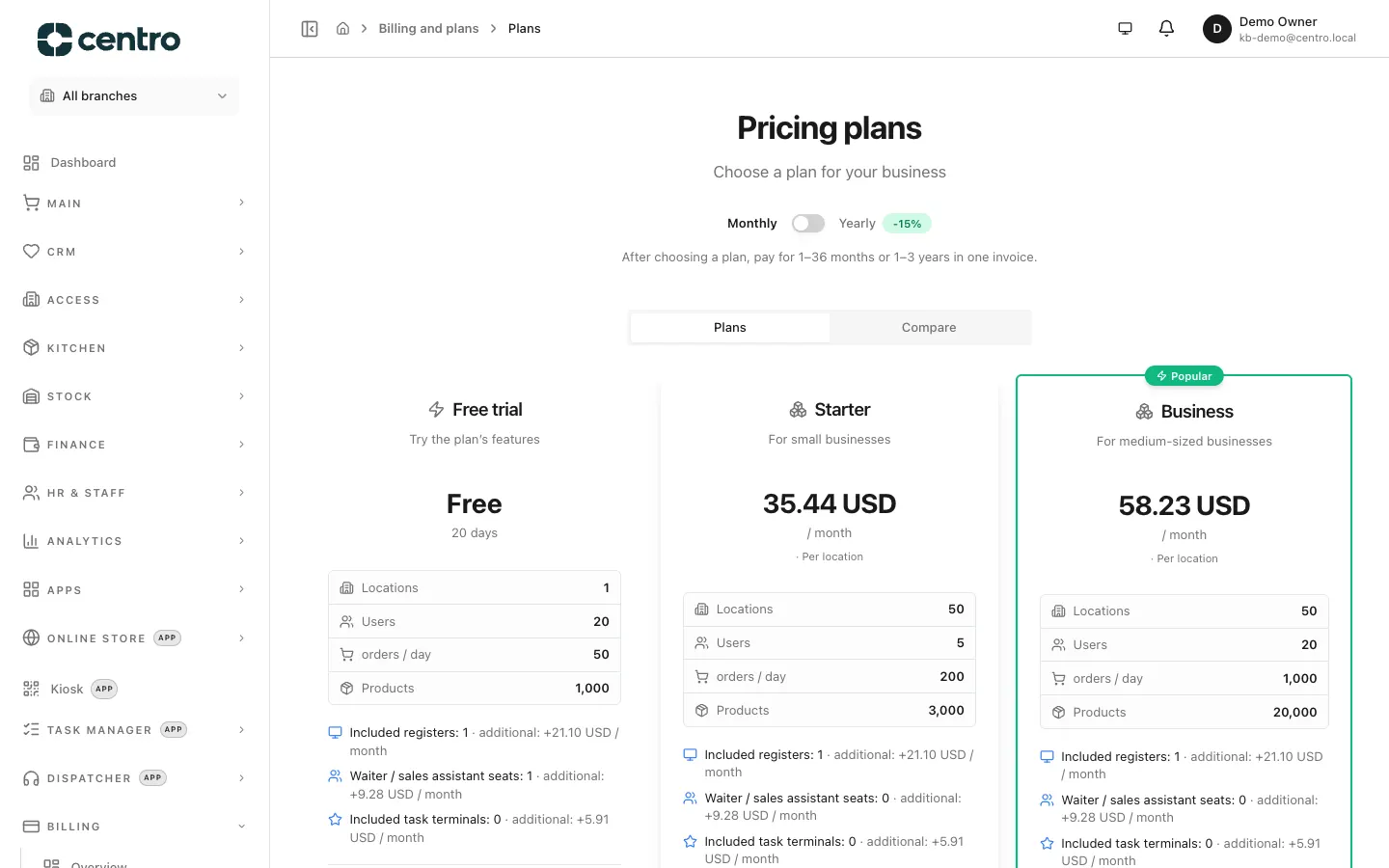
Open in the admin panel/billing/plans The page title is «Pricing plans». At the top: the «Monthly / Yearly» switch and a hint that after choosing a plan you can pay for 1–36 months or 1–3 years in one invoice. Below are two tabs: «Plans» and «Compare». There are four plans now: «Free trial», «Starter», «Business» («Popular») and «Enterprise». Prices are in US dollars, excluding VAT, usually per location.
How to open
- In the sidebar click Billing → Plans, or press «Change plan» on the overview.
Tip: This is how the page looks on the old plans. An organization on the «base + modules» tariff sees the «Your tariff» page here — see «The «Your tariff» page on the «base + modules» tariff».
What a plan card shows
- Badge at the top
- «Current plan · until …» («Trial period» on a trial), «Starts: …» (the plan a change is scheduled to) or «Popular». The current plan has a thick outline and tinted background, with «Your plan» under the price.
- Price
- The price for the selected period («/ month» or «/ year»), the «Per location» note, and «Savings … / year» on yearly billing. The trial shows «Free» and the number of days.
- Limits
- «Locations», «Users», «orders / day», «Products» — the maximum numbers (see «Limits»).
- App seats
- «Included registers», «Waiter / sales assistant seats», «Included task terminals» — how many devices are included and the price of each extra seat (per month).
- Features and the button
- The ✓ list — the sections included in the plan. The button: «Choose payment term» on paid plans (opens the quote dialog), «Start for free» on the trial («No payment card required»).
Tip: At the bottom: prices exclude VAT, 12 % VAT is added at payment; for a custom plan — «Contact us» (sales@centro.uz).
The «Your tariff» page on the «base + modules» tariff #
The base of your business type, «Devices and staff», modules and limit packs by calendar month.
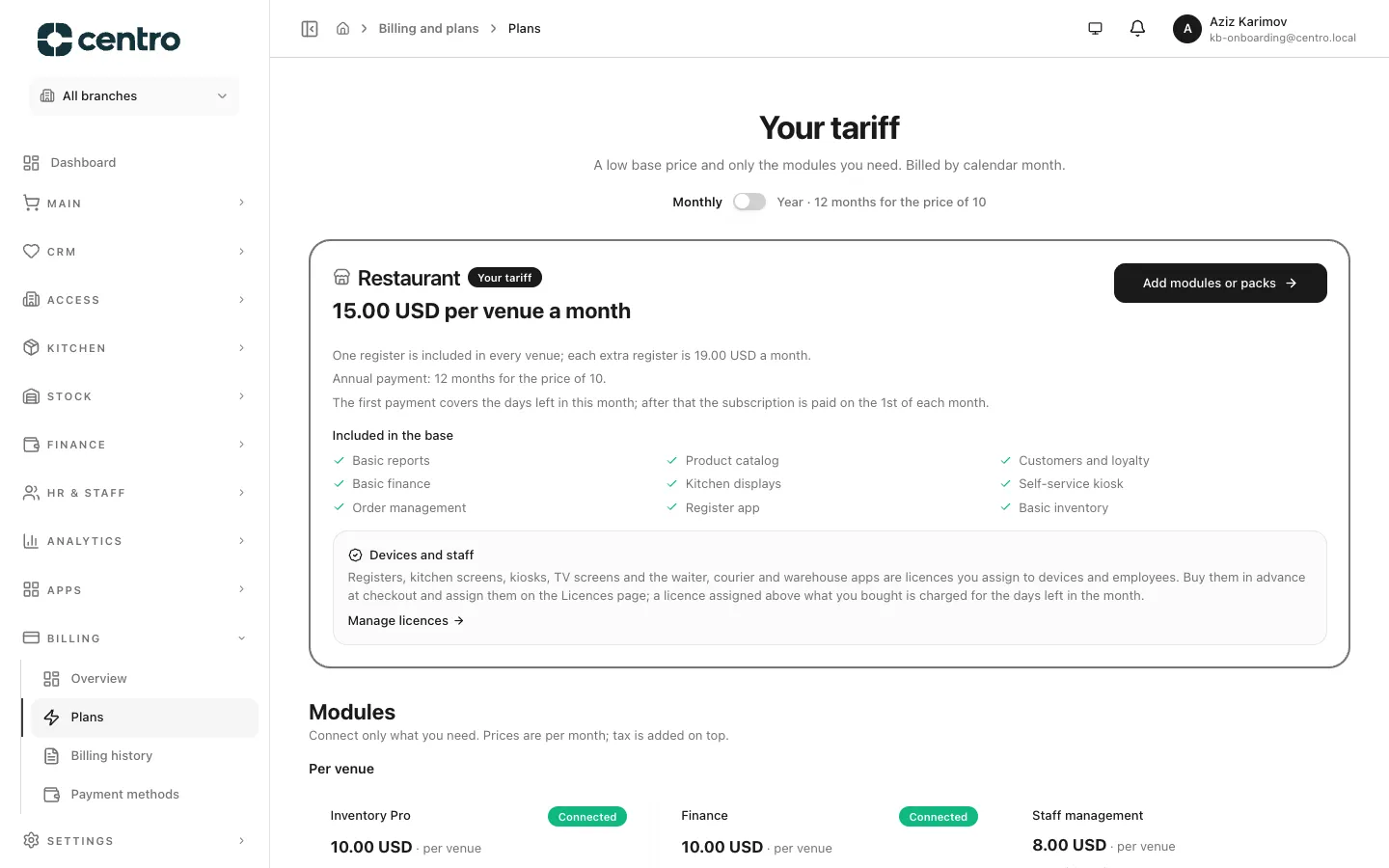
An organization on the new tariff sees the «Your tariff» page in Billing → Plans instead of plan cards: «A low base price and only the modules you need. Billed by calendar month.» At the top: the «Monthly» and «Year · 12 months for the price of 10» switch. During the trial an amber banner says «Free trial until … Every module is open during the trial.», afterwards a red one says «The free trial has ended. Choose your modules and pay to keep working.».
How to open
- In the sidebar click Billing → Plans, or press Choose your tariff in the trial banner on the overview (the checkout opens right away).
The base card
- Name and price
- «Restaurant» — «… per venue a month», or «Shop» — «… a month». On a paid tariff the «Your tariff» badge sits next to the name. Below: the registers line («One register is included in every venue…» / «The first register is included…»), the annual payment line and «The first payment covers the days left in this month; after that the subscription is paid on the 1st of each month.».
- «Included in the base»
- The sections included in the base at no extra cost.
- The button
- Choose modules and pay during the trial, Add modules or packs on a paid tariff — both open the checkout (see «The checkout on the «base + modules» tariff»).
- «Devices and staff»
- Registers, kitchen screens (restaurants only), kiosks, TV screens and the waiter (in a shop — seller), courier and warehouse apps are licences assigned to devices and employees. You can buy them in advance at checkout and assign them on the «Licences» page; a licence assigned above what you bought is charged for the days left in the month. The Manage licences link opens the «Licences» page.
Modules and packs
- «Modules»
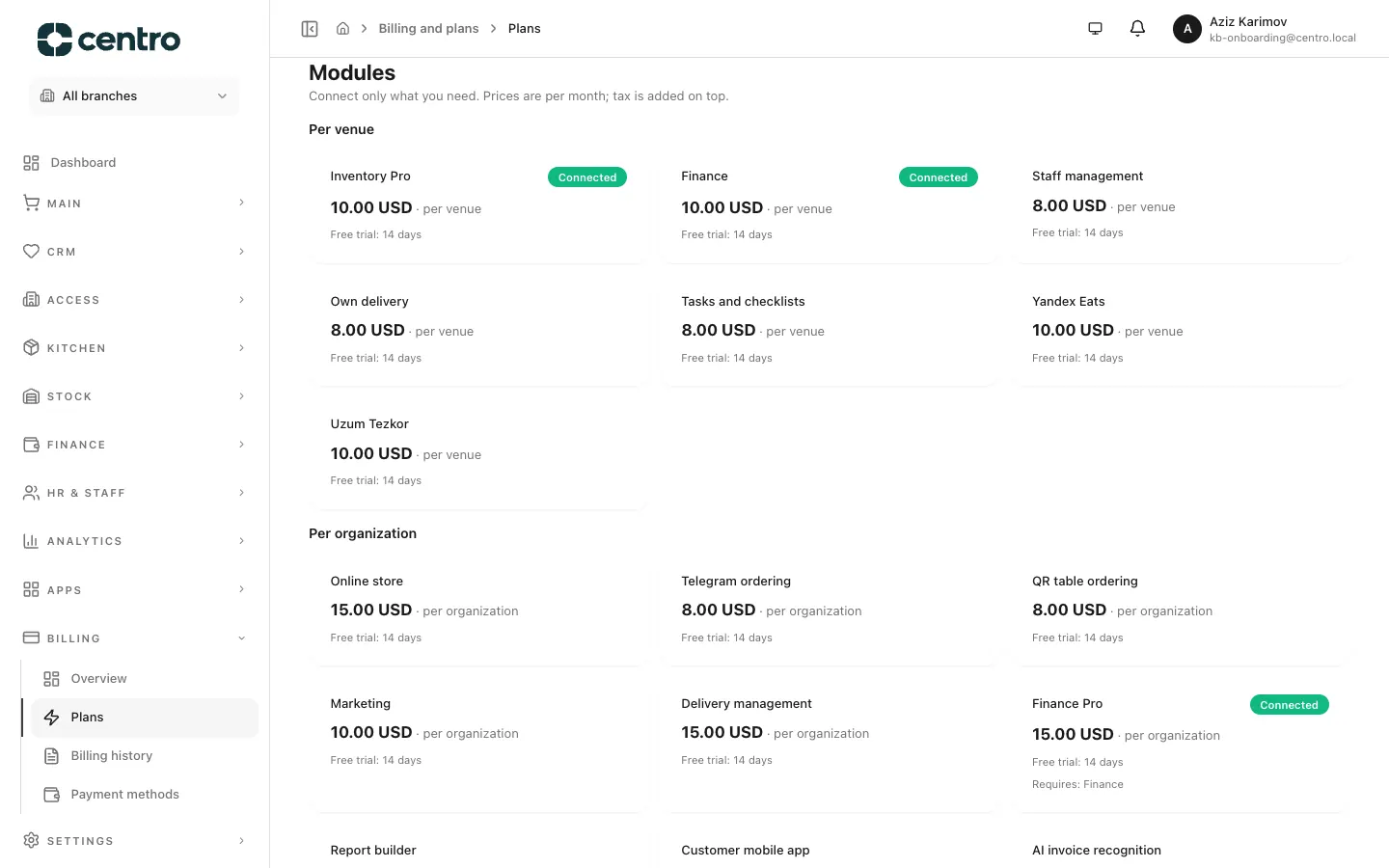
- Two groups: «Per venue» («Per shop» in a shop) — multiplied by the number of venues, and «Per organization» — once. A card shows the module name and its monthly price; a connected module has the «Connected» badge (not shown during the trial, where everything is open), and «Requires: …» names another module it needs that is not in the base. The standard levels in the base (for example «Finance Standard») are not sold here — they are listed under «Included in the base» on the plan card.
- «Limit packs»
- They raise a tariff limit for a monthly fee. Restaurant: «500 items», «Admin panel user»; shop: «500 products», «10 staff members», «20,000 customers». Packs are added in the checkout.
Tip: If the page says «This tariff cannot be bought in the admin panel yet. Write to sales@centro.uz.» instead of the base, no base is set up for your organization — write to sales.
The checkout on the «base + modules» tariff #
A month or a year, venues, modules, licences bought in advance and packs; the charge for the days left in the month.
The dialog opens from the base card button, Choose your tariff on the overview, Choose and pay on a module page or Buy pack in the limit strip (in the last two cases the module or pack is already added). The dialog only calculates: nothing changes until you press the pay button at the bottom.
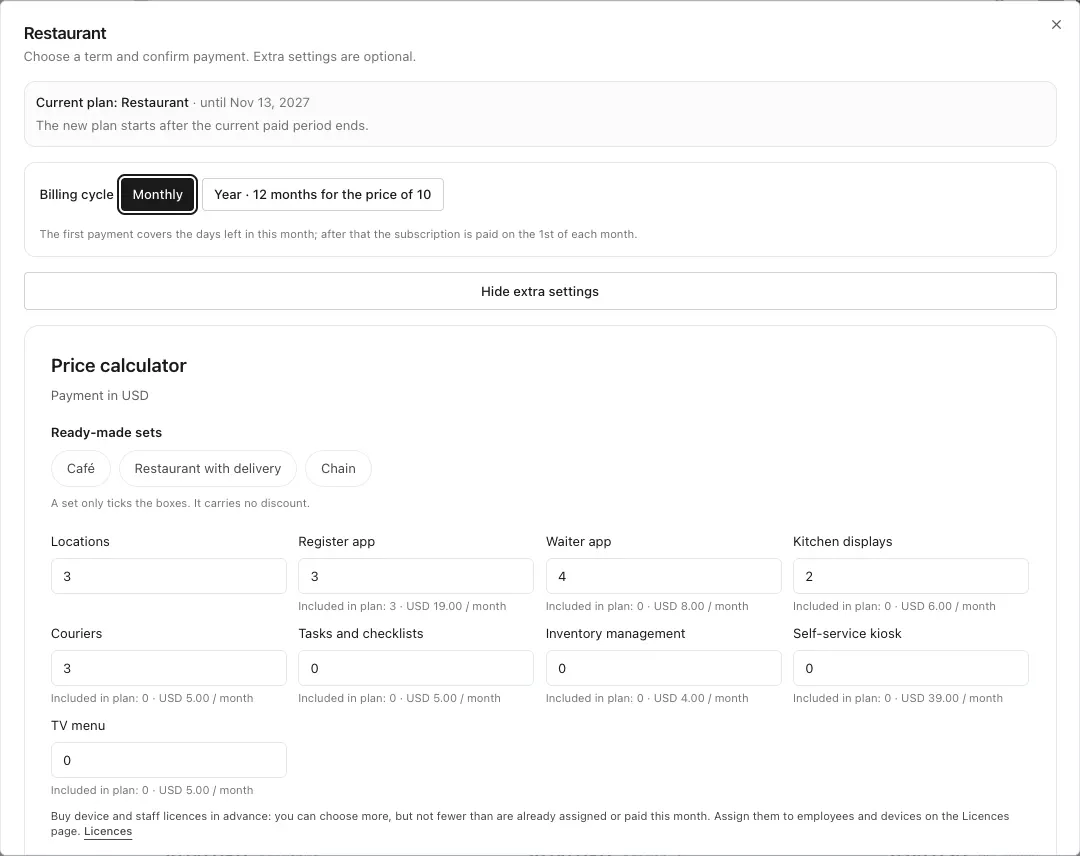
- «Billing cycle»
- «Monthly» or «Year · 12 months for the price of 10». There is no term picker: one month or one year is paid, and the period always ends on a 1st.
- The configuration
- The calculator is open from the start («Hide extra settings» folds it): the number of venues, modules, device and staff licences, limit packs. Fiscalization is not offered here.
- Devices and staff
- Licences can be bought in advance: more is fine, fewer than already assigned or paid this month is not — the field shows «At least N: already assigned or paid». Once paid, what you bought becomes free paid seats for the month: assigning a licence then costs nothing extra.
- «Price breakdown»
- Each line: what, how many and the amount; for part of a month — «for 16 of 30 days» and «full month …». Below: «Charged period: …». Then VAT, the total and «From …: … a month + tax, paid on the 1st».
How the days left in the month are counted
- The purchase day counts too: on the 15th of a 30-day month that is 16 days, a $15 a month base → $8.00.
- If you add a module or a device in the middle of a paid month, only what you add is charged now, for the days left in the paid month.
- After that, one invoice on the 1st of every month: everything in the configuration plus licences assigned above what was bought during the month.
How to pay
- In Billing → Plans press the button on the base card.
- Choose a month or a year.
- Set the number of venues, the modules you need, the number of devices and staff and, if needed, packs.
- Check the summary and press the pay button at the bottom — an unpaid invoice is created and the invoice payment page opens (see «How to pay an invoice»).
Tip: Every module is open during the trial, but after payment only the ones chosen in the dialog stay connected. If a shop picks a kitchen screen, the server refuses: «Your tariff does not sell this device. Remove it from the configuration».
The «Module not connected» and «Tariff limit reached» strips #
Warnings you meet in other sections: what they mean and where they lead.
Both strips appear only for organizations on the «base + modules» tariff and only on the page where the server refused, at the top of the page. The cross hides the strip on that page; it goes away when you open another page. An organization on an old plan never sees them — it keeps the previous error messages.
- «Module not connected: …»
- A blue strip: the page asked for data of a module you have not bought (for example «Delivery management», «Staff management», «Tasks and checklists», «Inventory Pro», «Finance», «Marketing», «Report builder»). When the server names the module the strip shows it («Module not connected: Inventory Pro.»), otherwise «This module is not connected.». Then «It is not part of your tariff, so this page cannot load its data.» and the Connect in Apps link, which opens Apps. Every module is open during the trial, so the strip does not appear then.
- «Tariff limit reached: …»
- An amber strip: saving a new record was refused because of a limit; «used of limit» in brackets. When the server recommends a pack — «Add “…” × N for … a month — the limit becomes ….» and Buy pack (the checkout opens with the pack added); otherwise «Raise the limit with a pack in Billing.» and Open billing. A message pops up at the same time: «The limit of your tariff is reached. Add a limit pack in Billing to create more.».

How to connect a module
- Press Connect in Apps in the strip, or open Apps in the sidebar.
- Press the payment button of the app you need — the module page opens with the «Connect on your tariff» card.
- Press Choose and pay: the checkout opens with the module added. Check the summary and pay. Another way is Add modules or packs in Billing → Plans.
Tip: No pack raises the venue limit: one venue can be opened during the trial, and more once you choose a paid tariff.
The «Compare» tab #
Limits, app seats and features of all plans in one table.
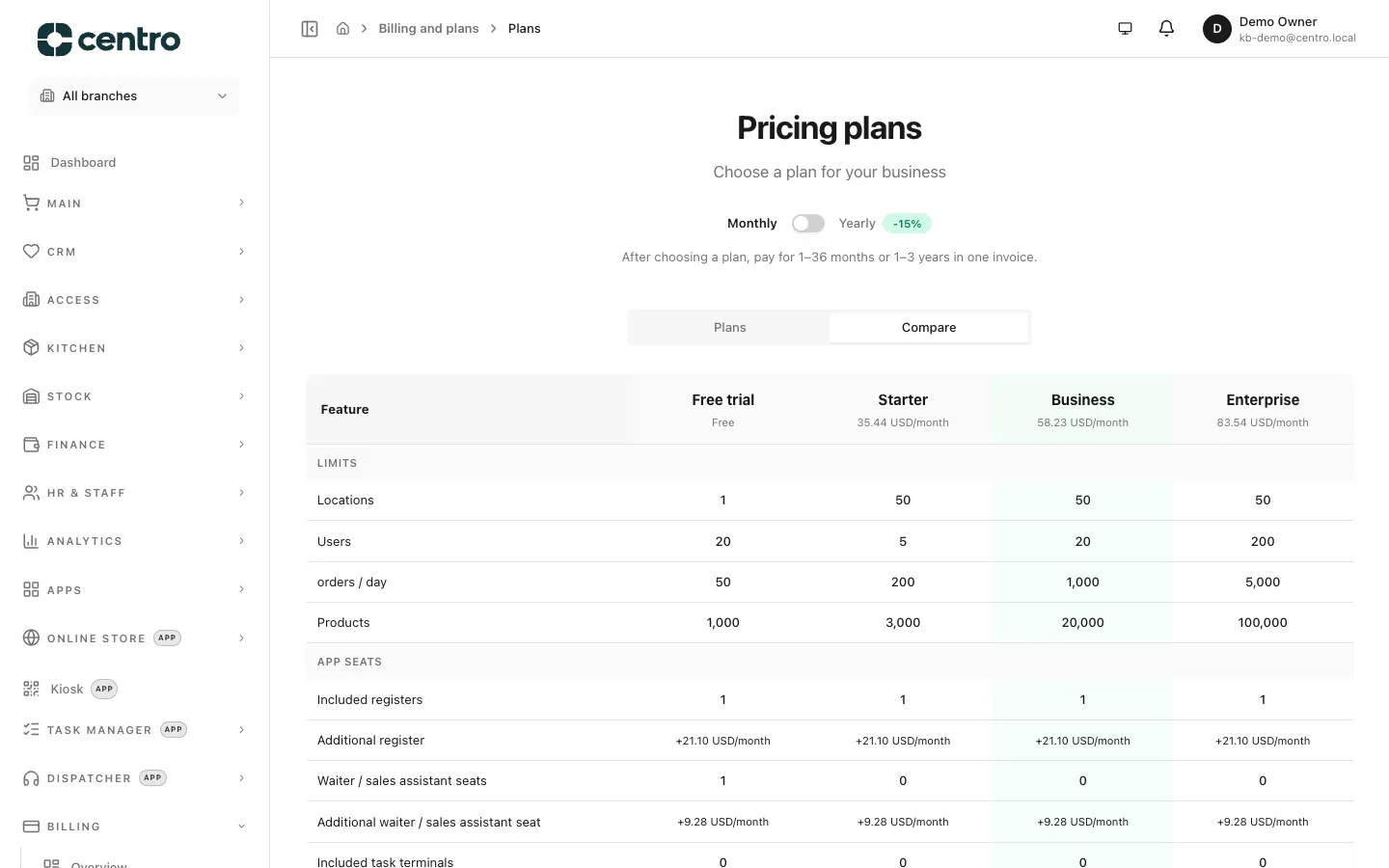
- Columns are plans (name and price for the selected period); rows are grouped into «Limits» (locations, users, orders per day, products), «App seats» (included registers, additional register price, waiter / sales assistant seats, task terminals), «Features» (✓ — included, --- — not included) and «Trial period» («Free trial days»).
- Prices follow the «Monthly / Yearly» switch at the top. The «Popular» plan has a green background.
Important: The buttons under the table work like those on the plan cards. The «Try it» button of the «Free trial» switches the current plan to the trial immediately — do not press it in a working organization.
Choosing a plan, the term and the payment summary #
The «Choose payment term» dialog: prepay 1–36 months or 1–3 years, locations and modules, VAT, the invoice and the kinds of change.
The «Choose payment term» button on a paid plan card buys nothing — it opens the quote dialog. It shows the current plan and its end date, «Billing cycle» («Monthly» / «Yearly»), «Term paid in one payment» (1–36 months for monthly, 1–3 years for yearly — one invoice covers the whole term) and the «Payment summary».
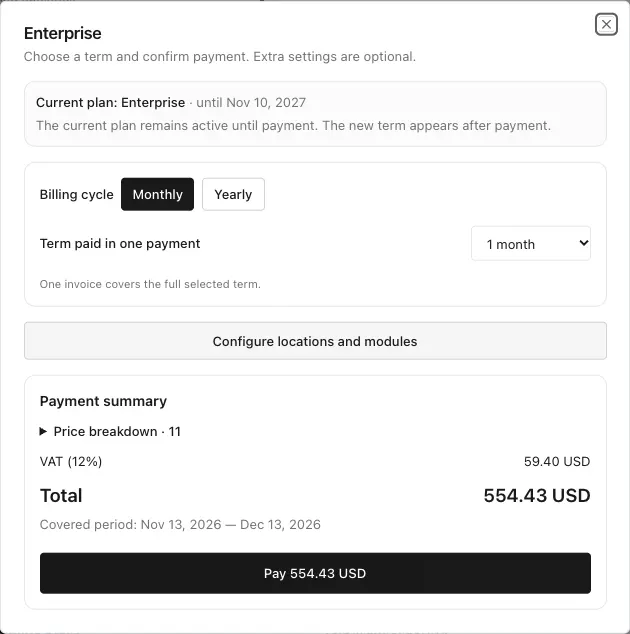
«Payment summary»
- «Price breakdown»
- An expandable list: plan × number of locations, extra modules, device seats, one-time services and their amounts.
- Unused credit / «Refund to card»
- The unused part of the current paid period is deducted from the new amount; if the new configuration is cheaper, the difference is refunded to the card.
- «VAT (12%)», total, «Covered period»
- Prices exclude VAT; 12 % VAT is added to the invoice. Below: the dates the payment covers.
Kinds of plan change
- Renewal — the same plan: the new term starts on the end date of the current period.
- Upgrade — right after payment; the rest of the current period is credited and you pay only the difference.
- Downgrade — takes effect after the current paid period; the button reads «Schedule change» and the overview shows «Scheduled change».
How to pay for a plan
- Choose «Monthly» or «Yearly» with the switch at the top (the yearly saving is shown in a green badge).
- Click «Choose payment term» on the plan card.
- Pick the term; if needed, change the number of locations, device seats and modules via «Configure locations and modules».
- Check the amount and press the pay button at the bottom — an unpaid invoice is created and the invoice payment page opens. The current plan stays active until it is paid.
Important: «Start for free» on the «Free trial» card does not open a dialog — it switches to the trial right away. Do not press it if you are on a paid plan.
Add-on modules and paying for a module #
Modules beyond the plan: price, minimum plan, prepaid term, connecting, renewing and disconnecting.
The «Additional modules» section under the plan cards sells features that are not in the plan (online store, mobile app, AI reports, delivery management, Finance, Stock, etc.). Each card has a name, description, an «Available from plan: …» badge where needed and the price for the selected period. The «Prepaid term» list on the right (1–36 months or 1–3 years) sets how many periods are paid at once.
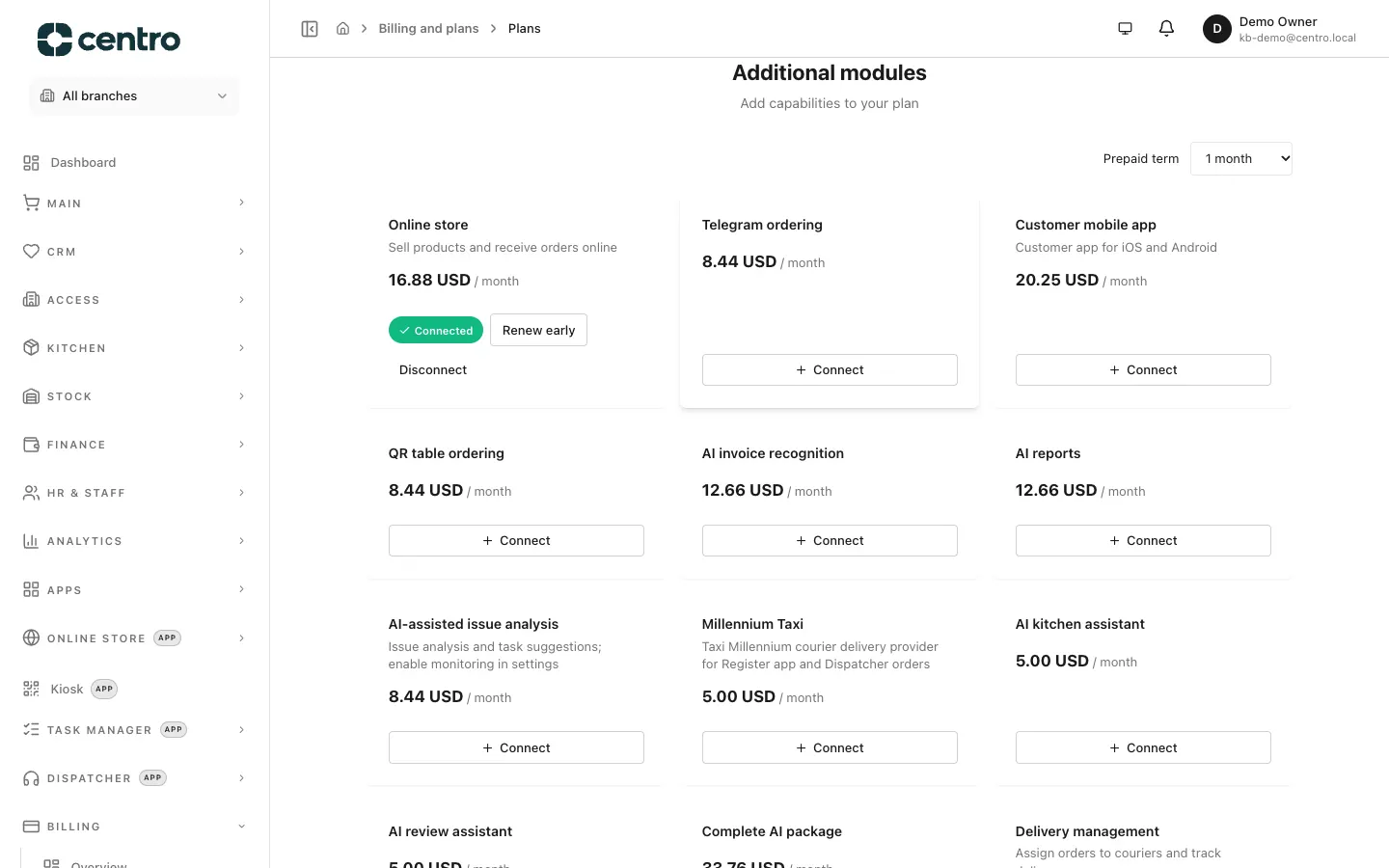
States at the bottom of a card
- «Included in plan»
- The module is already in your plan — no separate payment needed.
- «Connected» + «Renew early» / «Disconnect»
- The module is paid separately and active. «Renew early» issues an invoice for the next term (it starts when the current one ends). «Disconnect» turns the module off.
- «Available from plan: …»
- The module can only be bought on the shown plan or higher; the button offers to switch to that plan.
- «Connect»
- Creates an unpaid invoice for the selected term and opens the payment page. The module turns on after payment. A free module turns on immediately.
The module payment page (opened from a paid app in «Apps», address /billing/modules/…) prepares an invoice for one module: «Period» («Months» / «Years»), «How many months» / «How many years», and on the right «Invoice for the selected term» — price per period, number of periods, subtotal, VAT 12% and «Amount due». If an unpaid invoice already exists for the module, an «Open invoice» link is shown; choosing another term voids the old invoice. If the module is in your plan, the page says so and issues nothing.
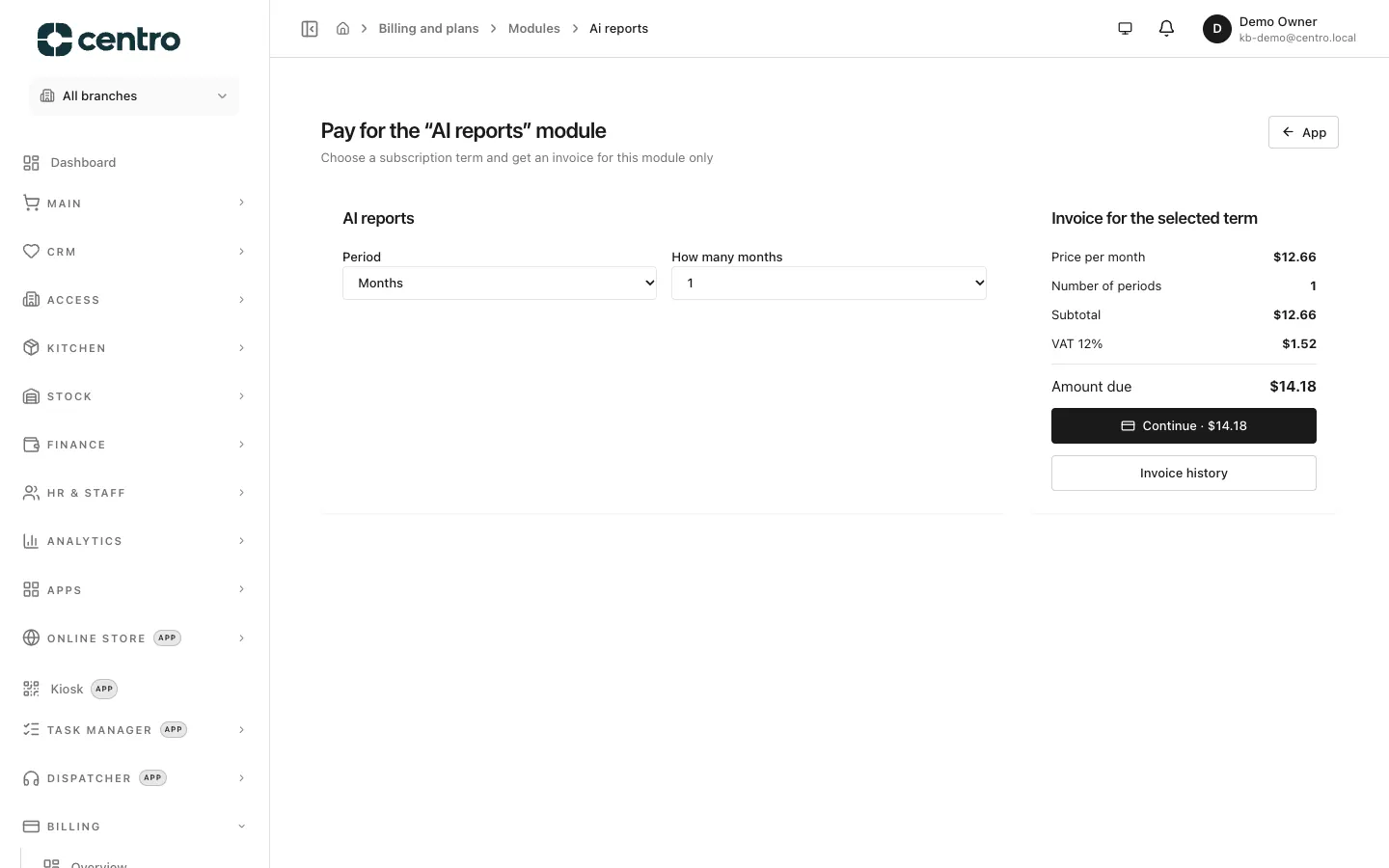
Tip: The «Continue · …» button creates the invoice and takes you to the invoice payment page — money is charged only there, after you confirm the payment.
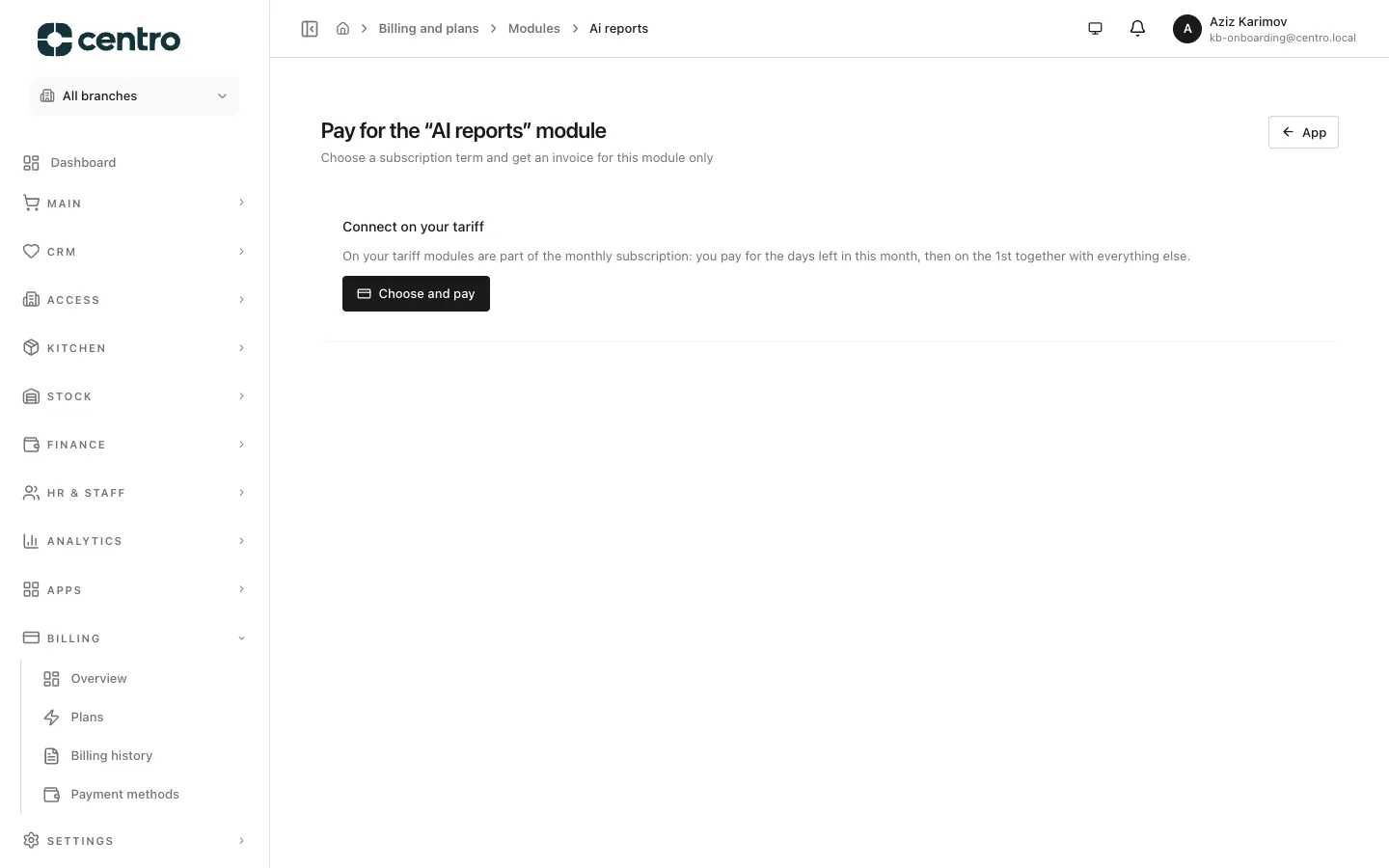
On the «base + modules» tariff the module page prepares no separate invoice: it shows the «Connect on your tariff» card — «On your tariff modules are part of the monthly subscription: you pay for the days left in this month, then on the 1st together with everything else.» The Choose and pay button opens the checkout on the tariff page with the module already added. If the module is already part of the tariff (every module is open during the trial), the page says so.