Saved
Reports saved in the builder: one-click runs, scheduled email delivery and run history.
Open in the admin panel/analytics/reports/saved The page header is «Saved reports». Every card here is a report built and saved in the «Builder»: which metrics, which grouping, which filters and period. You cannot create a report on this page — the Create report button opens the builder; a report saved there appears in this list.
How to open
- In the sidebar, expand the Analytics group.
- Click Saved.
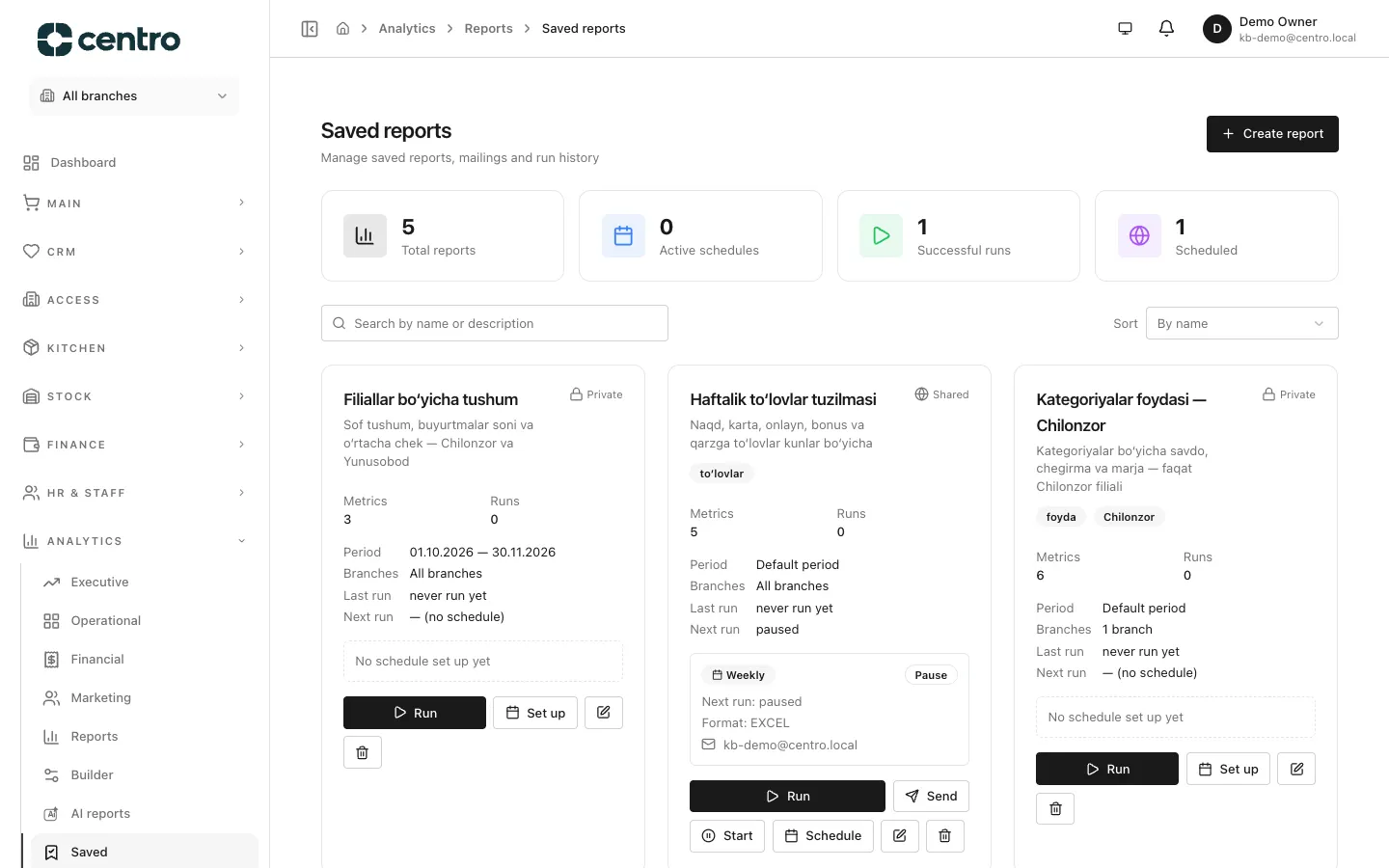
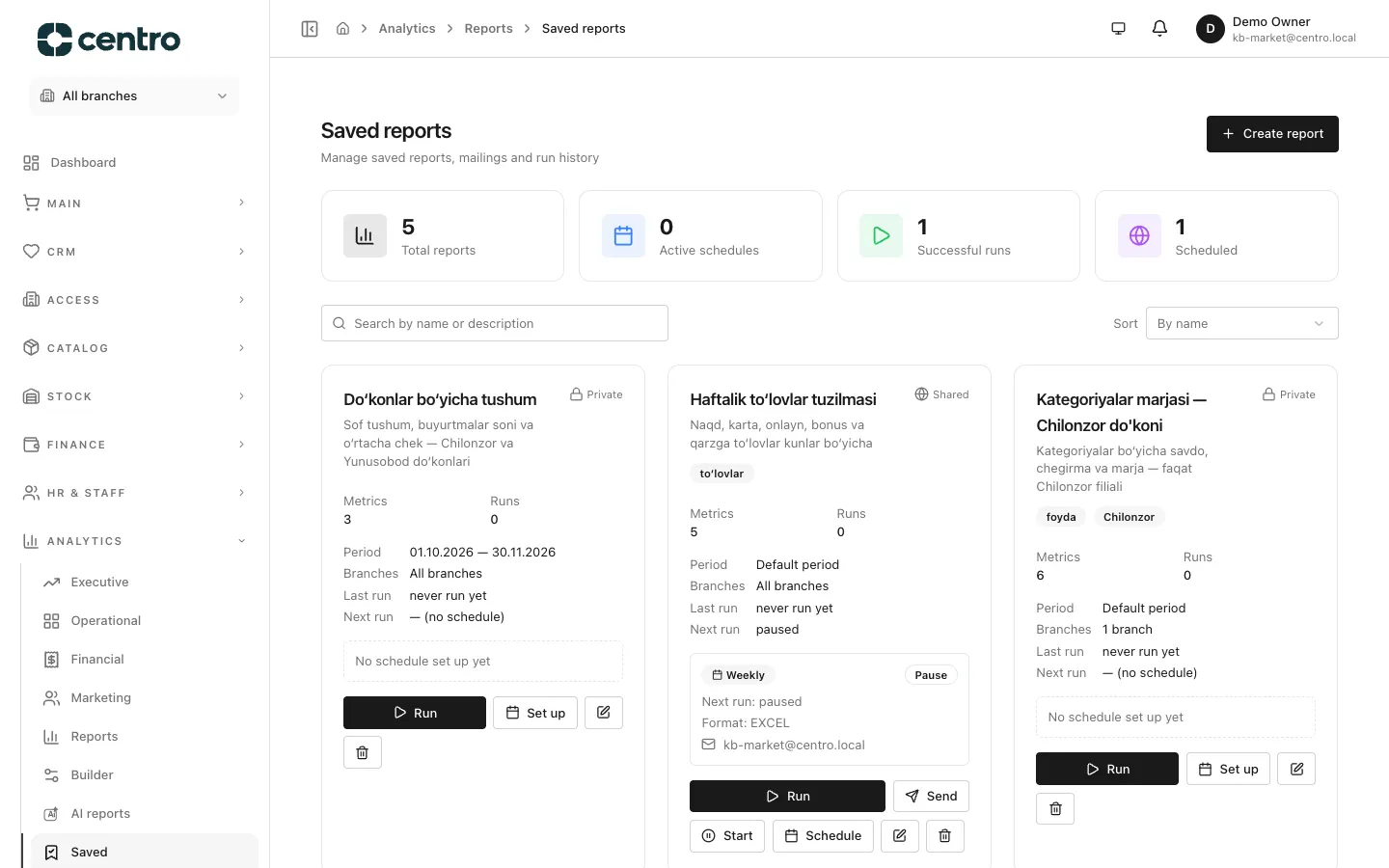
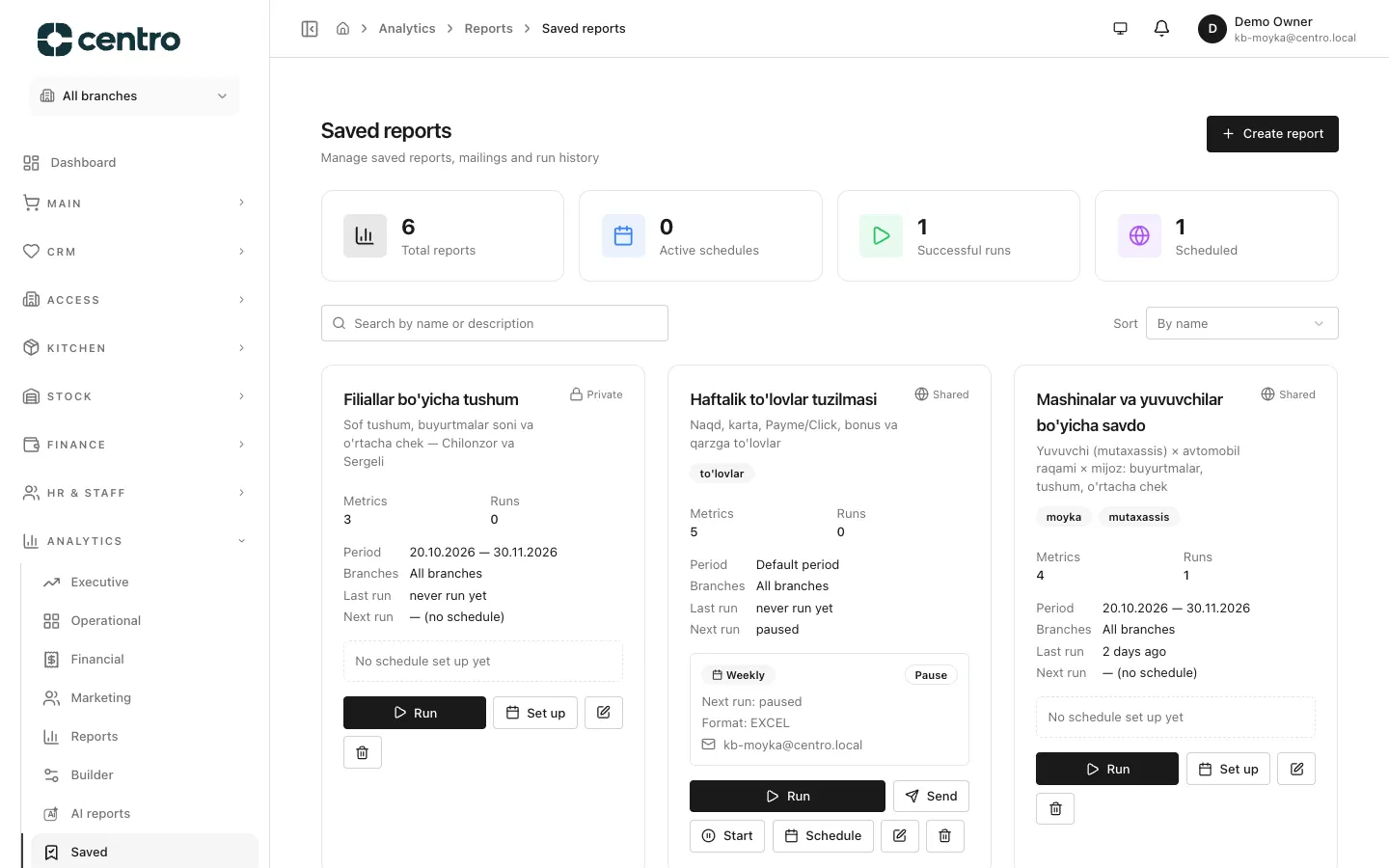
Summary cards
- «Total reports»
- All saved reports visible to you (regardless of the search).
- «Active schedules»
- How many schedules are not paused.
- «Successful runs»
- Sum of successful runs of all reports. With an older API version it reads «Runs (on this page)», i.e. only the visible cards.
- «Scheduled»
- How many reports have a schedule (active or paused).
Search, sorting and pages
- «Search by name or description»
- Searches on the server; the list updates once you stop typing. With no matches you see «Nothing found».
- «Sort»
- «Newest first», «Recently modified», «Recently run», «By name».
- Pages
- 24 cards per page. Search, sort and page number are kept in the address bar, so reloading or going «Back» restores the same list.
Important: If schedules fail to load you see «Could not load schedules» and the cards say «Schedule status not loaded»; schedule buttons are disabled meanwhile. Click «Retry».
Report card #
What a card shows and what its buttons do: run, edit, schedule, delete.
Card fields
- Name and description
- The name and description given when the report was saved in the builder. Search works on them.
- «Shared» / «Private»
- A «Shared» report is visible to other users of the organization, a «Private» one only to its author.
- Tags
- Grey labels added when saving (e.g. «savdo», «oylik») to group reports.
- «Metrics»
- How many measures (values) the report contains: revenue, order count, average check, etc.
- «Runs»
- How many times the report ran successfully — manually and on schedule.
- «Period»
- Dates fixed in the report: «01.10.2026 — 31.10.2026», «from …», «until …». If a relative period (e.g. «This month») was chosen in the builder, it shows «Default period» and is calculated from today at every run.
- «Branches»
- The branch (venue/warehouse) restriction from the report filters: «All branches», «1 branch», «Branches: 2», «All except 1» or «Branches by condition».
- «Last run» / «Next run»
- Relative time («2 hours ago»); hover for the exact date. Never run — «never run yet»; no schedule — «— (no schedule)»; schedule stopped — «paused».
- Schedule block
- With a schedule: frequency badge («Weekly»…), state («Active» / «Pause»), next send, «Format: EXCEL» and recipient emails. Without one — «No schedule set up yet».
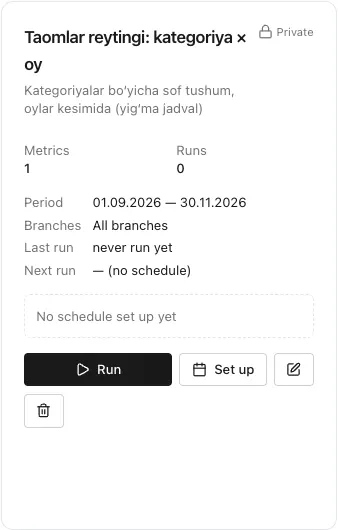
Card buttons
- «Run»
- Calculates the report on current data, shows «Report completed: N rows» and opens the result in the «Builder» (table and export are there). The run is recorded in the history.
- «Send»
- Only for a report with a schedule. Runs the mailing now without waiting: prepares the file and sends recipients a link (even when the schedule is paused).
- «Pause» / «Start»
- Stops or re-enables the schedule without deleting it. While paused there are no automatic sends; settings are kept.
- «Schedule» / «Set up»
- Opens the schedule dialog: edit the existing one or create a new one (separate topic below).
- Pencil icon
- «Edit in the builder» — opens the report in the builder, where you can change metrics, rows, filters and period and save again.
- Trash icon
- «Delete report» — after confirmation the report disappears from the list.
Tip: A saved report is a configuration, not a result: numbers are recalculated at every «Run». That is why a report with «Default period» refreshes itself every month.
Email mailing schedule #
Automatic report delivery by email daily, weekly, monthly or quarterly at a set time.
Each saved report can have one schedule. At the set time the server calculates the report on fresh data, stores it as a file in the chosen format (PDF, Excel or CSV) and emails recipients a link to download the file. Every send is recorded in the «Recent runs» table.
How to set up a schedule
- On the report card click Set up (or Schedule if one already exists).
- Choose the «Frequency»; for weekly pick the «Day of week», for monthly and quarterly the «Day of month».
- Fill in «Sending time *» and «Recipient emails *» (several addresses separated by commas).
- Choose the «Report format» and click Create schedule (Save when editing).
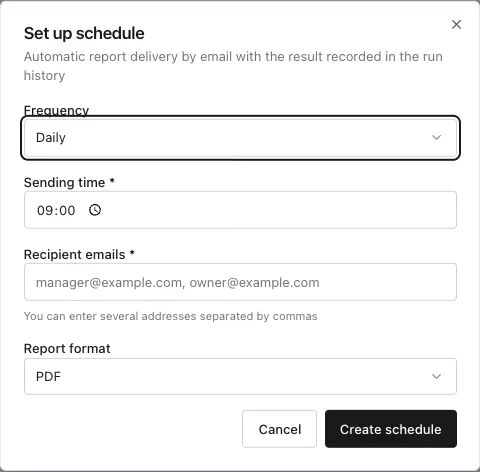
Dialog fields
- «Frequency»
- «Daily», «Weekly», «Monthly», «Quarterly». Quarterly means once every three months on the selected day.
- «Day of week»
- Weekly only; Monday by default.
- «Day of month»
- For monthly and quarterly, 1 to 28: days 29–31 do not exist in every month, so they are not offered.
- «Sending time *»
- HH:MM in the organization’s time zone (for Tashkent 09:00 is 9 a.m. local time).
- «Recipient emails *»
- One or more addresses separated by commas, semicolons or new lines. An invalid address gives «Invalid email: …», an empty field «Add at least one recipient email».
- «Report format»
- PDF, Excel or CSV — the link in the email points to a file in this format.
- State block
- When editing an existing schedule: «Next run:», «Last run: …» and «State: Active / Paused».
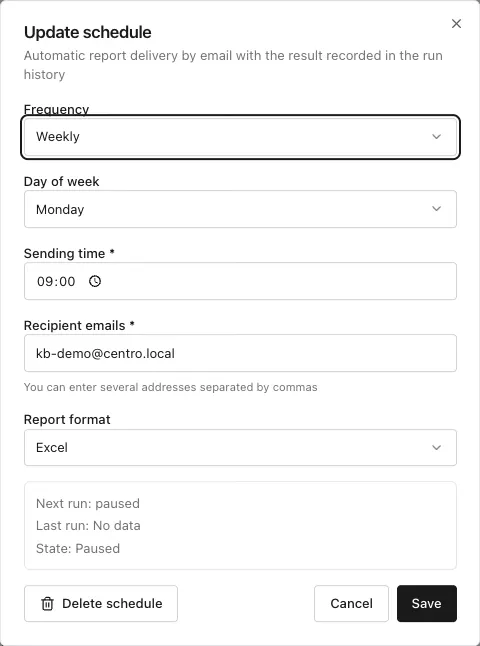
Managing a schedule
- Pause / Start on the card — stop temporarily and re-enable.
- Send — send once now (the planned time does not move).
- Delete schedule in the dialog — after confirmation automatic sending is turned off completely; the report itself stays.
- Send overdue mailings in the header appears only when there are active schedules: it immediately runs schedules whose time has come but which were not sent yet (up to 25 at once) and shows «Processed N: … succeeded, … failed».
Important: Sending requires the email service and file storage to be configured on the server. Otherwise the run is recorded as «Failed» and the «Error» column shows the server text (e.g. «email service is not configured»).
Recent runs #
The last 10 manual runs and scheduled sends: status, rows, file and error.
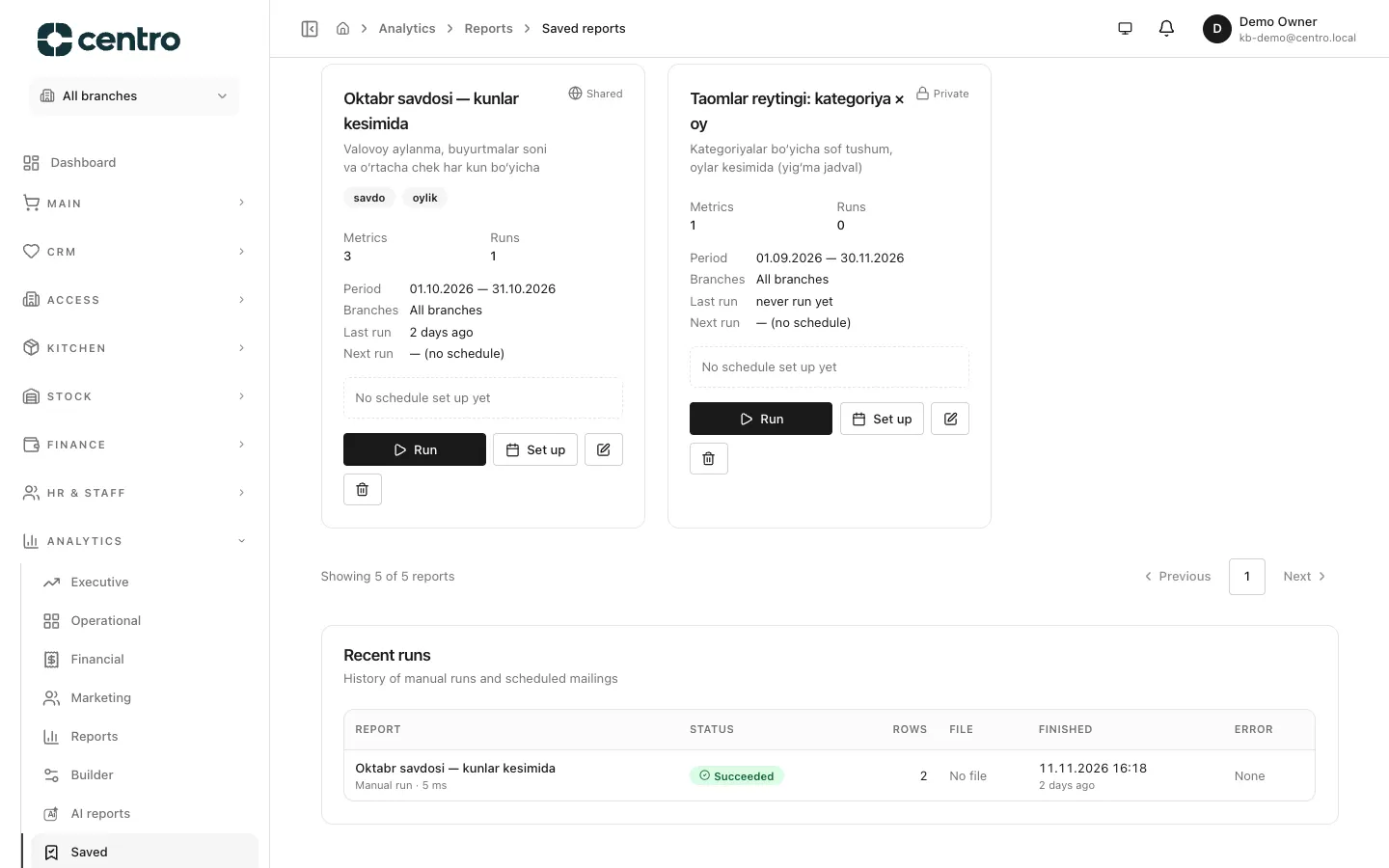
Columns
- «Report»
- Report name; below it the mailing format (PDF/EXCEL/CSV) or «Manual run» and the run duration in milliseconds.
- «Status»
- «Queued», «Running», «Succeeded» or «Failed».
- «Rows»
- Number of rows in the result.
- «File»
- Link to the file prepared by a mailing; a manual run shows «No file» (its result opens in the builder).
- «Finished»
- Exact date and time with the relative time below.
- «Error»
- The server message on failure (verbatim, often in English); otherwise «None».
Tip: If any of the last 10 runs ended with «Failed», a «Recent runs have errors: N» alert appears at the top of the page.