AI reports
An answer to a business question: the system picks a report, calculates it and explains it in plain language.
Open in the admin panel/analytics/ai-reports AI reports are a question-and-answer entry to the builder: instead of assembling a report you type a question, for example «Кто нам должен деньги?» or «Сделай ABC-анализ моего меню». The answer contains the report title, a short summary, interpretation and recommendations, a chart and the result table. Every answer goes to the report history.
How to open
- In the sidebar, expand the Analytics group.
- Click AI reports.
- The arrow at the top left leads to Centro AI Assistant on the home view and back to the questions when a report is open.
- Permissions: asking questions requires full access to the «Report builder».
- The menu item shows only while the Centro AI Assistant app is active in Apps (not the separately sold «AI reports» add-on). Details: «How to turn the section on» in the Analytics group.
Asking a question #
Write the question in plain words — the system picks a report, calculates it and explains it.
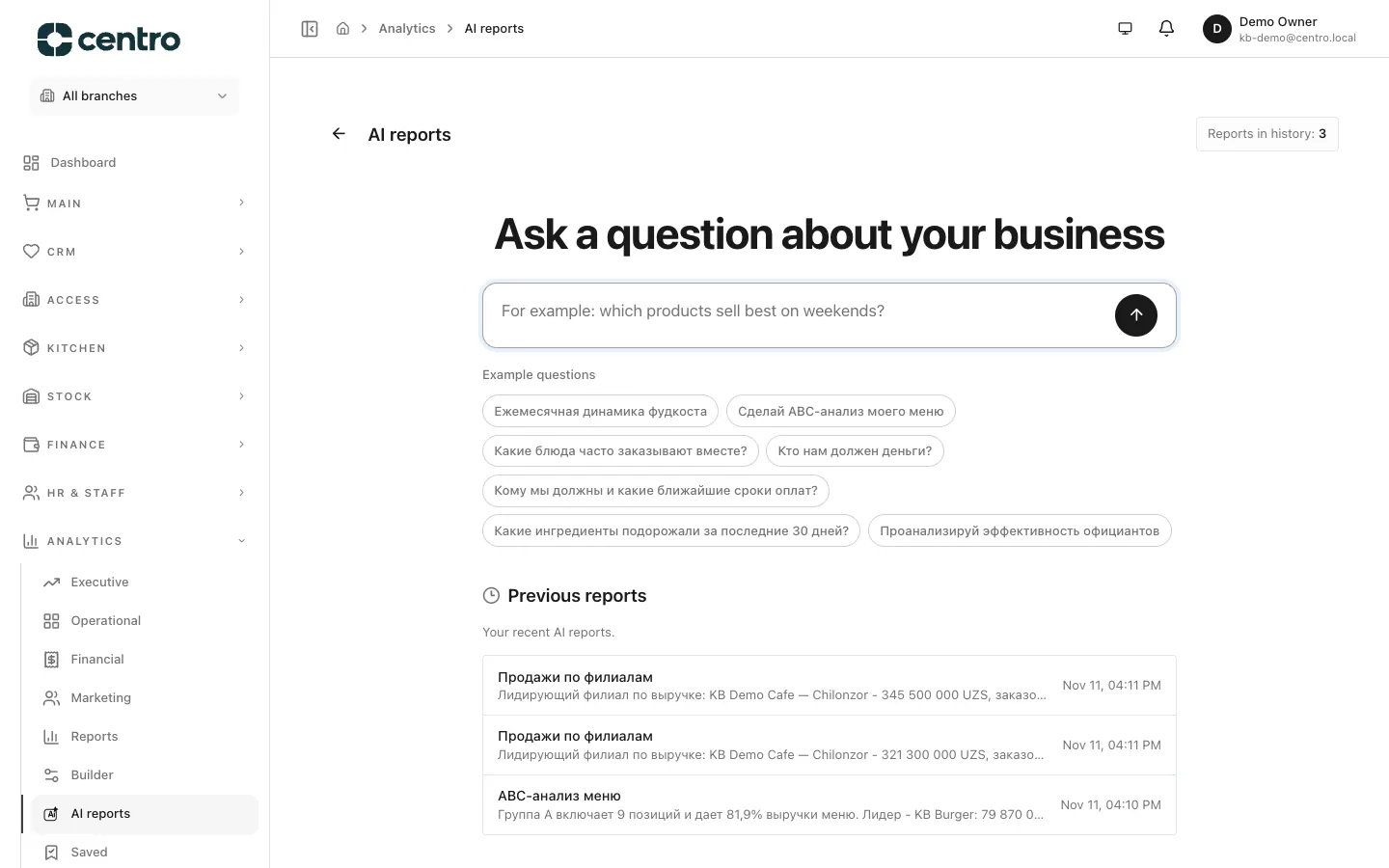
- Type the question under «Ask a question about your business», e.g. «Продажи по филиалам за этот месяц».
- Or click one of the «Example questions» — it only fills the field, it does not send. The examples are in Russian: the rule-based router understands Russian keywords best.
- Click the round arrow button or press Ctrl/⌘ + Enter. «Analyzing report data» appears — the answer usually comes within 20 seconds. If you don’t want to wait, click «Stop» next to it — your question stays in the field so you can edit and resend it.
What happens inside: the question goes to the server (POST /analytics/ai/reports/ask). If an AI provider is connected and responds, it writes a safe read-only query for the question. Otherwise the system matches keywords of the question to a template from the safe report catalog (sales, ABC analysis, debts, stock, customers, couriers, promotions, KDS, calls, reviews, reservations, etc.), calculates it through the builder and writes the text by rules. In both cases the numbers come from your data and only for the venues you can access.
Tip: Name the metric, period and breakdown in the question: «Продажи по филиалам за прошлый месяц», «Кто нам должен деньги?», «Какие ингредиенты подорожали за последние 30 дней?». Questions that are too general lead to a request for clarification.
Reading an AI report #
Title, period and venues, summary, interpretation, recommendations, chart, extra breakdowns and table.
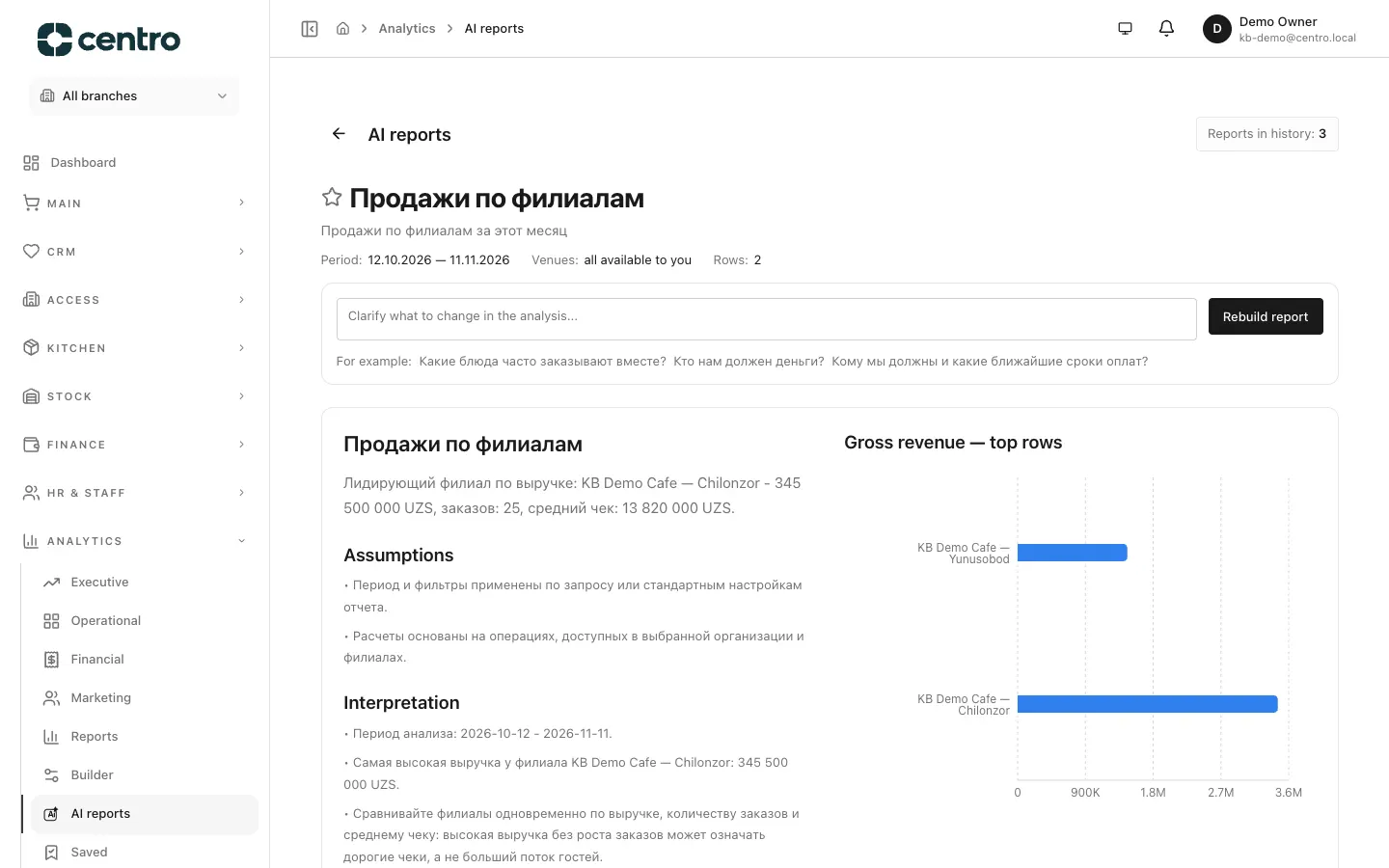
- Title and question
- The report title (e.g. «Продажи по филиалам») with your question under it.
- «Period:», «Venues:», «Rows:»
- Shows which dates and venues the calculation covers. No period in the question — «detected automatically from the question»; no venues chosen — «all available to you». «(not all shown)» — more rows than the limit.
- Refinement field
- «Clarify what to change in the analysis...» — write a new request and click «Update report»; if the field is empty, «Rebuild report» resends the same question. The ready questions in the «For example:» line below only fill the refinement field — press the button to send.
- Summary, «Assumptions», «Interpretation», «Recommendations»
- The report text comes from the server in Russian. First 3 items of each list are shown; «Show more» reveals the rest. Data-quality warnings appear in a separate block.
- Chart «… — top rows»
- Top 10 rows by the first metric (positive values only). At least 2 such rows are needed, otherwise «Not enough rows for a chart».
- «Additional breakdowns»
- Extra tables related to the question (up to 50 rows), calculated by the same safe catalog.
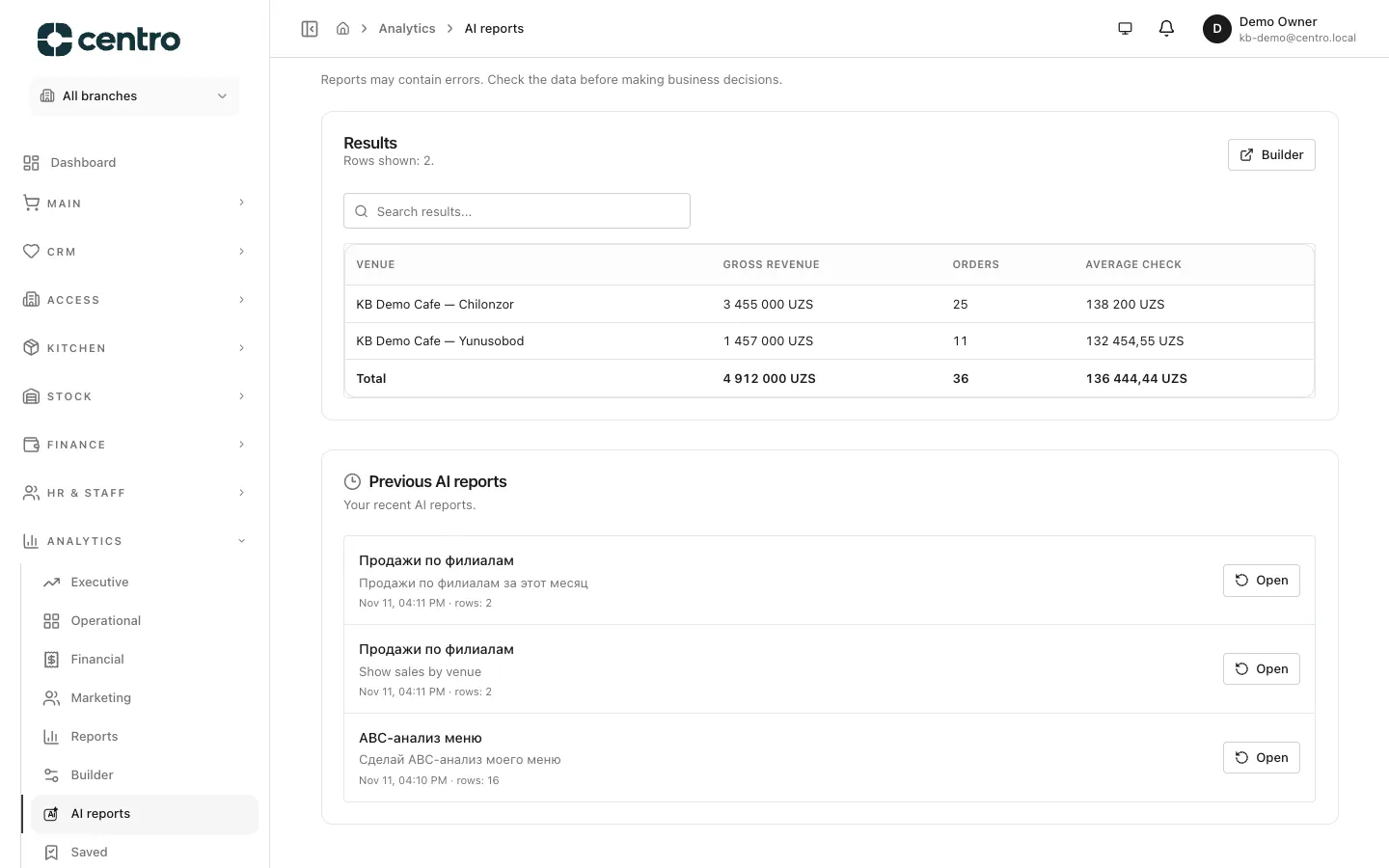
The «Results» table shows the calculated rows (up to 1000); the search filters them by text. The «Builder» button opens this report’s template in the builder, where you can change the fields, save the report or export it to Excel.
Important: At the bottom of the page: «Reports may contain errors. Check the data before making business decisions.» Double-check important numbers in the builder or the ready-made reports.
Report history #
Open previous AI reports without a new AI request.
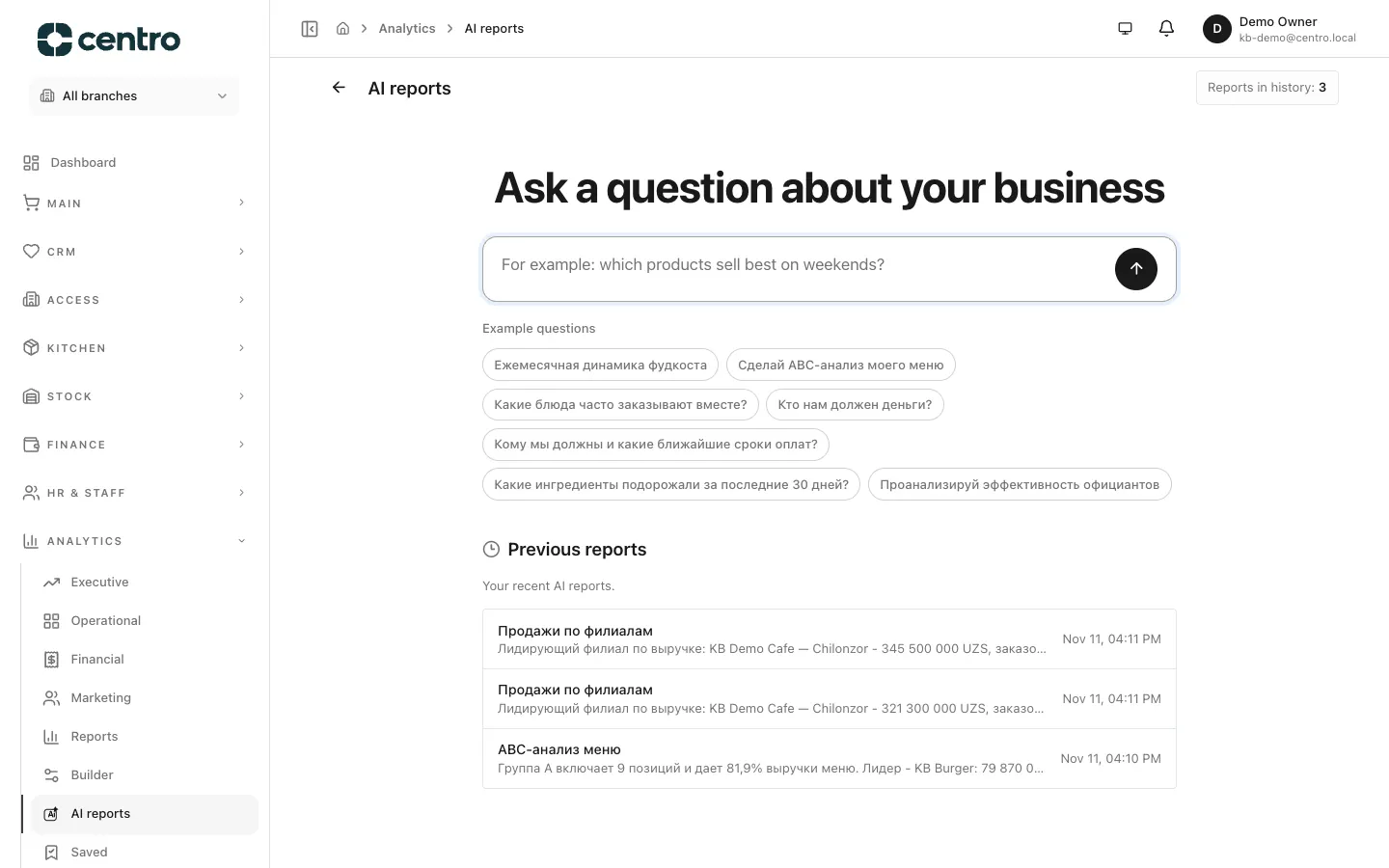
- «Reports in history: N» at the top right is the number of completed AI reports stored on the server.
- «Previous reports» on the home view shows the last 5: title, summary or question, how long ago. Clicking opens the report with its stored result instantly — no new calculation and no AI request.
- With a report open, the «Previous AI reports» card at the bottom has an «Open» button; «· rows: N» is the number of result rows.
- If the server history fails to load, «Could not load history from the server — showing your recent questions from this device.» appears with a «Retry loading» link. Such local entries keep only the question («· saved on this device»), so «Retry» sends the question again.
Tip: The local history is tied to the organization and user: another user’s or organization’s questions do not stay on this device.
Limits and errors #
What the AI cannot do, the «Report not built» state and error messages.
- Only Centro business data: sales, purchases, stock, debts, menu, customers, staff and operational metrics. Off-topic questions («what is the weather tomorrow?») get the «Вопрос вне бизнес-аналитики» answer.
- «Report not built» — there is no supported report for the question, or it is too vague. The server’s reason replaces the chart; if the data does not exist at all — «Data for this scenario needs to be connected.».
- If the AI provider is not connected or does not respond, the text is written by rules and a banner appears: «No AI provider is connected: …» or «The AI provider did not respond: …». The numbers are still from your data. For many standard reports (sales, ABC, debts, stock) the text is always rule-based — that is expected.
- The rule-based router relies on Russian keywords; a question in another language is understood well only when the AI provider works. The text, titles and column values are returned by the server in Russian.
Error messages
- «AI request limit reached»
- Too many requests (429). Wait a little and click «Retry».
- «No access to AI reports»
- Asking requires full access to the «Report builder» (403). Ask an administrator.
- «The AI service is temporarily unavailable»
- The report service did not answer in time (502/503/504). Try again in a minute.
- «Could not build the report»
- Other errors, including the 20-second timeout. Rephrase the question shorter or more precisely and send it again.