My profile
Your account details, Google/Apple sign-in and password change.
Open in the admin panel/settings/profile How to open
- In the top right corner click your name and email → «My Profile».
The profile is open to every user — no position permission is needed. If your position has no pages at all, the panel opens this page; with a suspended subscription the profile and «Billing» stay available too.
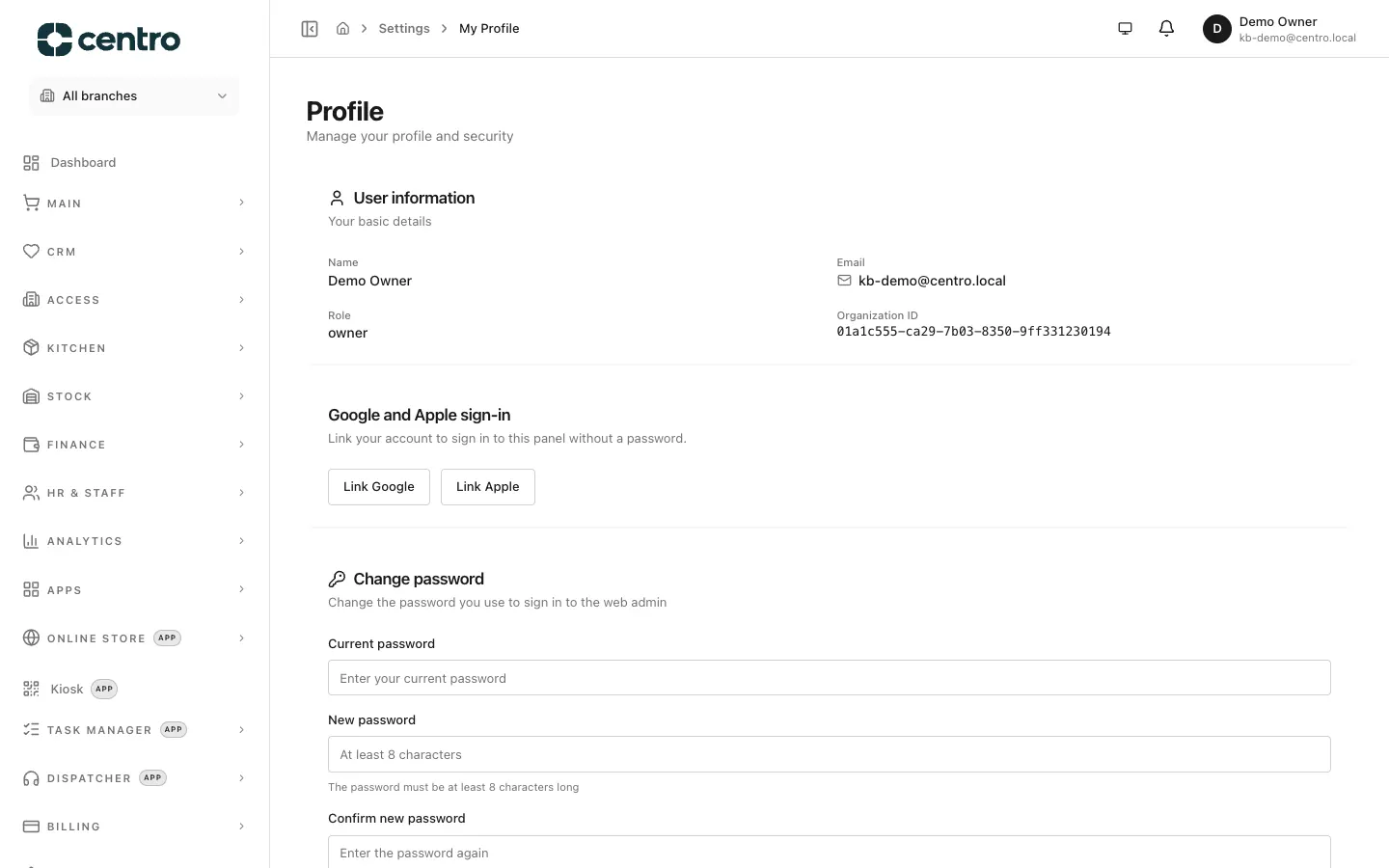
«User information»
- «Name», «Email»
- Your account name and sign-in email (read-only; the name is edited in «Access → Employees»).
- «Role»
- The system role code, e.g. owner for the organization owner. Permissions come from the position.
- «Organization ID»
- Your organization’s identifier — handy when you contact support.
Google and Apple sign-in #
Link your account with Google or Apple and sign in to the panel without a password.
- Click «Link Google» or «Link Apple» — the provider’s sign-in page opens.
- Sign in with your work account email. Back in the panel: «Account linked. You can now sign in with this provider.»
- From now on use «Sign in with Google» / «Sign in with Apple» on the sign-in page.

Errors
- «This account is already linked to another user.»
- That Google/Apple account belongs to another staff member — choose another one.
- «Your sign-in session expired…» / «Sign-in is temporarily unavailable…»
- Click the button again.
Changing the password #
Changing the web admin sign-in password: current, new and confirmation.
- «Current password»
- The password you sign in with now. If wrong: «The current password is incorrect».
- «New password»
- At least 8 characters.
- «Confirm new password»
- Must match the new one, otherwise: «The new password and its confirmation do not match».
- Fill in the three fields and click «Change password».
- If something is wrong, red text appears under the field and the cursor jumps to the first invalid field. «Clear» empties the fields.
- On success: «Password changed successfully».
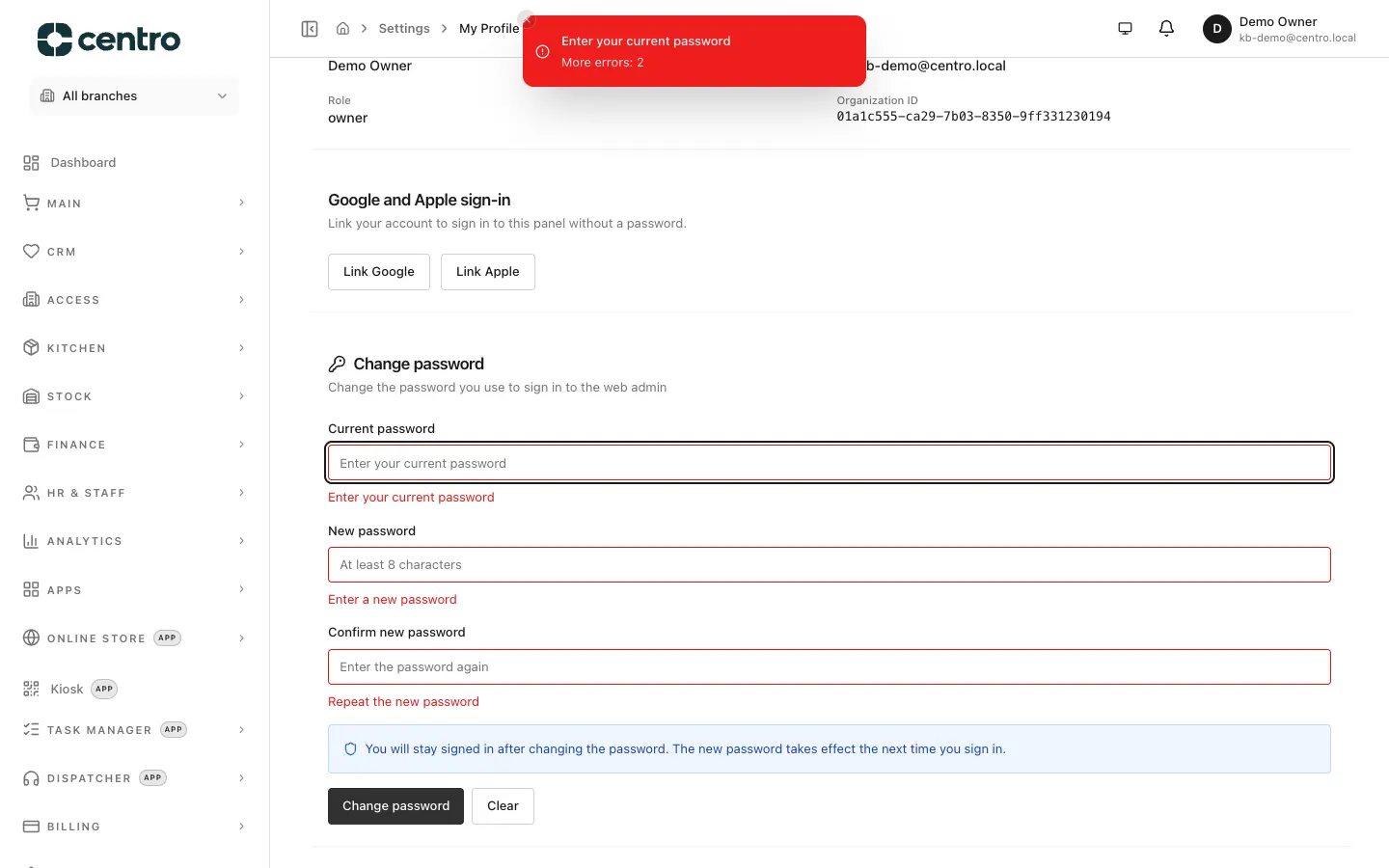
Tip: You stay signed in after changing the password; the new one works from the next sign-in. Staff passwords for the POS and apps are changed in «Access → Employees», not here.