SMS
Connecting your own SMS provider (Eskiz.uz or Playmobile): verification codes for customers, the template, history and a test.
Open in the admin panel/settings/sms Centro sends SMS to customers through your own provider. SMS is mainly needed for the one-time verification code: a customer gets the code when signing in with a phone number to the online store or the mobile app. Order notifications go out as push messages. The same form also opens in Apps → SMS.
How to open
- In the sidebar, expand the Settings group.
- Click SMS.
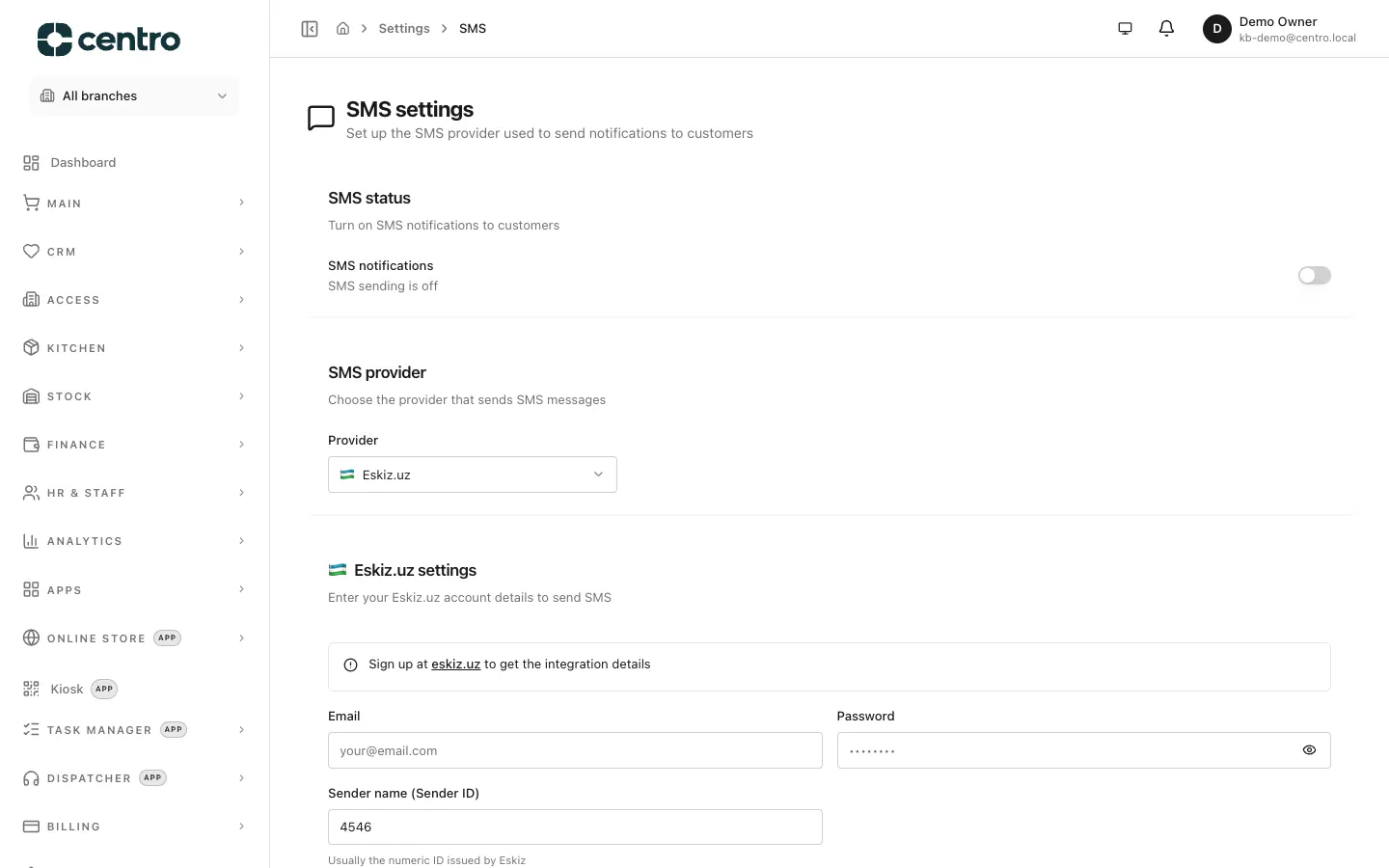
Page blocks
- «SMS status» → «SMS notifications»
- The master switch. The caption shows the current state: «SMS sending is on» or «SMS sending is off». When off, no codes go out and the test is locked.
- «SMS provider» → «Provider»
- Eskiz.uz or Playmobile. The card of the chosen provider appears below.
- «Eskiz.uz settings» / «Playmobile settings»
- Your account details at the provider — see the topic below.
- «SMS template», «SMS history», «Testing»
- The code text, the sending log and a test SMS.
- Bottom bar
- Appears when something has changed: Save or Cancel. After saving you see «SMS settings saved».
How to connect SMS
- Sign up at eskiz.uz (the page has a link), top up the balance, get the Sender ID and the code template approved.
- In «Provider» choose Eskiz.uz and enter «Email», «Password» and «Sender name (Sender ID)».
- Put the approved text with {code} into the template, turn on «SMS notifications» and press Save.
- Send a test SMS to your own number and wait for «Delivery confirmed» in «SMS history».
- If customers should sign in by phone, turn on phone sign-in in the customer authorization settings under Settings → Parameters — until SMS is set up, that section links to this page.
In a restaurant the SMS code usually identifies the guest for online orders (website, app) — bonuses are credited to that number.
In a store the SMS code lets a shopper sign in to their online store account: the order history and the bonus card are tied to the phone number.
At a car wash the SMS code confirms the customer’s phone when they book or check bonuses through the app or website; the car plate is stored separately on the customer card.
Tip: The menu item and the page are visible only to staff whose position has at least «View» for «System settings» in Access → Positions → «Admin panel access»; changes need «Full access».
Provider: Eskiz.uz or Playmobile #
Which fields are required, what the Sender ID is and what is checked on save.
«Eskiz.uz settings»
- «Email»
- The email of your Eskiz account. Required when SMS is on; a malformed address is not saved («Enter a valid Eskiz account email.»).
- «Password»
- The Eskiz account password; the eye icon shows or hides it. Required when SMS is on. If Eskiz rejects it, the test shows «Eskiz rejected the email or password…» under the field.
- «Sender name (Sender ID)»
- Who the SMS comes from — «Usually the numeric ID issued by Eskiz». The default is 4546; agree your own name with Eskiz.
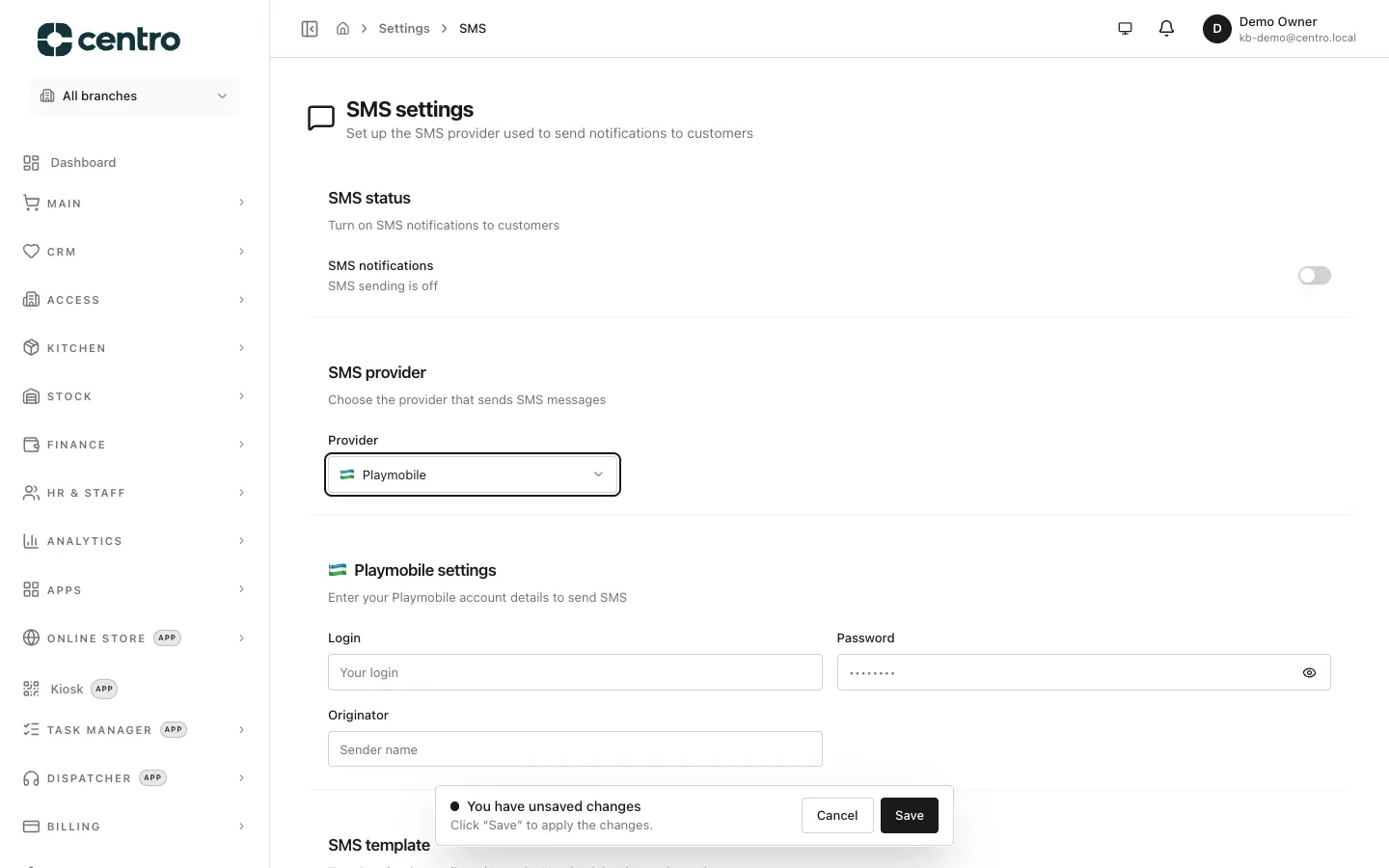
«Playmobile settings»
- «Login», «Password»
- The sign-in details of your Playmobile account. Both are required when SMS is on.
- «Originator»
- The sender name (that is what Playmobile calls it).
Important: For both providers the password is revealed with the same eye icon. If others use the computer, do not leave the password visible. «Twilio (coming soon)» cannot be chosen yet.
Confirmation code template and SMS history #
How to write the code text and where to see what happened to every SMS sent.
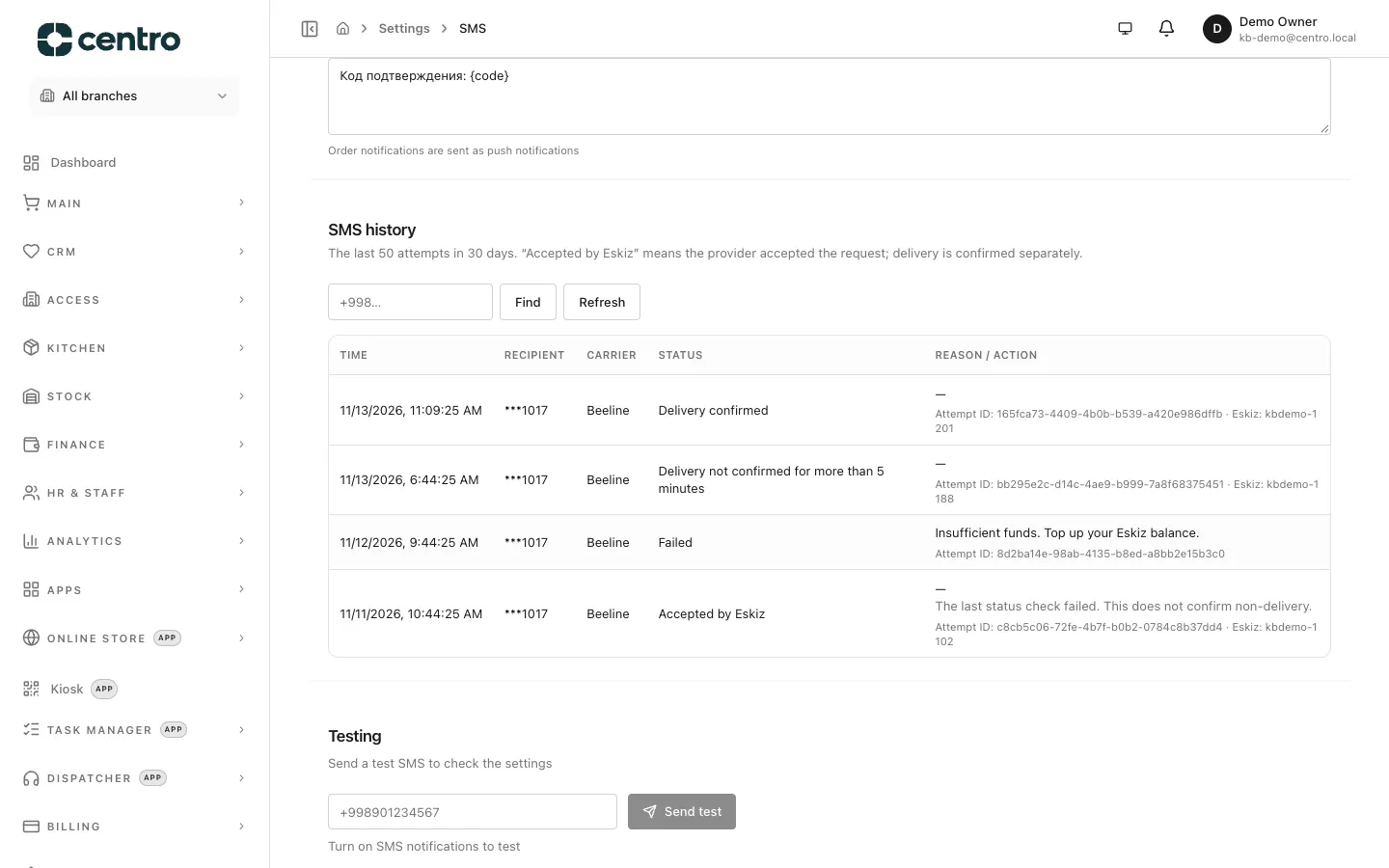
«SMS template» → «Confirmation code»
- Text
- The SMS text the customer receives. {code} is mandatory — the one-time code is put there; without it the form is not saved («Add {code} to the template…»). The default is «Код подтверждения: {code}» (stored in Russian; change it if you like, e.g. to Uzbek text).
- Order notifications
- «Order notifications are sent as push notifications» — the page has only the code template; «order accepted / ready / delivered» messages are not sent by SMS.
Important: With Eskiz the template text must be approved in the account beforehand. Eskiz rejects unapproved text and the customer gets no code — the error reads «Eskiz rejected the SMS text…».
«SMS history»
- What is shown
- The last 50 attempts within 30 days: «Time», «Recipient», «Carrier», «Status», «Reason / action». You can search by number («Find») and «Refresh».
- Statuses
- «Accepted by Eskiz» — the provider took the request, which is not yet delivery; «Delivery confirmed» — it reached the phone; «Failed» — not delivered (the reason is next to it, e.g. insufficient funds); «Delivery not confirmed for more than 5 minutes» — a carrier delay.
Tip: The same history is on the customer card (CRM → Customers → a customer) — there it shows only the SMS sent to that customer’s number.
Test SMS and errors #
How to check the settings on your own number and what the error messages mean.
How to send a test SMS
- Enter the provider details, turn on «SMS notifications» and press Save on the bottom bar — the test works only with saved settings («Save your changes first…»).
- In the «Testing» card enter your own number as +998901234567 (9–15 digits).
- Press Send test. «Eskiz accepted the SMS request» means the request went out; watch the delivery in «SMS history».
Common errors
- «SMS sending is not set up on the server…»
- The SMS service is not enabled on the Centro server — contact Centro support.
- «Your Eskiz balance is too low…»
- Top up the balance in your Eskiz account. SMS are paid from your account at Eskiz’s rates.
- «Eskiz does not allow sending to this operator…»
- Check the number or the routes in Eskiz (some carriers are enabled separately).
- «Too many SMS requests…»
- Wait a minute and try again.
Important: A test SMS is a real SMS: it goes through the provider and is charged to your Eskiz balance.