Integrations
API keys for external systems, traffic, webhooks and API docs; Uzum Tezkor and Yandex Eats branches.
Open in the admin panel/settings/integrations The «Integration access keys» page is for a developer or an external system (1C, a website, a mobile app, BI): four tabs — «Access keys», «Activity», «Webhooks», «API docs». With a key the external system pulls data from Centro; with a webhook Centro pushes events to it.
How to open
- In the sidebar, expand the Settings group.
- Click Integrations.
Tip: The menu item and the page are visible only to staff whose position has at least «View» for «System settings» in Access → Positions → «Admin panel access»; changes need «Full access».
Typical restaurant cases: your own delivery app or website («Mobile app» key), exporting orders to accounting (read key), an «Order status changed» webhook to an external kitchen or courier system.
For a store: your own online store or app, exporting orders to 1C/warehouse and updating accounting with a «Payment received» webhook.
For a car wash: with an «Organization orders and customers» key an external booking system or a taxi fleet app creates orders and customers by plate (in car-wash mode the plate is required).
Access keys (API keys) #
Creating a key, the three purposes, the key shown once, regenerating, deactivating and deleting.
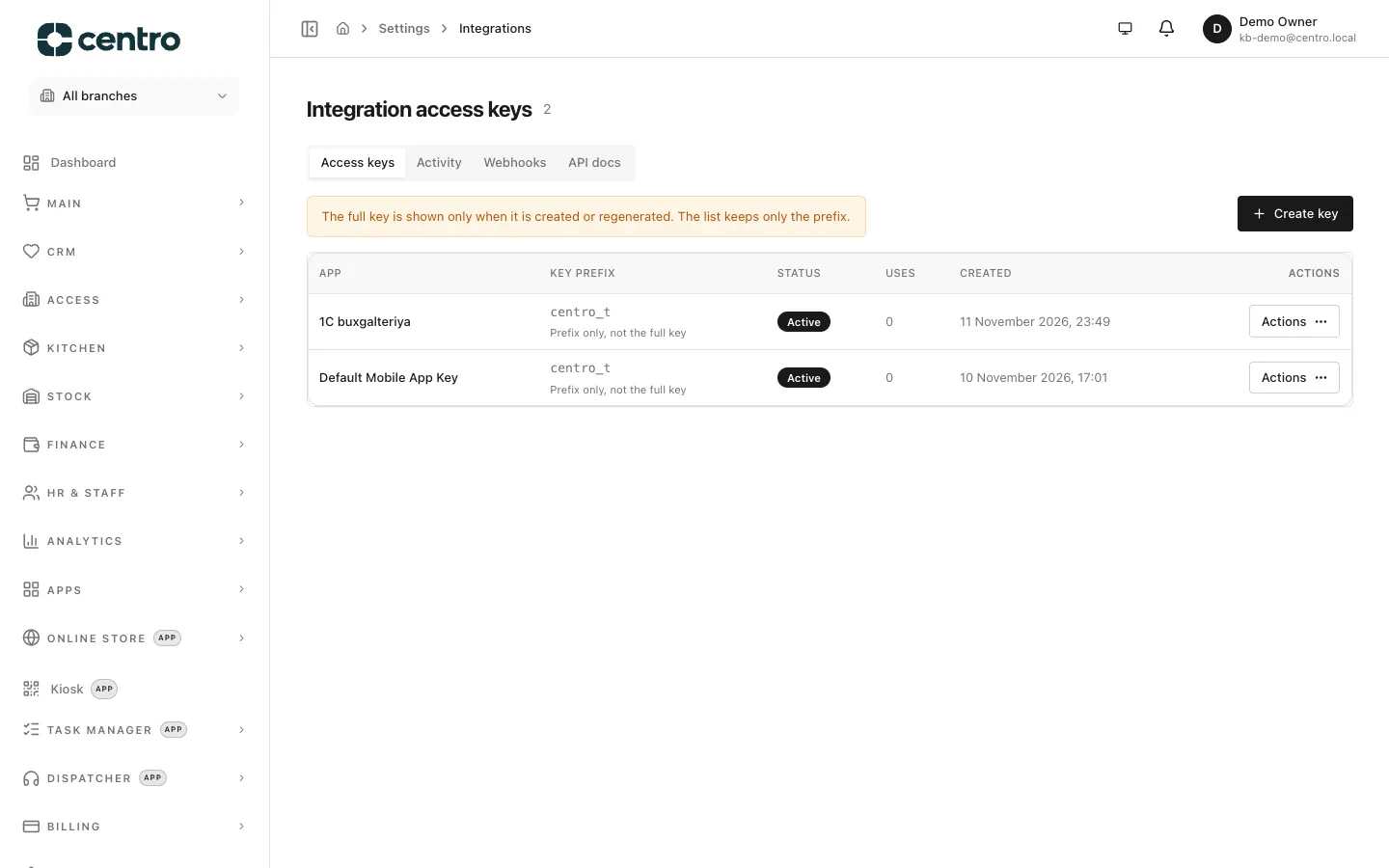
Columns
- «App»
- The key name. «Default Mobile App Key» is created automatically for the white-label mobile app.
- «Key prefix»
- The start of the key («Prefix only, not the full key»). Centro does not store the full key.
- «Status», «Uses», «Created»
- «Active» / «Inactive». «Uses» is approximate; the exact traffic is on the «Activity» tab.
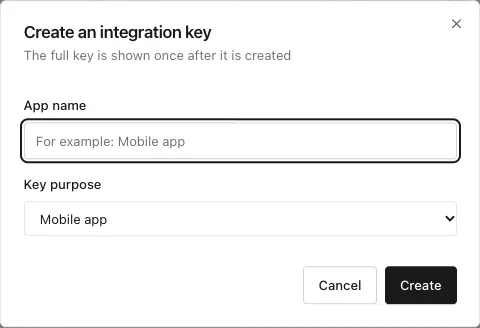
«Key purpose»
- «Mobile app»
- For your own mobile app or website: reading the catalog, branches, customers and bonuses, creating orders. Up to 200 requests per minute.
- «Read organization orders»
- Read-only (GET) access to your own organization’s orders — e.g. for 1C or BI; customer data is not shared. 60 requests per minute.
- «Organization orders and customers»
- Read + creating guest orders + reading/creating CRM customers (+ adding vehicles). No access to payment, cancellation or staff routes.
In an organization with car-wash mode, choosing «Organization orders and customers» shows: «Car wash is on: a guest order requires the vehicle plate; the phone is optional. Vehicles can be added to CRM customers.» The server reads this rule from the current setting on every request — if the mode changes later, the same key follows the new rule.
In a regular organization (no car wash) this purpose says: «Car wash is off: a guest order needs a phone; the vehicles API is unavailable.»
How to create and hand over a key
- Press Create key, enter the «App name» (e.g. «1C buxgalteriya») and choose the «Key purpose», then Create.
- In «Your new integration key» copy the full key and the ready env block («Ready-made env block») — after the window closes the key is never shown again.
- Give the key to the developer over a secure channel (e.g. a secret manager). Do not paste it into a chat in plain text.
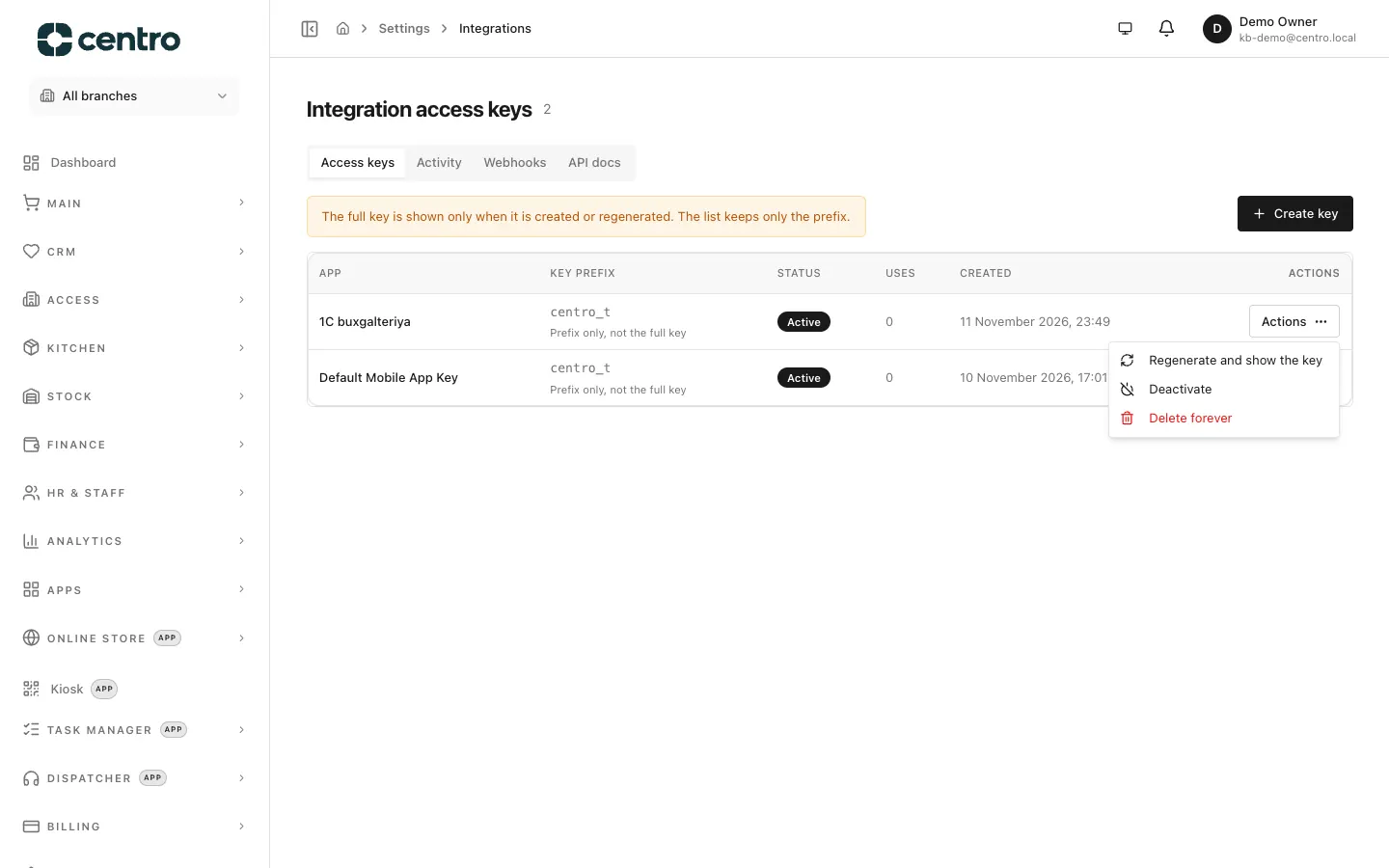
«Actions»
- «Regenerate and show the key»
- Issues a new key and shows it once; the old one stops working — replace it in the integration.
- «Deactivate» / «Activate»
- A deactivated key stays in the list for history, but apps using it stop working; it can be activated again later.
- «Delete forever»
- The key and its statistics are removed from the database — it cannot be undone.
Important: Only the owner and the administrator manage keys; others get «Not enough rights…». A key created on a local machine (localhost) is a test key and the env block uses «DEBUG» variables; in the live panel it uses «RELEASE».
Activity: key traffic #
Requests, errors and speed per key and API method; a sample of individual requests.
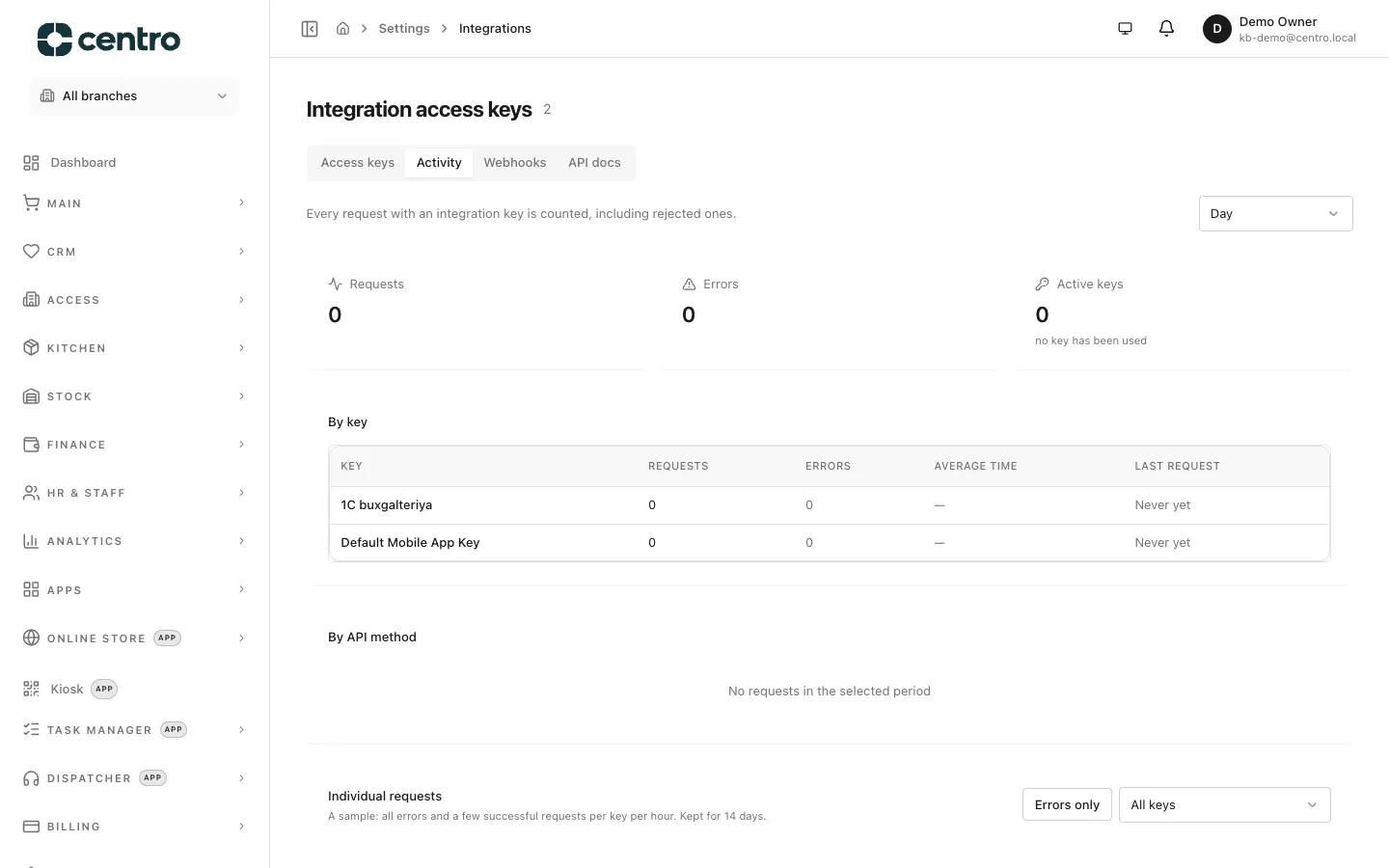
- Period
- «Hour», «Day», «Week», «Month». Every request is counted, including rejected ones; the page refreshes every 30 seconds.
- «Requests», «Errors», «Active keys»
- Totals and the error share (red above 10 %). «Active keys» are the keys used in the period.
- «By key», «By API method»
- Requests, errors, average/max time (ms) and the last request («Never yet» — the key was never used). «Unknown key · …» means someone calls with a key we do not have (often an old, regenerated key).
- «Individual requests»
- A sample: all errors and a few successful requests per key per hour, kept for 14 days. There is «Errors only» and a key filter; an error shows a response excerpt below.
Webhooks: sending events to your system #
Order, payment and delivery events are POSTed to your URL — signature, test, log and retry.
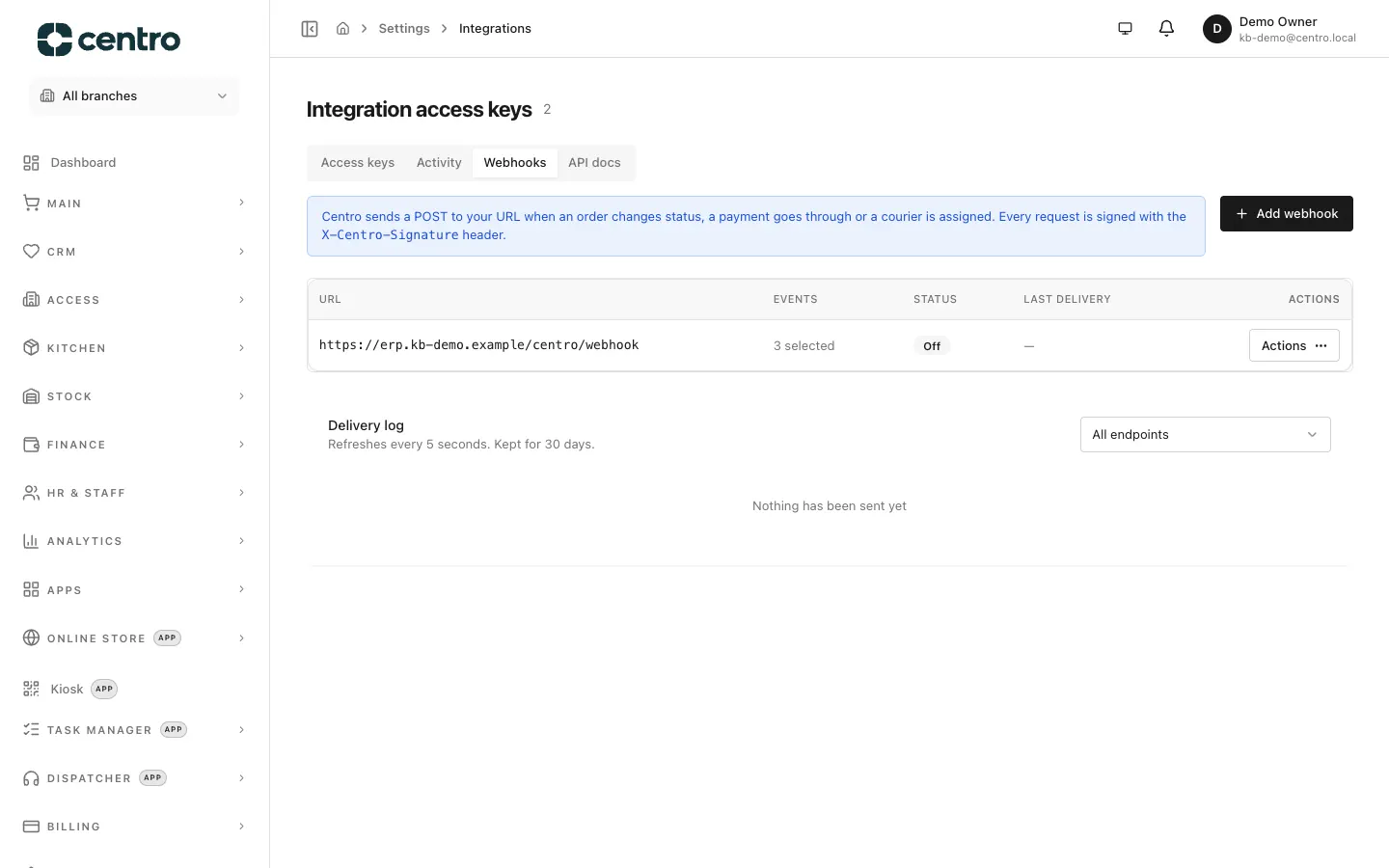
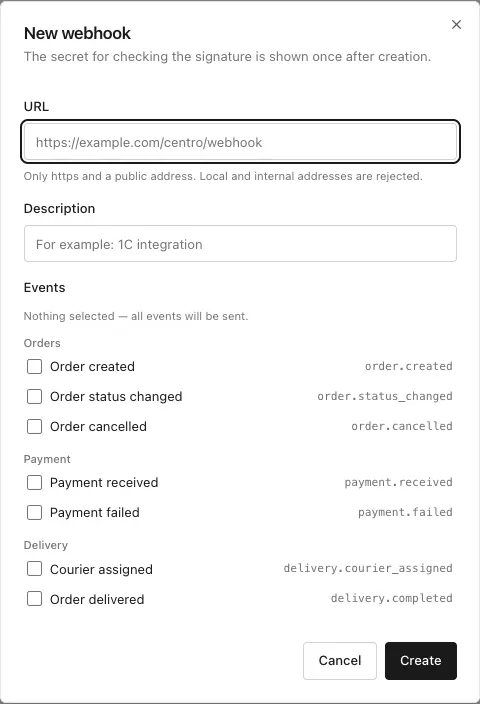
«New webhook»
- URL
- Only a full https, public address. Internal addresses (localhost, 127.0.0.1, 192.168.x.x), Centro’s own address and addresses with a login/password are rejected.
- «Description»
- A note for yourself, e.g. «1C: orders and payments».
- «Events»
- «Orders»: «Order created», «Order status changed», «Order cancelled»; «Payment»: «Payment received», «Payment failed»; «Delivery»: «Courier assigned», «Order delivered». Nothing selected — all are sent.
List and log
- «Events», «Status», «Last delivery»
- «All events» or «N selected»; «Active» / «Off». After a series of errors Centro turns the endpoint off itself — «Turned off automatically after a series of errors».
- «Actions»
- «Send test event», «Reissue secret» (the new secret is shown once), «Turn off» / «Turn on», «Delete» (the queue is deleted too).
- «Delivery log»
- Refreshes every 5 seconds, kept for 30 days: event, endpoint, HTTP response code, attempts, time (ms). Click a row to see the JSON sent; a failed delivery can be queued again with the circular arrow.
Tip: Verify the signature: compute HMAC-SHA256 with the «Signing secret» over `{timestamp}.{request body}` and compare it with X-Centro-Signature; reject requests older than 5 minutes (X-Centro-Timestamp). The secret is shown once — on creation or reissue.
API docs #
The partner API specification: endpoints, parameters, examples, Swagger and openapi.json.
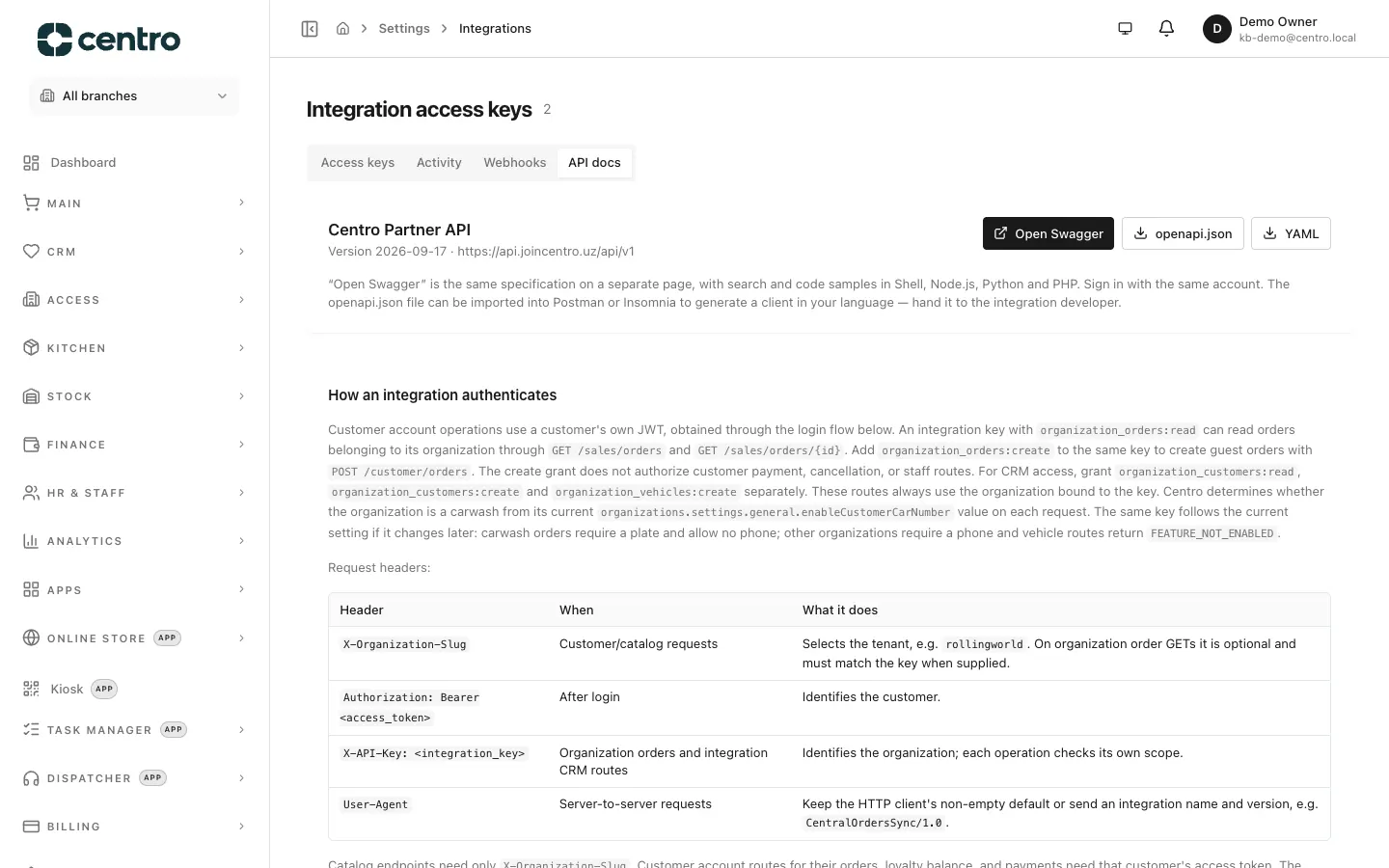
- The content comes straight from the server’s specification — it is checked against the real routes on every build, so it does not go stale. The texts themselves (endpoint descriptions) are in English.
- Expand a row: «Request» (with headers), «Parameters», «Example body», «Responses». A lock means a customer token is needed, a globe means the organization slug is enough.
- Open Swagger — the same specification with search and Shell/Node.js/Python/PHP samples; openapi.json / YAML — to import into Postman or Insomnia.
Uzum Tezkor branches #
The same branch manager as in Apps → Uzum Tezkor: keys, Store ID, receiving and logs.
This address opens the same page as the Uzum Tezkor app settings («Uzum Tezkor Eats»). The full description is in the Apps → Uzum Tezkor topic: the «Settings», «For Uzum», «Orders», «Request logs» sections and «Add branch».
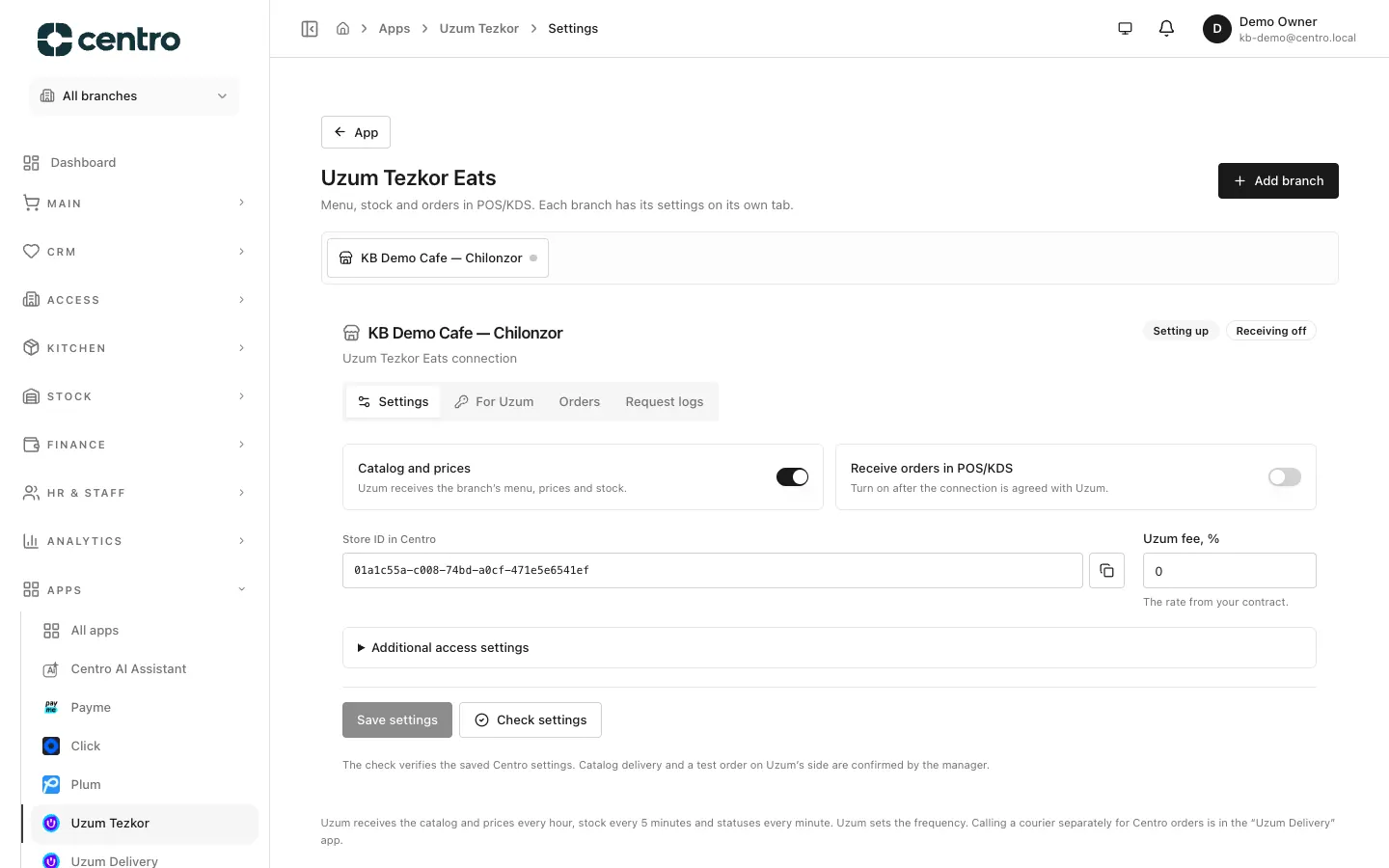
Uzum Tezkor delivers not only food but also groceries and everyday goods — a store can connect its branch too and share the catalog and stock with Uzum (the contract is with Uzum).
A car wash usually does not need this marketplace: Uzum Tezkor takes orders for delivered goods, not service bookings.
Yandex Eats #
The page that links a branch to a Yandex Eats restaurant — see the Apps → Yandex Eats topic for details.
This address (/settings/integrations/yandex-eats) opens from Apps → Yandex Eats and from the order settings in Settings → Parameters. On the left is the «New branch binding» form (Restaurant ID, Yandex Partner Account ID, fees), on the right a card per binding («Receive orders from Yandex Eats», «Menu sync», «Publish menu» and more). Every field is described in the Apps → Yandex Eats topic.
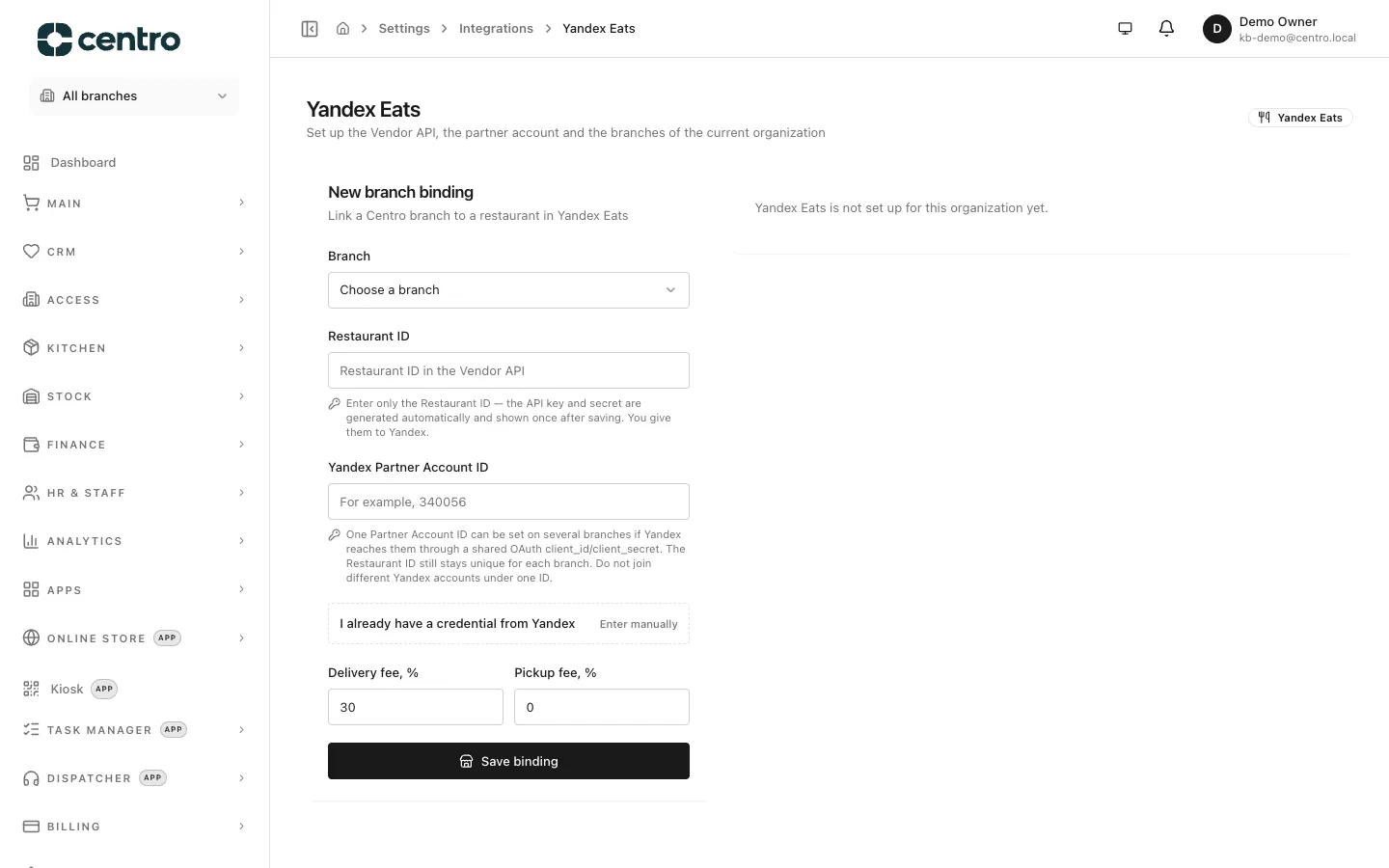
Important: Turn on «Receive orders from Yandex Eats» only after the connection is fully agreed with Yandex: after the confirmation («Turn on receiving real Yandex Eats orders?…») real orders start landing at the till and in the kitchen right away.
Yandex Eats is a food delivery marketplace; the page opens in any type of organization, but it is meant mainly for restaurants and cafés.