Couriers
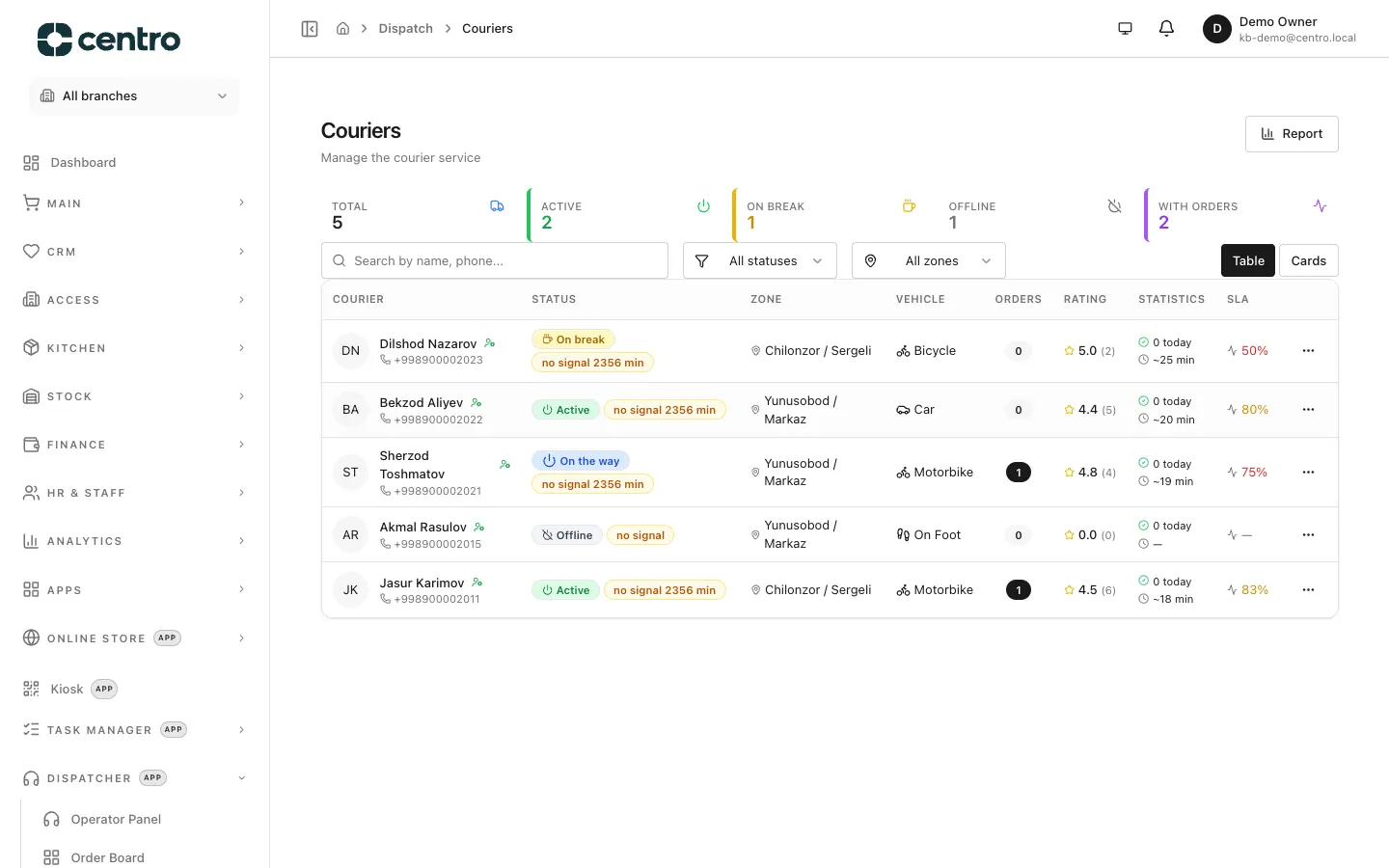
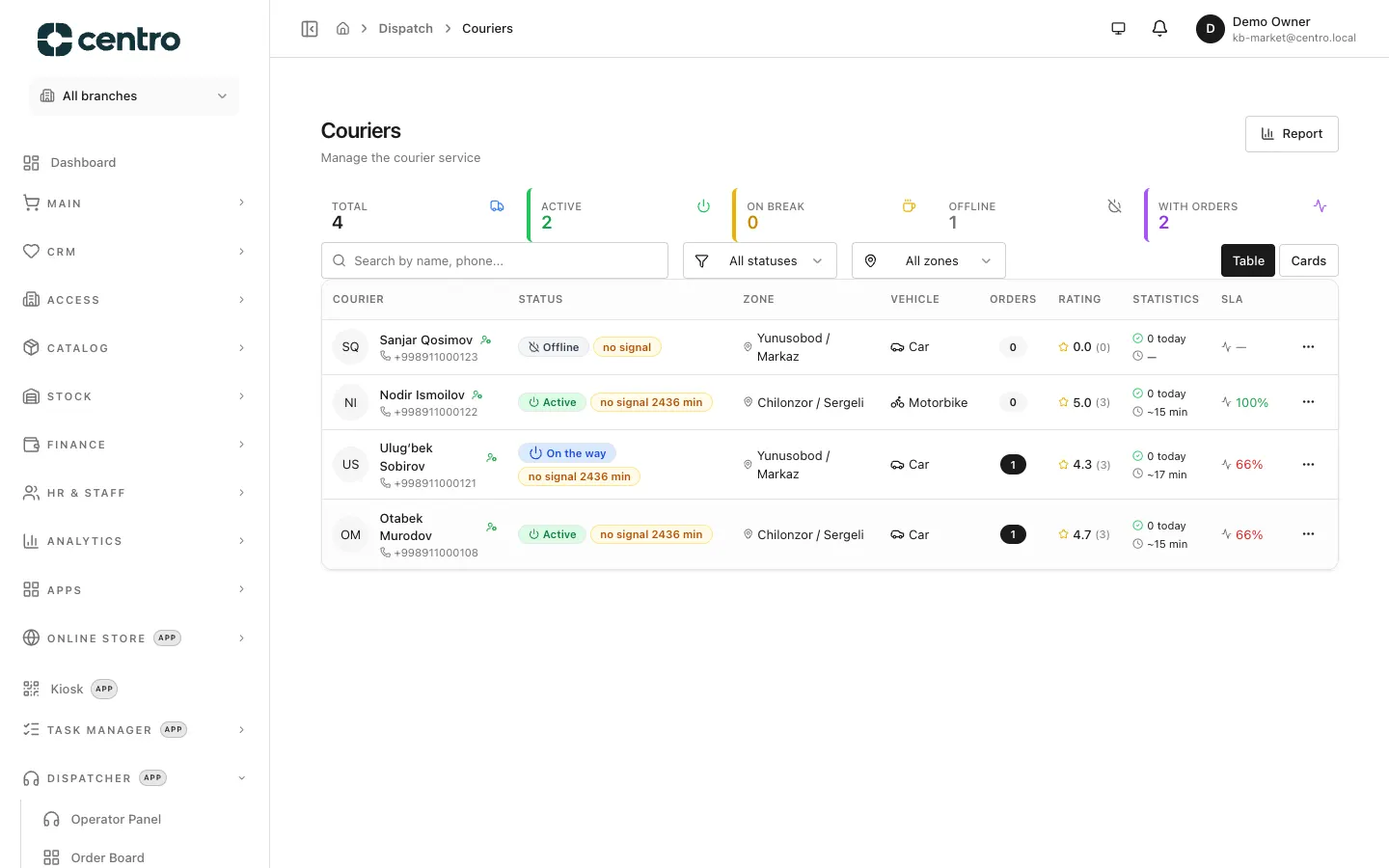
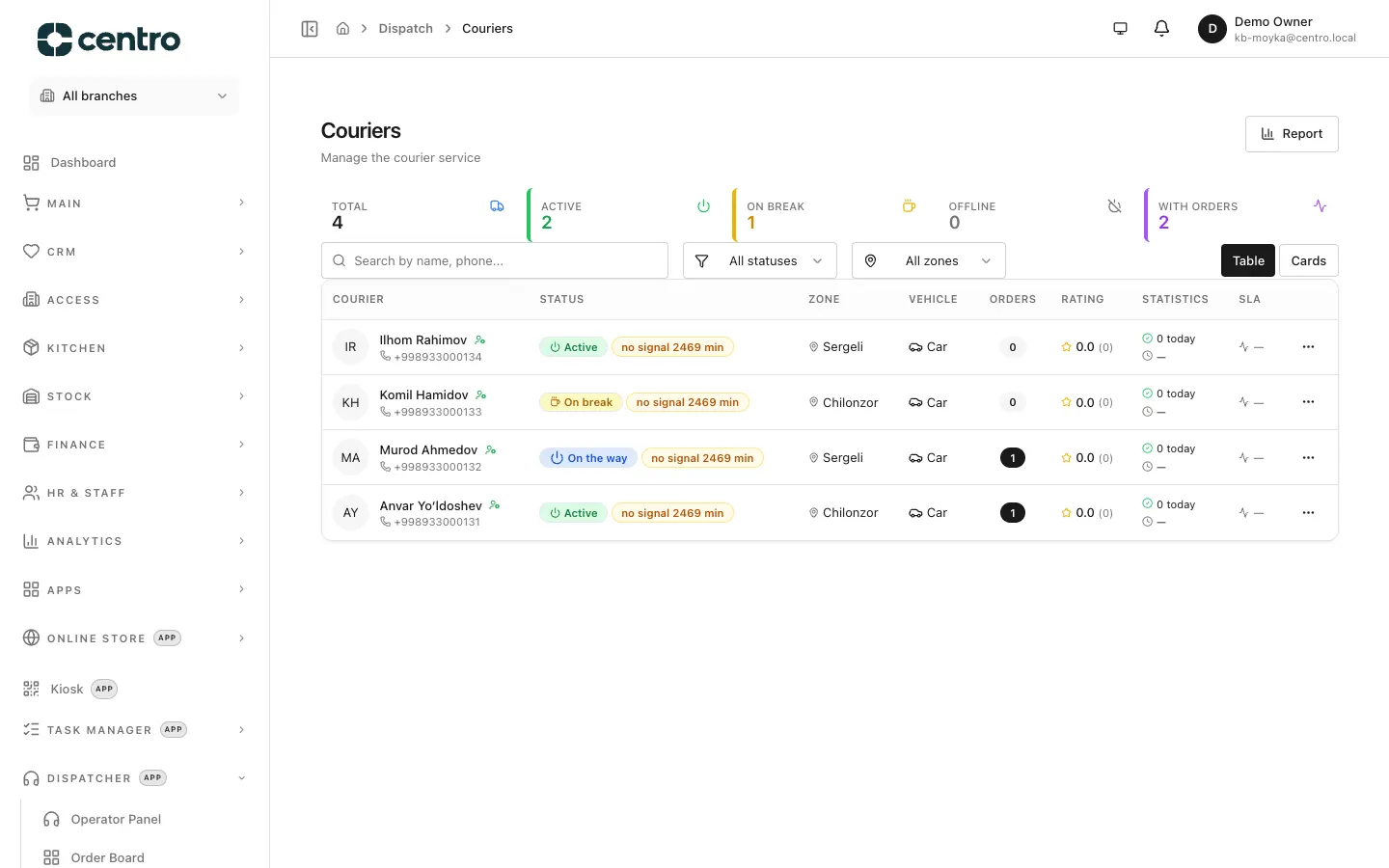
The courier list: status, zone, vehicle, active orders, rating, statistics and SLA. Mobile washers: status, zone, car, active visits, rating and SLA.
Open in the admin panel/dispatcher/couriers All couriers of the organization: your employees (with the green employee icon) and aggregator couriers («Ya.Eda», «DC», «Agg» badge). Statuses update live — when a courier starts a shift or takes a break in the app, the list refreshes by itself. The newest couriers are on top.
How to open
- In the sidebar, expand the Dispatcher group.
- Choose Couriers.
Tiles, filters and columns
- Tiles
- «Total», «Active», «On break», «Offline», «With orders» — over the whole courier list (regardless of filters).
- Search and filters
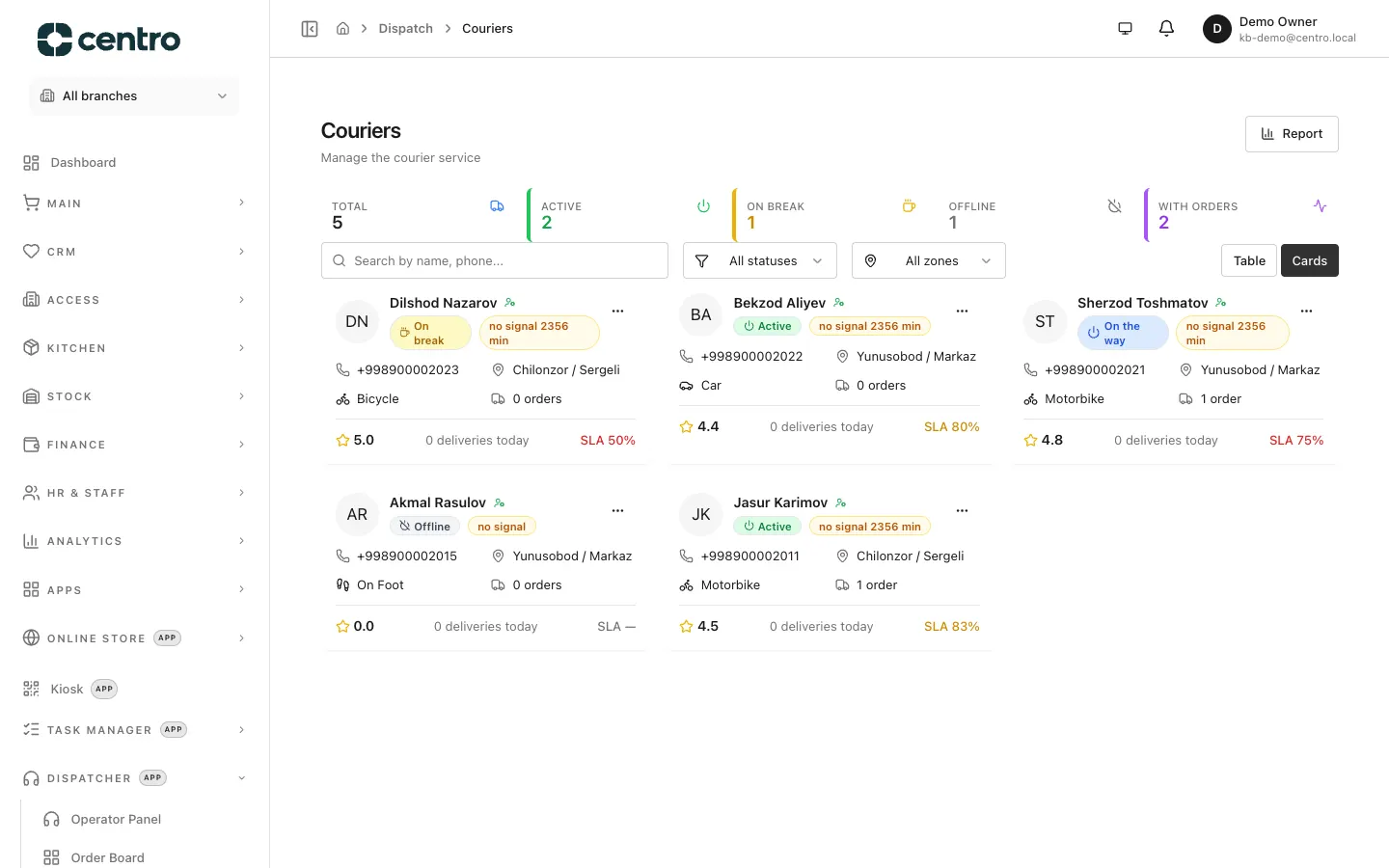
- Search by name or phone, «All statuses» and «All zones» filters; «Table» / «Cards» view. The choice is kept in the link.
- «Courier» and «Status»
- Name (link to the card), phone; status badge and «no signal» when needed.
- «Zone» and «Vehicle»
- Delivery zones from the courier profile; car, motorbike, bicycle or on foot.
- «Orders»
- How many active orders the courier has now.
- «Rating»
- Average customer score, in brackets — total deliveries.
- «Statistics»
- Deliveries today and the 30-day average delivery time.
- «SLA»
- Share of deliveries in 30 days handed over no later than promised: 90%+ green, 80–89% yellow, lower red; «—» without data.
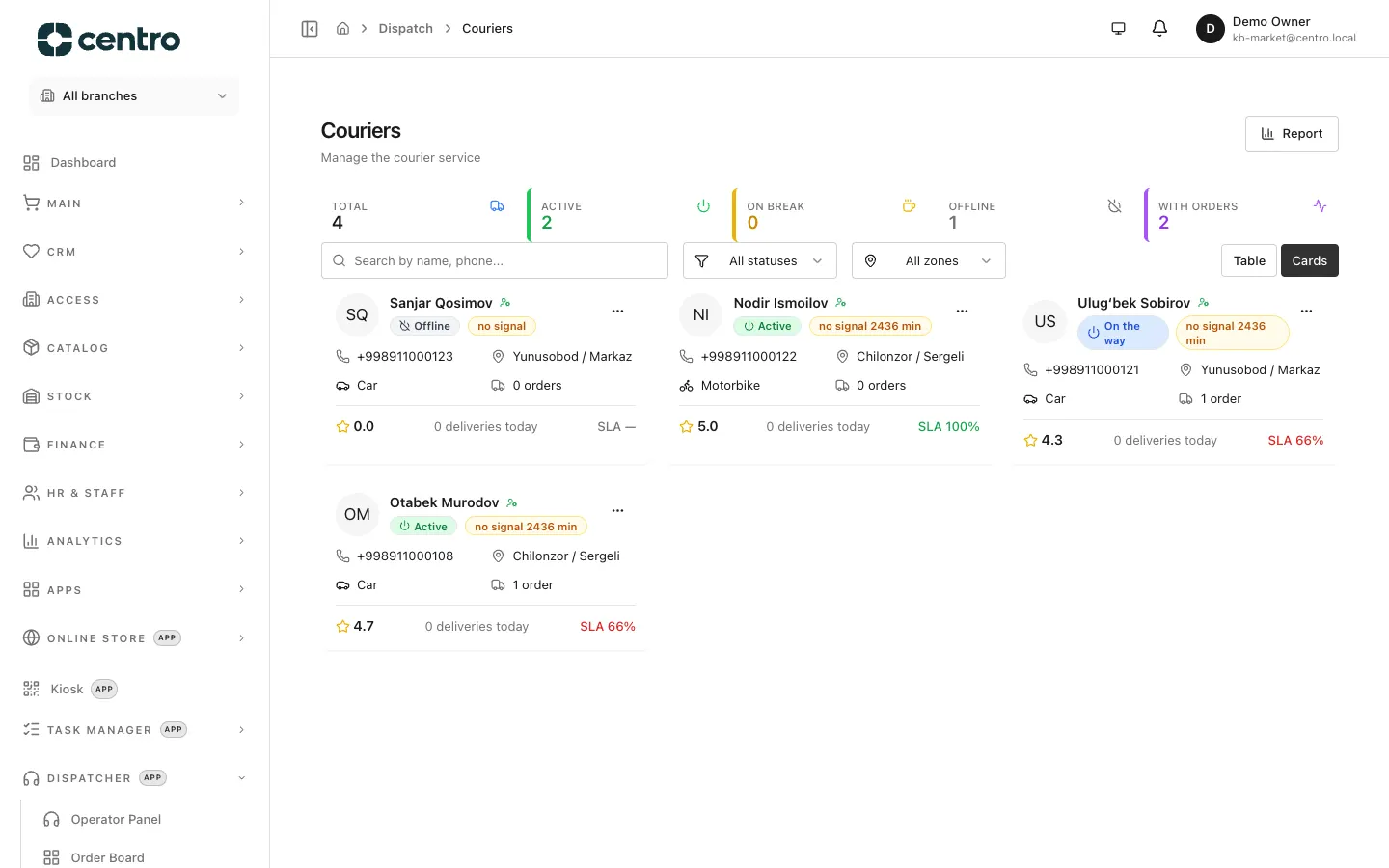
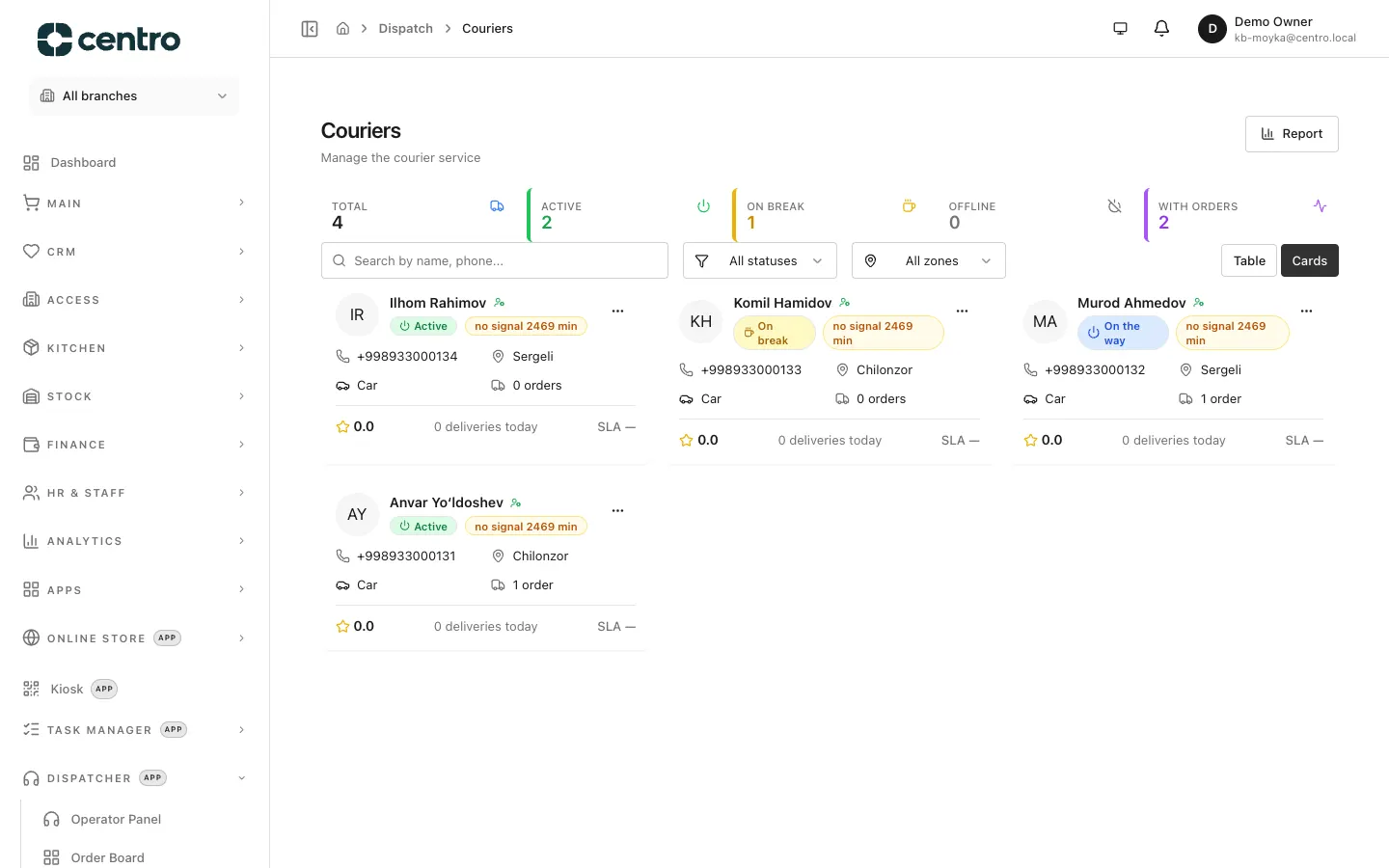
In a store couriers carry goods (parcels) to customers; they usually drive a car, so put the plate in the profile — it shows in search and on the card.
At a car wash a «courier» is a mobile washer: also an employee + courier profile, vehicle — the service car, zones — travel zones. Washers working in the bays do not need a courier profile.
Tip: To see the page the position needs at least view access to «Dispatcher» or «Couriers». Assigning couriers and changing their status requires full access to «Dispatcher» or «Couriers». How to switch the section on — see «How to turn the section on».
How to add a courier #
A courier is an employee with a courier profile: added via Access → Employees.
- In Access → Employees create an employee (or open an existing one) with the «Курьер» position and a phone (or email) — the courier signs in to the app with it.
- In the employee table or card click Make courier and fill in the courier profile: delivery venues, zones, vehicle and plate, Courier App password (at least 4 characters). Details — «Making an employee a courier».
- The courier starts a shift in the app — after that they are «Active» and available for assignment on the board.
Tip: The old address /dispatcher/couriers/new now shows «This section has moved» and redirects to the employees. The number of couriers can be limited by the plan quota.
Courier statuses and connectivity #
Active, on the way, on break, offline; the «no signal» badge and automatic end of shift.
- «Active»
- On shift and ready for an order. Only a courier with this status and no current order can be assigned.
- «On the way»
- Picked up the order and is heading to the customer.
- «On break»
- The shift is open but no new orders are assigned.
- «Offline»
- Not on shift.
- «Unavailable»
- The courier has marked themselves temporarily unavailable.
- «no signal N min»
- The courier app has been silent for more than 4 minutes: the shift is kept, offers go out as push notifications. If the app stays silent for 60 minutes and the courier has no active delivery, the shift ends automatically (status «Offline»).
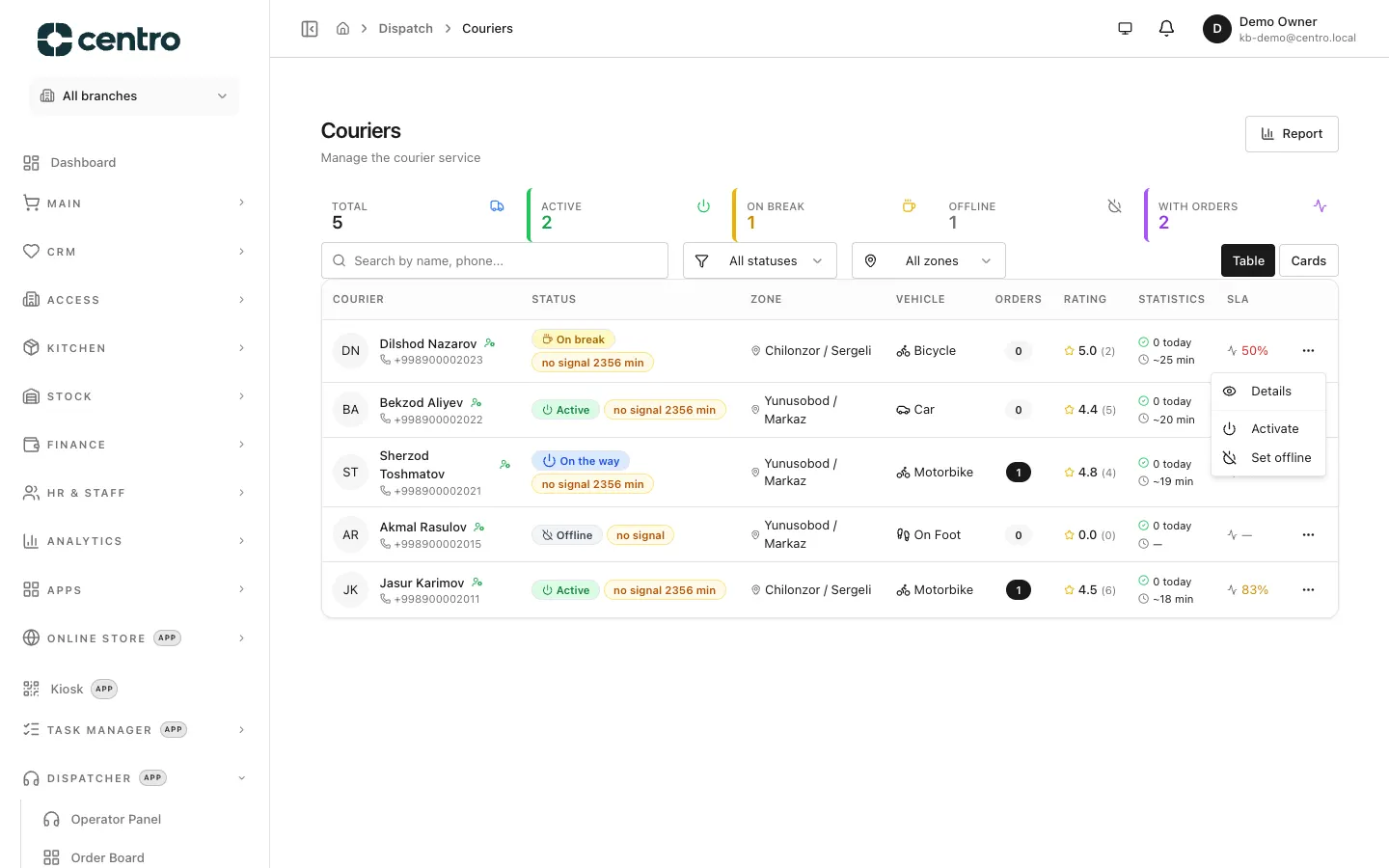
Usually the courier changes the status in the app (start/end shift, break). The dispatcher can also change it from the «…» menu of a row: «Activate», «Start break» (only for an active courier), «Set offline». This needs full access to «Dispatcher» or «Couriers»; otherwise the page shows the «Read-only mode» warning.
Courier card #
Profile, linked employee, operational and performance metrics, current orders.
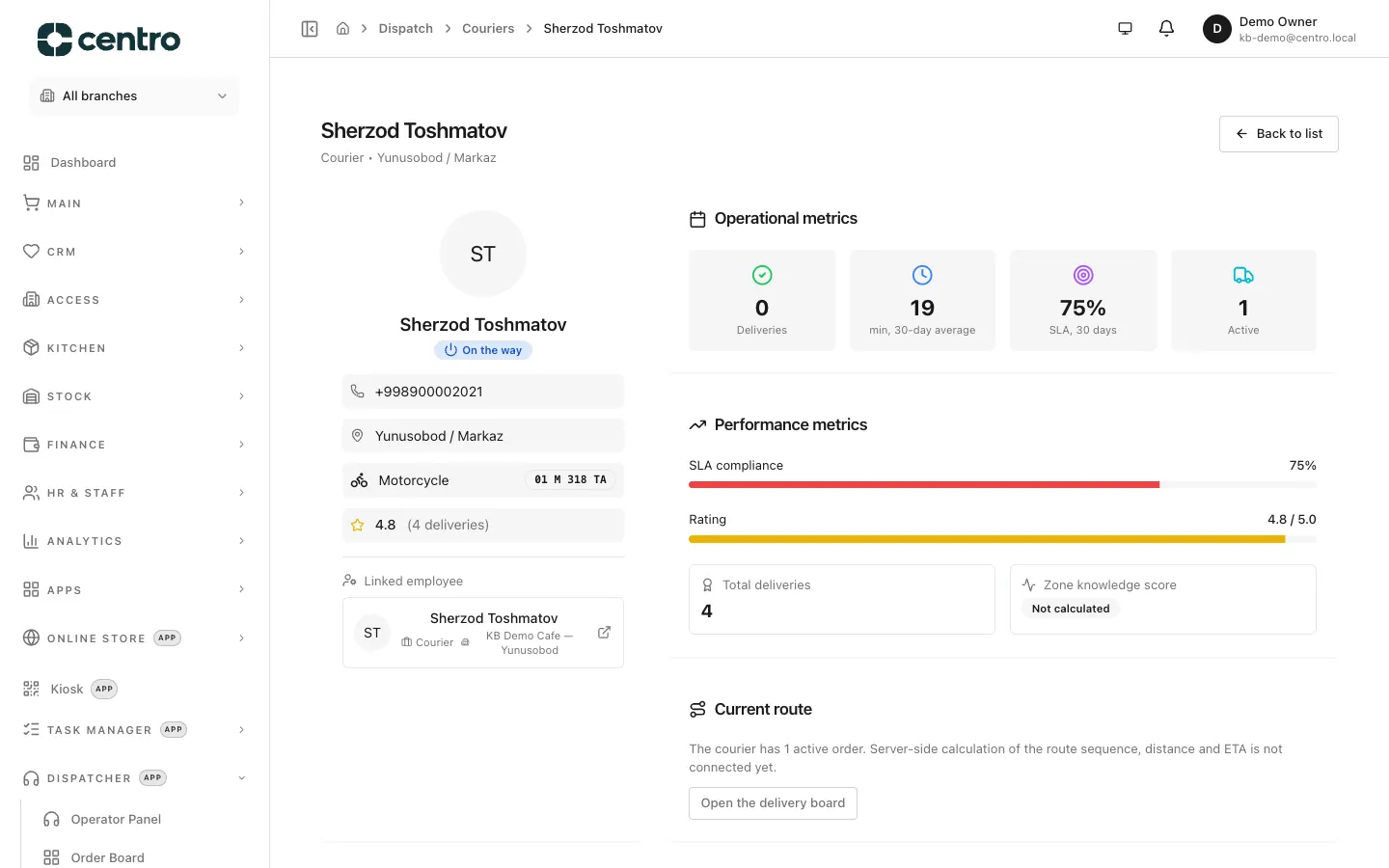
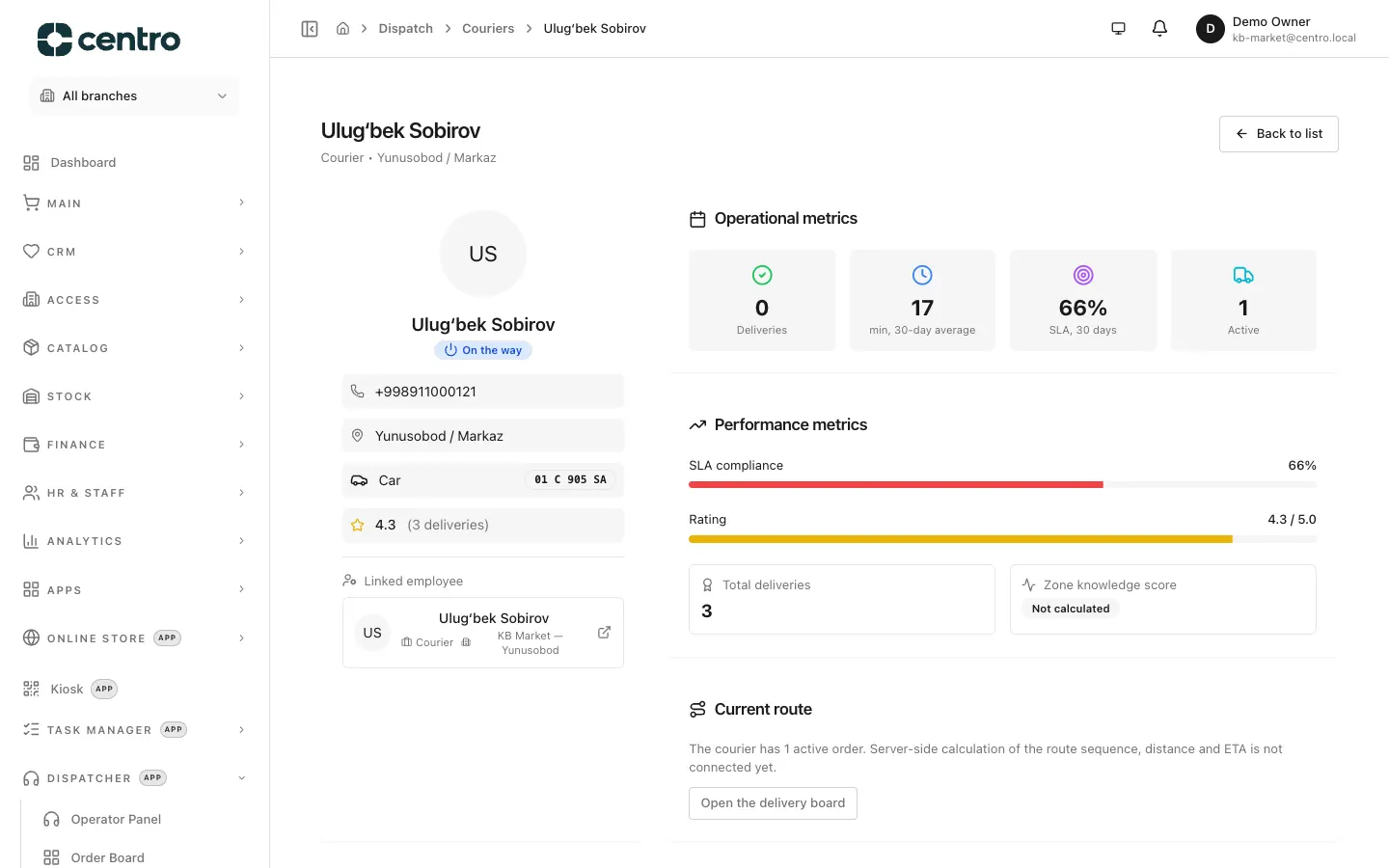
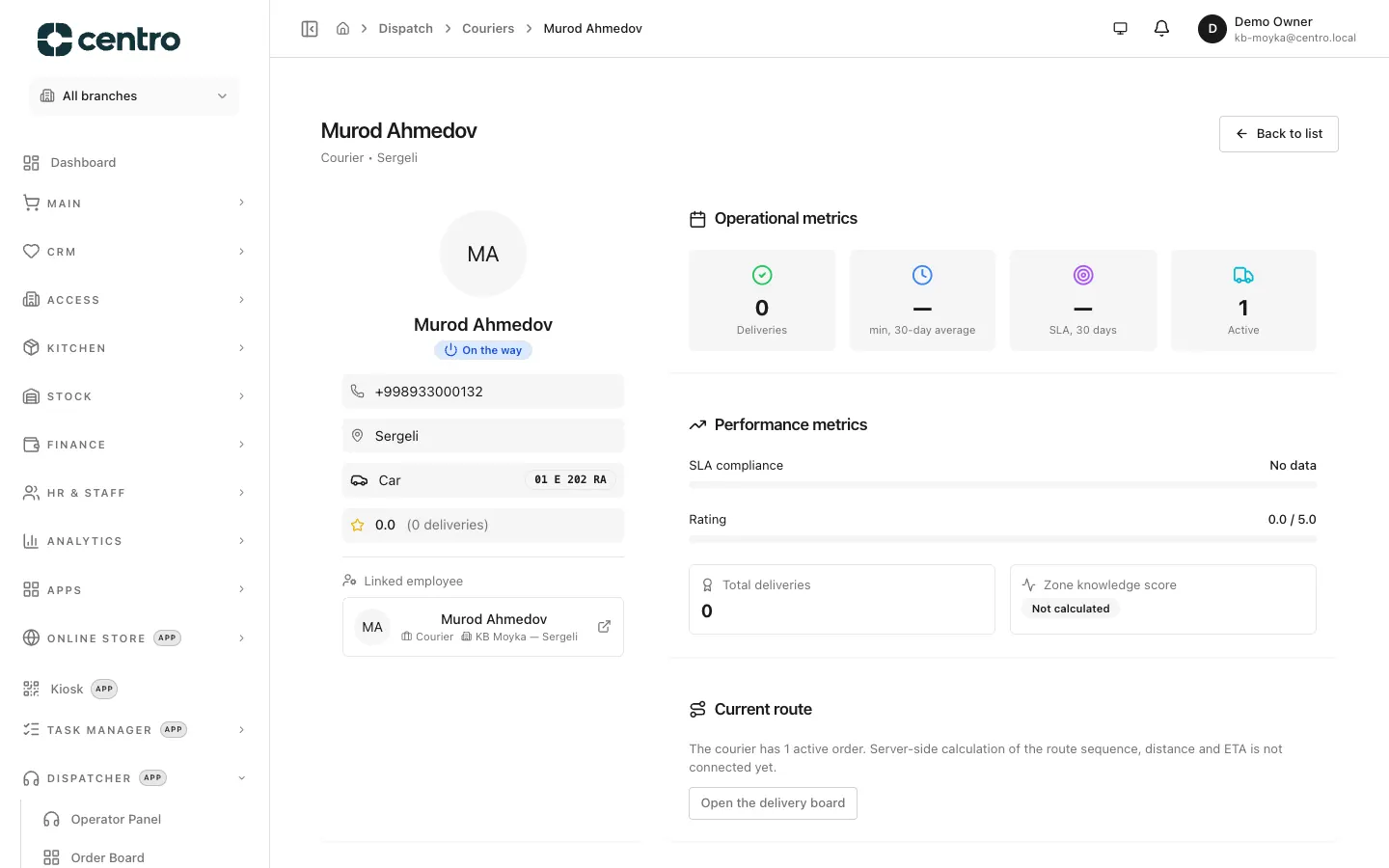
- Profile
- Name, status, phone, zone, vehicle and plate, rating (with the number of deliveries).
- «Linked employee»
- Which employee the courier was created from: position and venue; click to open the employee card. Aggregator couriers show the «Aggregator courier» badge.
- «Operational metrics»
- Deliveries today, average delivery time (from pick-up to hand-over, 30 days), 30-day SLA (share handed over no later than promised) and current active orders.
- «Performance metrics»
- SLA bar (90%+ green, 80–89% yellow, lower red), rating from customer scores (out of 5), total deliveries. «Zone knowledge score» is not calculated yet.
- «Current route»
- Only with active orders: how many orders the courier has and a link to the board. The server does not calculate the route sequence and distance yet.
Courier report #
Today’s deliveries, active orders, average time, SLA and the last GPS point of every courier.
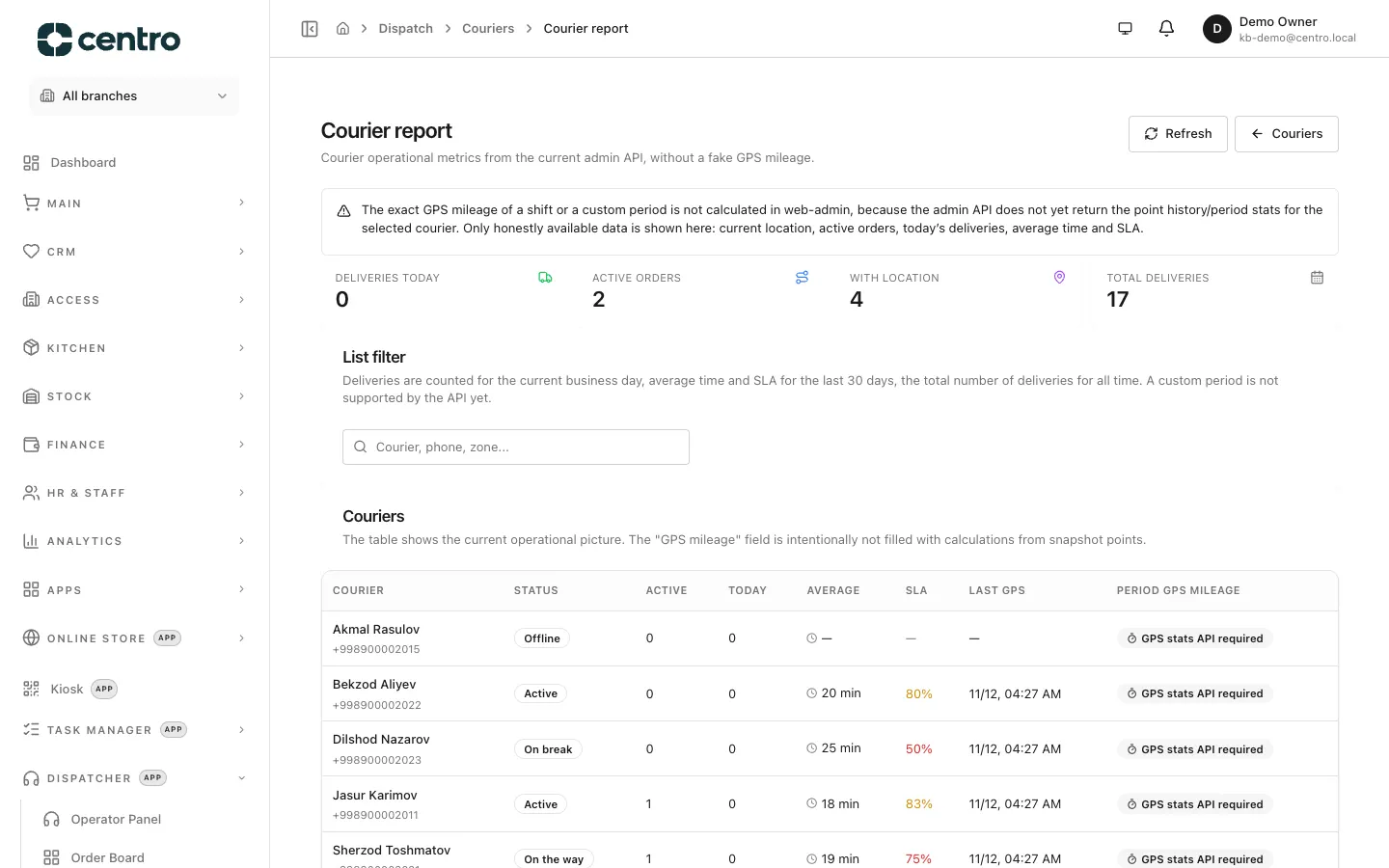
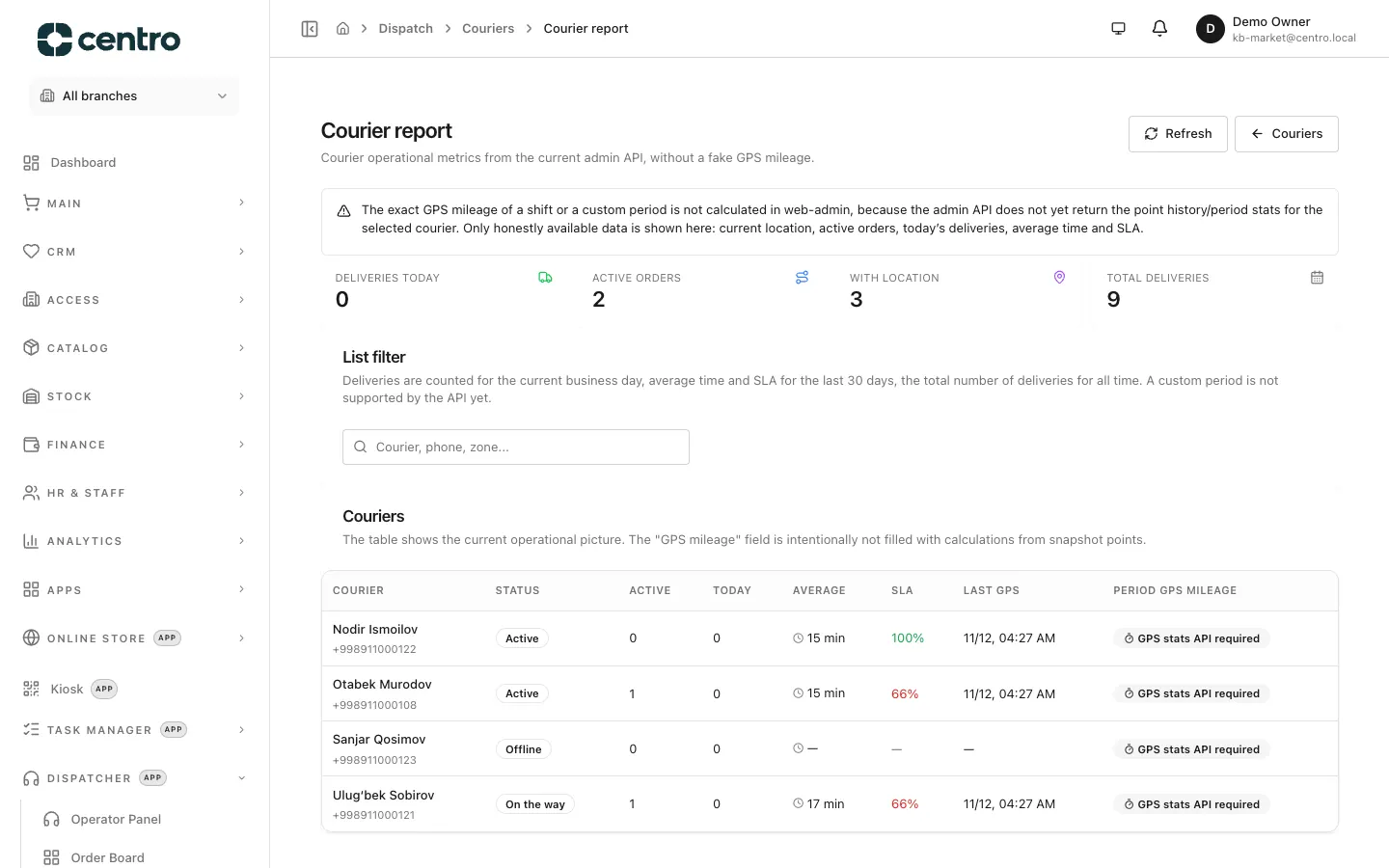
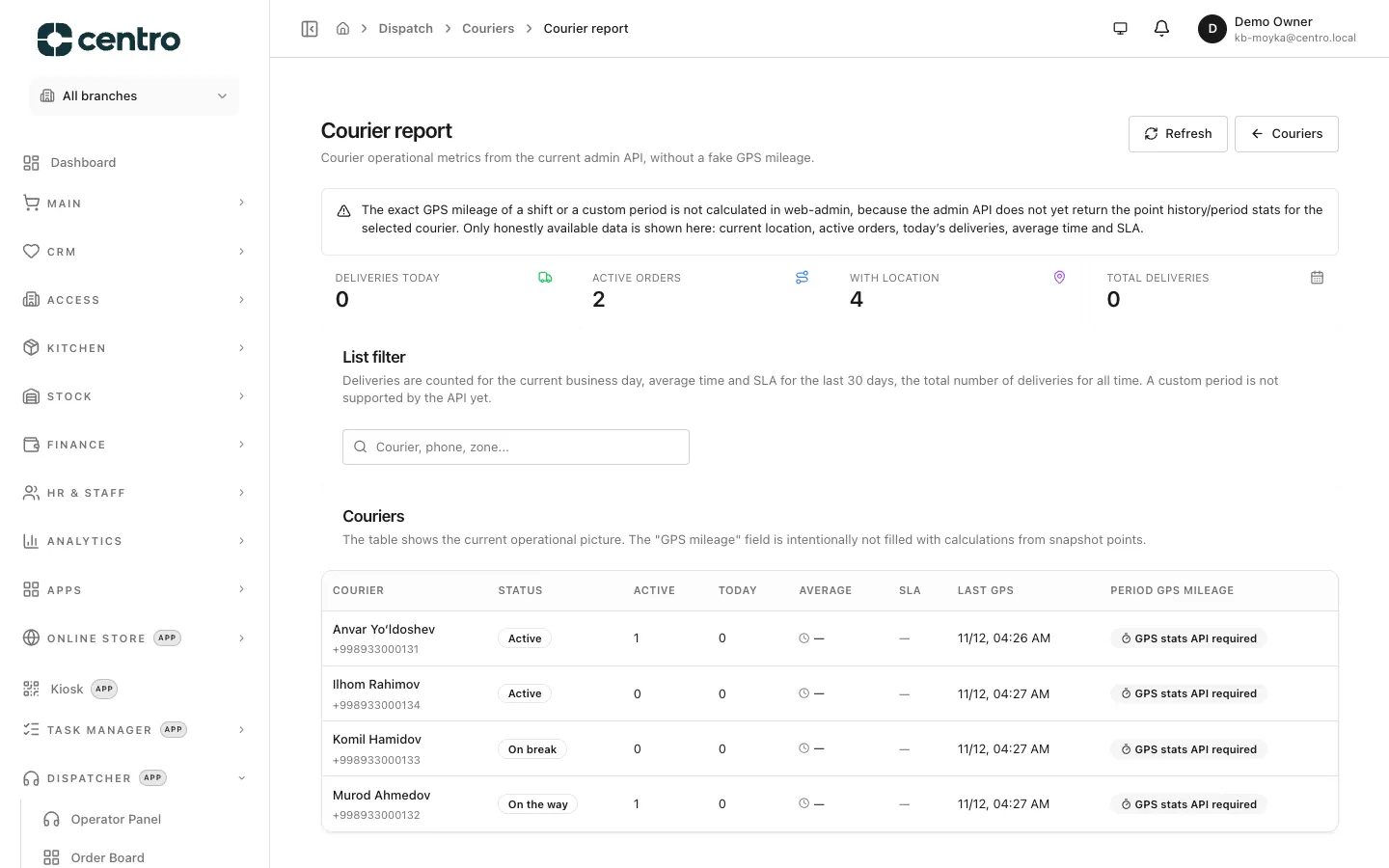
- Top tiles
- «Deliveries today», «Active orders», «With location» (couriers with a current GPS point), «Total deliveries» — sums over the filtered list.
- «List filter»
- Search by the courier’s name, phone, zone or plate. Periods are fixed: deliveries — current business day, average time and SLA — 30 days, total — all time; there is no custom period yet.
- Table columns
- «Courier», «Status», «Active», «Today», «Average», «SLA», «Last GPS» (time of the last point). «Period GPS mileage» is intentionally not calculated — «GPS stats API required».
Tip: To pay couriers per delivery use the payroll of the «HR & Staff» section — this report is operational only.
Courier chat (delivery chats) #
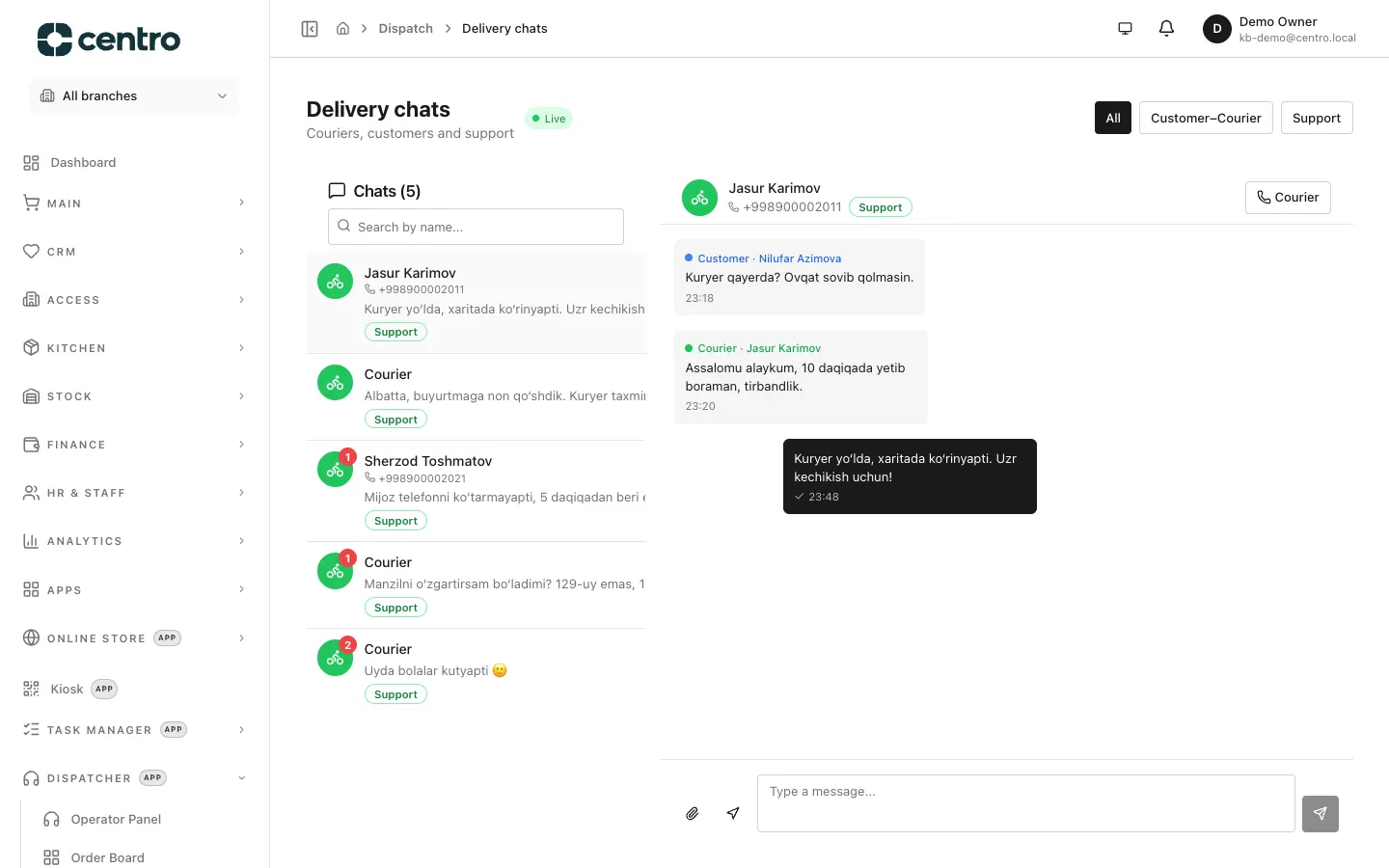
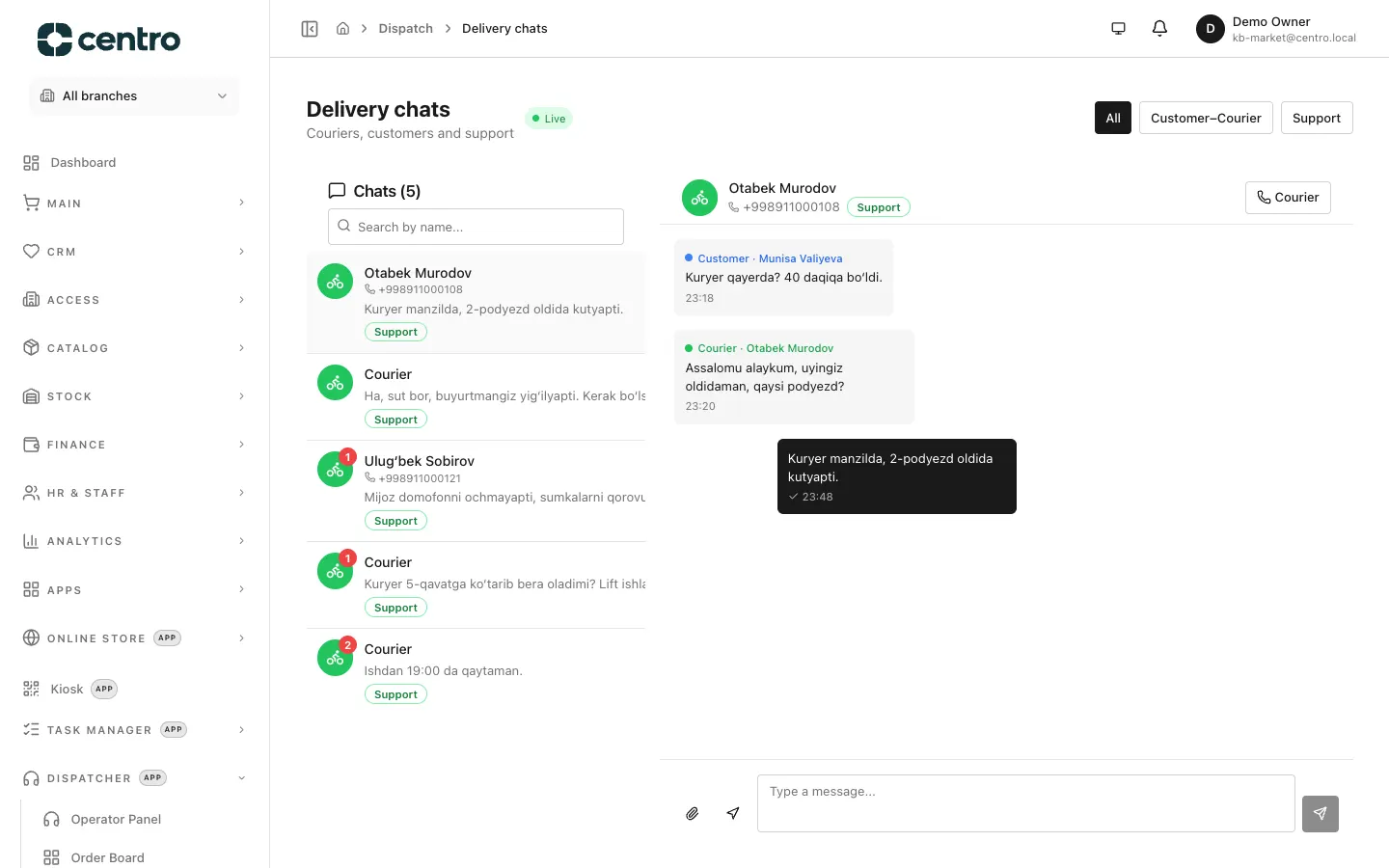
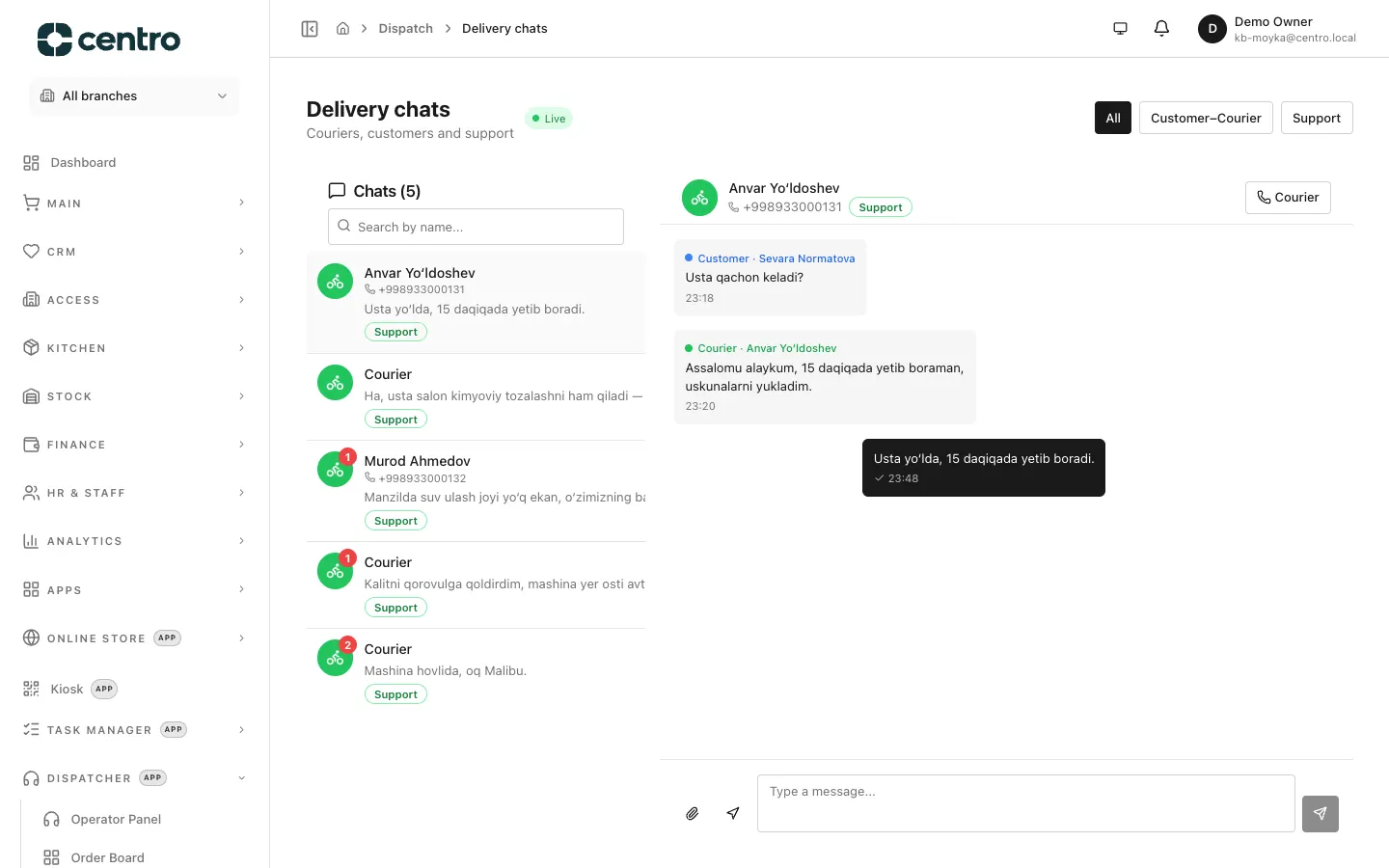
Courier ↔ dispatcher conversations and customer ↔ courier chats in one window.
How to open
- In the header of any dispatch page click «More» → «Courier chat» (address /dispatcher/courier-chat).
- The Couriers sidebar item is highlighted meanwhile.
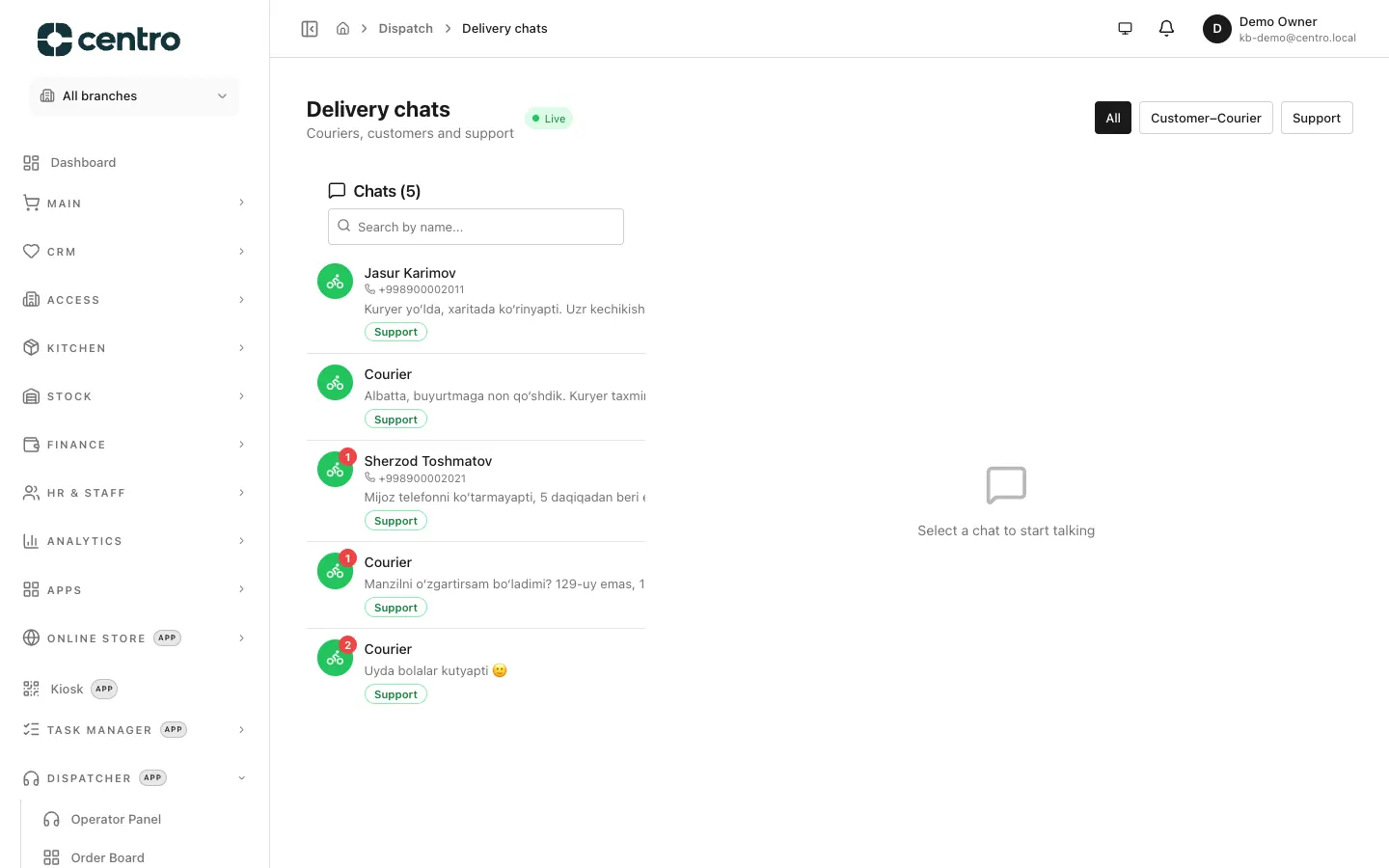
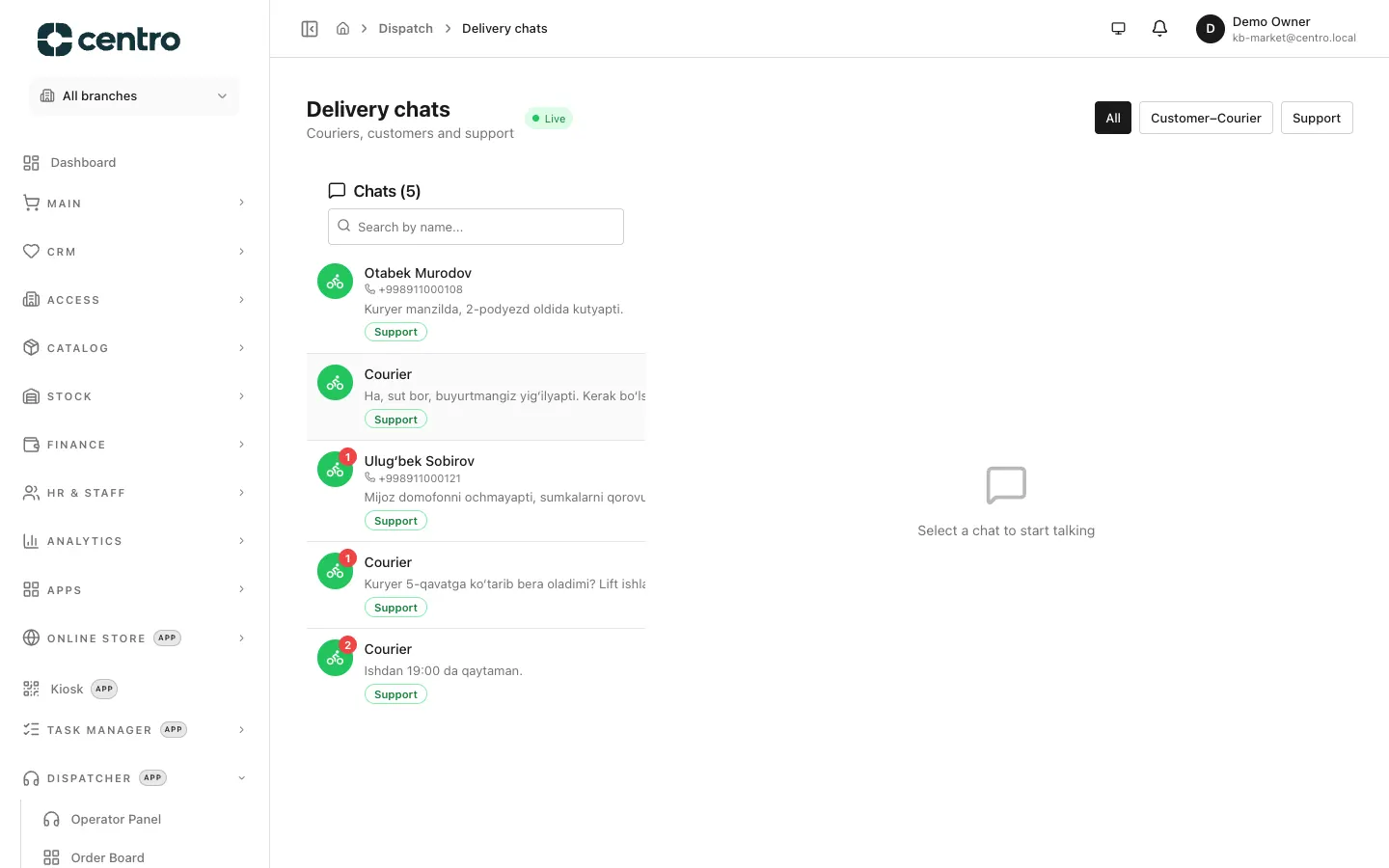
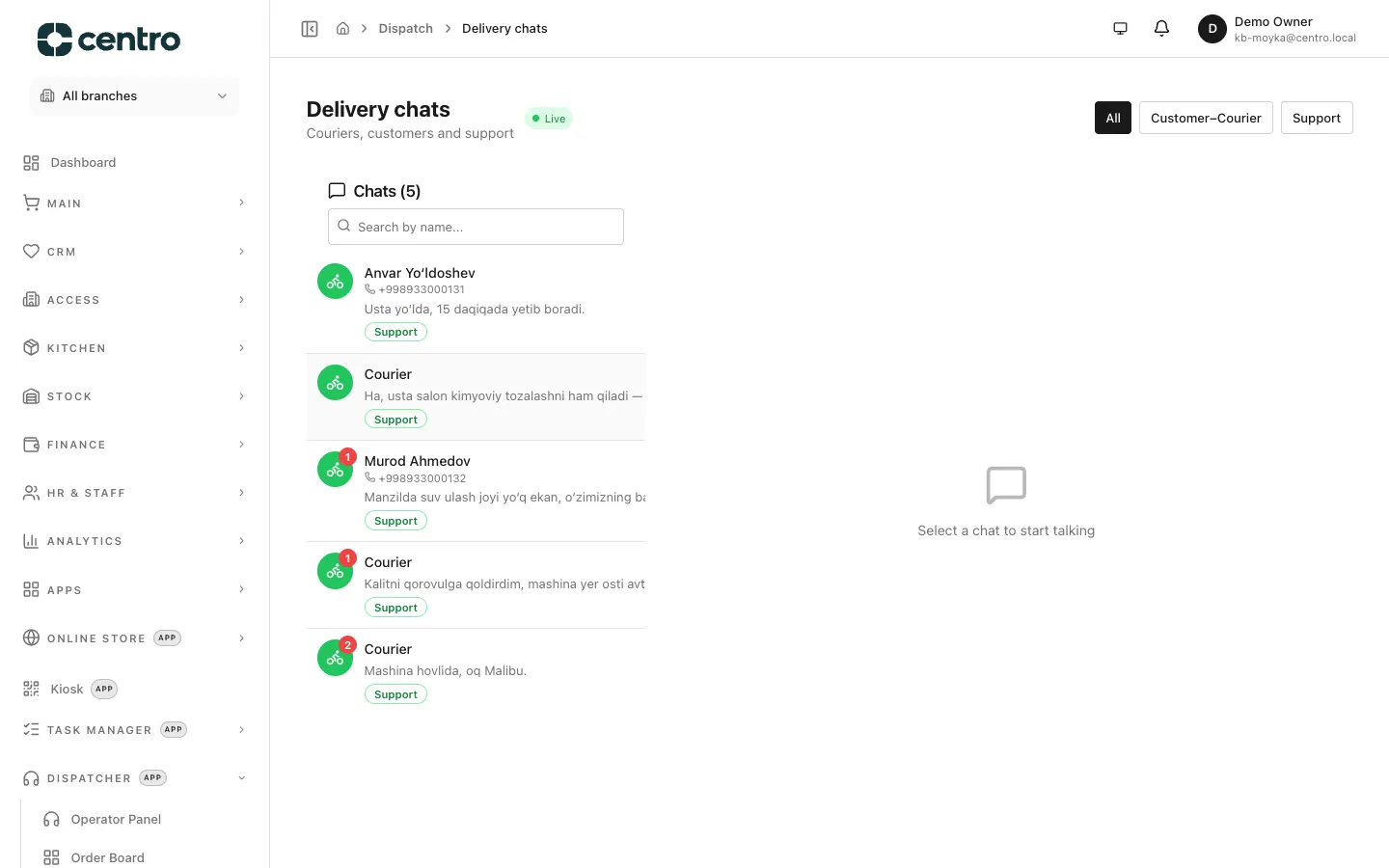
- «All» / «Customer–Courier» / «Support»
- Chat type filter. «Customer–Courier» is the customer and courier talking about an order (the dispatcher can join); «Support» is the courier writing to the dispatcher.
- «Chats (N)» and search
- Active chats only, with the last message and its time. Search by courier or customer name and the courier’s phone.
- Live / Offline
- The real-time connection: with Live, new messages and chats arrive instantly with a sound.
How to reply to a courier
- Pick a chat in the list — its messages are marked as read.
- Type the text and press Enter or the send button. The paper clip sends a photo (up to 10 MB), the arrow sends your current location.
- To call the courier, click the «Courier» button on top (if a phone number is known).
Tip: A chat is opened by the courier app or the customer app — you cannot start a new chat on this page. The double tick (✓✓) means delivered/read.
At a car wash this chat is for talking to the mobile crew: has the crew arrived, where is the car parked, and so on.