Map
Active orders, couriers and branches on the city map in real time.
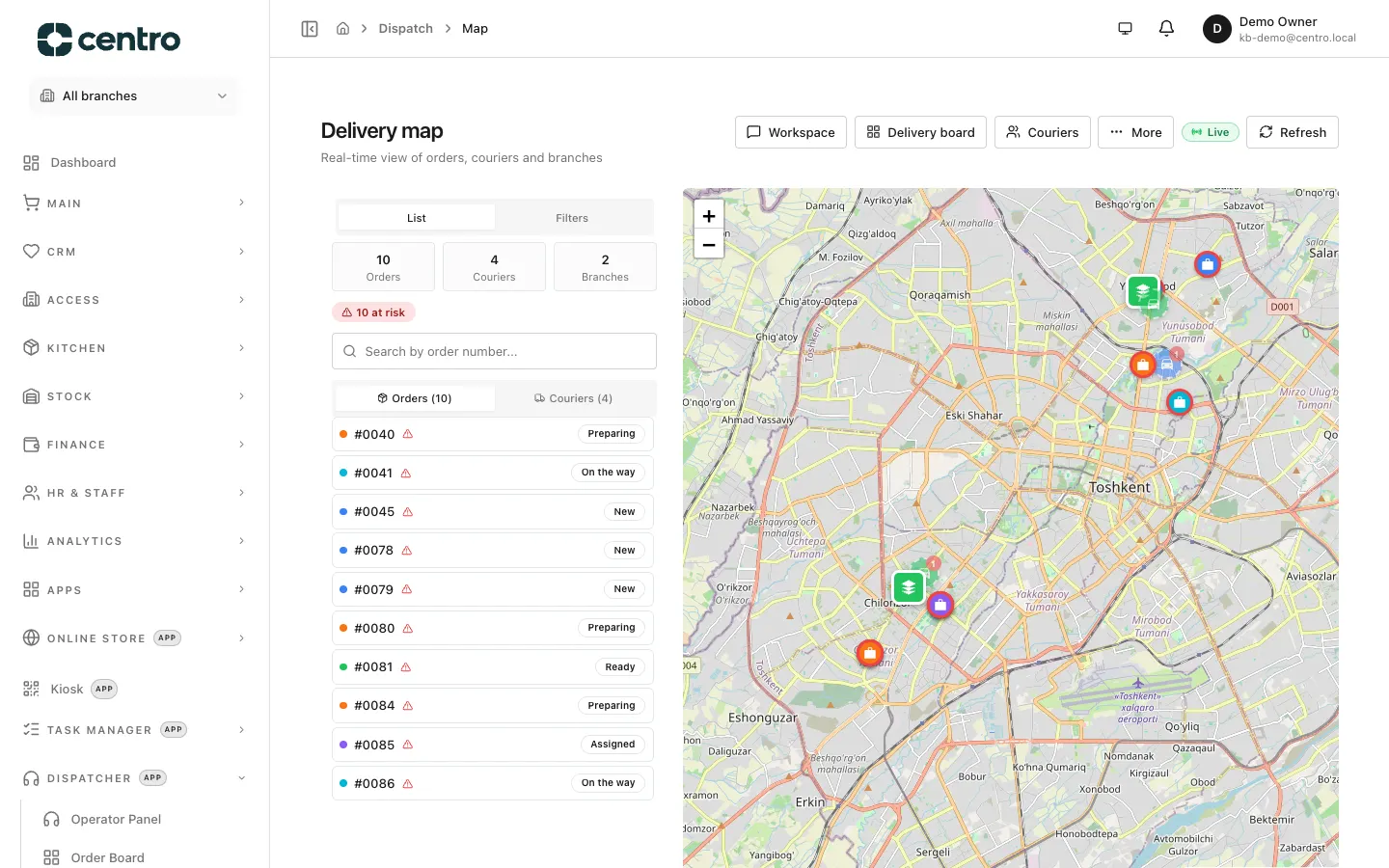
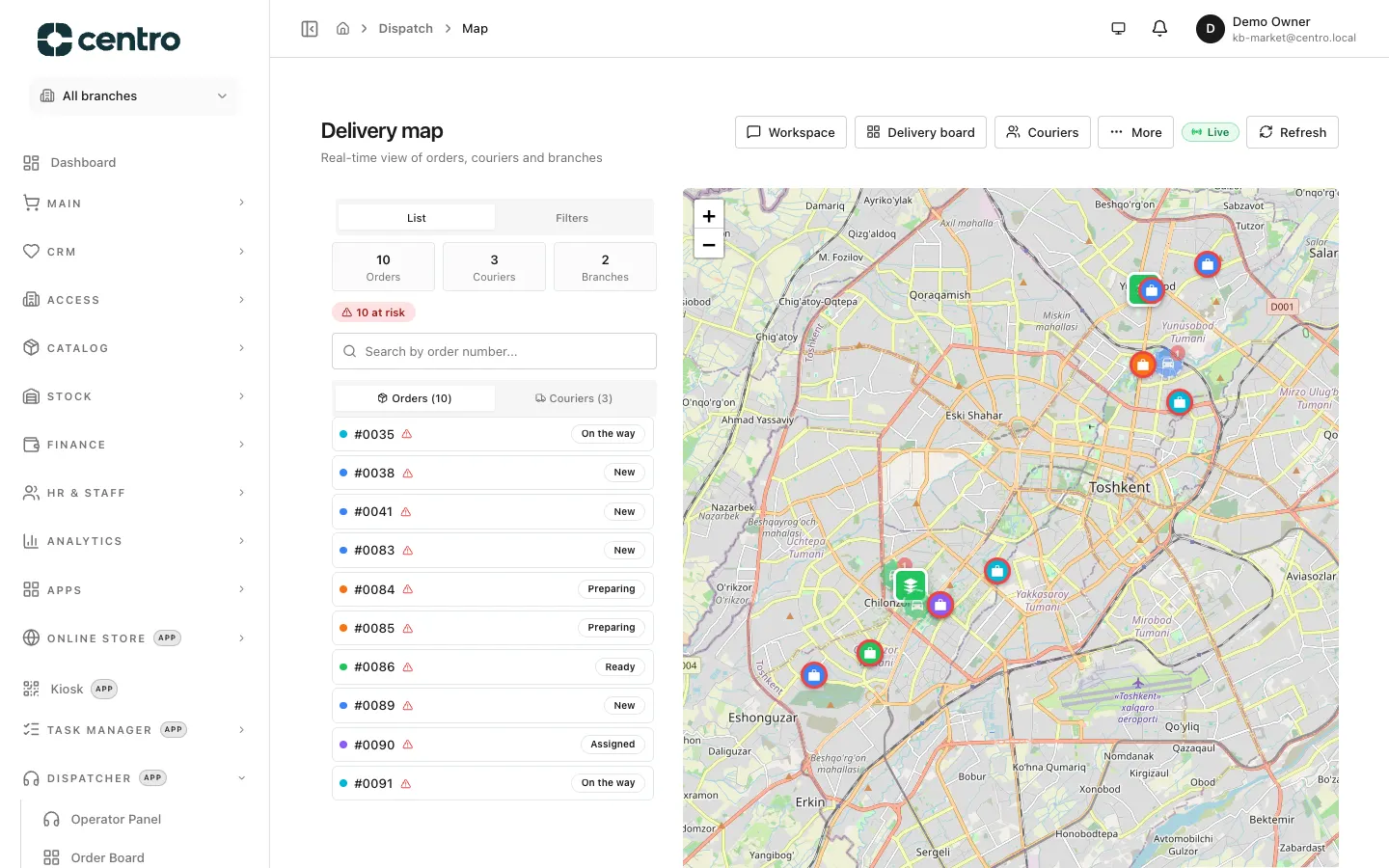
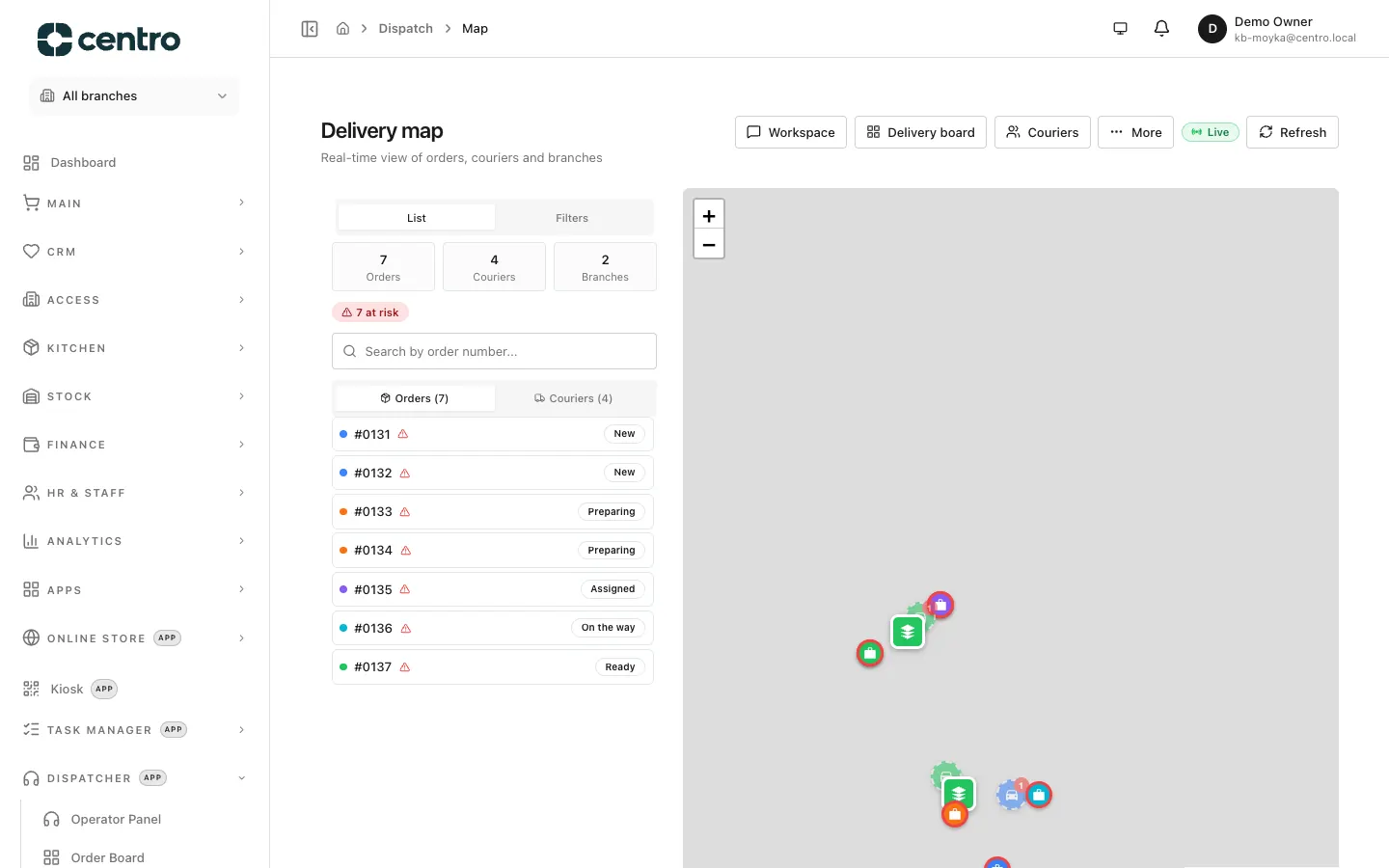
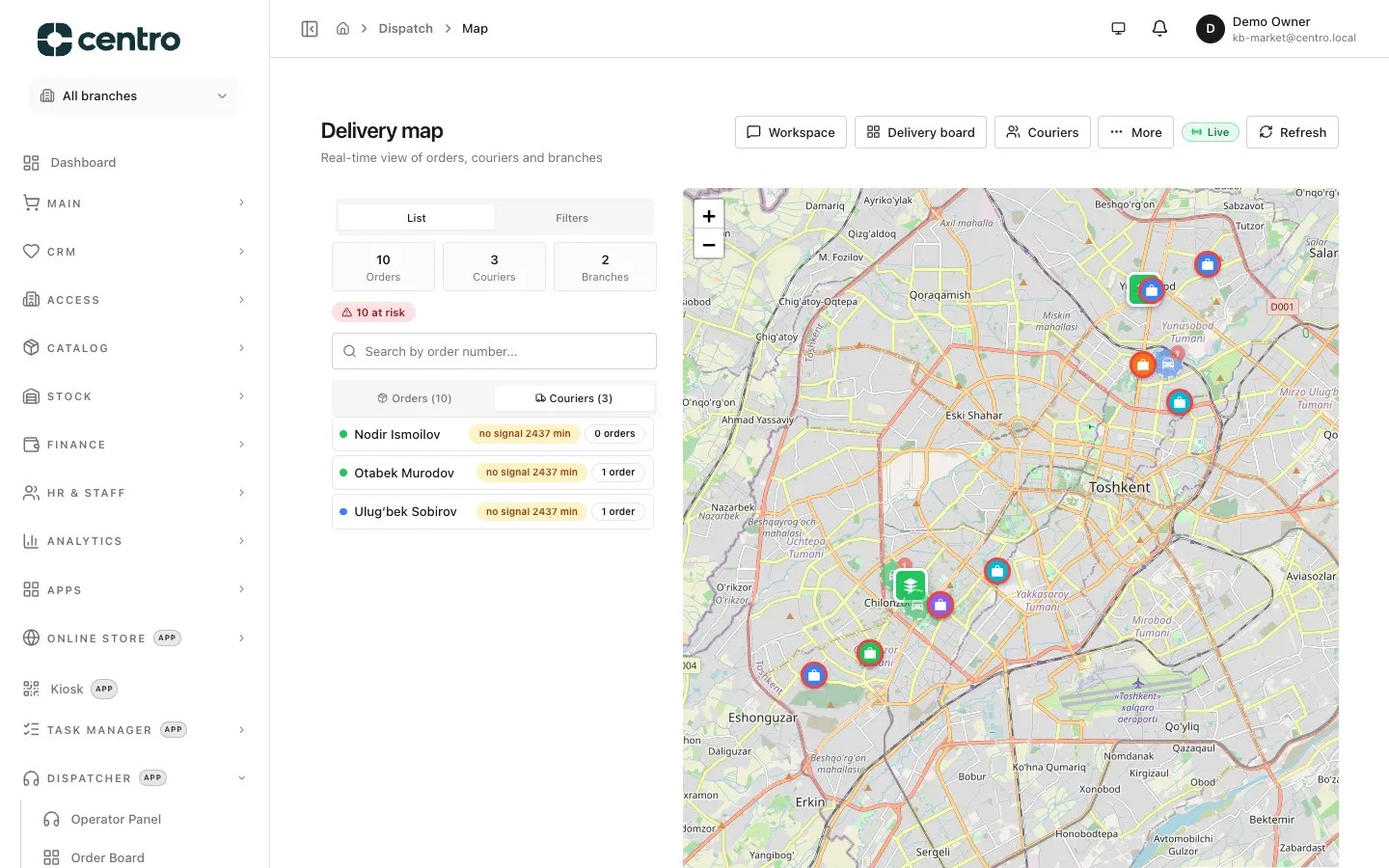
Open in the admin panel/dispatcher/map The page title is «Delivery map». The map shows active orders whose delivery address has coordinates (from «New» to «On the way», up to 100), couriers sending GPS from the app and active venues with coordinates. Courier positions arrive live over WebSocket; if the connection drops, the page polls every 10–15 seconds by itself.
How to open
- In the sidebar, expand the Dispatcher group.
- Choose Map.
Left panel — «List»
- Counters
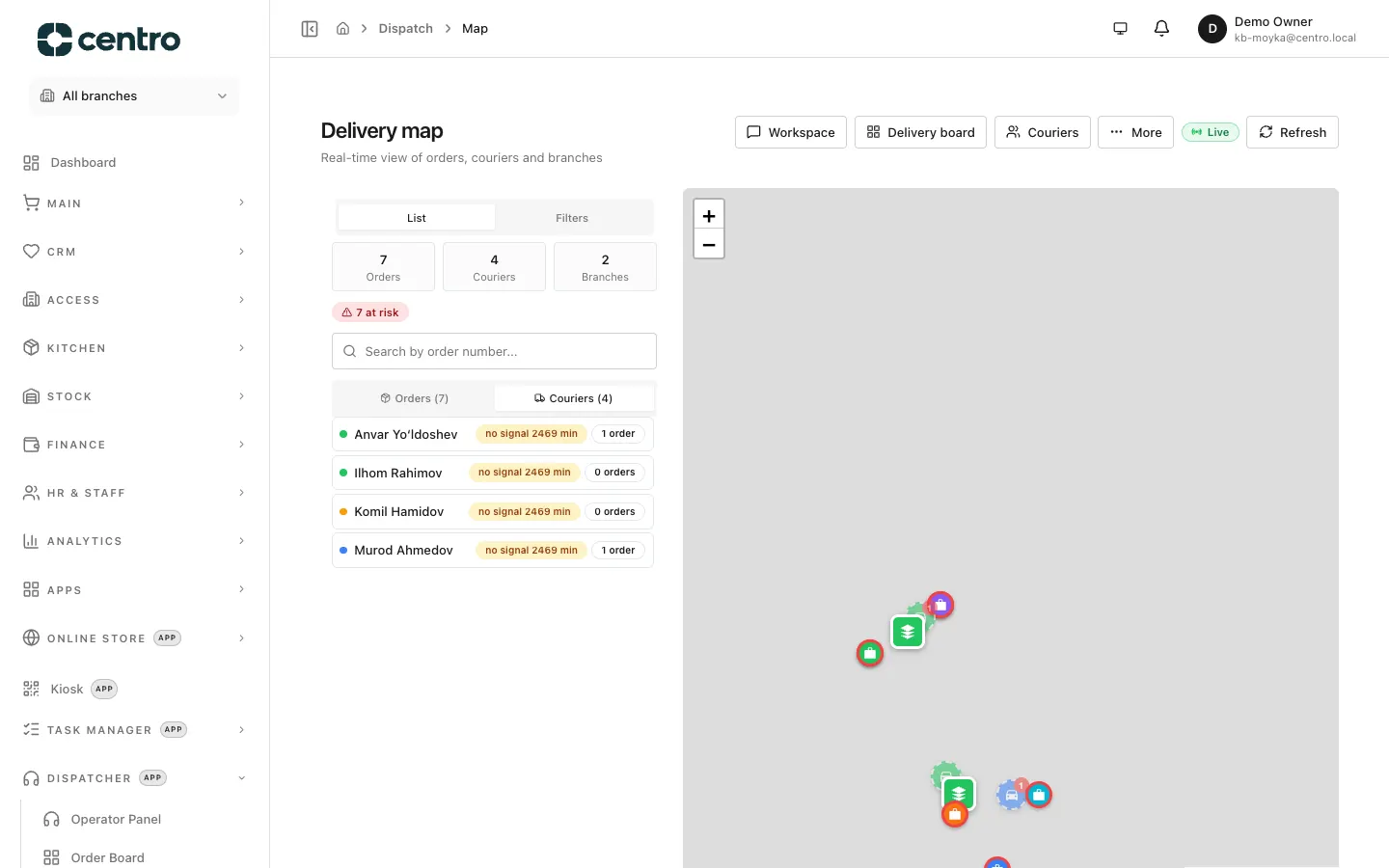
- How many orders, couriers and branches after filtering; below — «N at risk» and «N VIP» (if any).
- Search
- By order number.
- «Orders (N)»
- Number, status colour, VIP star and risk icon.
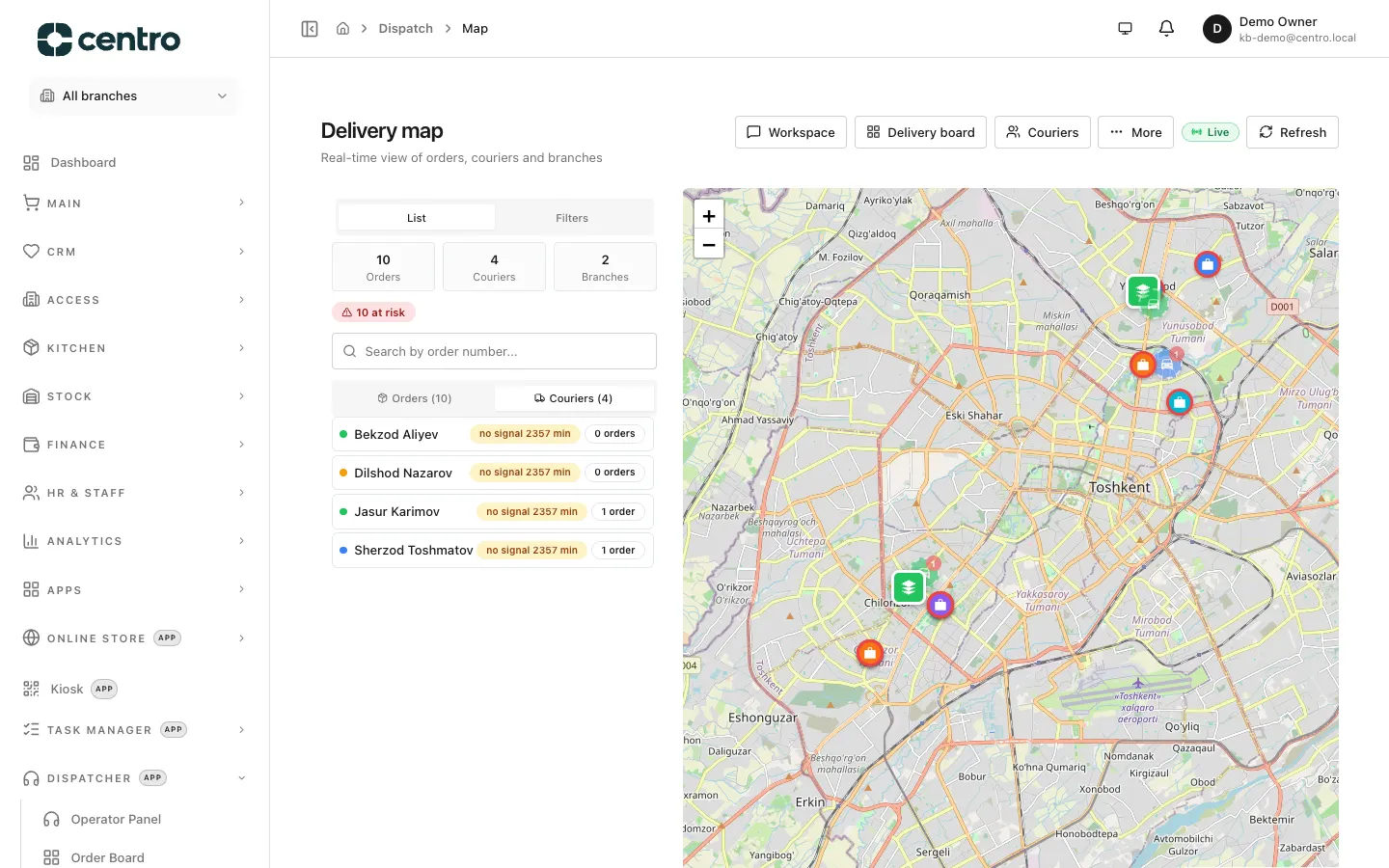
- «Couriers (N)»
- Name, status colour, number of orders; «no signal N min» — the app is silent, «no location» — the courier has not sent GPS yet (not on the map).
Map markers
- Order — a circle in the status colour (blue — new, purple — assigned, orange — preparing, green — ready, cyan — on the way); with VIP and risk marks. Click: number, status, «VIP», «At risk!».
- Courier — a vehicle icon in the status colour with the number of orders in the corner; grey when the app is silent. Click: name, status, connectivity and «Orders: N».
- Branch — a green (open) or grey (closed) square. Click: name, «Status: Open/Closed» and kitchen load.
Important: A courier appears on the map only while Courier App is open and sending GPS. If the last point is older than 4 minutes they are marked «no signal»; an order whose address has no coordinates (e.g. typed manually) is not on the map — find it on the board.
For a store the map shows which courier is in which zone and how close the parcel is to the customer; branch markers are your shops.
At a car wash the map shows the mobile crews: who is driving to a customer and who is free near the bay (next to the branch) — to give a new visit to the nearest crew.
Map filters #
Layers, order and courier statuses, priority, courier load and branches.
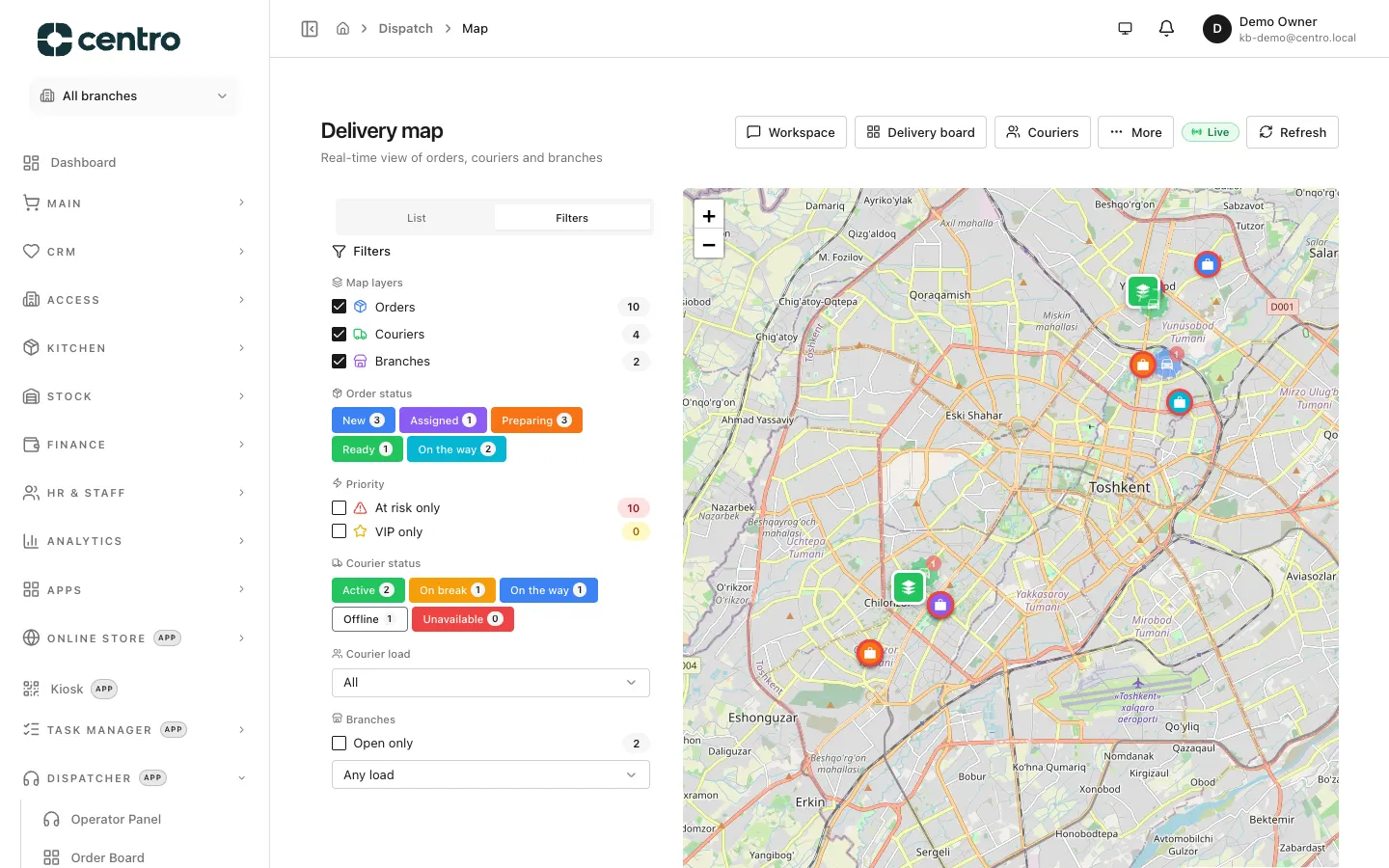
- «Map layers»
- Show/hide order, courier and branch markers; the count after filtering is next to each.
- «Order status»
- «New», «Assigned», «Preparing», «Ready», «On the way» — several can be selected (all by default).
- «Priority»
- «At risk only» (orders with an SLA risk) and «VIP only».
- «Courier status»
- All but «Offline» by default; switch «Offline» on to add couriers who are not on shift to the list.
- «Courier load»
- «Free (0 orders)», «Busy (1-2 orders)», «Overloaded (3+ orders)».
- «Branches»
- «Open only» and «Kitchen load». Kitchen load is not sent to the map yet (0%), so the load filter effectively treats every branch as «Low».
Tip: «Reset» returns every filter to the default. Map filters are not saved — reopening the page shows the default view.