Order Board
All delivery orders in one place: SLA control, statuses, filters and courier assignment. Delivering store orders to customers: SLA control, statuses, filters and courier assignment. Mobile car-wash orders: sending a crew to the customer’s address, SLA and assignment.
Open in the admin panel/dispatcher/board The page title is «Delivery board». It holds delivery orders only (pickup and dine-in are not here) — whether they came from the operator panel, the website, the app, Telegram or an aggregator. The dispatcher watches the time promised to the customer for every order, assigns couriers and sees risky orders first. Data refreshes every 15 seconds.
How to open
- In the sidebar, expand the Dispatcher group.
- Choose Order Board (or the Delivery board button in the operator panel).
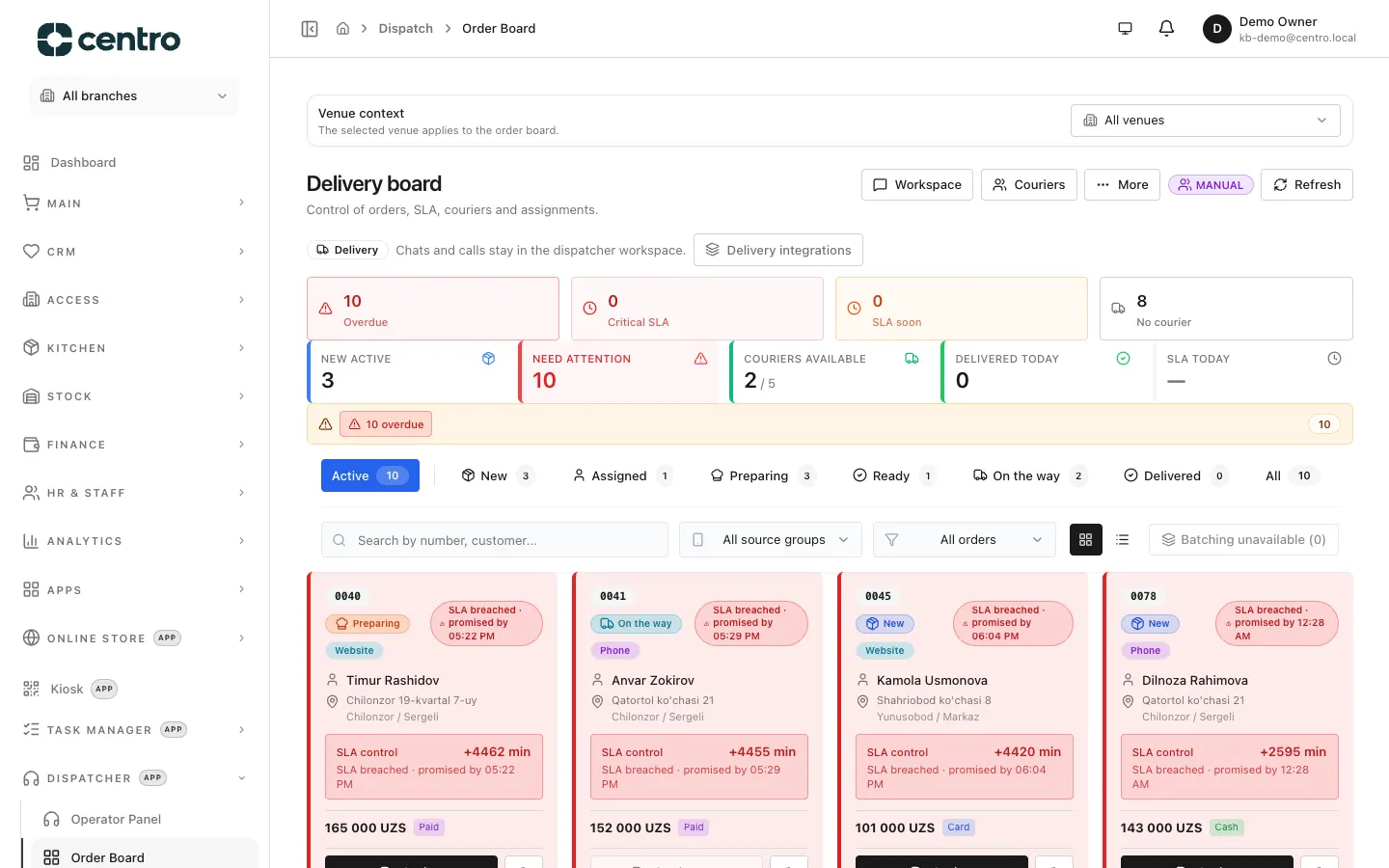
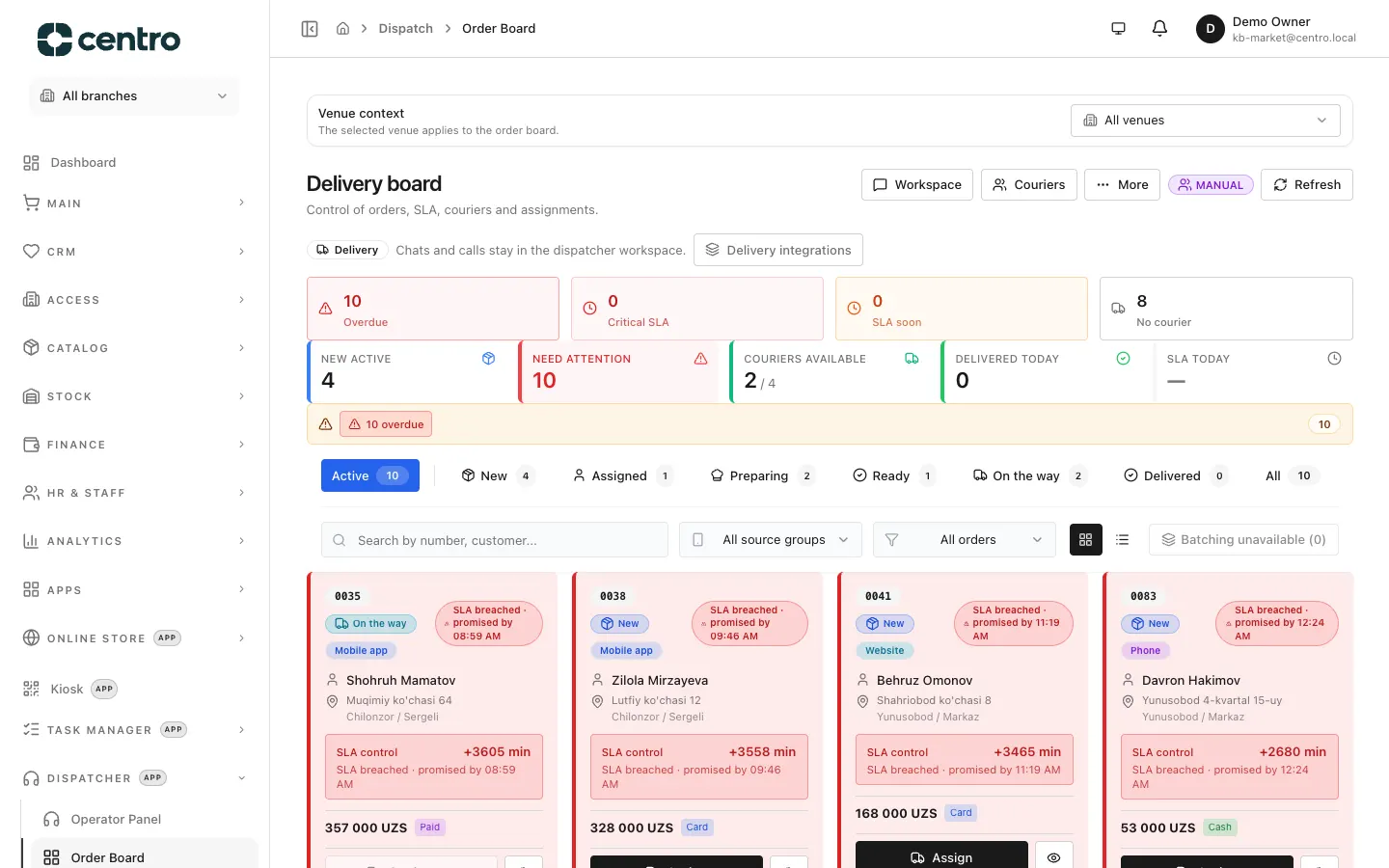
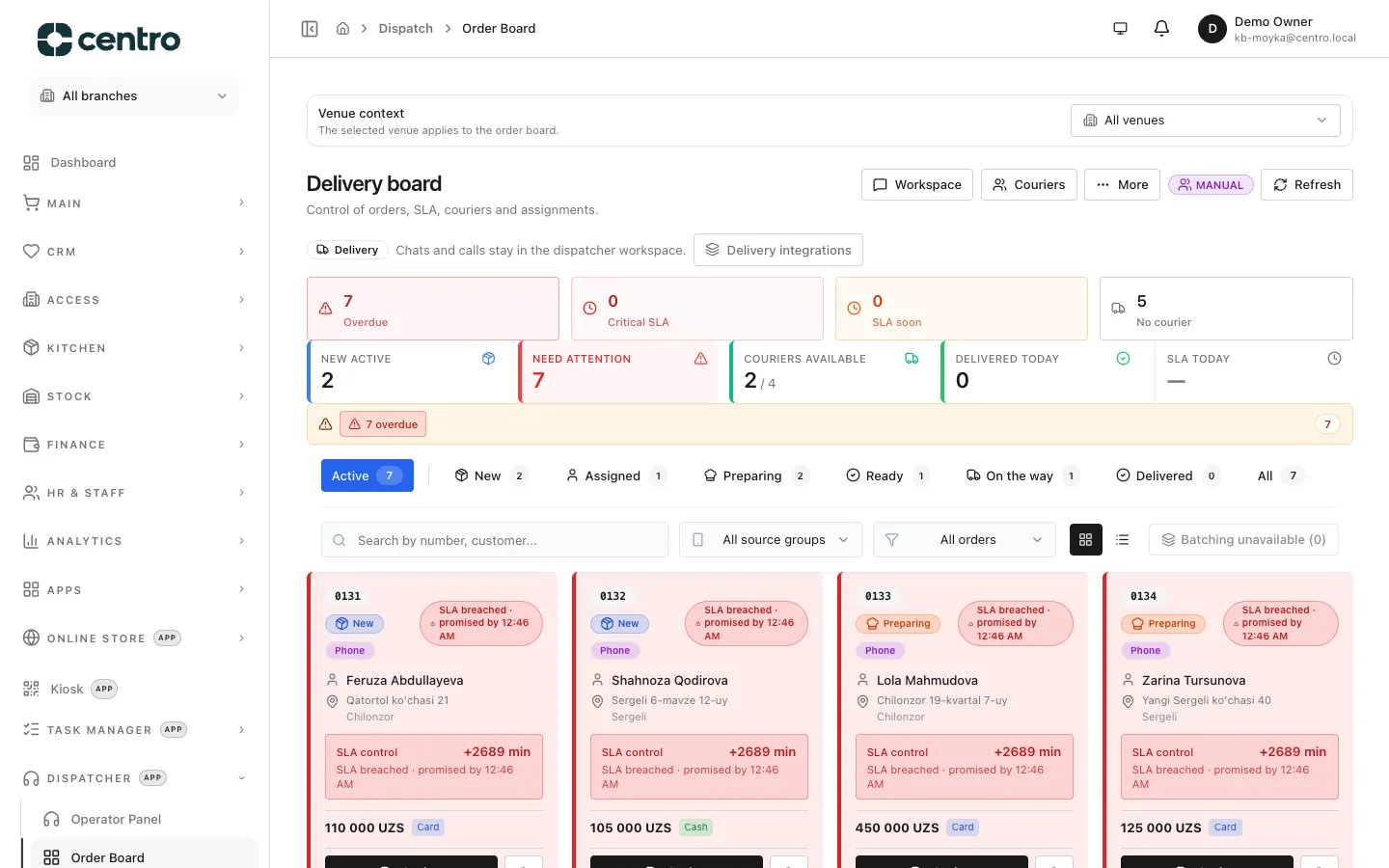
Page parts
- «Venue context»
- Choose the venue the board works for («All venues» — all of them). Only couriers serving that venue are shown too.
- Header buttons
- «Workspace» (operator panel), «Couriers», «More» (chat history, courier chat, aggregator orders, order trips, decision journal, chat analytics — by permissions), the assignment-mode badge (MANUAL / HYBRID / AUTO) and «Refresh».
- The «Delivery» line
- A reminder that chats and calls stay in the dispatcher workspace; «Delivery integrations» — aggregator and external delivery settings.
- Tiles and metrics
- See «SLA tiles and metrics» below.
- Orders
- Status tabs, filters and cards (or a table). When empty — «No orders» and the «Workspace» button.
In a restaurant the board bridges the kitchen and delivery: the «KITCHEN» block of the card shows when the food will be ready, so you can assign the courier close to readiness. Hot food usually has a short SLA — tune the warning thresholds in the dispatcher settings.
In a store the board works the same, but the order is goods being picked rather than food being cooked: «Preparing» = being picked, «Ready» = packed and waiting for the courier. Store orders are not sent to a kitchen, so the «KITCHEN» block usually reads «Not sent to the kitchen» or «No kitchen needed». Couriers usually drive a car — for bulky or heavy goods.
At a car wash the board is used for mobile washing (in the customer’s yard or a parking lot): a «delivery» order means the crew travels to the customer’s address, the courier is a mobile washer with a car. Travel zones are set in the venue card (e.g. «Chilonzor», «Sergeli»); the order card also shows the customer’s plate (when saved). Regular in-bay wash orders do not appear on the board.
Tip: To see the page the position needs at least view access to «Dispatcher» or «Couriers». Assigning couriers and changing their status requires full access to «Dispatcher» or «Couriers». How to switch the section on — see «How to turn the section on».
SLA tiles and metrics #
The top of the board: overdue and risky orders, free couriers, today’s deliveries and SLA.
Every delivery order has a deadline promised to the customer (SLA). It comes from the order itself: the time the customer chose, the delivery estimate at checkout or — when neither exists — the standard from the dispatcher settings (45 minutes by default). The «warning» (10 min by default) and «critical» (5 min by default) thresholds of the dispatcher settings decide which group the order falls into. The numbers are refreshed from the server every 15 seconds, and the board recounts them at once when a threshold is crossed.
Four quick tiles (filter on click)
- «Overdue»
- Active orders whose promised time has already passed.
- «Critical SLA»
- Less than the critical threshold is left before the deadline.
- «SLA soon»
- Orders inside the warning threshold.
- «No courier»
- Active orders that have no courier yet.
Metrics row
- «New active»
- Delivery orders with the «New» status.
- «Need attention»
- Overdue + critical + approaching-SLA orders; highlighted red when above zero.
- «Couriers available»
- Couriers on shift with the «Active» status / all couriers.
- «Delivered today»
- Deliveries completed during the current business day (from midnight in the venue time zone).
- «SLA today»
- Share of today’s completed deliveries made no later than promised. «—» when there were no deliveries today yet. 95% and above — blue, 85–94% — yellow, lower — red.
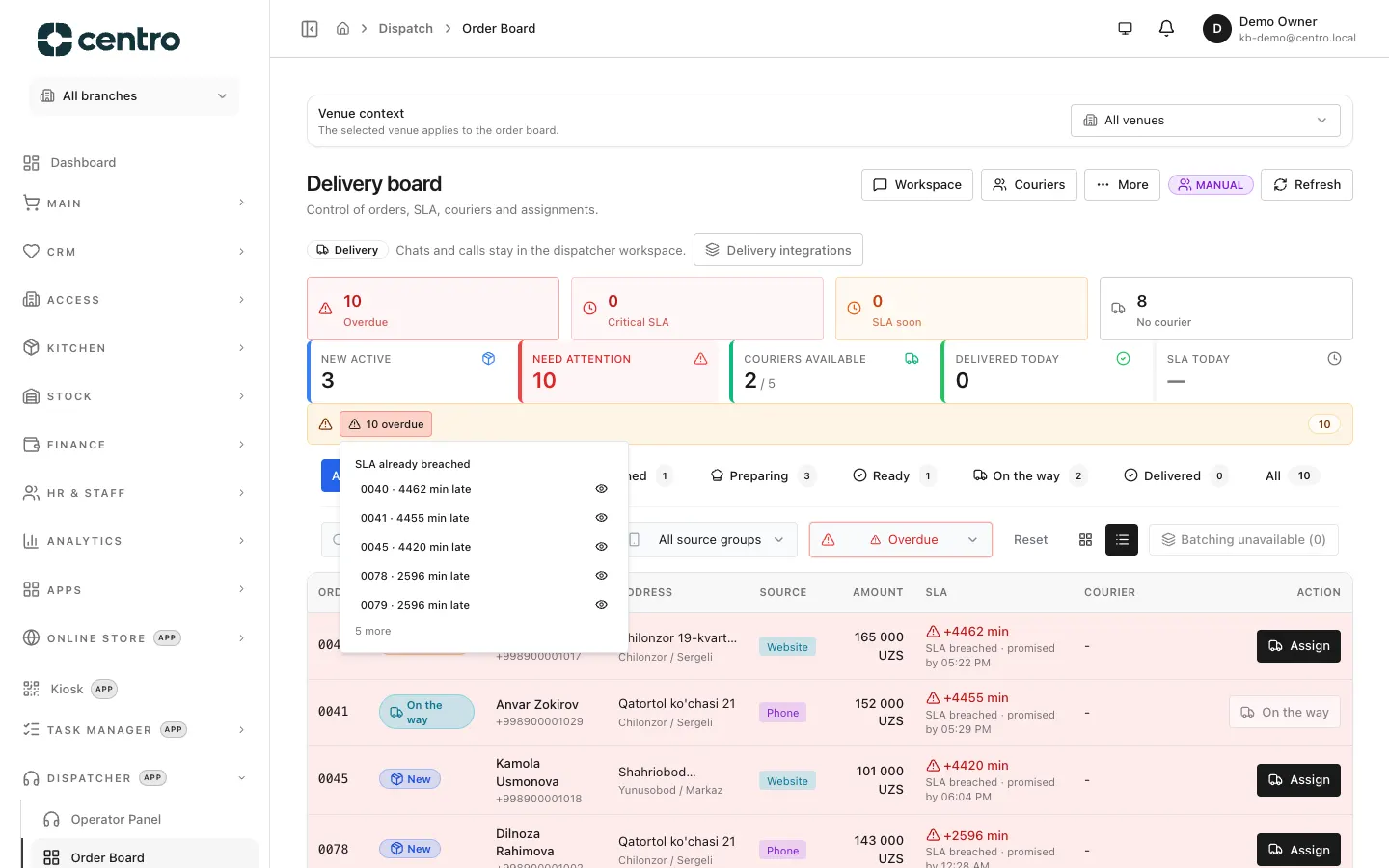
The yellow strip below the tiles appears only when there are overdue, critical or «SLA soon» orders. Clicking a button filters the board by that group and opens a list of up to 5 orders (with the delay or minutes left); click a line to open the order card.
Status tabs, search and filters #
Which orders to show: status, source group, SLA/assignment, cards or table.
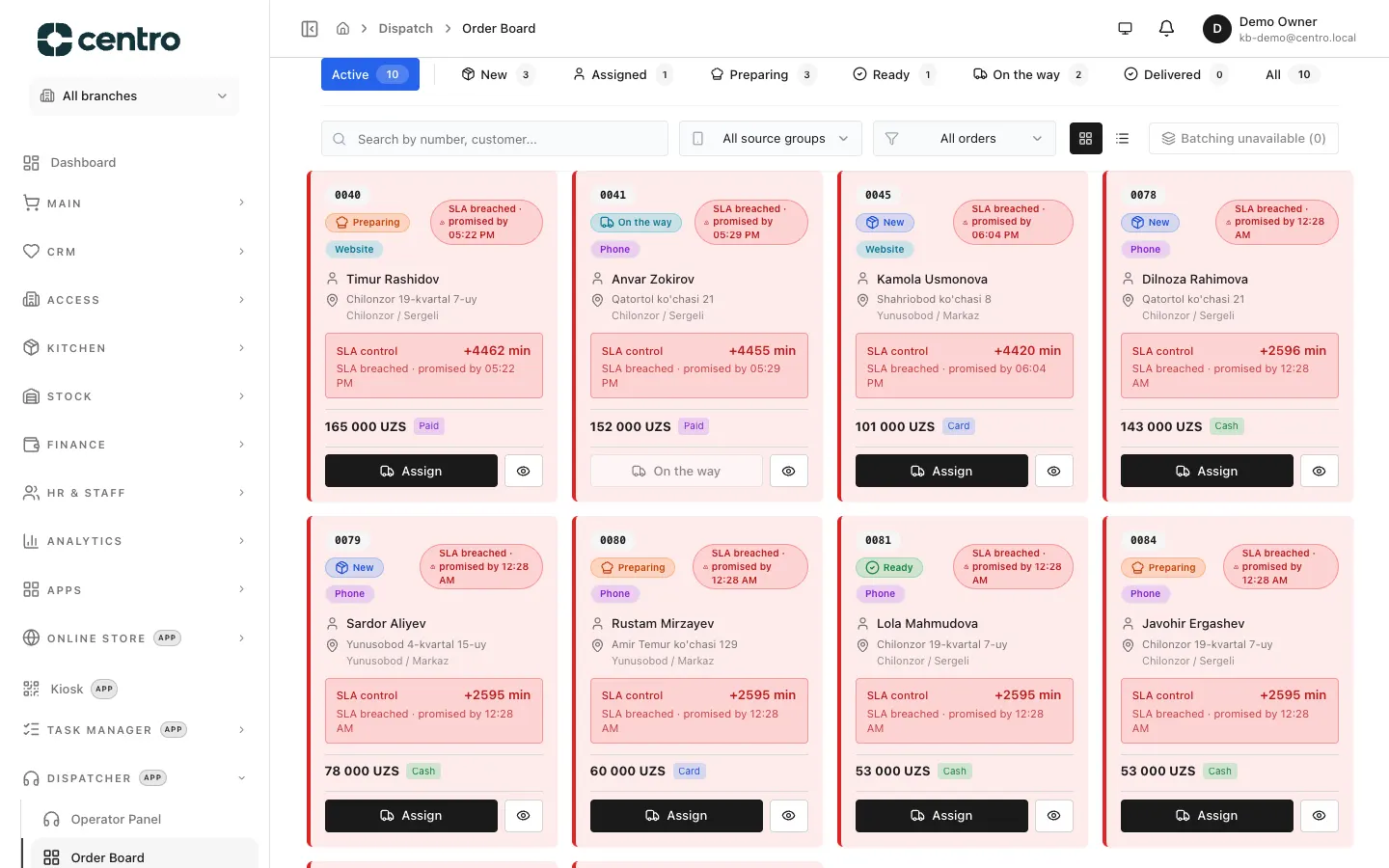
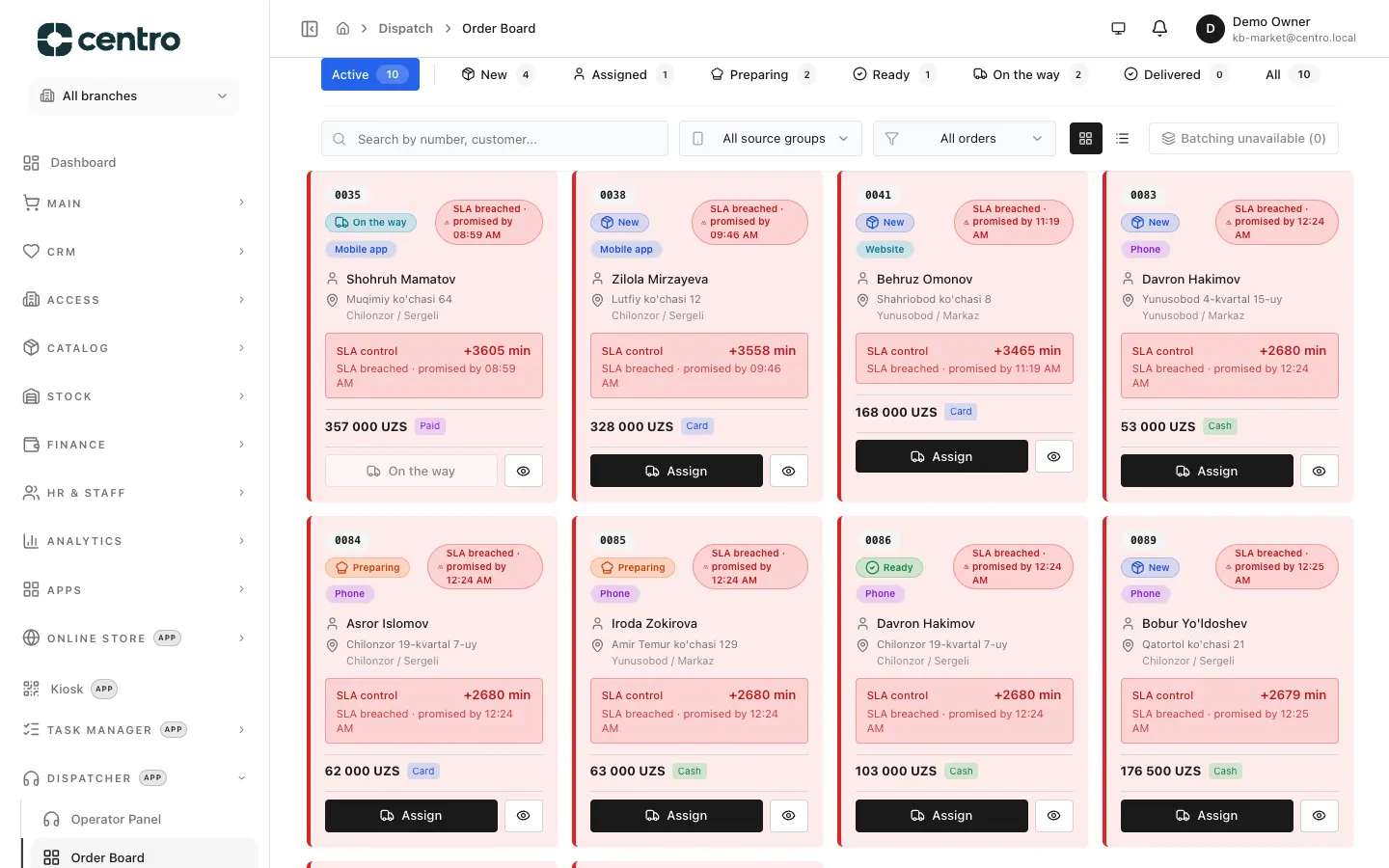
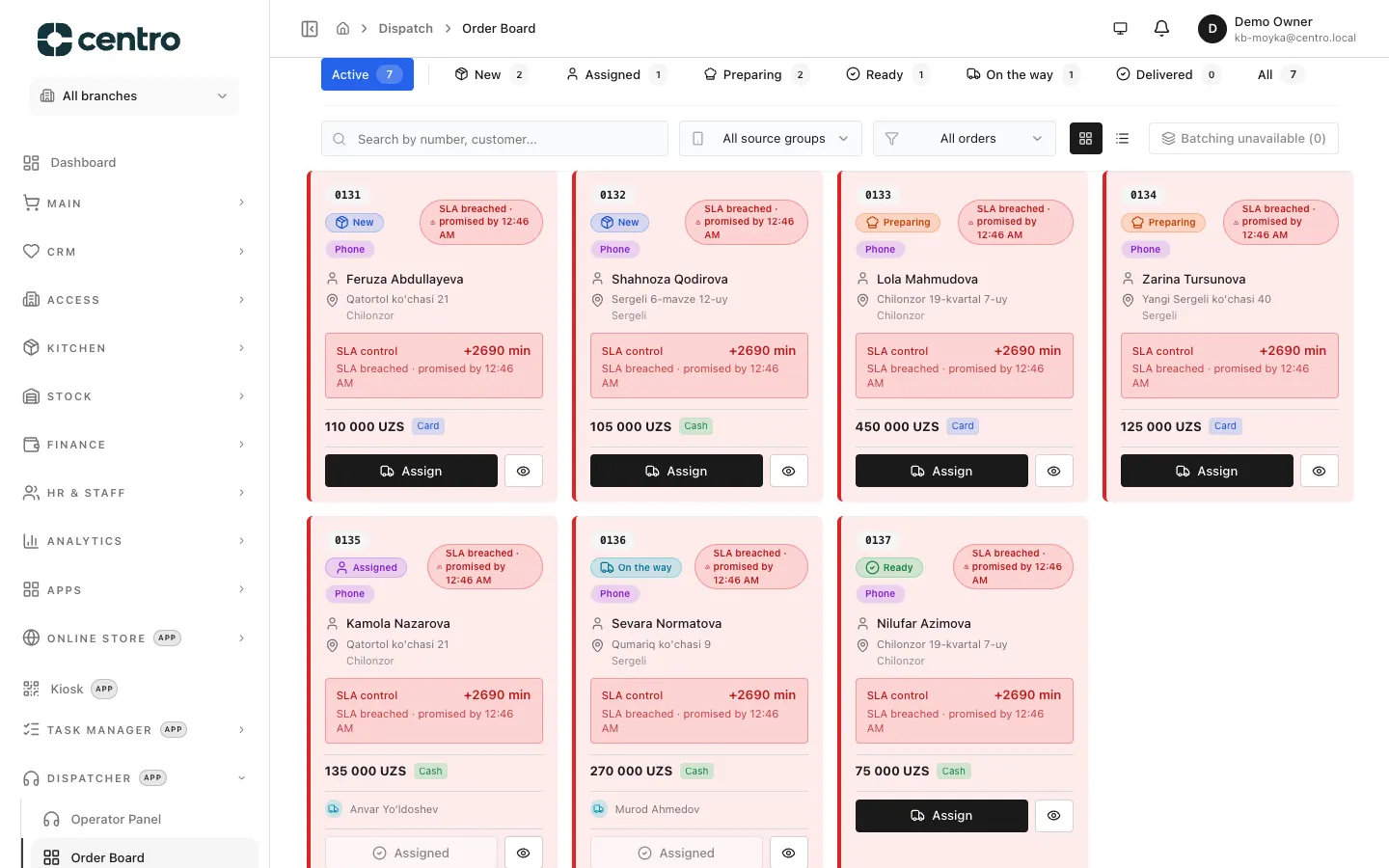
- «Active»
- Default view: «New», «Assigned», «Preparing», «Ready» and «On the way» orders. The number on the tab is the server count for the whole venue.
- Status tabs
- Show one status; «Delivered» includes already delivered orders. «All» — every status including cancelled.
- Search
- By order number, customer name or phone.
- «All source groups»
- App, Yandex Eda, Delivery Club, Phone, Website or Other. The source chip on a card is more precise — e.g. Telegram or operator.
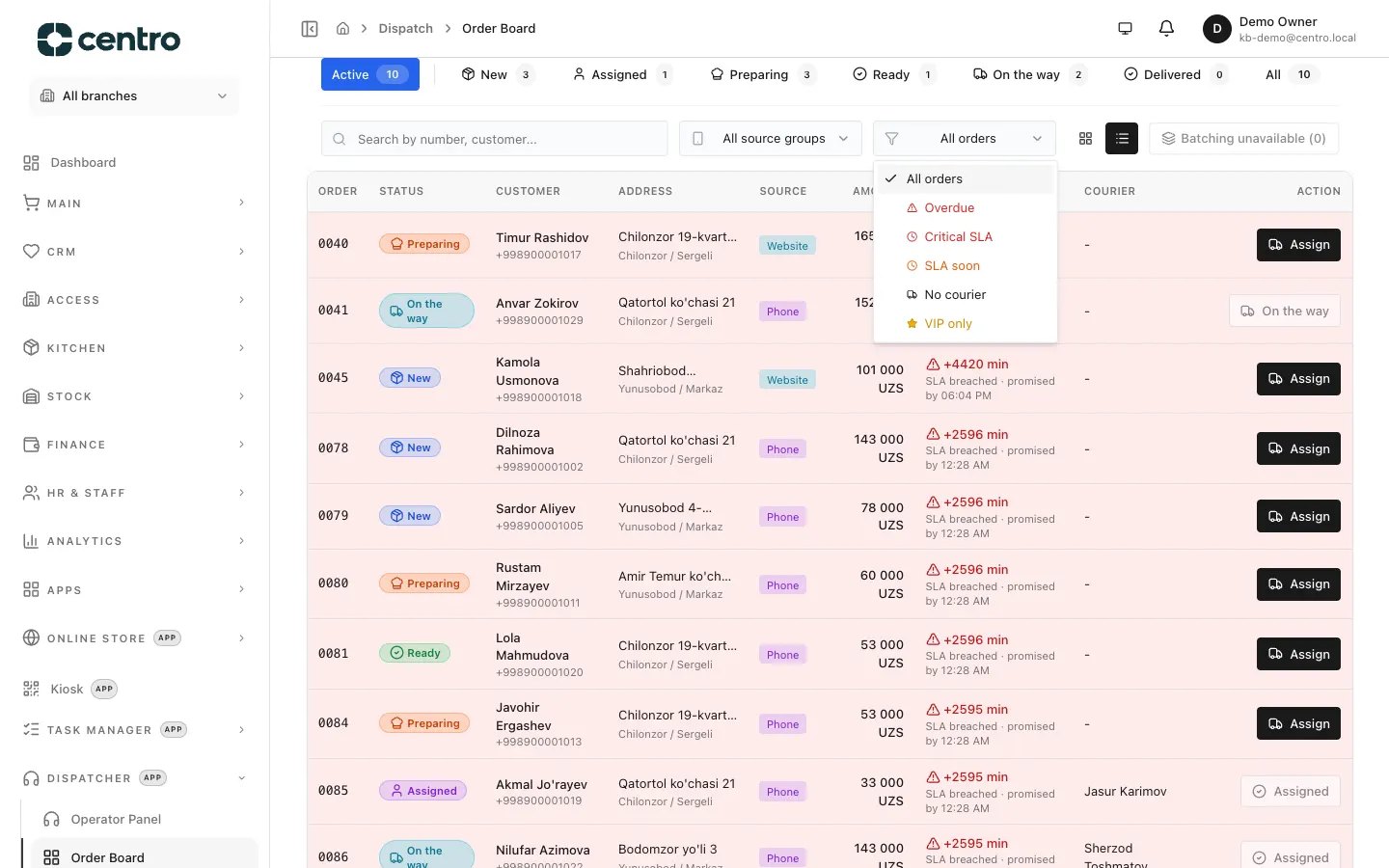
- SLA and assignment filter
- «All orders», «Overdue», «Critical SLA», «SLA soon», «No courier», «VIP only». The chosen risk tints the filter border.
- «Reset»
- Shown only when a filter is set: returns to the «Active» view.
- Cards / table
- Two icons: a card grid or a table. The choice and the filters are kept in the link and survive a page reload.
- «Batching unavailable (N)»
- A disabled button with the old hint «The server batching workflow is not connected yet». Trips do work now, but on a separate page: «More» → «Order trips» in the header (topic «Trips: combining orders»).
Tip: The board loads 100 orders at a time. If there are more, «Show more · loaded M of N» appears at the bottom (up to 1000); beyond that narrow the list by status, SLA, channel or search.
Order card and table row #
What a card shows and which states the assign button has.
- Header
- Order number, status, source; a star for VIP customers; an SLA badge when at risk (e.g. «SLA breached · promised by 17:22»).
- Customer and address
- Name, delivery address and zone («No address», «No zone» when missing).
- «SLA control»
- Minutes left or the delay (+N min) and a note: «On track», «SLA soon», «Critical SLA», «Scheduled order» (for an exact time — «By 22:30»), after completion «On time» / «Late by N min».
- Amount and payment
- Order amount and payment chip: «Cash», «Card» (on delivery) or «Paid» (online).
- Courier
- Name of the assigned courier (if any).
- Assign button
- «Assign» — open the card and pick a courier. Other states are informational: «Assigned», «On the way», «Delivered», «Cancelled», «Aggregator courier», «Noor courier», «Millennium courier» or «No permission». The eye icon opens the order card.
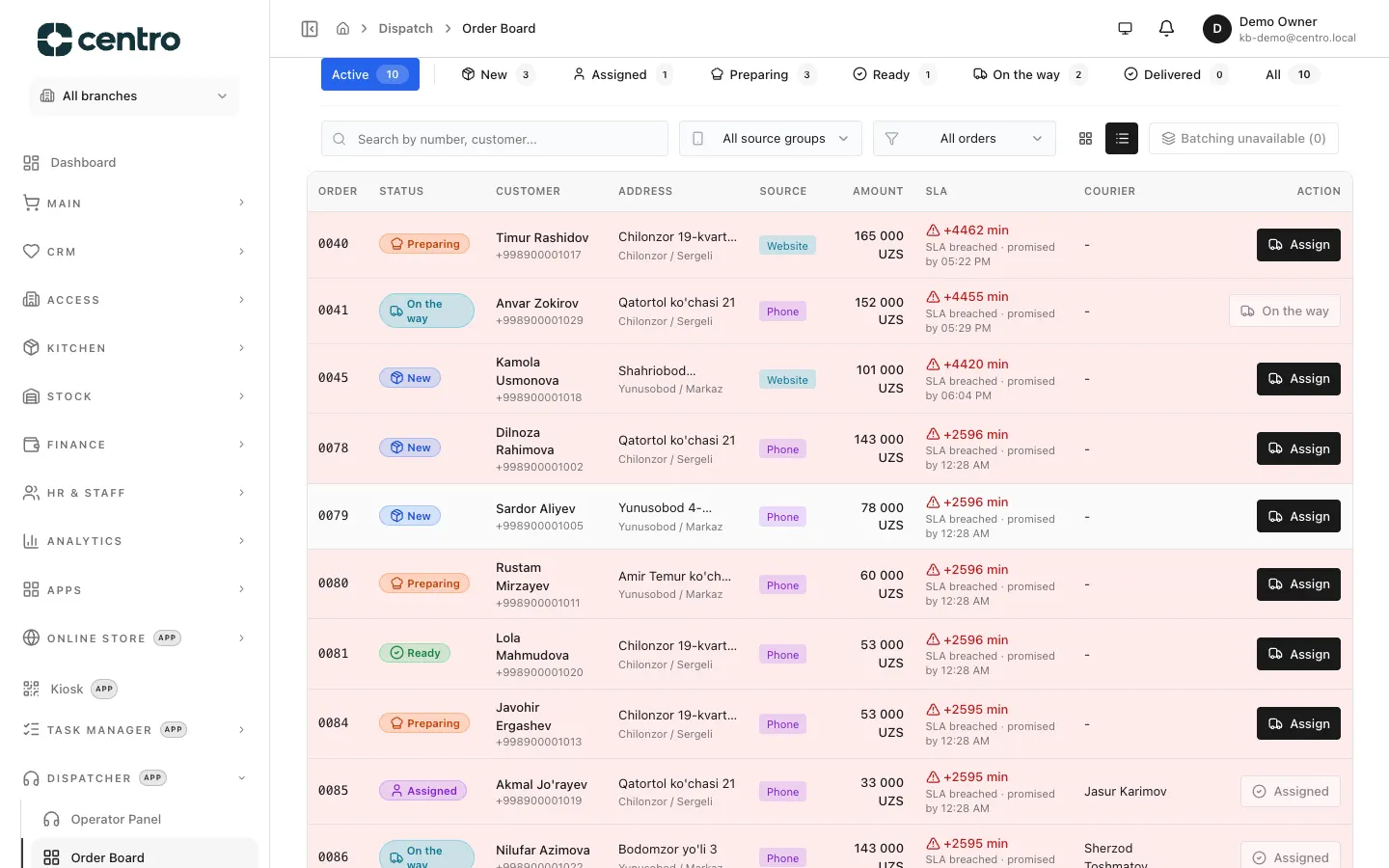
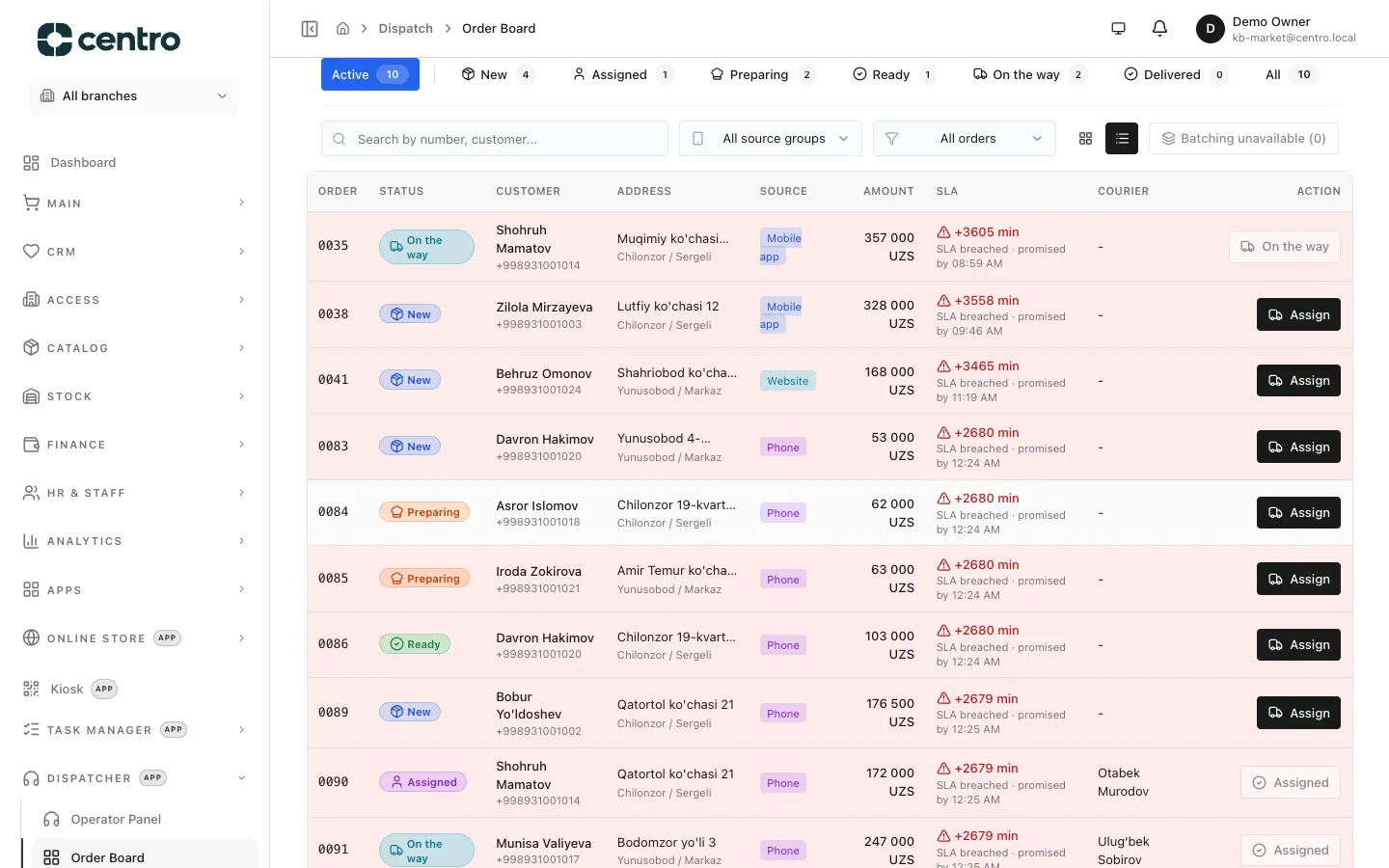
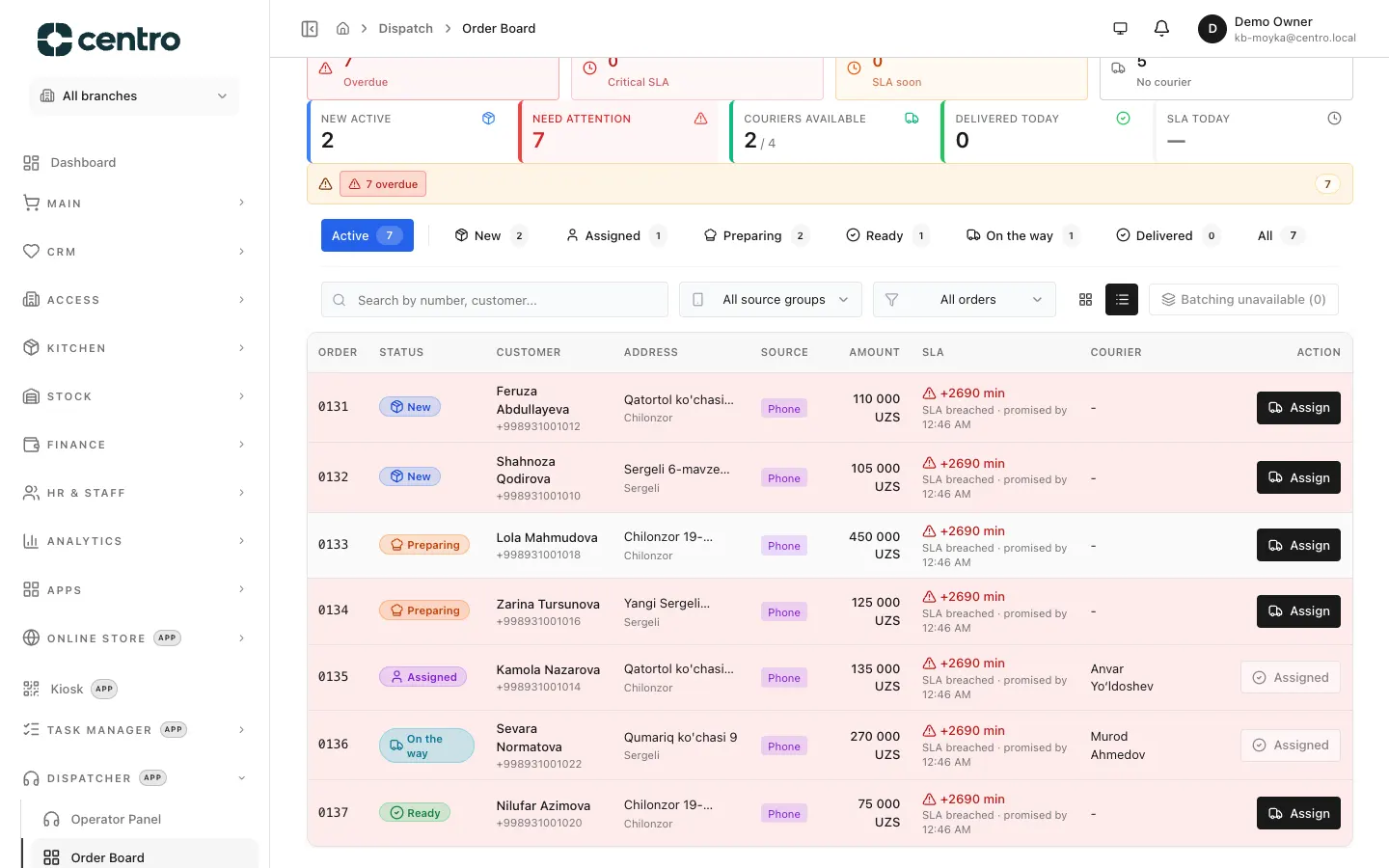
The table shows the same data in columns: «Order», «Status», «Customer» (with phone), «Address», «Source», «Amount», «SLA», «Courier», «Action». Clicking a row or pressing Enter opens the order card. Risky rows have a red or orange background.
Important: You cannot assign your own courier to an order delivered by an aggregator (Yandex Eda etc.), Noor, Uzum or Millennium — that service provides the courier, you only prepare the order.
Order card (side panel) #
Opens when you click a card or row: customer, kitchen, SLA and zone, branch, payment, items and courier.
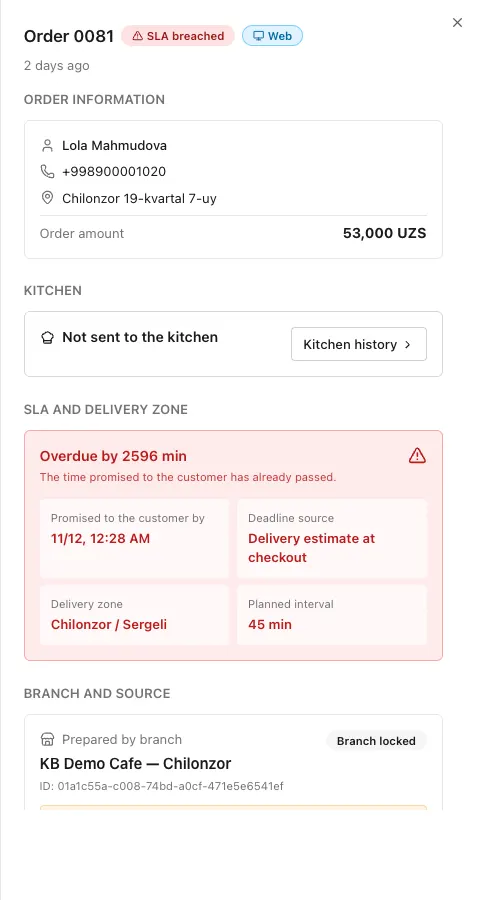
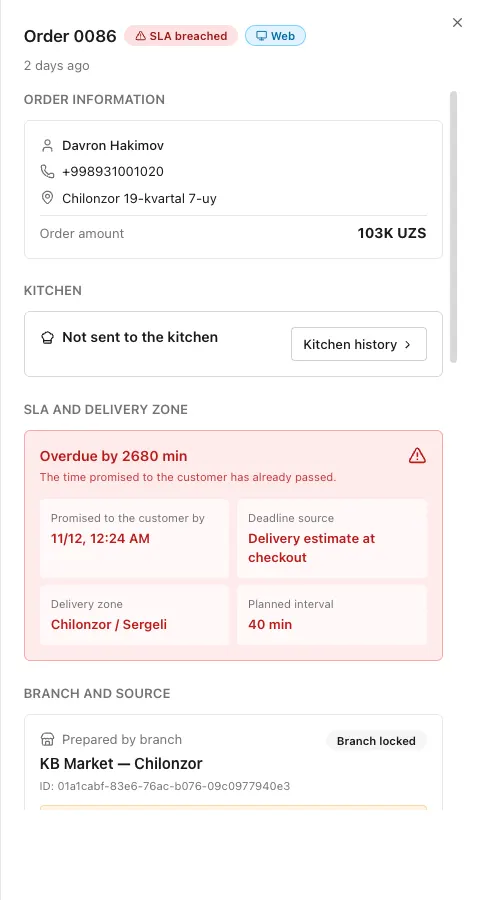
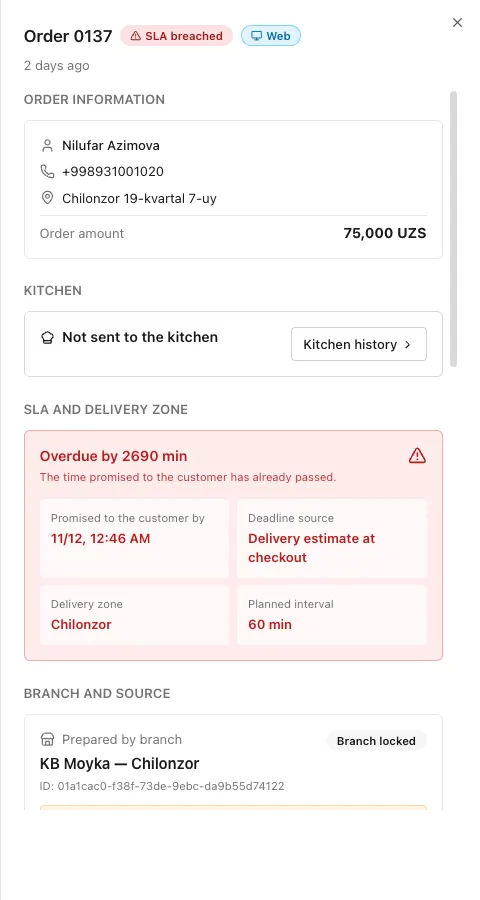
- Title
- «Order N», VIP, «SLA breached» / «SLA risk», platform (iOS, Android, Web, POS, Call centre) and how long ago the order was created.
- «ORDER INFORMATION»
- Customer (for VIP — number of orders), phone, address and order amount.
- «KITCHEN»
- Live kitchen status: «done N/M», current stage, time in the kitchen and the plan, estimated ETA (plan minus time spent), bottleneck (station and waiting units), packing check, «recall»/«rework» markers. «Kitchen history» opens the «Kitchen» tab of the sales order and brings you back to this card.
- «SLA AND DELIVERY ZONE»
- SLA state (e.g. «On track · 38 min», «Overdue by N min»), «Promised to the customer by», «Deadline source» (customer’s time / estimate at checkout / dispatcher fallback), «Delivery zone», «Planned interval».
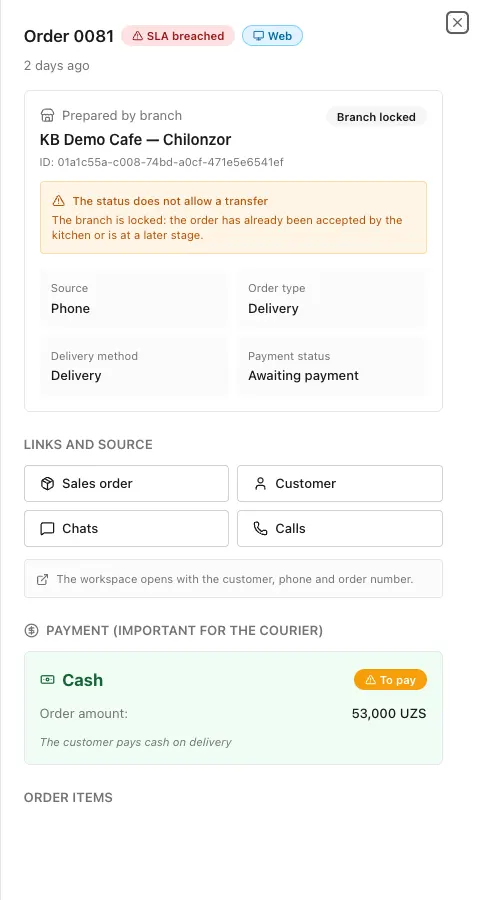
- «BRANCH AND SOURCE»
- The preparing branch and its ID, «Source», «Order type», «Delivery method», «Payment status». The branch cannot be changed here («Branch locked»): a new order needs a fresh zone, price and time calculation, and an order accepted by the kitchen can no longer be moved.
- «LINKS AND SOURCE»
- «Sales order» (the full order page), «Customer» (CRM card) and «Chats» — opens the dispatcher workspace with this customer, phone and order number.
- «PAYMENT (IMPORTANT FOR THE COURIER)»
- Payment type and «Paid» / «To pay». For cash — «Customer gives» and the «CHANGE:» amount, for card — «To pay by card:», for online payment — the «Do not take money!» warning.
- «ORDER ITEMS»
- Items, quantity, price and the customer’s note.
- External delivery
- When Noor, Uzum Delivery or Millennium Taxi are connected — their block: status, price, courier/driver, «Refresh», «Cancel», tracking link. For an aggregator order — the «DELIVERY (aggregator)» block: the aggregator provides the courier.
In car-wash mode (customer car plate switched on) «ORDER INFORMATION» also shows the customer’s licence plate when the customer card has one — the mobile wash crew finds the car at the address by this plate.
Tip: You can open the card by link: /dispatcher/board?orderId=<order ID or number>. Coming back from the kitchen history reopens the same order.
Noor and Millennium delivery in the card #
When an outside service carries the order: status, price, courier or driver and the «Refresh», «Search again», «Cancel» buttons.
When the Noor (courier service) or Millennium (taxi) app is connected and the order was handed to them, the order card shows a «NOOR DELIVERY» or «MILLENNIUM TAXI» block. While that delivery is active you cannot assign your own courier. The buttons need full access to the dispatcher section and contact the service right away.
Noor
- Status
- «Searching for courier», «Courier found», «Courier assigned», «Courier arrived», «Order picked up», «Courier at customer», «Delivered», «Cancellation queued», «Courier not found», «Out of zone» and others; next to it — the service’s stage code («stage N») and the Noor ID.
- «Delivery cost», courier
- The price calculated by Noor; the courier’s name and phone («Noor courier» when no name came).
- «Refresh»
- Asks Noor for the current status.
- «Search again»
- Appears only after «Courier not found»: Noor restarts the courier search and the status becomes «Searching for courier».
- «Cancel»
- Sends a cancellation request to Noor; until the service confirms, the status is «Cancellation queued». Finished, cancelled and failed deliveries have no such button.
- «Tracking»
- Opens the Noor tracking page in a new tab.
Millennium
- Status
- «Order sent to Millennium», «Courier accepted», «Courier on site», «Order in the car», «Handed to customer», «Completed», «Cancellation queued», «Cancelled»; next to it — the service’s state code and «Millennium order: N».
- Price and driver
- «Cost (estimate)» until the final price arrives, then «Delivery cost»; the driver’s name, phone and car.
- «Refresh», «Cancel»
- Asks Millennium for the status or sends a cancellation request (no «Cancel» once handed to the customer, completed or cancelled).
- «Driver on the map»
- When the driver’s coordinates have arrived, opens their position in Yandex Maps.
Tip: The same data is in the «Courier» card of the sales order page. Connecting these services and the branch keys — in the «Apps» section (Noor / Millennium).
Assigning a courier manually #
Giving an order to a free courier: who is listed, zone matching and what happens after assignment.
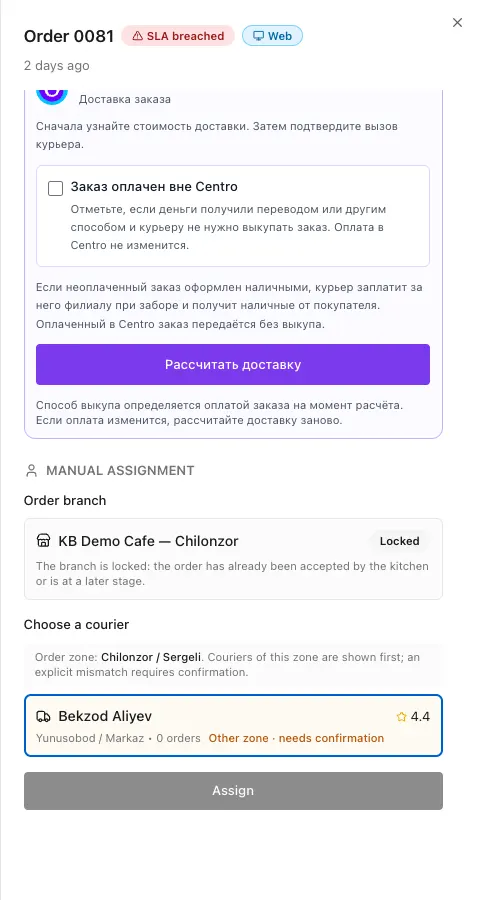
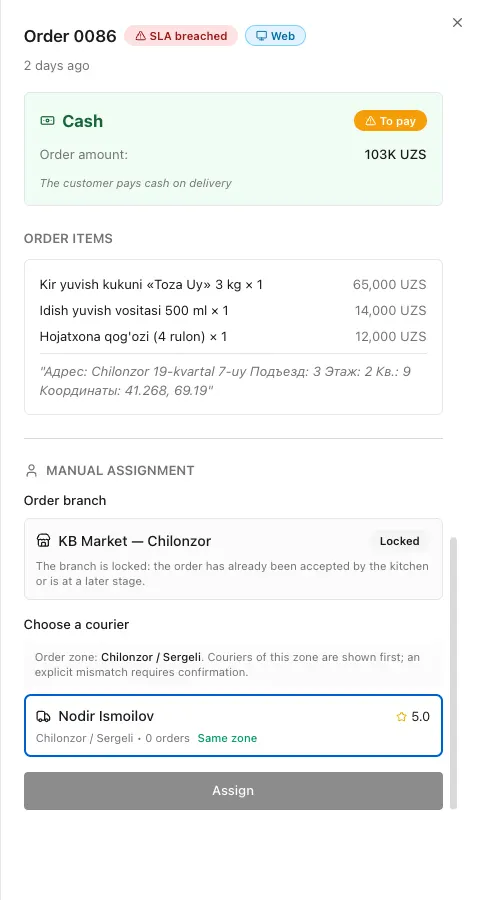
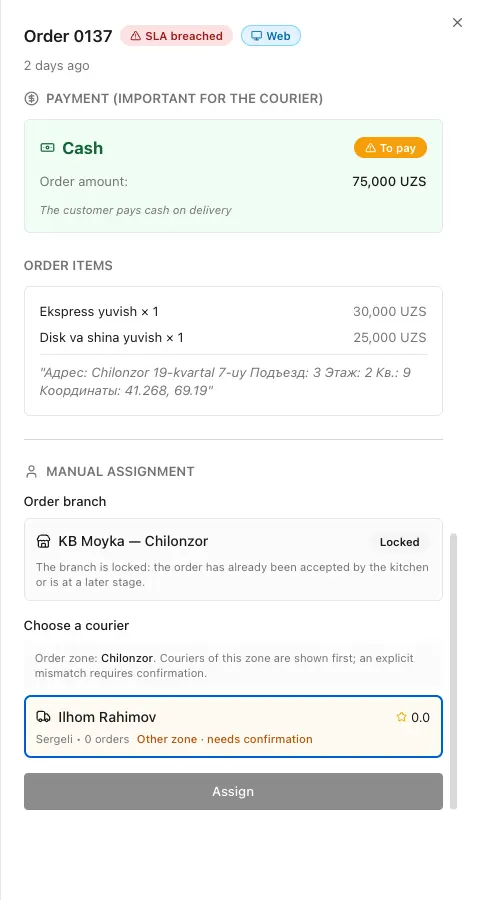
- On the card click Assign (or open the order card).
- «Order branch» is the branch preparing the order; the courier is chosen only among those assigned to this branch.
- Pick a courier in «Choose a courier»: couriers of the order zone come first («Same zone»), then those with an unknown zone, last — other zones («Other zone · needs confirmation»); within a group the least loaded come first.
- Click Assign. If the zone does not match, the system asks for confirmation (zone names may be out of sync).
Who is listed
- Couriers on shift with the «Active» status and no current orders (on break, on the way and offline are not listed).
- If the list is empty — «No available couriers» and a link to the «Couriers» page.
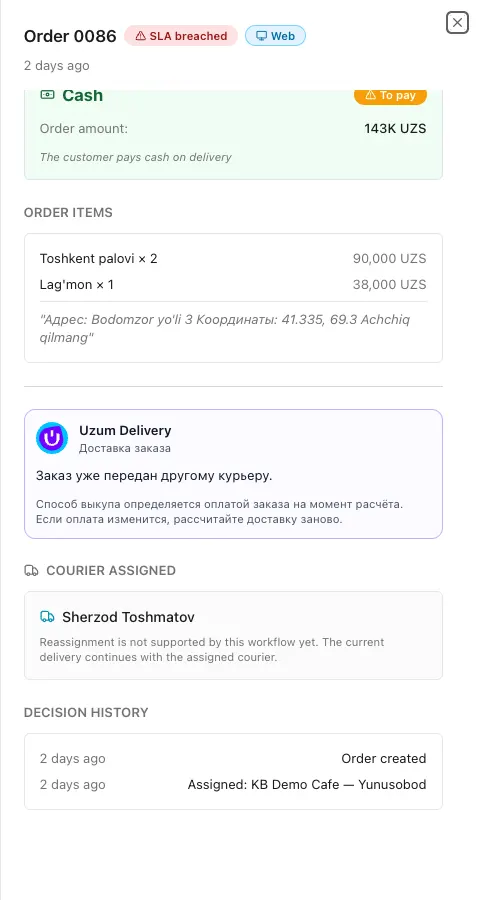
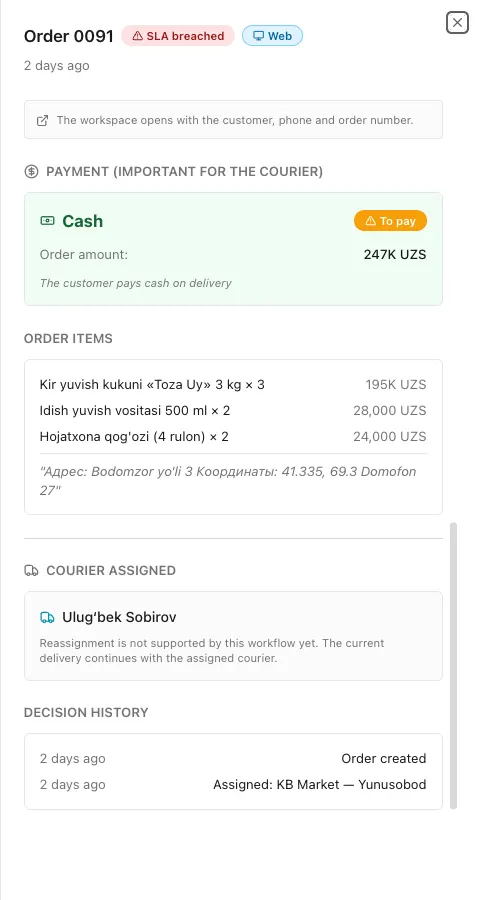
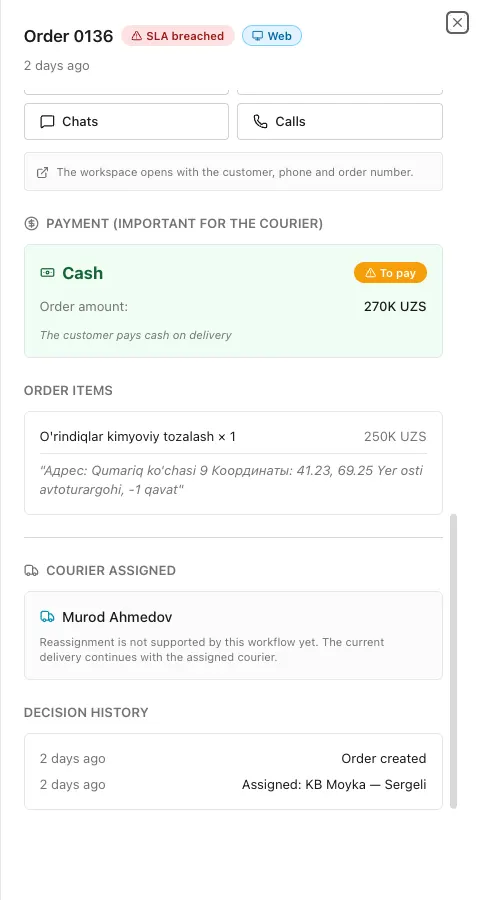
After the assignment the order appears in the courier app, its status becomes «Courier assigned» and the card shows the «COURIER ASSIGNED» block. When the courier picks the order up — «On the way». «DECISION HISTORY» shows when the order was created and assigned. Reassignment is not available in this panel yet.
Tip: Besides the manual list there is the «Courier recommendation» block below — the venue couriers ranked by distance and load, with a reason (next topic). Assigning new orders without a dispatcher is done by the «Courier auto-assignment» rule in the settings («Delivery» tab). The mode badge (MANUAL / HYBRID / AUTO) in the header does not affect that rule.
Important: If an old AUTO mode is still stored in the settings, an outdated text is shown above the list: «AUTO is selected in the settings, but automatic recommendations are not connected yet. Assign the courier manually.» It is no longer true — the recommendation and auto-assignment work.
Important: Without the assignment permission the card shows «COURIER ASSIGNMENT» and «No permission to assign couriers…». A delivered, cancelled or already travelling order cannot be assigned.
Courier recommendation #
In the order card the venue couriers are ranked by distance and load: the reason, «Assign» and «Assign the best automatically».
How to open
- On the Order Board open the card of an order without a courier.
- Below «MANUAL ASSIGNMENT», in the «Courier recommendation» block, click Show recommendation (collapse with Hide). The list is calculated only on that click.
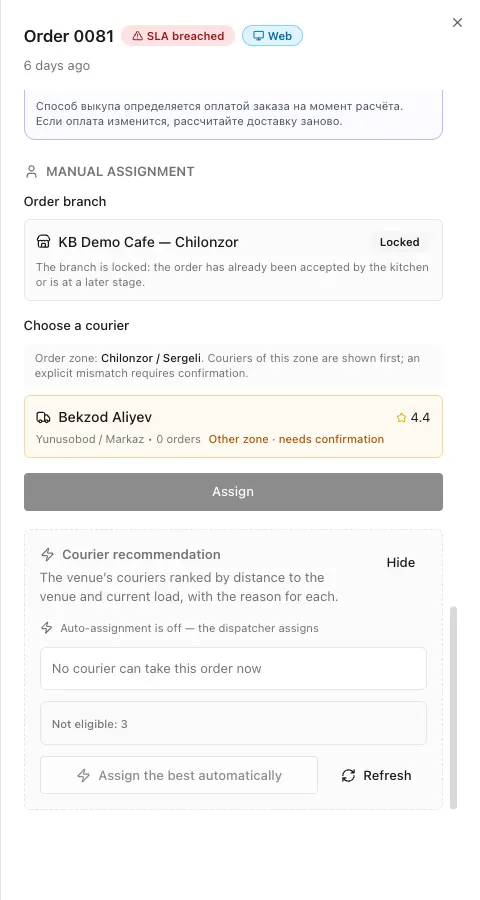
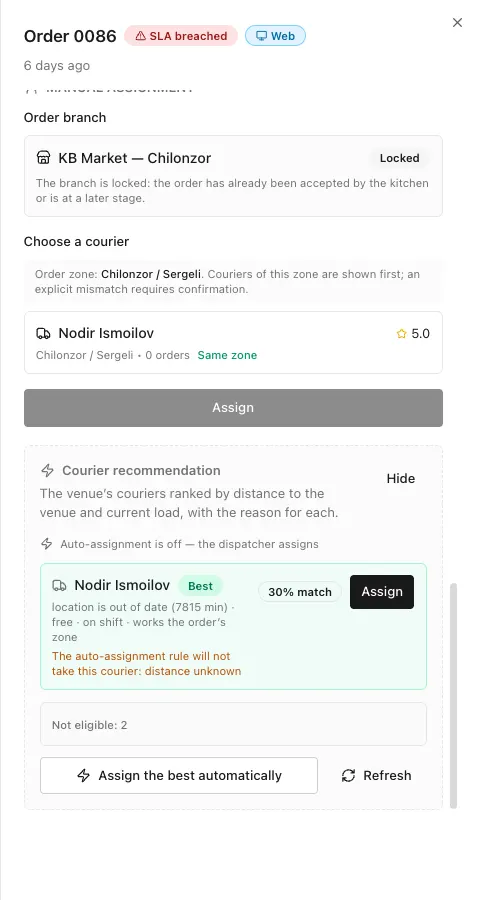
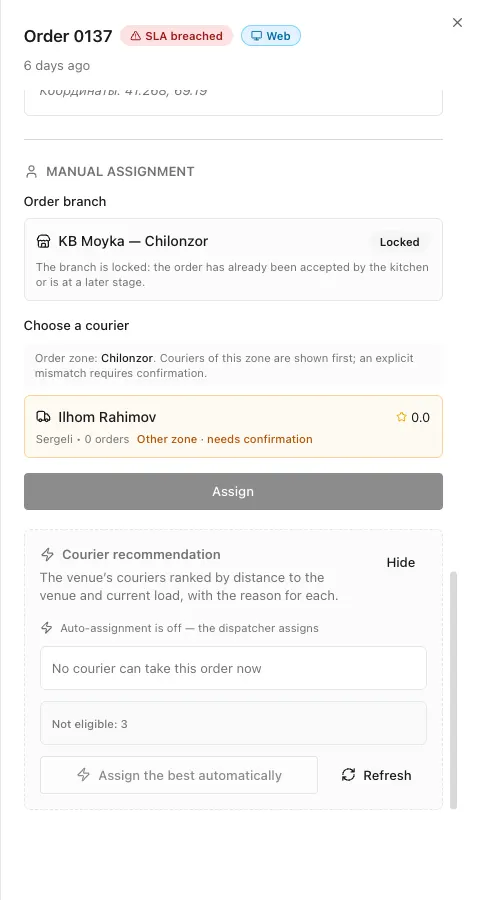
What the block shows
- Rule line
- «Auto-assignment is on: up to N orders per courier, up to N km» or «Auto-assignment is off — the dispatcher assigns». It is the rule of the order’s venue (its own rule if set, otherwise the common one).
- Courier list
- Couriers assigned to this venue (and those not assigned to any venue), the best on top with the «Best» badge. Those with fewer active deliveries come first, then those closer to the venue, then those working the order’s zone and with a higher rating. Each has an «N% match» score (it drops with distance and with every active delivery) and reasons, for example: «2.4 km from the venue · free · on shift · works the order’s zone».
- Distance
- In a straight line from the courier’s last GPS point to the venue. If the point is older than 15 minutes — «location is out of date (N min)», with no point — «no GPS position», if the venue card has no coordinates — «the venue has no location»; such a courier is ranked as if 8 km away.
- Amber note
- «The auto-assignment rule will not take this courier: distance unknown» — the rule has a maximum distance (not 0) and the courier’s distance is unknown. You can still assign by hand.
- «Not eligible: N»
- Click it to see the couriers who cannot take the order now, with the reason: «offline», «on a break», «on the way, not taking new orders», «busy», «shift at another venue», «no open shift, and the rule takes only couriers on shift», «active order limit reached», «N km from the venue — beyond the limit».
Important: The list limits come from the auto-assignment rule — even when the rule is off. With the default rule (1 order per courier, 10 km, only on shift) couriers without an open shift and couriers already carrying an order end up under «Not eligible». To have them listed, change the rule limits in the settings.
Buttons
- «Assign» (in a row)
- Assigns exactly this courier. Unlike the manual list, a busy courier can also be given the order — within the rule’s «Max active orders per courier». The decision journal records «Recommendation accepted» with the reasons.
- «Assign the best automatically»
- The server picks, at that moment, the best courier the rule allows (it works even when the rule is off). On success — «Courier N assigned»; when nobody fits — «No courier matches the auto-assignment rule». The journal records «Auto-assignment» with you as the actor.
- «Refresh»
- Recalculates the list. On a load error — «Could not get the AI recommendation» and the same button.
When you cannot assign
- «No courier can take this order now» — the list is empty: see the reasons under «Not eligible».
- «The order already has a courier», «An external delivery service assigns the courier», «The order cannot be assigned now» — the buttons are disabled.
- The block is shown only to a user who may assign couriers, and only for an order with no courier that is not handed to an external service, delivered, cancelled or already on the way.
For a mobile wash the «courier» is the crew: the recommendation picks a crew by distance to the venue and the number of current visits.
Trips: combining orders #
Combining orders of one venue that are ready almost together and go to nearby addresses into one courier trip: suggestions, manual selection and the trip list.
How to open
- In the header of any dispatch page click «More» → «Order trips» (address /dispatcher/batch). The page title is «Batch builder».
- Or «Delivery tools» → the «Batches · unavailable» tab → Open order trips. The tab name is outdated — the page works.
- On this page the Order Board sidebar item stays highlighted. The menu item is shown to anyone who can view dispatch or couriers.
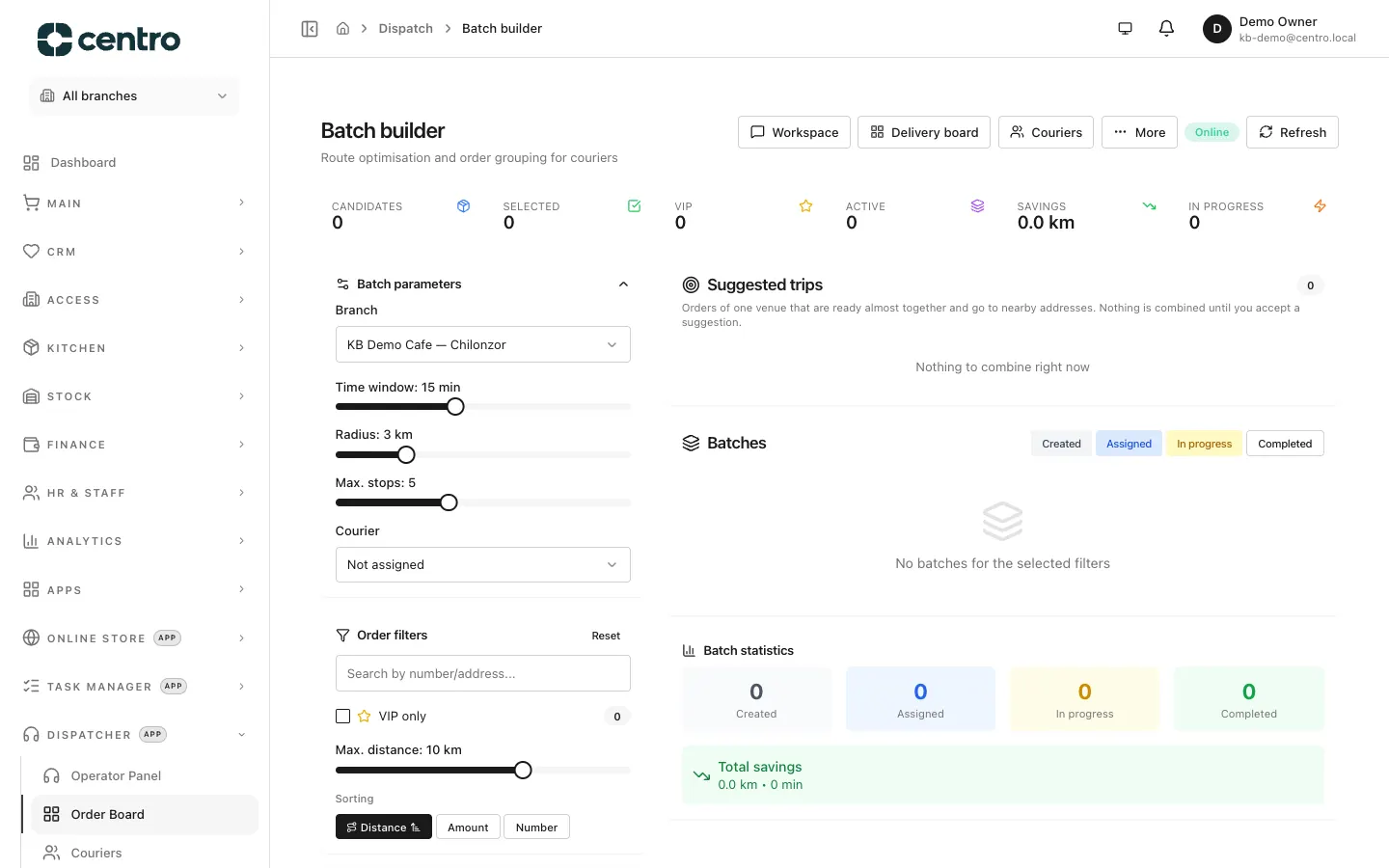
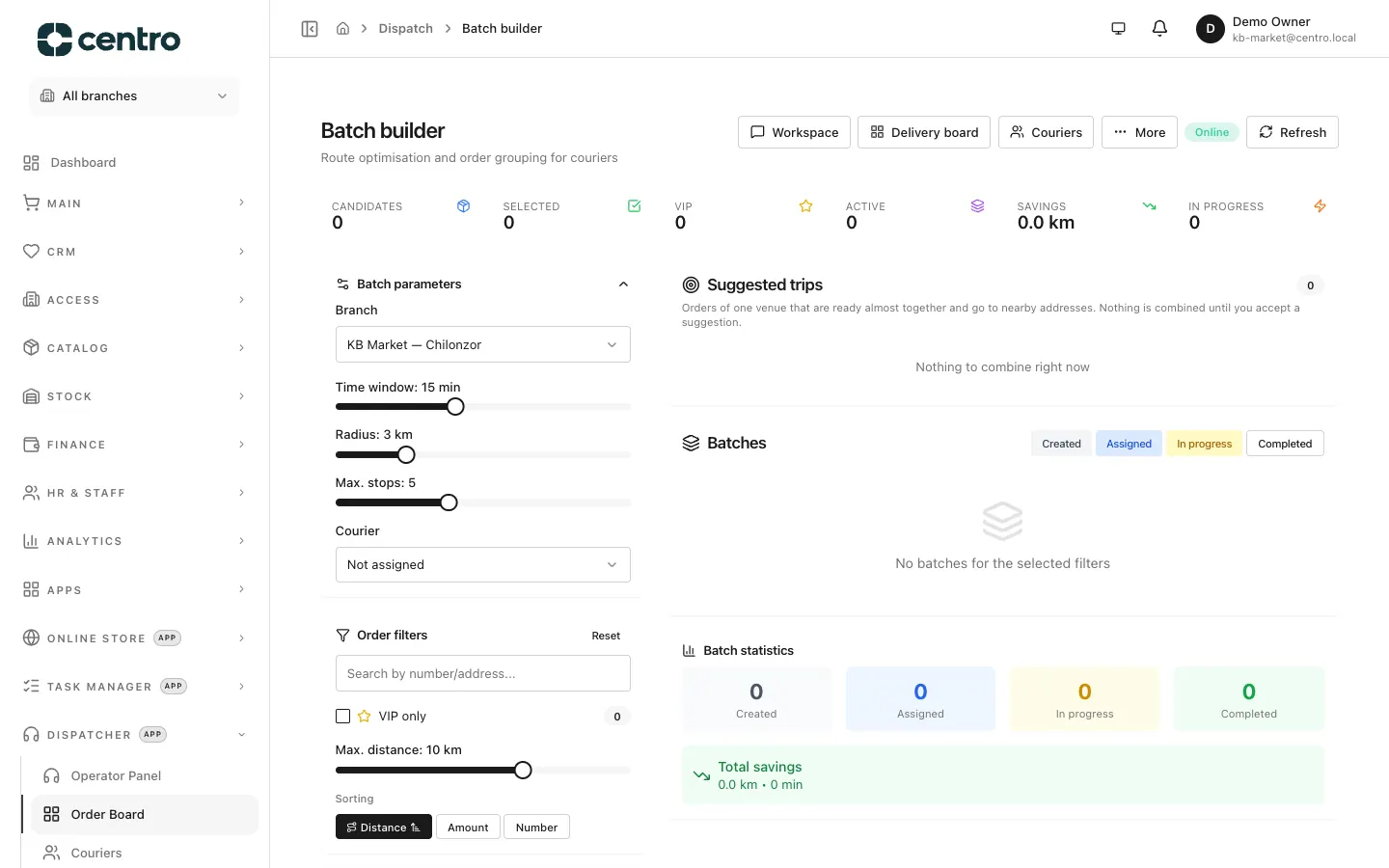
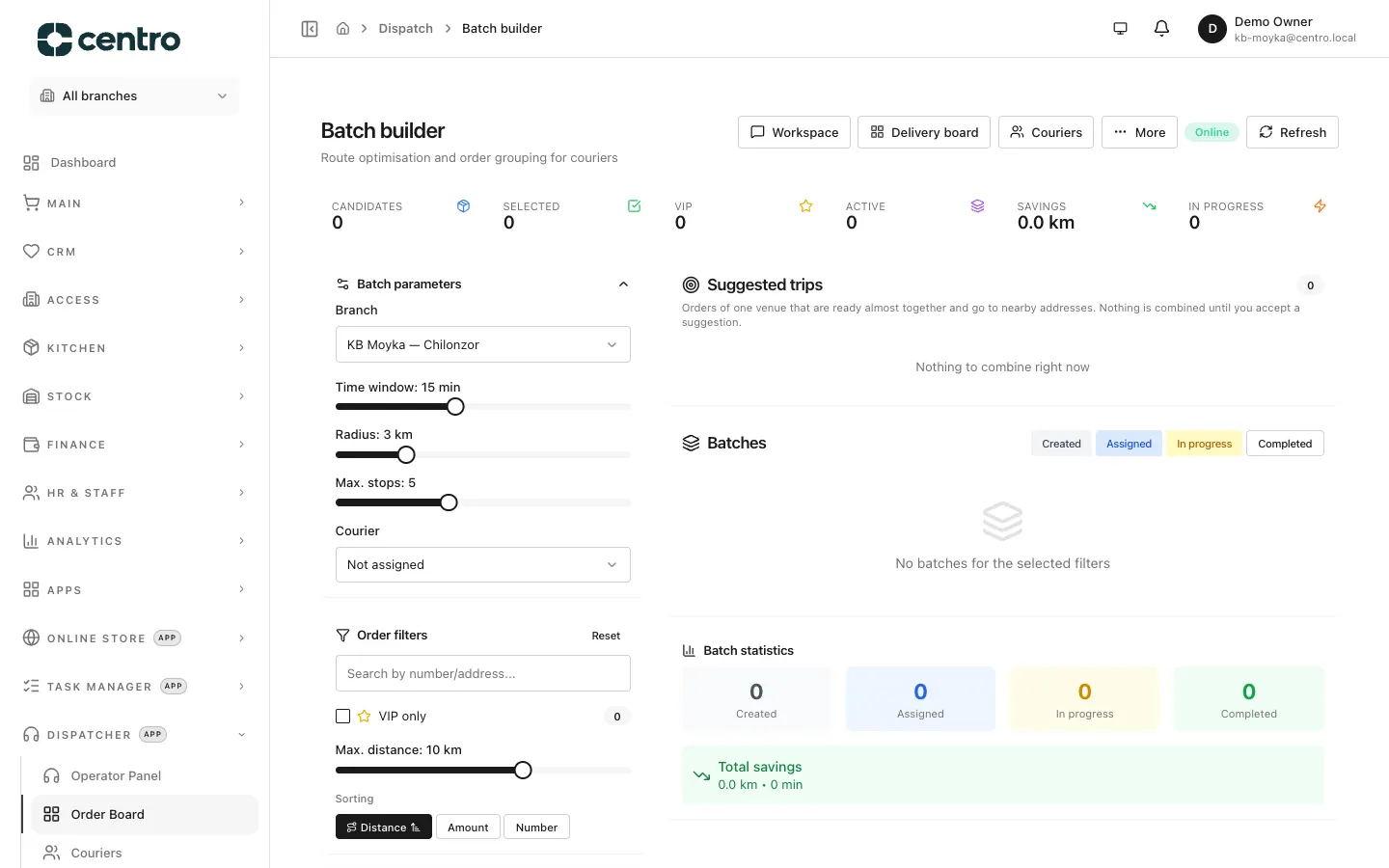
Nothing is combined by itself: only a dispatcher creates a trip — by accepting a suggestion or picking orders by hand. The lists refresh on their own when orders or couriers change (the «Online» / «No connection» badge on top); Refresh does it by hand.
Left panel
- «Batch parameters»
- «Branch» (the first active venue is preselected), «Time window» (5–30 min, 15 at start), «Radius» (1–10 km, 3 at start), «Max. stops» (2–10, 5 at start) and «Courier» (for a hand-built trip; «Not assigned» — no courier). Suggestions are calculated with these values.
- «Order filters»
- Search by number or address, «VIP only», «Max. distance» (from the venue to the address) and sorting: «Distance», «Amount», «Number». «Reset» restores the filters.
- «Ready orders»
- Delivery orders of the selected venue without a courier from the last 24 hours (from new up to «ready») that are not in an open trip; aggregator orders are not listed. Each shows the number, amount, address and distance from the venue. Click a row to tick it.
- Selection and «Create batch (N)»
- «All (N)» / «Clear», a selection summary (total distance, approximate savings), «Show on map» (orders with coordinates appear on the map on the right) and the create button. If more orders than «Max. stops» are ticked, the button is locked.
Right panel
- «Suggested trips»
- The system groups 2 or more orders whose ready times fit into the time window and whose addresses lie within the radius of each other. Each card shows the reason («N orders: ready within N min, addresses at most N km apart»), the savings, the stop order and a suggested free courier with a reason. Suggestions are stored nowhere — they are recalculated on every refresh.
- «Combine and assign N» / «Combine without a courier»
- Create the trip («Trip created»). With the courier, every order of the trip is assigned to that courier. The first button appears only when a courier is suggested.
- «Batches»
- The organization’s latest trips. The status buttons are a filter: «Created» (no courier), «Assigned», «In progress» (an order is on the way), «Completed» — the first three are on at start. Each card shows a 6-character number, the order count, the courier, km and minutes, the savings and the stops.
- «Dissolve»
- Only on a «Created» trip (no courier): the trip is closed and its orders return to the list unchanged («Trip dissolved; its orders are back in the list»).
- Counters and «Batch statistics»
- On top: «Candidates», «Selected», «VIP» (from the ready orders) and «Active», «Savings», «In progress» (from the trips). At the bottom — trips per status and «Total savings». The trip figures count only the trips the status filter lets through.
Rules
- A trip needs at least 2 orders, all from one venue, with ready times inside the time window and addresses no farther apart than the radius — otherwise the server refuses the trip.
- A trip goes only to an active courier of this venue with no current orders. The «Courier» list shows every active courier — the server refuses a courier of another venue.
- The auto-assignment rule leaves orders of an open trip alone — the trip gets its courier as a whole.
- Distance and savings are straight-line: the route goes from the venue to the nearest stop, then the next, and back to the venue; it is compared with a separate round trip per order, minutes at 25 km/h.
- Creating, combining with a courier and dissolving trips needs full access to «Dispatcher» or «Couriers». Every trip is recorded in the decision journal: «Batch created» and one «Trip assignment» row per order.
Important: Note: (1) «Create batch (1)» can be clicked with a single order, but the server does not create a trip of fewer than 2 orders. (2) A trip created without a courier cannot get one on this page later — assign its orders on the board, or dissolve the trip and accept the suggestion with a courier. (3) A dissolved trip is listed as «Completed». (4) The trip parameters from the settings are not loaded into this page’s sliders — the page always opens with 15 min / 3 km / 5 stops.
By business type
- Restaurant — orders leaving one kitchen almost together for one area; keep the time window short for hot food.
- Store — orders picked for the same time; for a courier with a car you can raise the number of stops.
- Car wash — with a mobile wash: one crew visits several nearby addresses in a row.
Delivery tools: aggregators and trips #
Receiving orders from external delivery platforms and the way to the trips page.
How to open
- With the «Delivery integrations» button on the Order Board or via «More» → «Aggregator orders» in the header (address /dispatcher/delivery-tools).
- On these pages the Order Board sidebar item is highlighted.
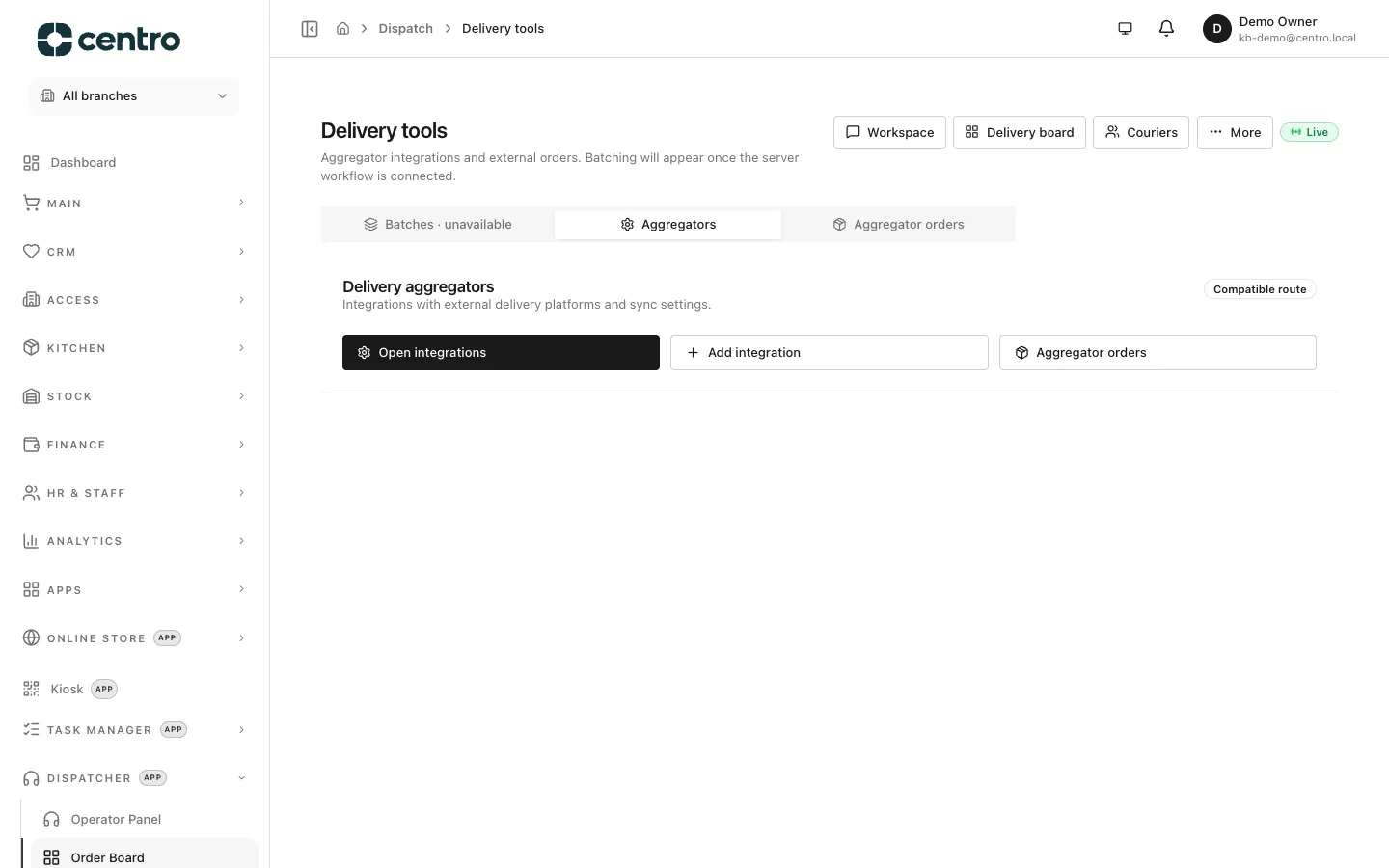
Tabs
- «Batches · unavailable»
- The name is outdated — the section works. The «Batch building» card: «The system suggests combining orders of one venue that are ready almost together and go to nearby addresses into one courier trip. A dispatcher creates the trip.» Buttons: Open order trips (/dispatcher/batch) and «Delivery board». By default the page opens on the «Aggregators» tab.
- «Aggregators»
- «Open integrations», «Add integration», «Aggregator orders».
- «Aggregator orders»
- «Open orders» (/dispatcher/aggregators/orders), integrations and the board.
For a restaurant: see orders from the connected food-delivery platforms in one queue and accept or reject them from here.
For a store: if a platform that sells groceries and goods is connected, its orders arrive in the same queue.
For a car wash: these aggregators deliver food and goods — car-wash services are not sold there, so this section is usually not needed.
Delivery aggregators #
Cards of the connected delivery-platform integrations and their state.
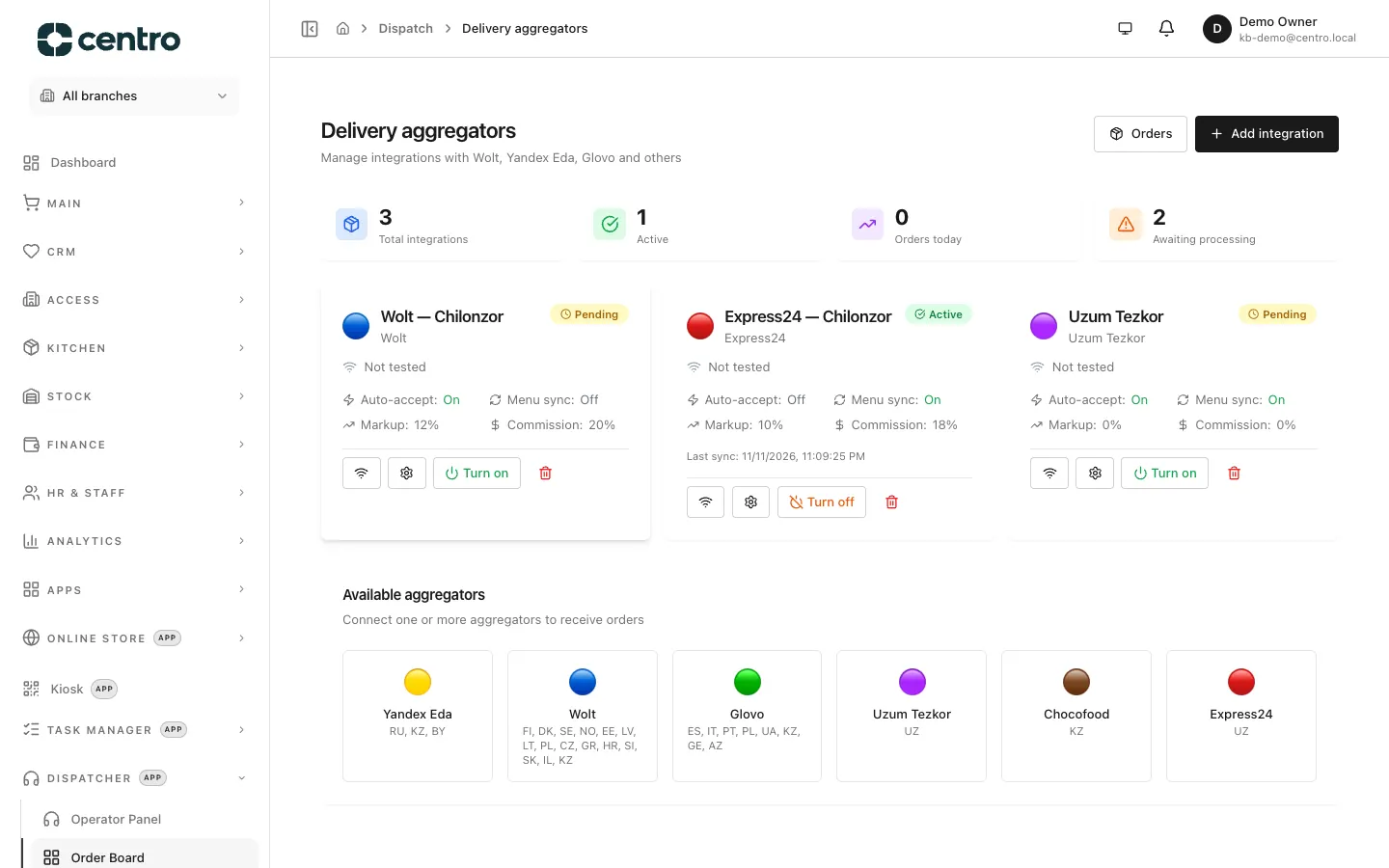
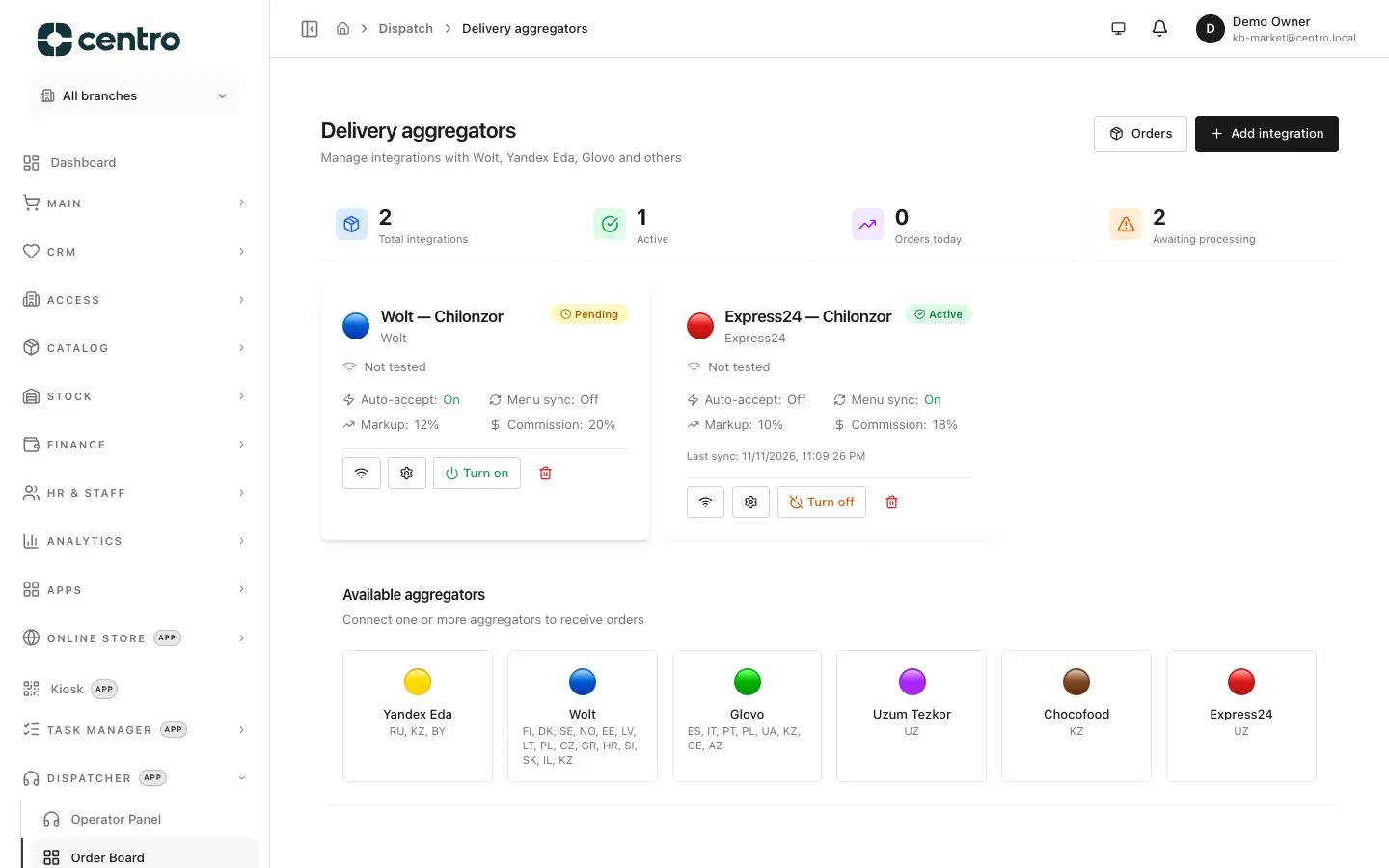
- Statistics
- «Total integrations», «Active», «Orders today», «Awaiting processing» (neither accepted nor rejected).
- Status badge
- «Pending» — just created, «Active» — receives orders, «Inactive» — switched off, «Error» — the connection test failed, «Suspended».
- «Connected» / «Connection error» / «Not tested»
- The result of the last connection test.
- «Auto-accept», «Menu sync», «Markup», «Commission»
- The main parameters; the last menu sync time is shown below.
- Buttons
- The Wi-Fi icon tests the connection, the gear opens settings, «Turn on» / «Turn off», the bin deletes (with confirmation).
Important: Only two aggregators are offered for a new connection now — Yandex Eda and Uzum Tezkor (the «Available aggregators» block at the bottom of the page shows the same two). Both are connected on their own pages and are not managed here: Uzum Tezkor on its settings page in the Apps section (/apps/uzum-tezkor/settings), Yandex Eda in Settings → Integrations → Yandex Eats. Glovo, Wolt, Express24 and Chocofood are no longer offered for new connections; integrations created earlier stay in the list under their own names.
Tip: Viewing requires one of the position permissions «Integrations», «System settings» or «Sales and orders» (view); creating, switching on and accepting orders requires full access.
Adding a new integration #
The aggregator picker: it now offers Uzum Tezkor, which is connected on its own settings page.
- On the Aggregators page click «Add integration» — the «New integration» page opens.
- Click the Uzum Tezkor card — its settings page (/apps/uzum-tezkor/settings) opens.
- Finish the connection on that page — see Apps → Uzum Tezkor.
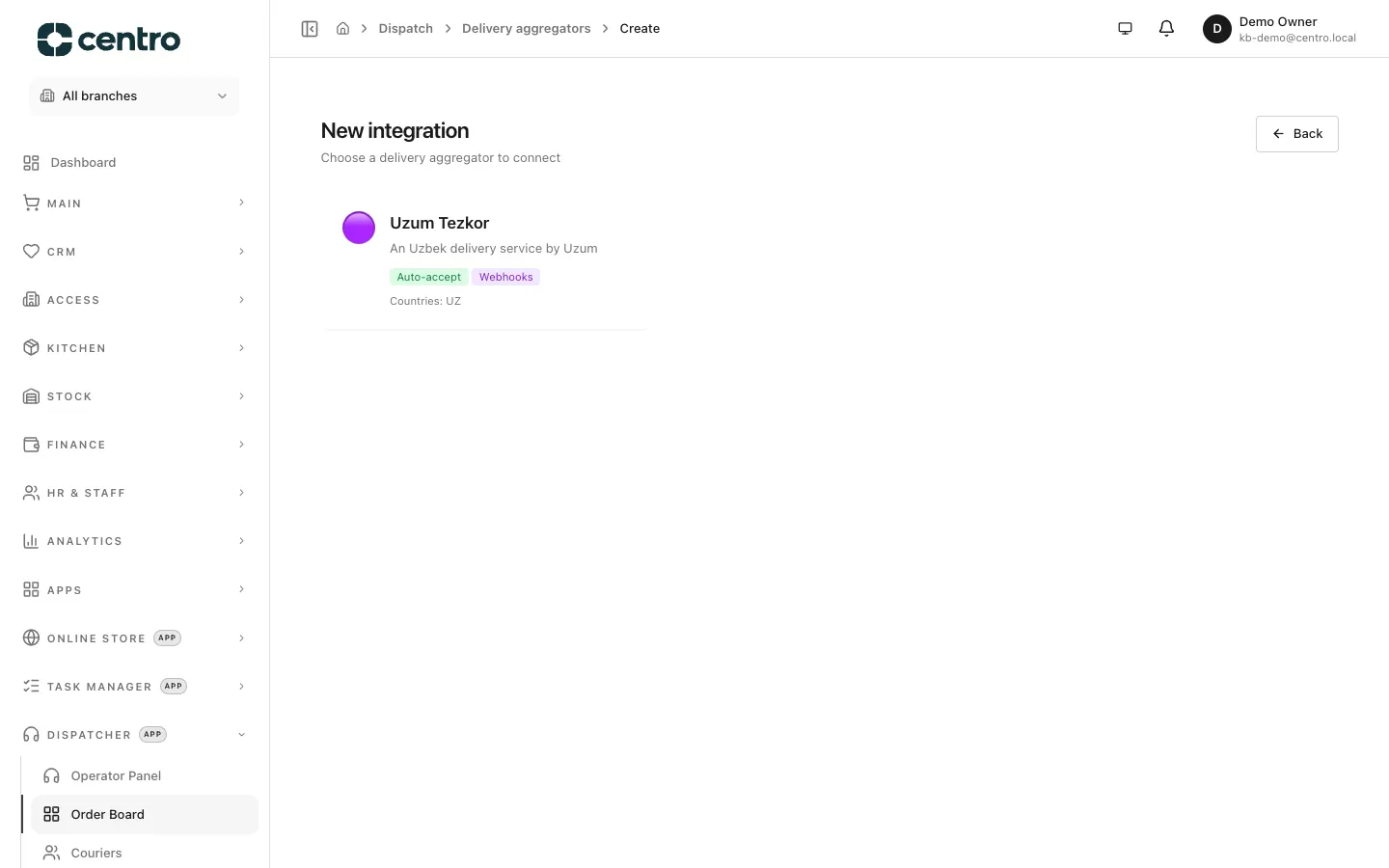
Important: Yandex Eda is not shown on this page: it is connected in Settings → Integrations → Yandex Eats. Glovo, Wolt, Express24 and Chocofood are no longer offered.
Integration settings, statistics and logs #
The gear on the card: change parameters, test the connection, sync the menu, webhook logs.
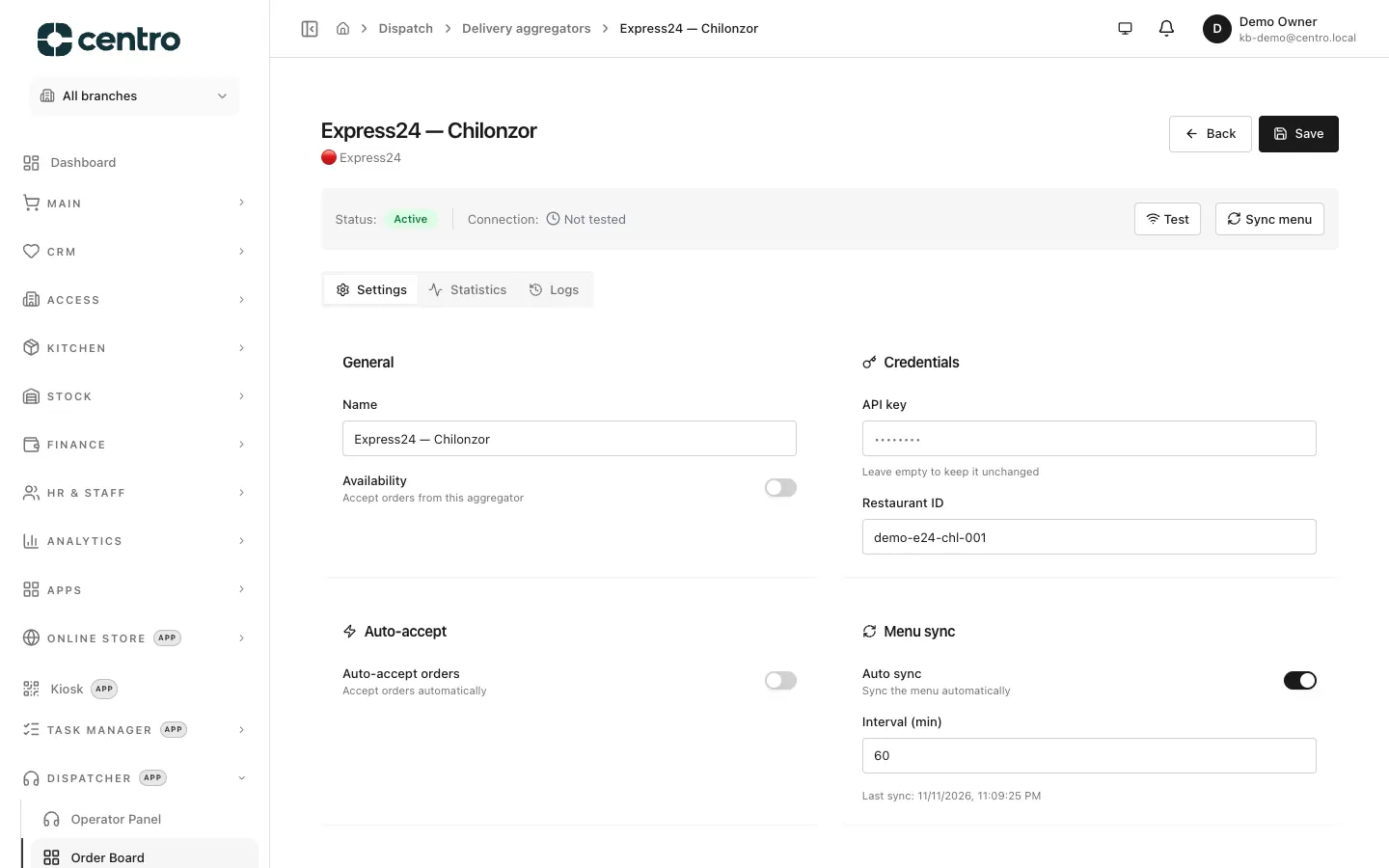
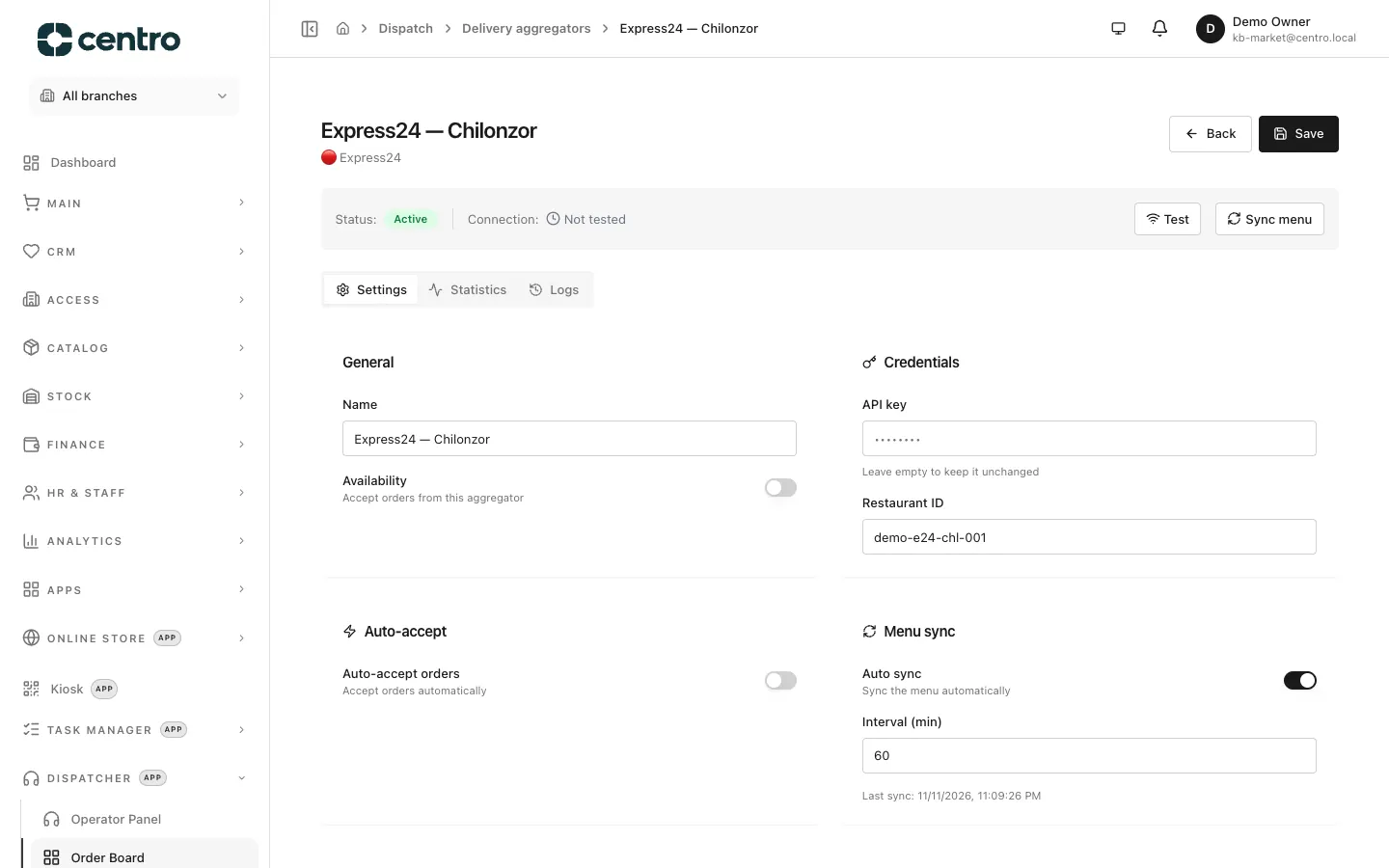
- Status bar
- Status, the last test result, «Test» and «Sync menu» (only when menu sync is on).
- «General»
- Name and «Availability» — temporarily stop accepting orders from the aggregator.
- «Credentials»
- Enter a new API key to replace it; leaving it empty keeps the old one.
- «Auto-accept», «Menu sync», «Pricing»
- As in the create form; the markup is added to prices in the aggregator, the commission is for reports.
- «Statistics»
- Total and accepted orders, acceptance rate and revenue.
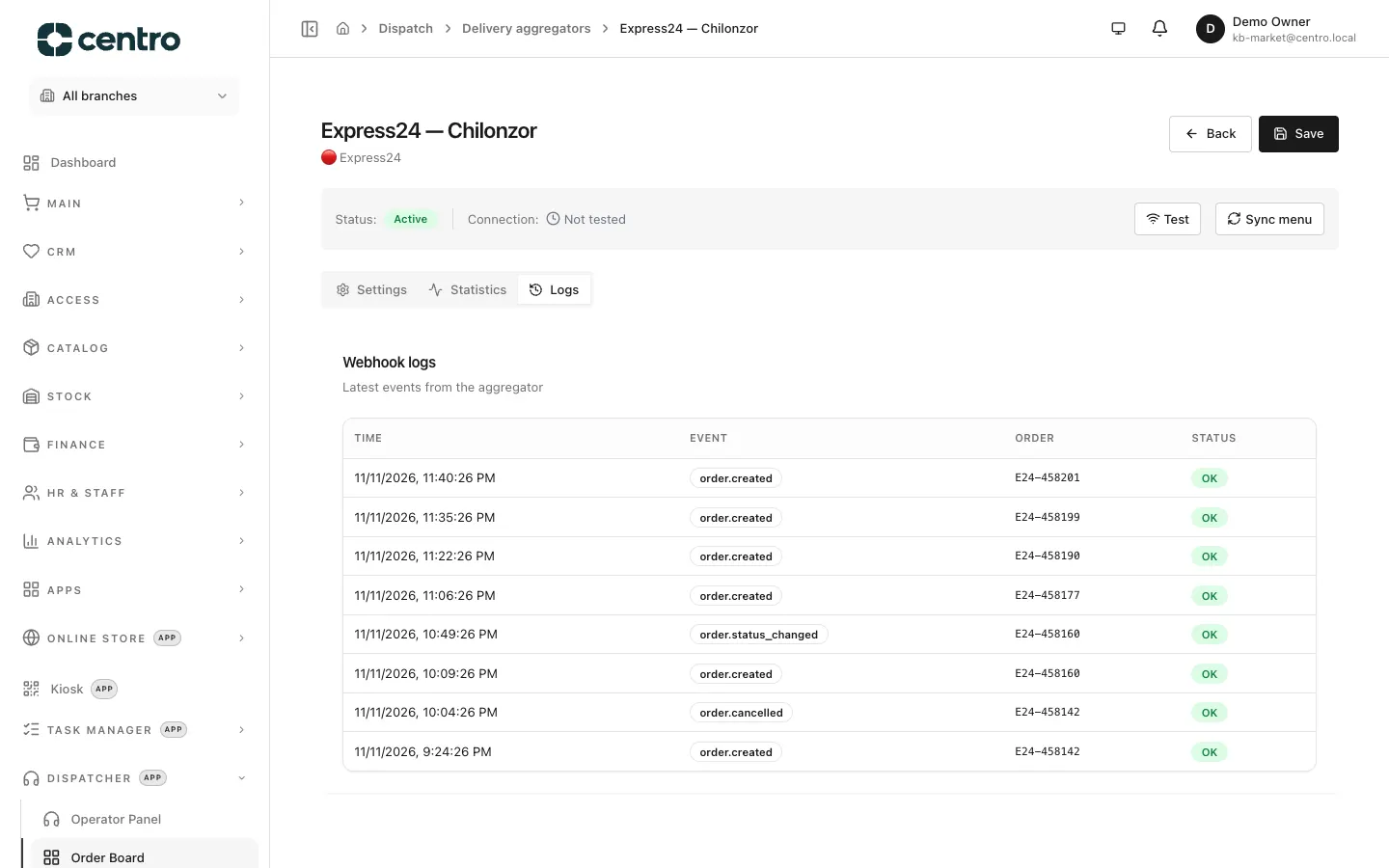
- «Logs»
- The last 20 webhooks from the aggregator: time, event (order.created, order.status_changed…), order and result (OK / Error).
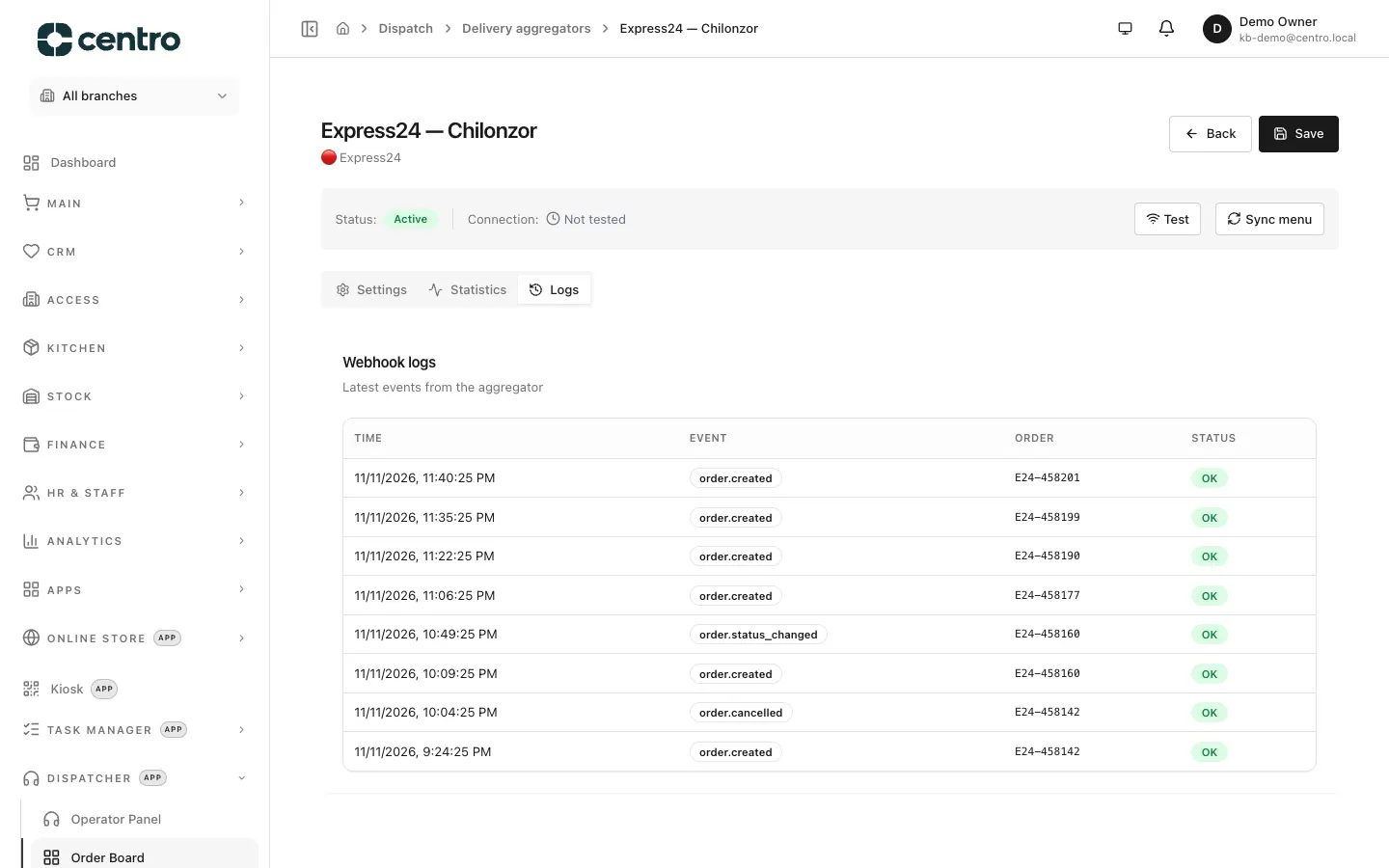
Important: «Test» and «Sync menu» call the aggregator’s real server. If the test fails, the integration switches to «Error».
Orders from aggregators #
The queue of orders received by webhook: accept, reject, change status.
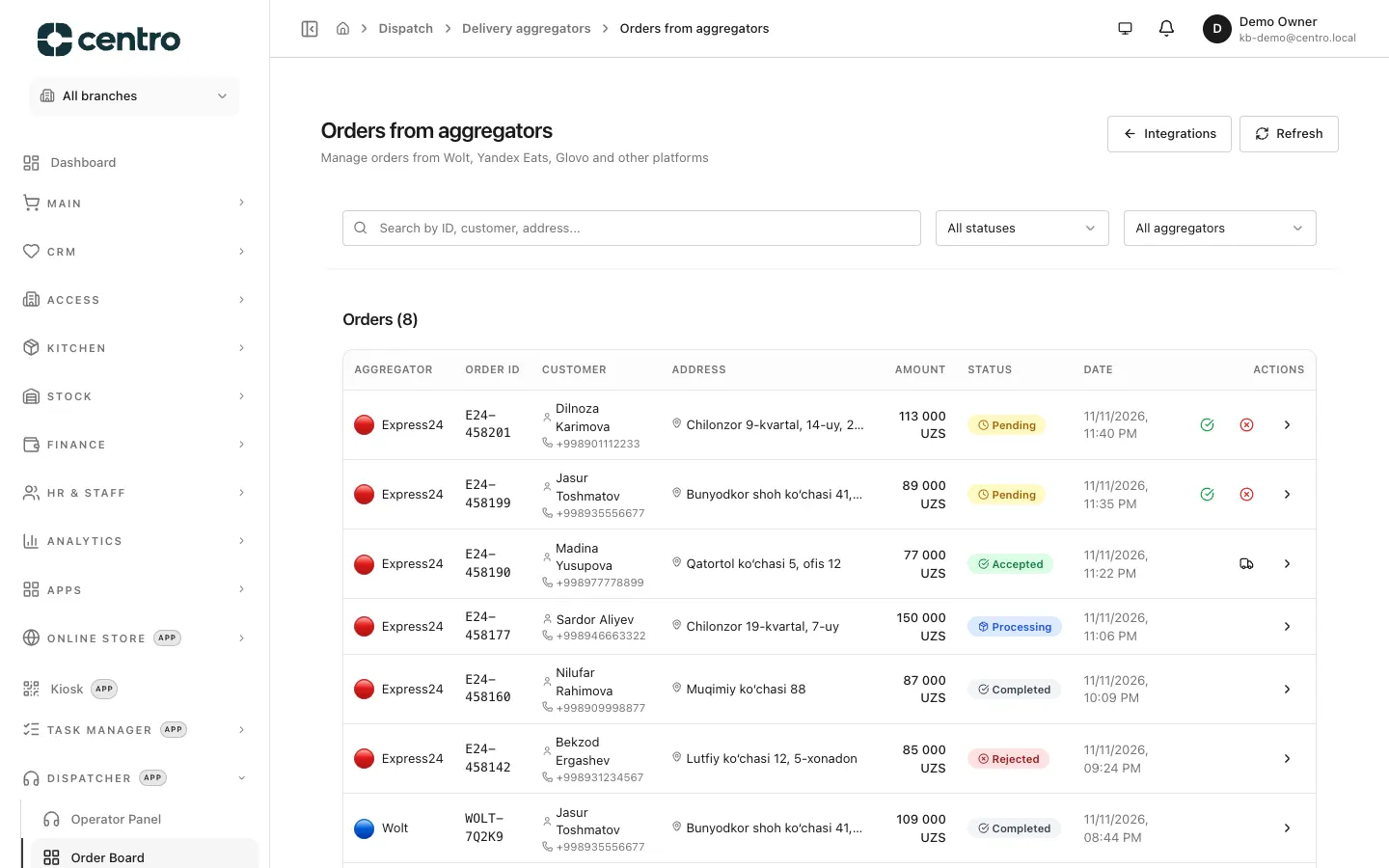
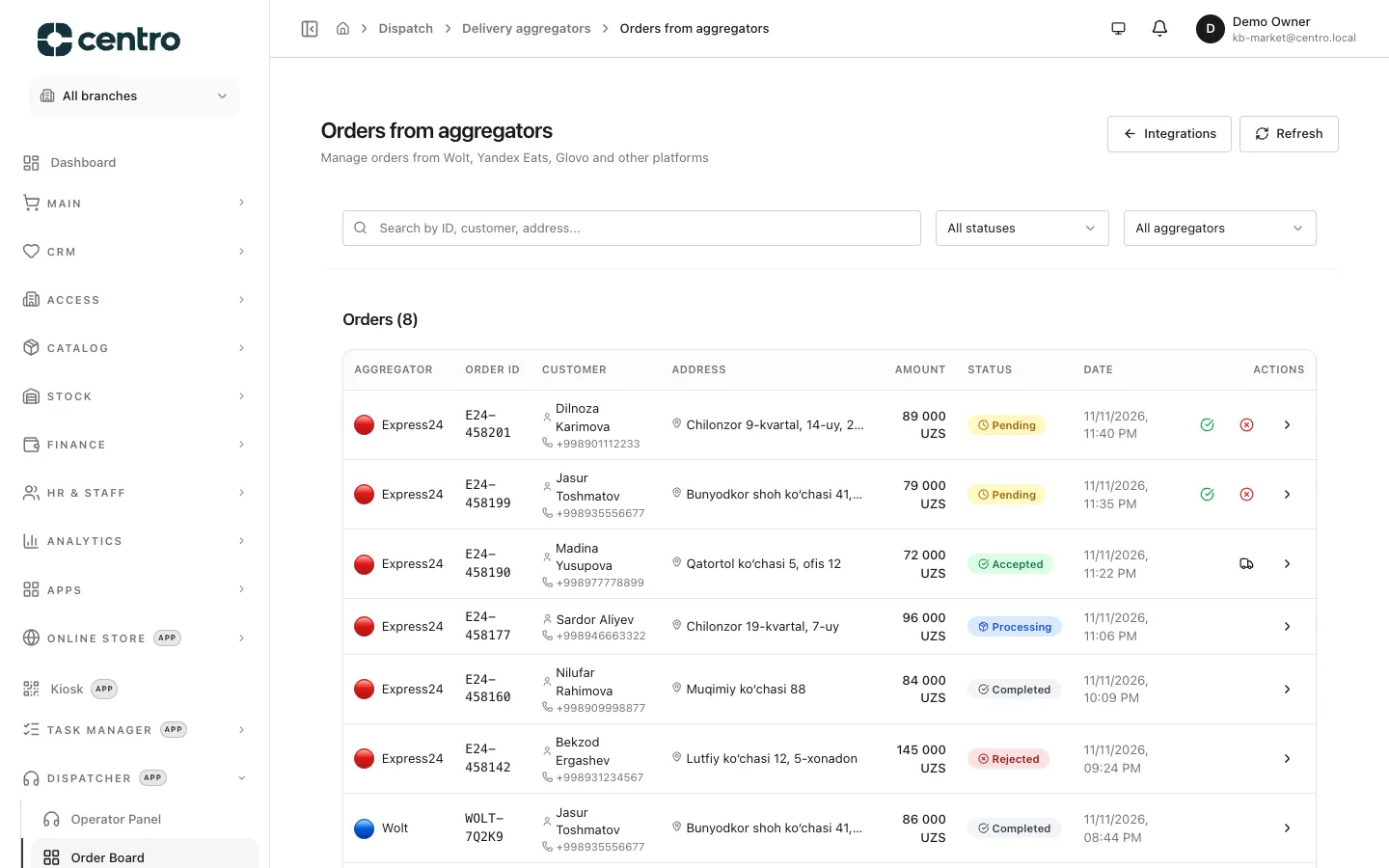
- Filters
- Search by ID, customer or address; status; aggregator (integration). Filters are kept in the address.
- Columns
- Aggregator, external order ID (after acceptance — the system order number →), customer and phone, address, amount, status, date.
- Statuses
- «Pending» → «Accepted» → «Processing» → «Completed»; or «Rejected»; «Error» — the order could not be processed (for example, a menu item did not match).
- Row buttons
- The green tick accepts, the red cross rejects (with a reason), the truck starts processing, the arrow opens details.
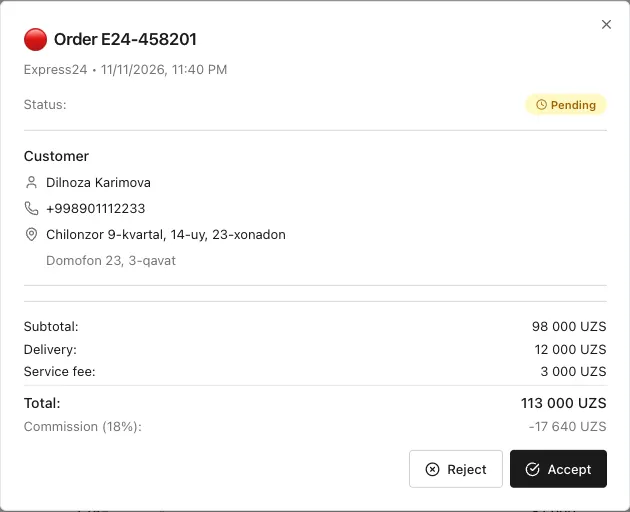
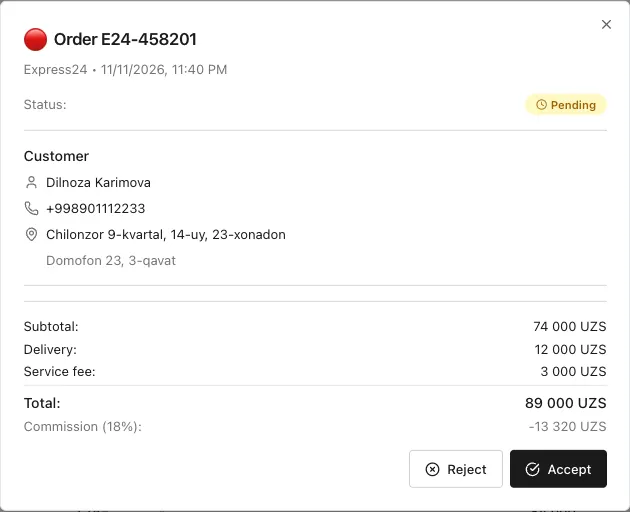
The details window shows the customer, phone, address and note; the items; «Subtotal», «Delivery», «Service fee», «Discount», «Total» and the aggregator commission (with its rate). «Accept» sends a confirmation to the aggregator and sets the status to «Accepted»; it does not create an order in Centro. If the aggregator order is linked to an order in the system, an «Open the order in the system» button appears.
How to reject an incoming order
- Click the red cross in the row or «Reject» in the details.
- Enter a reason (optional, for example «Out of stock») and click «Reject» again — the aggregator is notified.