Positions
A position is a set of permissions: what an employee sees and can do at the register, in the admin panel and in the apps.
Open in the admin panel/access/positions In Centro, permissions are not given to an employee directly but through a position. The organization has ready-made system positions (Владелец, Управляющий, Кассир, Официант, Повар, Курьер and others — their names are shared data for all organizations, shown in Russian) and custom positions you create. When a position changes, every employee holding it gets the new permissions at once.
How to open
- In the sidebar, expand the Access group.
- Click Positions.
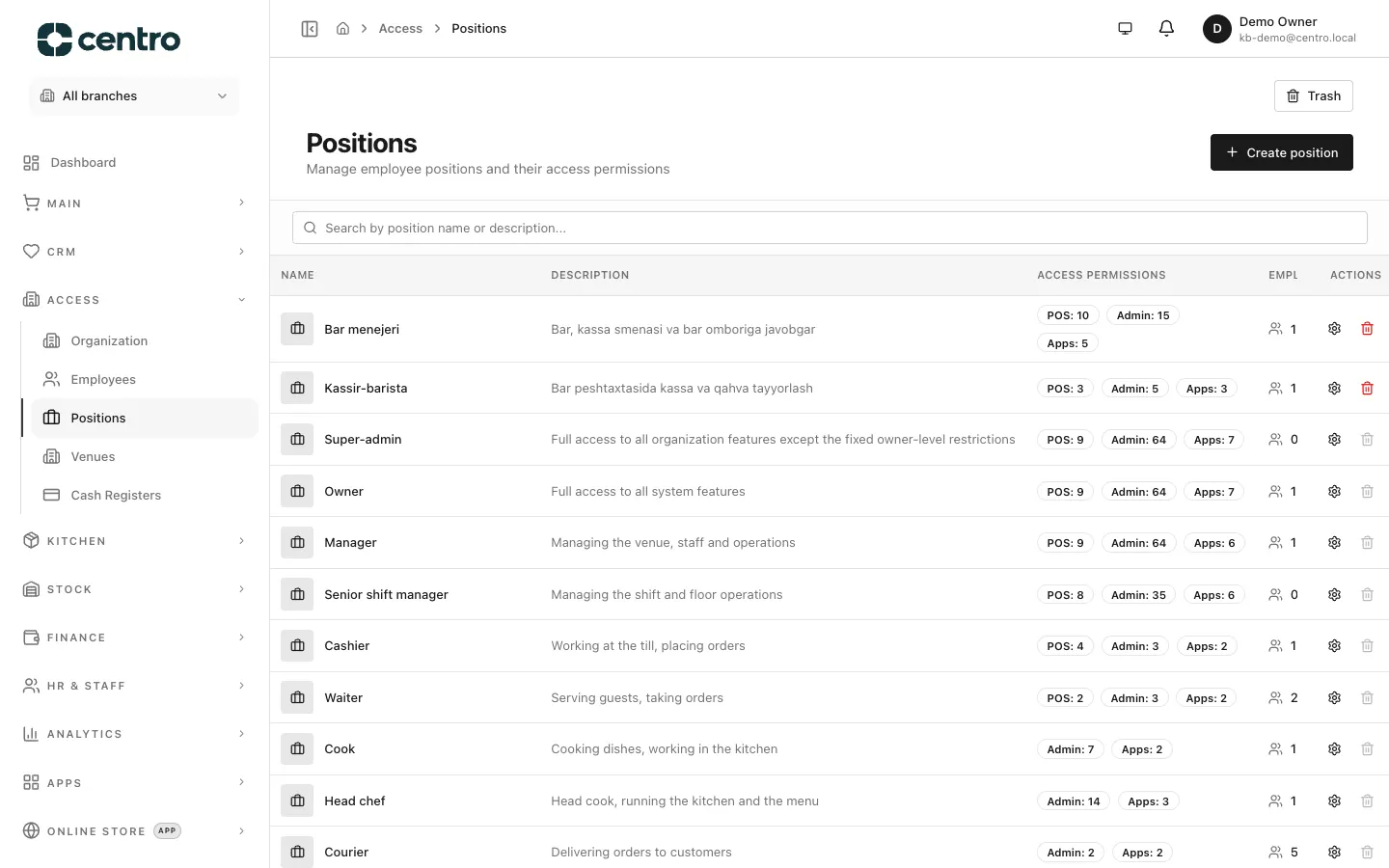
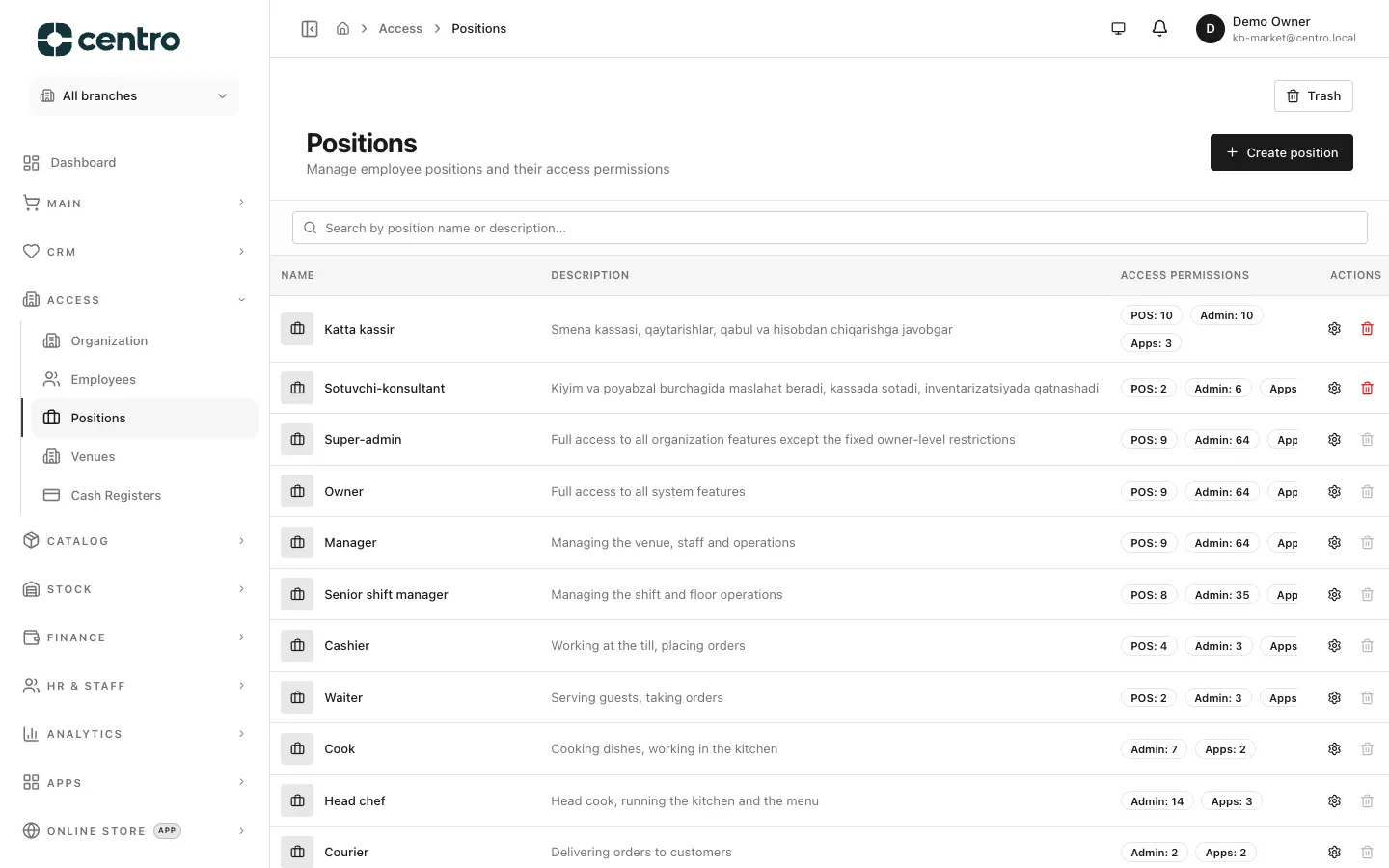
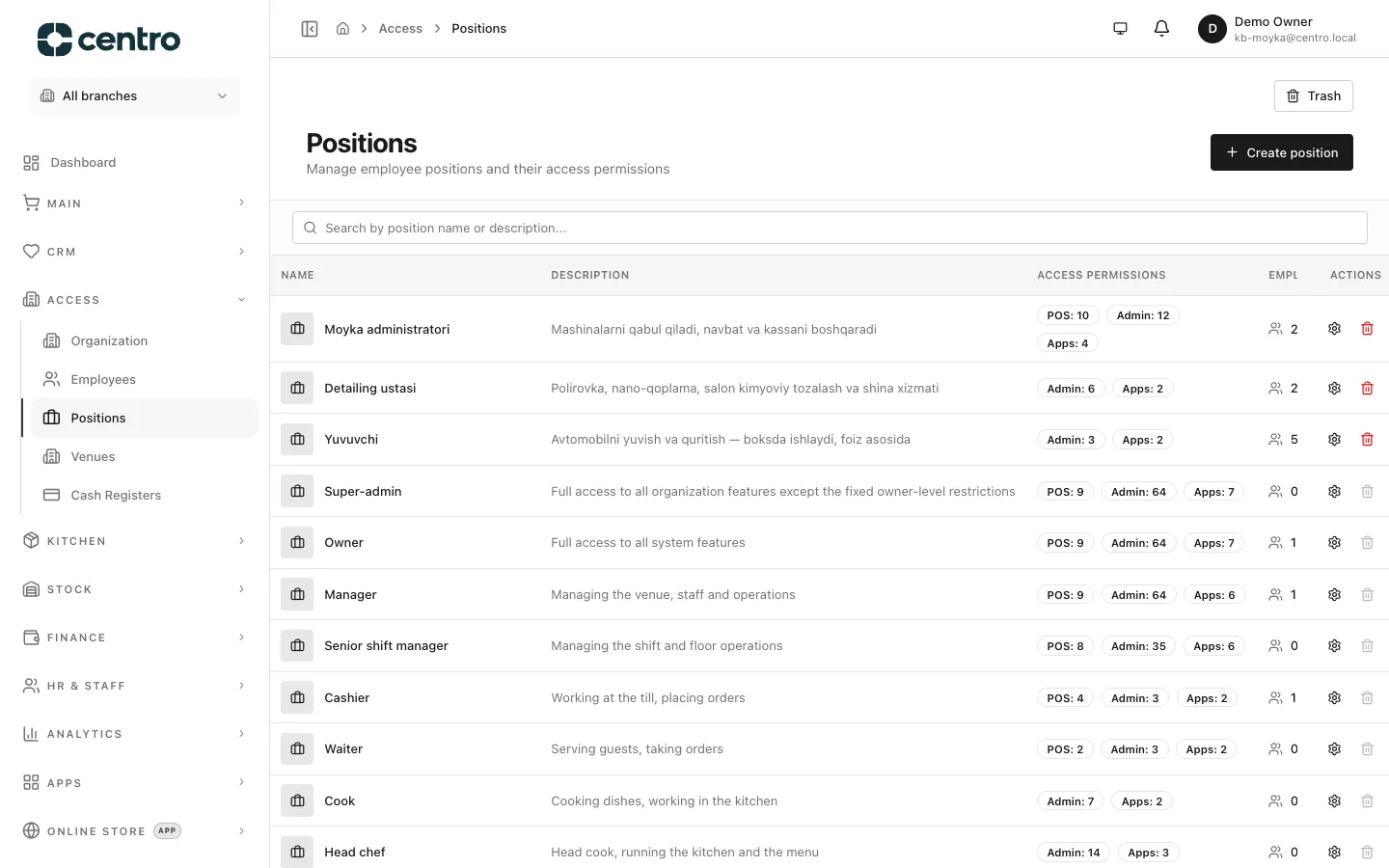
Table columns
- Name / Description
- The position name and short description. Search covers both.
- Access permissions
- Three badges: «POS: N» — enabled register permissions, «Admin: N» — admin-panel sections opened, «Apps: N» — allowed apps.
- Employees
- How many employees hold the position.
- Type
- «System» or «Custom».
- Actions
- Edit and delete. A system position, or one that still has employees, cannot be deleted — move the employees to another position first.
Tip: A deleted position goes to the trash: the «Trash» button at the top of the «Positions» page (the «Deleted positions» list) lets you restore it. How the trash works (restore, delete permanently, auto-cleanup) is described in the «Trash: restoring deleted records» section of the «Products» page.
Creating a position and the permission matrix #
Three blocks: «Cash register access», «Admin panel access» and «App access».
- Click Create position.
- Fill in «Position name *» (must be unique) and «Description».
- Turn on the permissions you need in the three blocks.
- Click Create position, then assign it to employees.
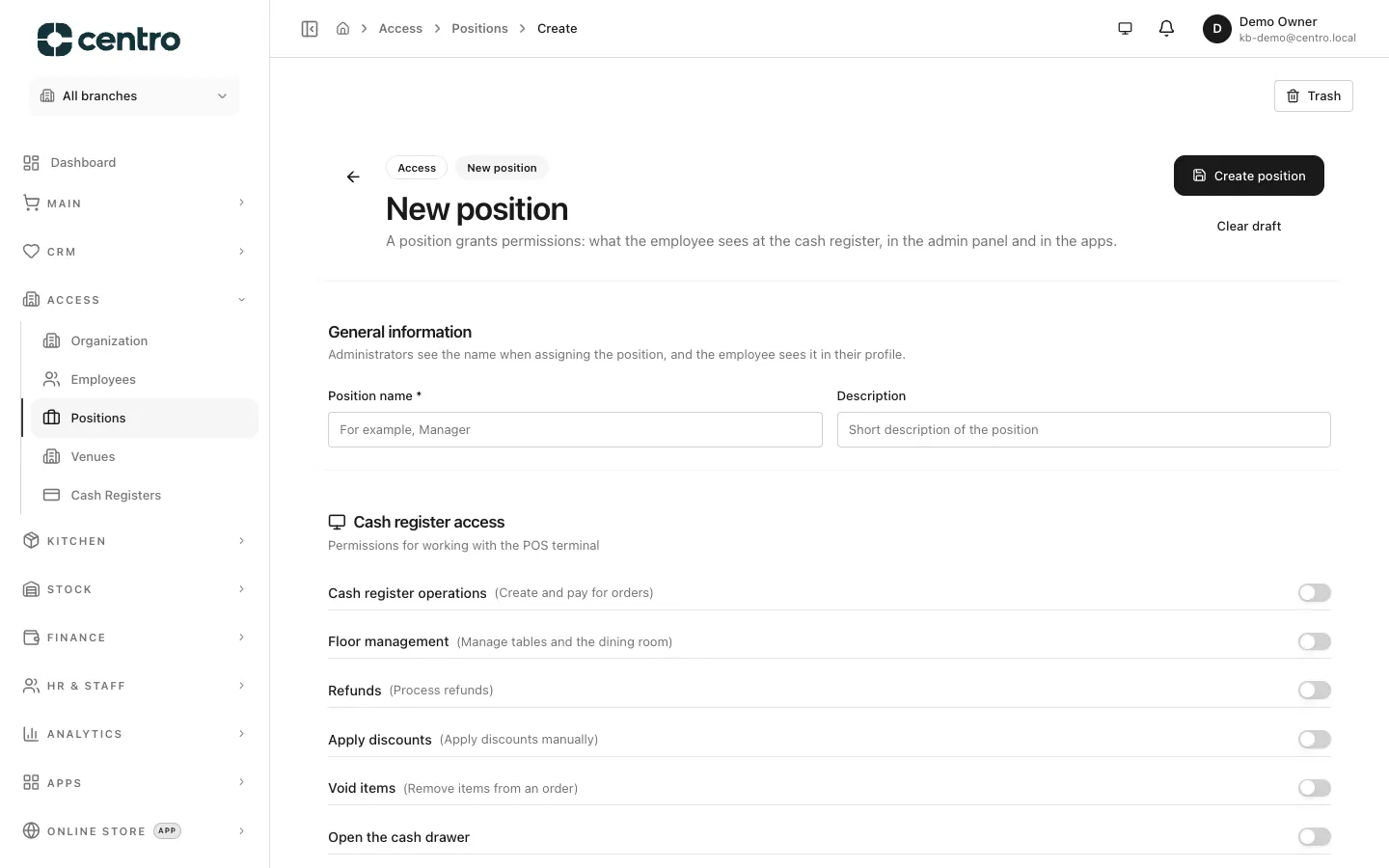
About the create page
- A new position starts with no rights: the register and app switches are off and every admin-panel row is «No access». To give all rows of a section one level, use the «Whole section:» buttons in the section header.
- The name must be unique: «A position with this name already exists. Choose another name.» The server also counts inactive or deleted positions — then the message adds «(it may be inactive or deleted)».
- What you type is kept as a draft in this browser («Position draft restored»); «Clear draft» empties the form after a confirmation. When you come from a system position via «Create a copy with a different name», the form is filled with the name «… (copy)» and all its rights — nothing is saved until you click «Create position».
- An existing position is edited with the pencil in the list or the «Configure position» link in the employee form: same blocks, no draft, and the button is «Save changes».
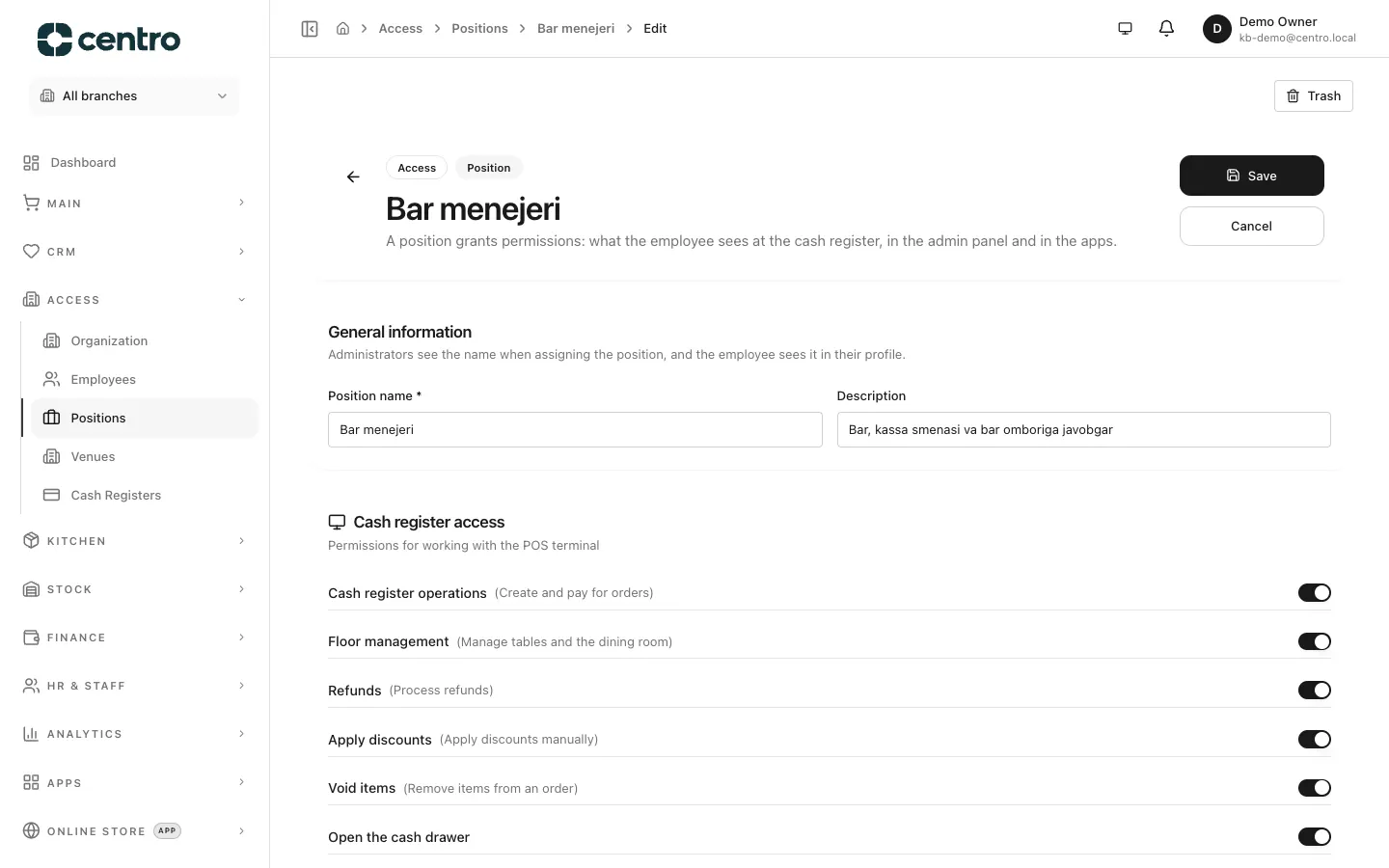
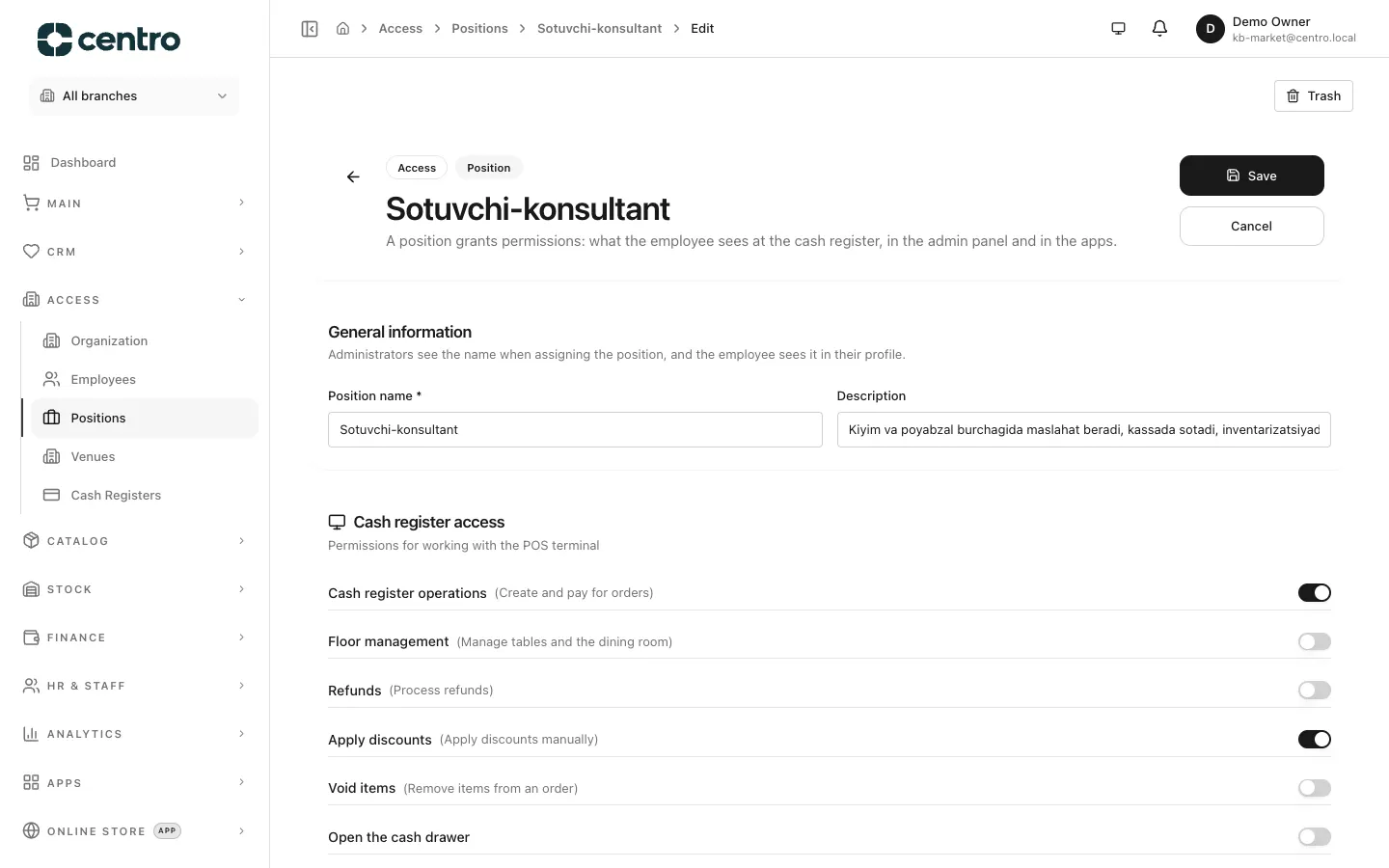
Cash register access
- Cash register operations
- Creating orders and taking payment.
- Refunds / Apply discounts / Void items
- Processing refunds, manual discounts and removing items from an order.
- X report / Z report
- The interim shift report and closing the register shift.
- Order transfer / See all orders
- Moving unaccepted orders between branches; a waiter sees all venue orders, not only their own.
- Other switches
- «Floor management» (tables and hall) and «Open the cash drawer».
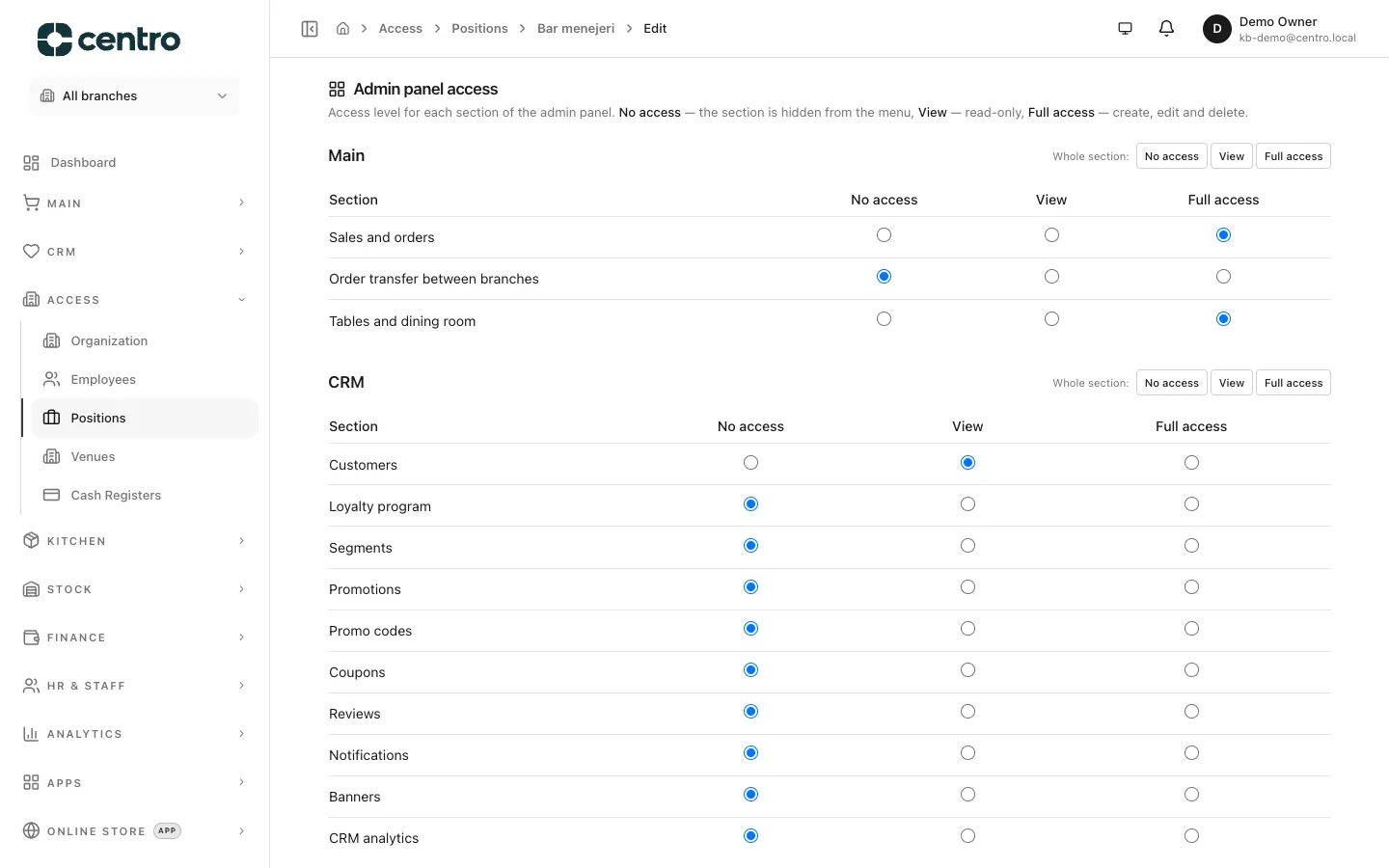
The «Admin panel access» block is grouped by menu sections (Main, CRM, Catalog, Warehouse, Purchasing, Finance, Access, Dispatcher, HR, Tasks, Analytics, Settings). Each row has three levels: No access — the section is hidden from the menu, View — read-only, Full access — create, edit and delete. The «Whole section:» buttons set one level for every row of the group.
Admin-panel rows by section
- Main
- «Sales and orders» — the order list and sales. «Order transfer between branches» — only «Full access» enables the button that moves an order to another branch in the dispatcher order card; without it the button is disabled. «Tables and dining room» — the floor plan and tables: «View» to see them, «Full access» to create and change tables and halls and get table QR codes.
- CRM
- Each row opens the CRM page of the same name. «Loyalty program» covers the bonus program and the discount system; «Promotions» also covers achievements, challenges and games; «CRM analytics» covers CRM analytics and fraud prevention.
- Catalog
- «Menu and products» — products, categories, brands, partners, lookbooks and attribute templates. «Tech cards» — tech cards and semi-finished products. «Ingredients» — ingredients, their categories and packaging/supplies. «Kitchen stations» — stations and KDS. «Kitchen history (employee names)» — the kitchen audit and who cooked each dish.
- Warehouse and Purchasing
- «Stock balances» — balances, processing and the movement report; «Supplies» — goods receipts and AI invoices; «Warehouses» — the warehouse list (the warehouses page under Access follows this row too). «Purchasing» — purchase orders to suppliers.
- Finance
- «Transactions» — transactions and expenses; with «Full access» you can also set up expense categories and supply cost types. «P&L report» — P&L and the Balance sheet. «Bank accounts» — the «Financial Accounts» page. «Chart of accounts» — «Full access» allows posting entries in the Balance sheet and saving a currency rate in reports. The «Budgets» and «Payroll» rows belong to pages hidden from the menu.
- Access
- «Venues» — venues and «Organization» (branches). «Integrations» — API keys and aggregator integrations.
- Dispatcher
- «Dispatch center» — the operator panel, order board, map, chat history and settings. «Couriers» — the courier chat. «Full access» in either row allows actions in the dispatcher order card. The «Call center» row is not shown while the calls section is in development; a level already saved in the position stays as it is.
- HR and Tasks
- «Timesheets» — the HR home, attendance and schedule; «Payroll» — HR → pay; «Employee KPIs» — performance; «Salary schemes» — HR settings (pay schemes and rates). «Tasks» — the task overview, board and task settings; «Full access» to «Incidents» allows managing incidents and approving incidents suggested by the AI assistant.
- Analytics
- «Executive analytics», «Operational», «Financial», «Marketing» — the analytics dashboards of the same name. «Reports» — the report catalog and saved reports. «Report builder» — the builder and AI reports.
- Settings
- «System settings» — the Settings page, SMS, fiscalization, marking, plus the apps catalog, online store, kiosk, news and Centro AI Assistant. «Billing and subscription» — «Billing», «Settings → Payments» and «Finance → Payment Methods». «Security settings» — security settings; together with «Full access» to «Kitchen history» it allows managing retention and deletion of the kitchen history.
Tip: The «Kitchen history (employee names)» row controls whether kitchen reports show who cooked each dish.
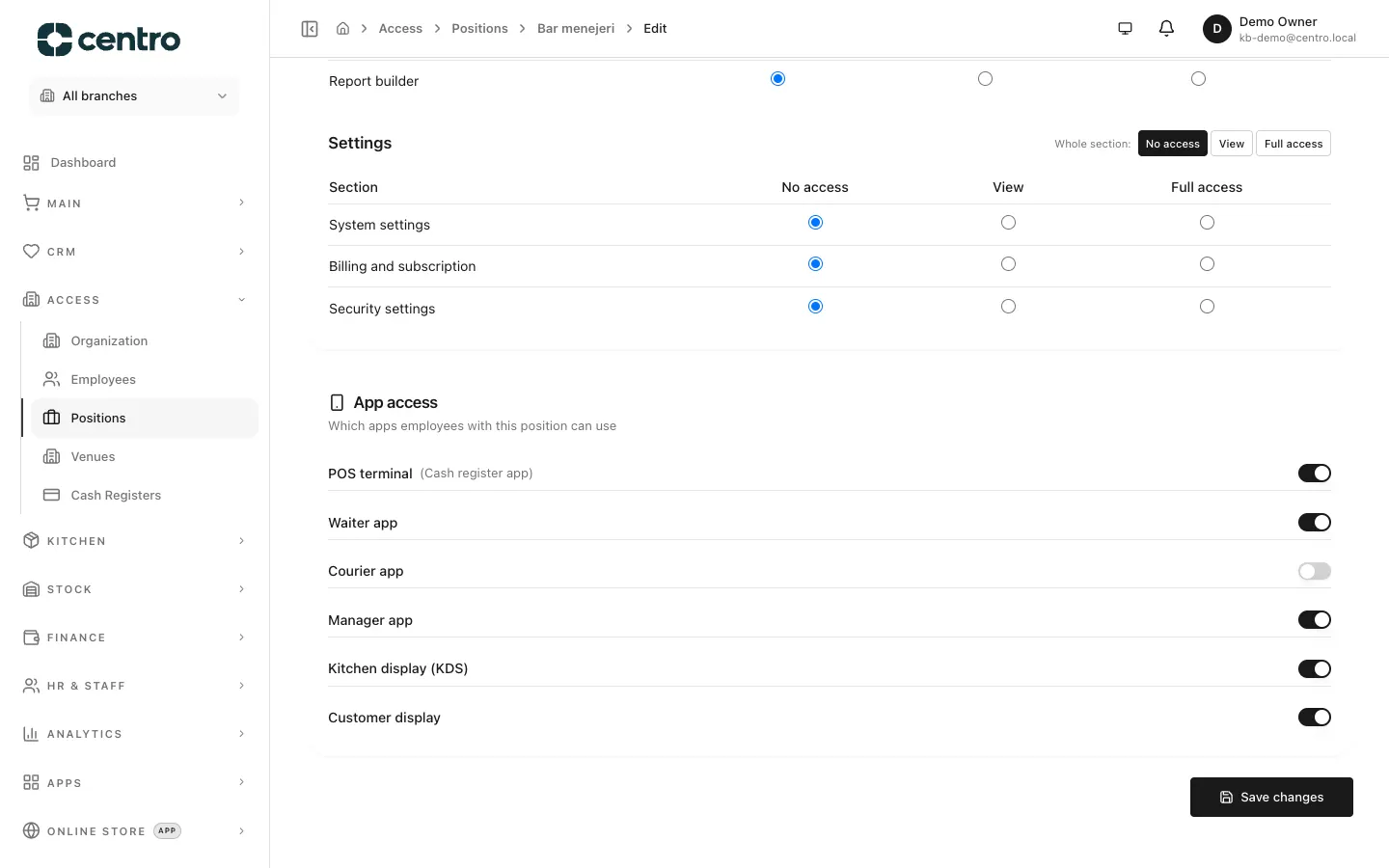
App access
- POS terminal
- The register app.
- Waiter app / Manager app
- The waiter and manager mobile apps.
- Courier app
- When on, employees with this position can be made couriers (the employee form shows a «Courier» section).
- Kitchen display (KDS) / Customer display
- The kitchen screen and the customer-facing screen.
Important: Editing a system position does not affect other organizations: saving creates a version just for your organization, and your employees are moved to it automatically.
Tip: A system position page also has «Create a copy with a different name»: it carries all permissions into the new-position form — handy for building a similar position without touching the system one.