Cash Registers
The venues' cash registers: type, login and password, fiscalization, network, status, balance and shift.
Open in the admin panel/access/cash-registers A cash register is a specific device in a venue (POS terminal, kiosk or waiter tablet). Each register belongs to one venue and signs in with that venue's shared login but its own password. After that, an employee opens a shift with their PIN. Each register has a linked financial account — the money in it is shown in the «Balance» column.
How to open
- In the sidebar, expand the Access group.
- Click Cash Registers — the «Cash registers» page opens.
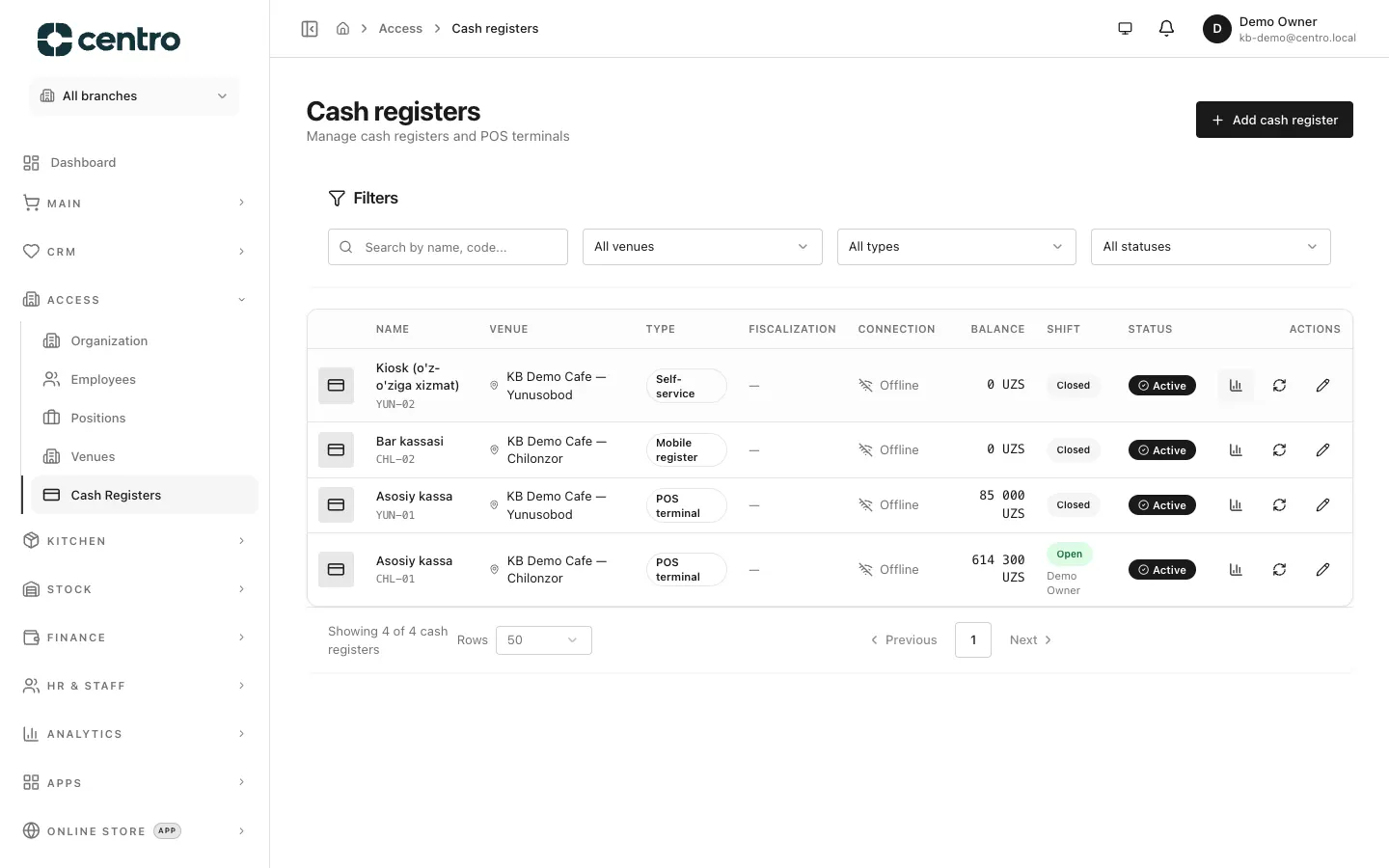
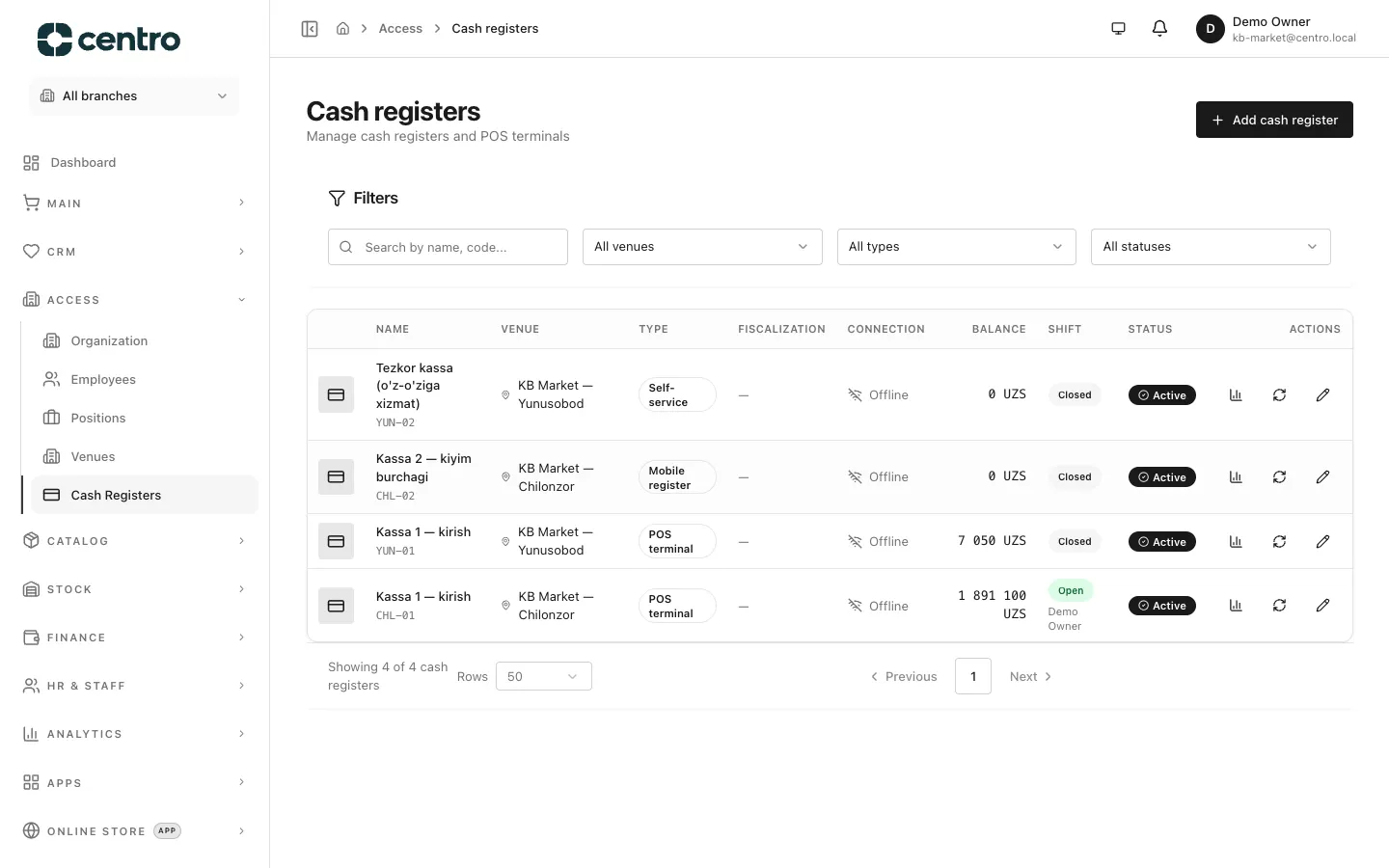
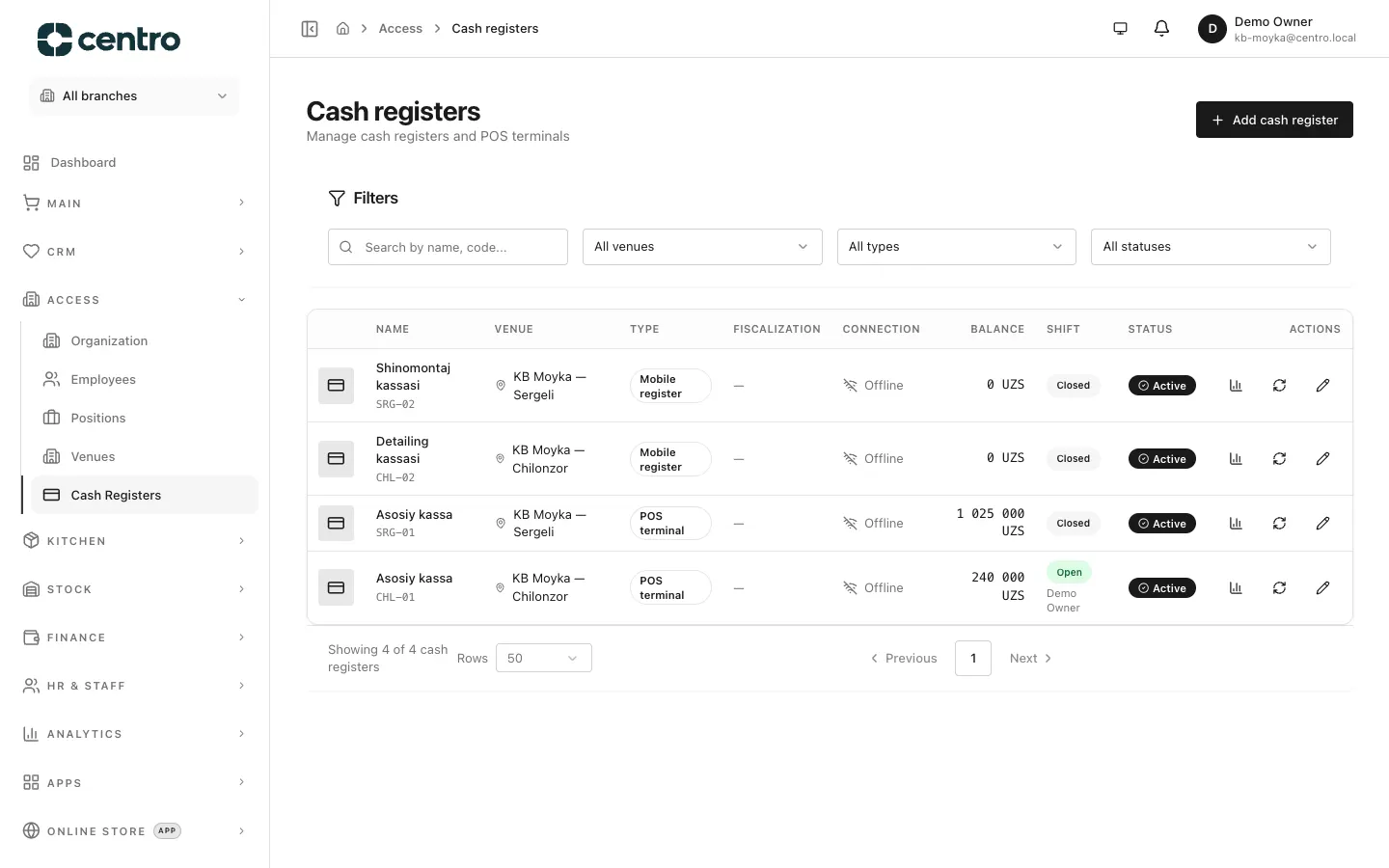
Filters
- Search by name, code... / All venues / All types / All statuses
- Search by register name or code, plus filters by venue, type and status.
Table columns
- Name / Venue
- The register name and code, and the venue it belongs to.
- Type
- «POS terminal», «Self-service» or «Mobile register».
- Fiscalization
- The fiscal number if a fiscal printer is connected.
- Connection
- «Online» or «Offline» and the last sync time.
- Balance
- The balance of the linked financial account; click to open the account page.
- Shift
- «Open» or «Closed»; click to see this register's cash shifts.
- Status
- «Active», «Inactive» or «Maintenance».
- Actions
- Chart — «Statistics» (the financial account), circular arrows — sync the register now, pencil — edit.
Tip: On the «base + modules» tariff a register works by licence: under the heading, «N of M licensed · K free» lines for «POS register» and «Self-service kiosk», and in the «Type» column each register shows its state and Apply / Move / Remove. A POS terminal needs a «POS register» licence, a self-service register a «Self-service kiosk» one, a mobile register none. The register edit page has the same «Licence» card. The licence of a register with an open shift cannot be moved or removed.
Adding and editing a cash register #
Venue, name, login and password, code, type, fiscalization, network and settings.
- Click Add cash register — the «New cash register» form opens.
- Choose a «Venue *» — the «Cash register login *» is filled in from the venue automatically.
- Enter the «Cash register name *» (e.g. «Bar register»).
- Enter the «Cash register password *» or click «Generate password» (digits only, at least 6).
- Enter or generate the «Cash register code *» and choose the «Cash register type».
- Click Create cash register.
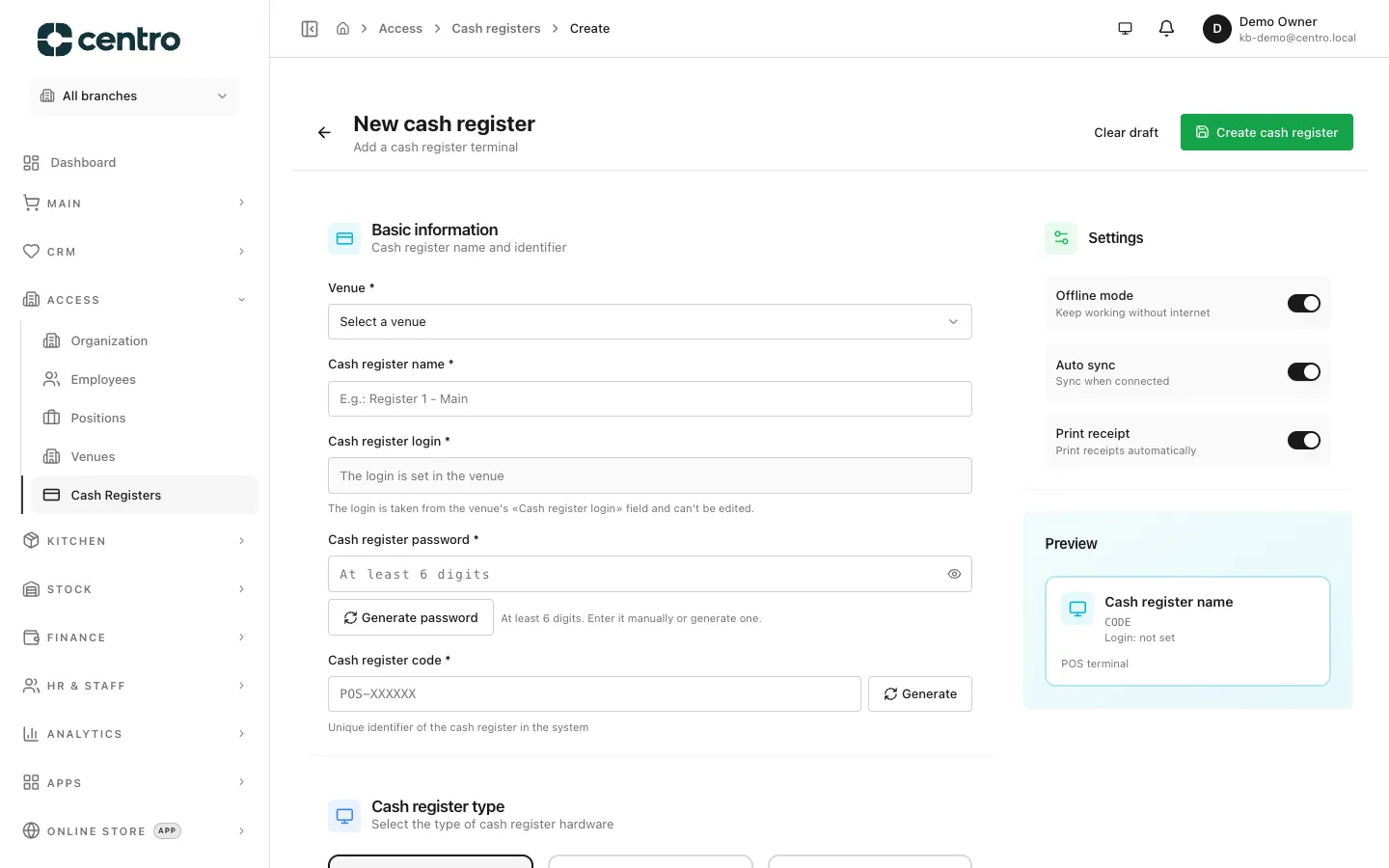
- Cash register login *
- Taken from the venue's «Cash register login» field and read-only. If the venue has no login yet, fill it in on the venue card first.
- Cash register password *
- This device's password: digits only, at least 6.
- Cash register code *
- A unique identifier in the system (e.g. CHL-02). It cannot be changed after creation.
- Cash register type
- «POS terminal» — a fixed register, «Self-service» — a kiosk where customers order themselves, «Mobile register» — a waiter's tablet or phone.
- Fiscalization
- With the switch on — the fiscal printer details: «Fiscal number», «Cash machine model», «Serial number», «Firmware version».
- Network settings
- «IP address» (detected automatically on load) and «MAC address» (typed by hand — the browser cannot detect it).
- Settings
- «Offline mode» (keep working without internet), «Auto sync» (sync when connected), «Print receipt» (print receipts automatically).
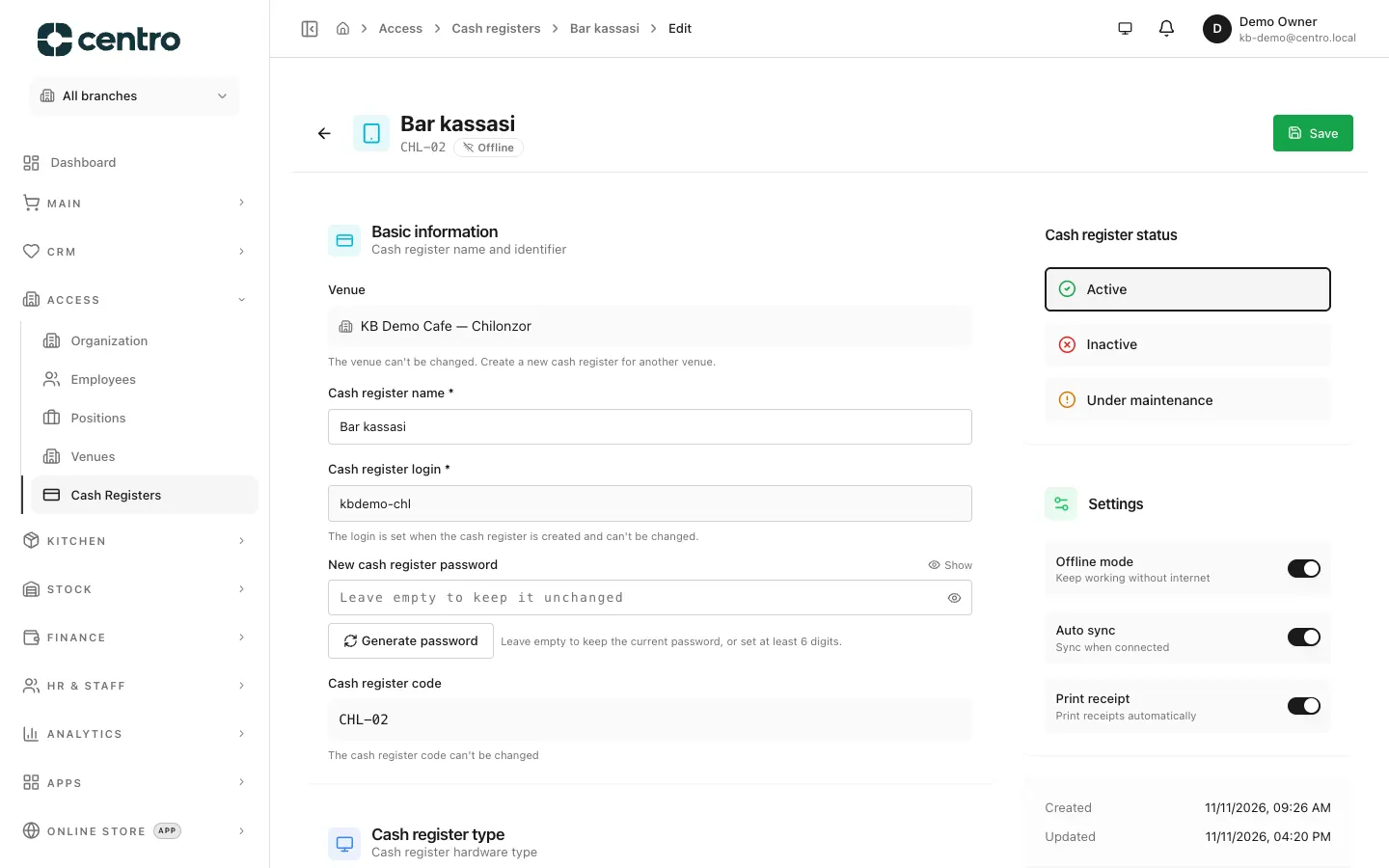
When editing, the venue, login and code are fixed — create a new register for another venue. Leave «New cash register password» empty to keep the current one; «Show» reveals it. The «Cash register status» block on the right switches the register to «Active», «Inactive» or «Under maintenance»; creation and update dates are shown below.
Important: A register needs a venue: with no venues you will see «Create a venue first» instead of the form.
Tip: The venue registers are also listed on the «Notifications» tab of the venue settings — its «Add» button opens the form with the venue already selected.