Organization
The top level of the organization structure — branches (a city or region), their address, responsible manager and the Task Terminal.
Open in the admin panel/access/branches Centro has a three-level structure: Organization → Branch → Venue. A branch is a city or region (e.g. Tashkent, Samarkand); a venue is a specific point of sale: a cafe, a shop or a car wash. The «Organization» page keeps the list of branches; every venue, cash register and warehouse eventually belongs to some branch. A small business usually needs just one branch.
How to open
- In the sidebar, expand the Access group.
- Click Organization.
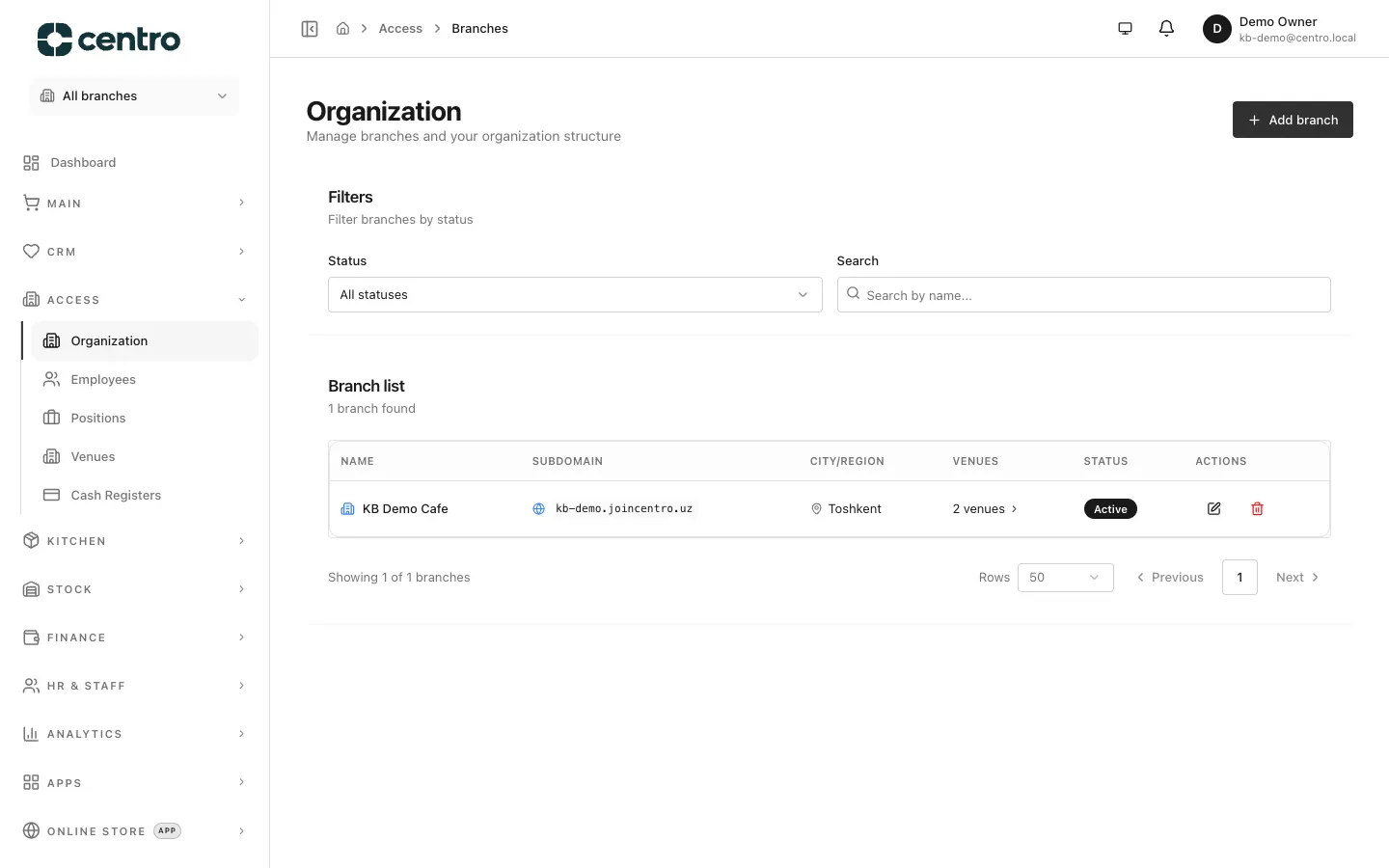
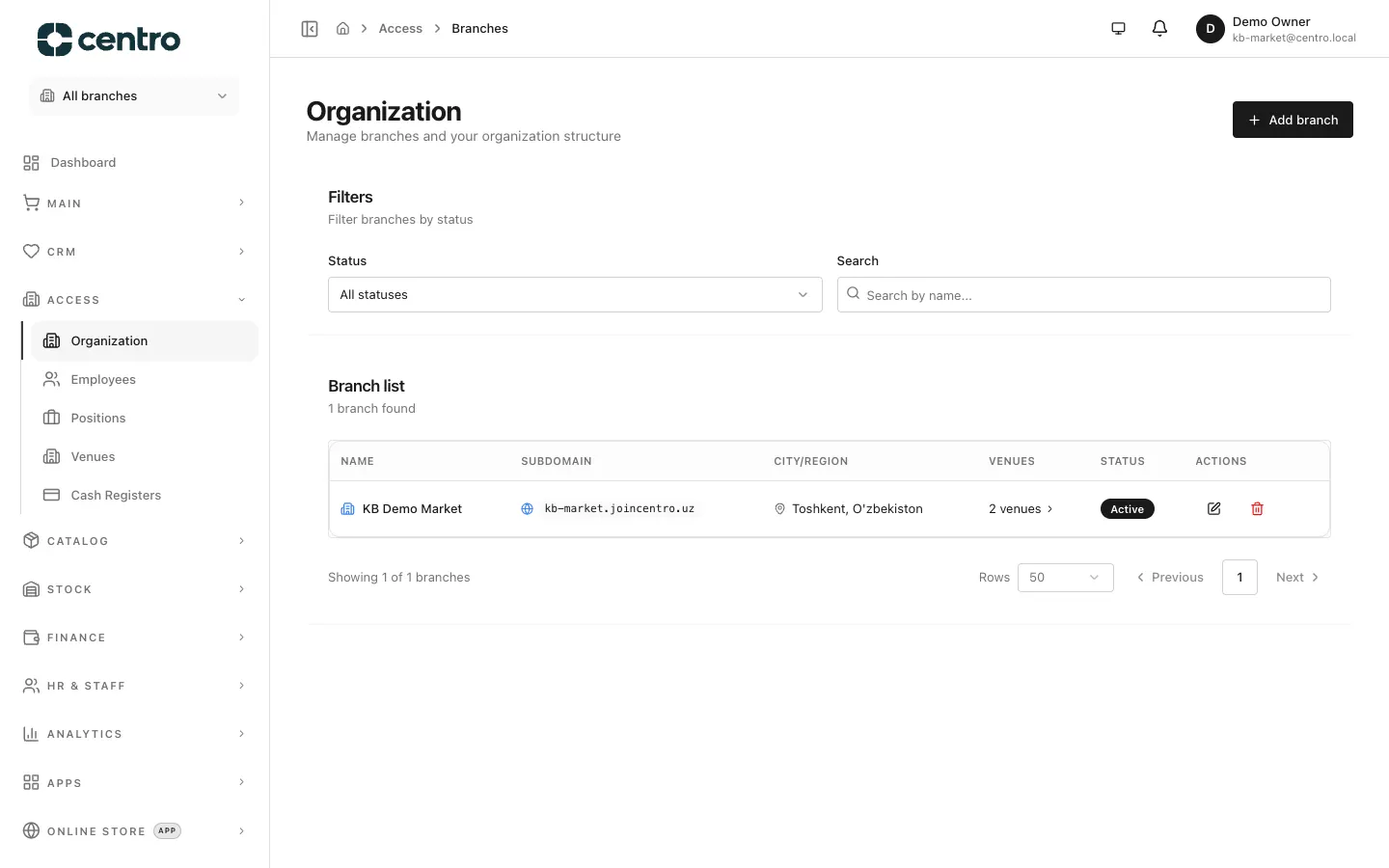
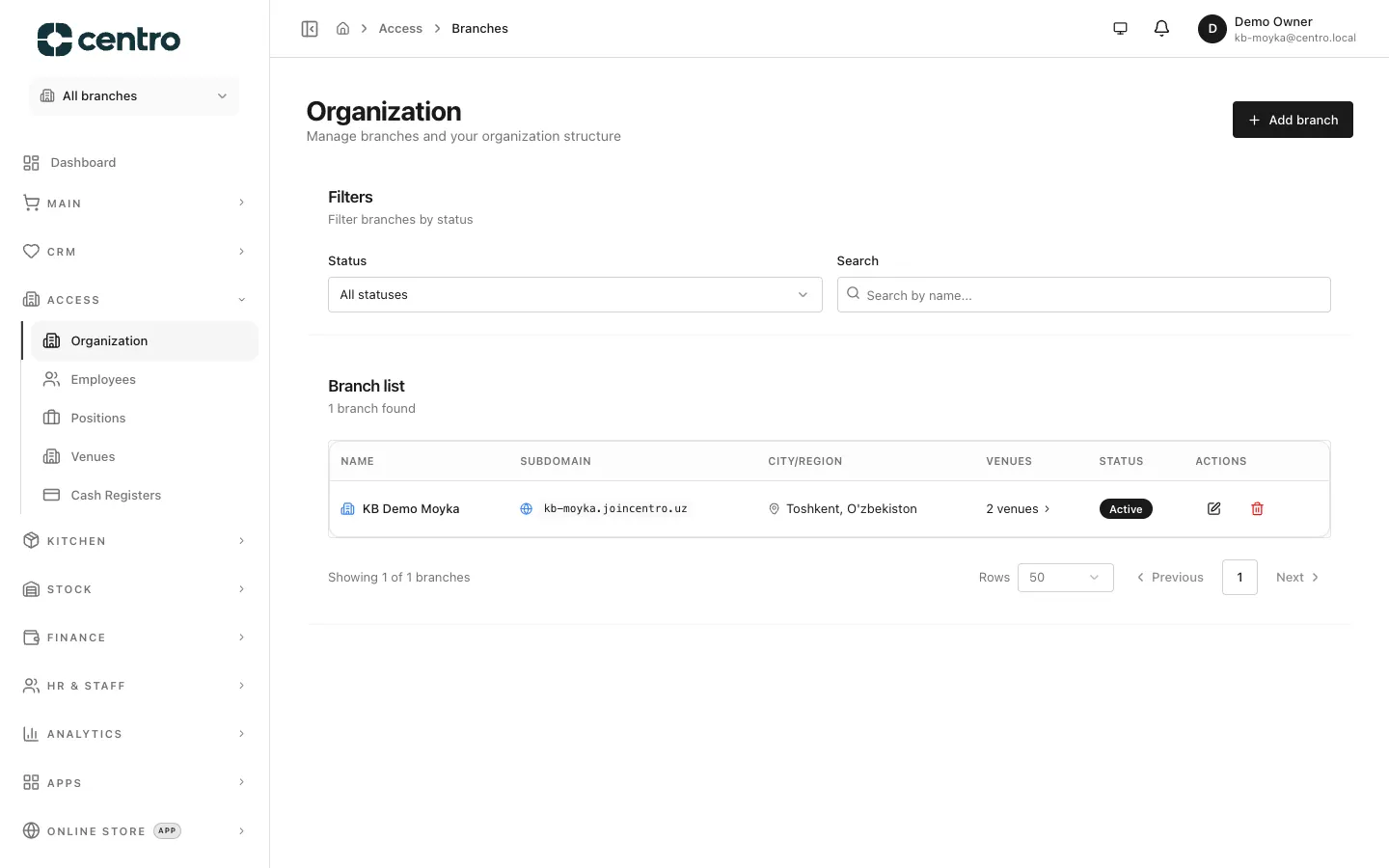
Filters
- Status
- «All statuses», «Active», «Inactive» or «Archived» — which branches the list shows.
- Search
- Searches by branch name.
«Branch list» columns
- Name
- The branch name.
- Subdomain
- The branch address in Centro (…joincentro.uz) — customers find the branch's venues through it.
- City/Region
- City and region from the branch address; «—» if no address is set.
- Venues
- How many venues the branch has. The link opens the «Venues» page filtered by this branch.
- Status
- «Active», «Inactive» or «Archived».
- Actions
- Pencil — the «Edit branch» page, bin — delete the branch.
Tip: To edit a branch use the pencil in its row — the branch name itself does not open a separate page.
Creating a branch #
Adding a new city or region with the «Add branch» button.
- On the «Organization» page click Add branch — the «New branch» form opens.
- Fill in «Name *» and «Code *» (e.g. Tashkent, TSH).
- Check «Branch address in Centro» — it is generated from the name automatically.
- Optionally pick a «Responsible manager».
- In the «Location» block fill in «City *» and set the point on the map.
- Click Create.
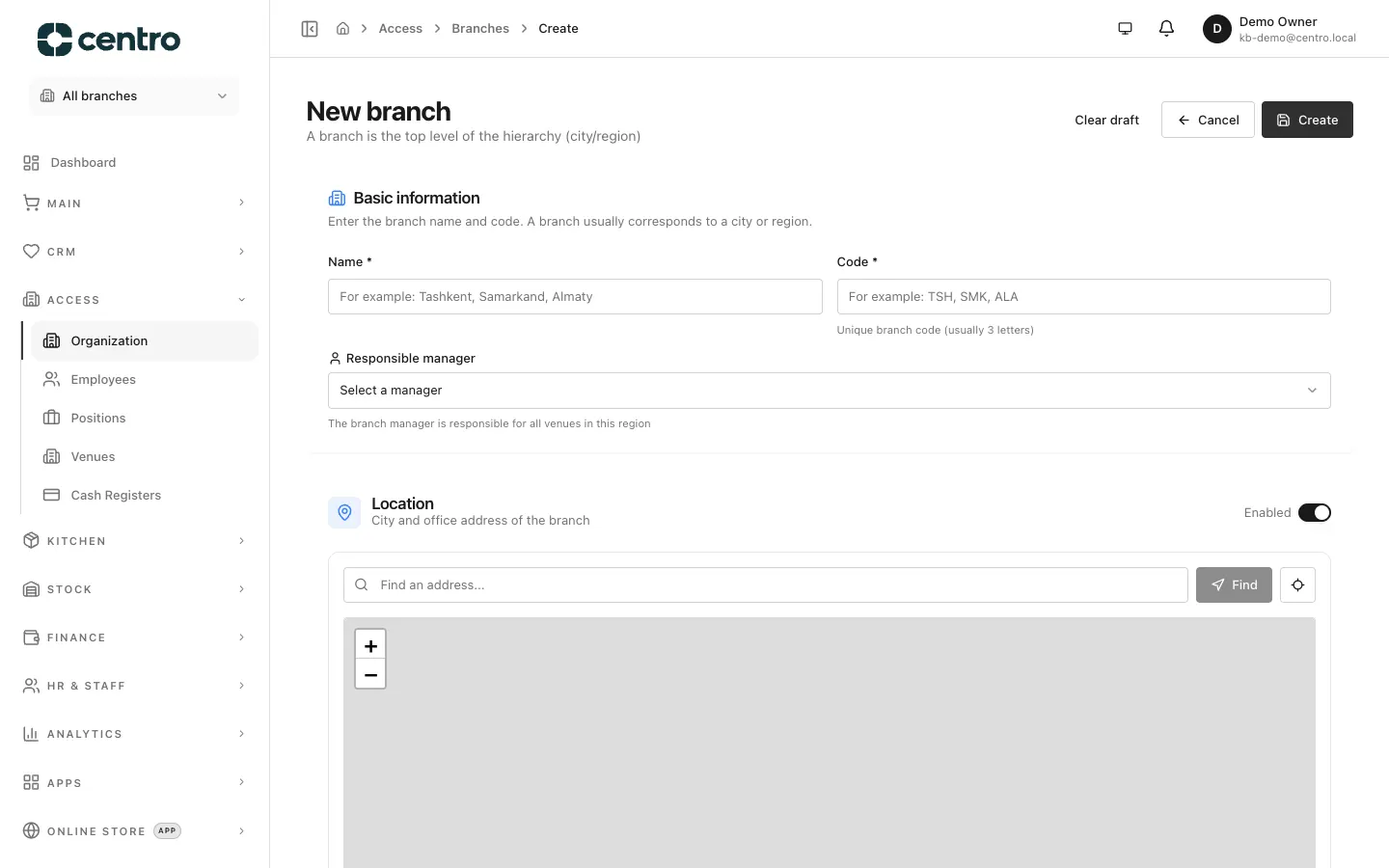
- Name *
- The branch name, up to 255 characters. Two branches cannot share a name.
- Code *
- A unique branch code (usually 3 letters, up to 50 characters). A code already in use cannot be reused.
- Branch address in Centro
- The subdomain is built from the name (Cyrillic is transliterated) and checked right away: «Available» — the address is free, «Auto-corrected» — it was taken and the system suggested another one. You can edit it by hand.
- Responsible manager
- The employee responsible for all venues in the region. The list shows the organization employees.
- Location
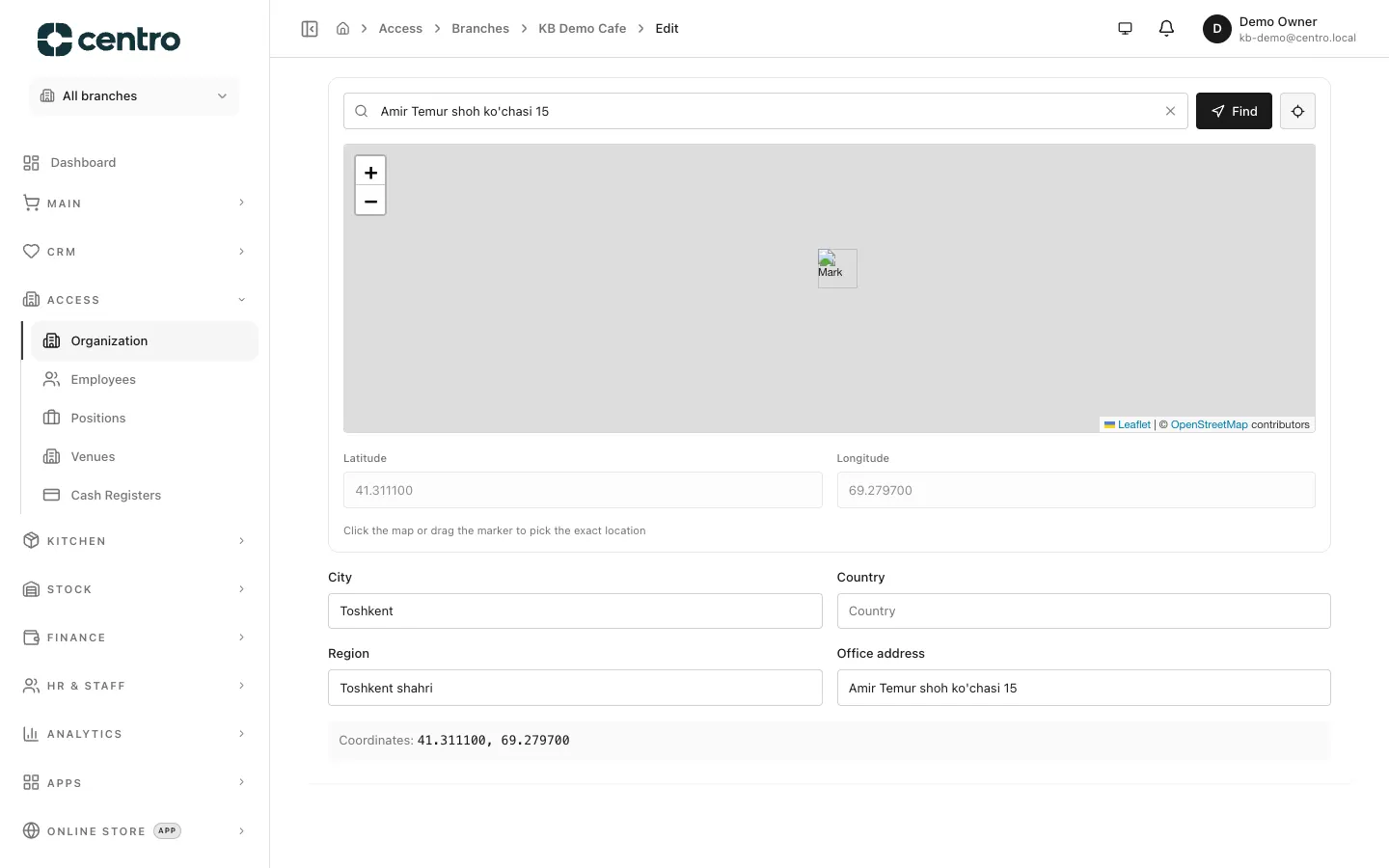
- «City *», «Country», «Region / State», «Office address» and the map point (address search, the «Find» button, detecting your location). The block switch turns it off entirely — then «City *» is not required.
Tip: What you type is kept as a draft and restored when you reopen the page. Press «Clear draft» to start from an empty form.
Editing a branch and the Task Terminal #
Branch status, contacts and address, plus access to the task terminal for employees.
The pencil in the list opens the «Edit branch» page. Under the heading you see the branch name and the number of its venues. Changes are saved with «Save»; «Cancel» returns to the list.
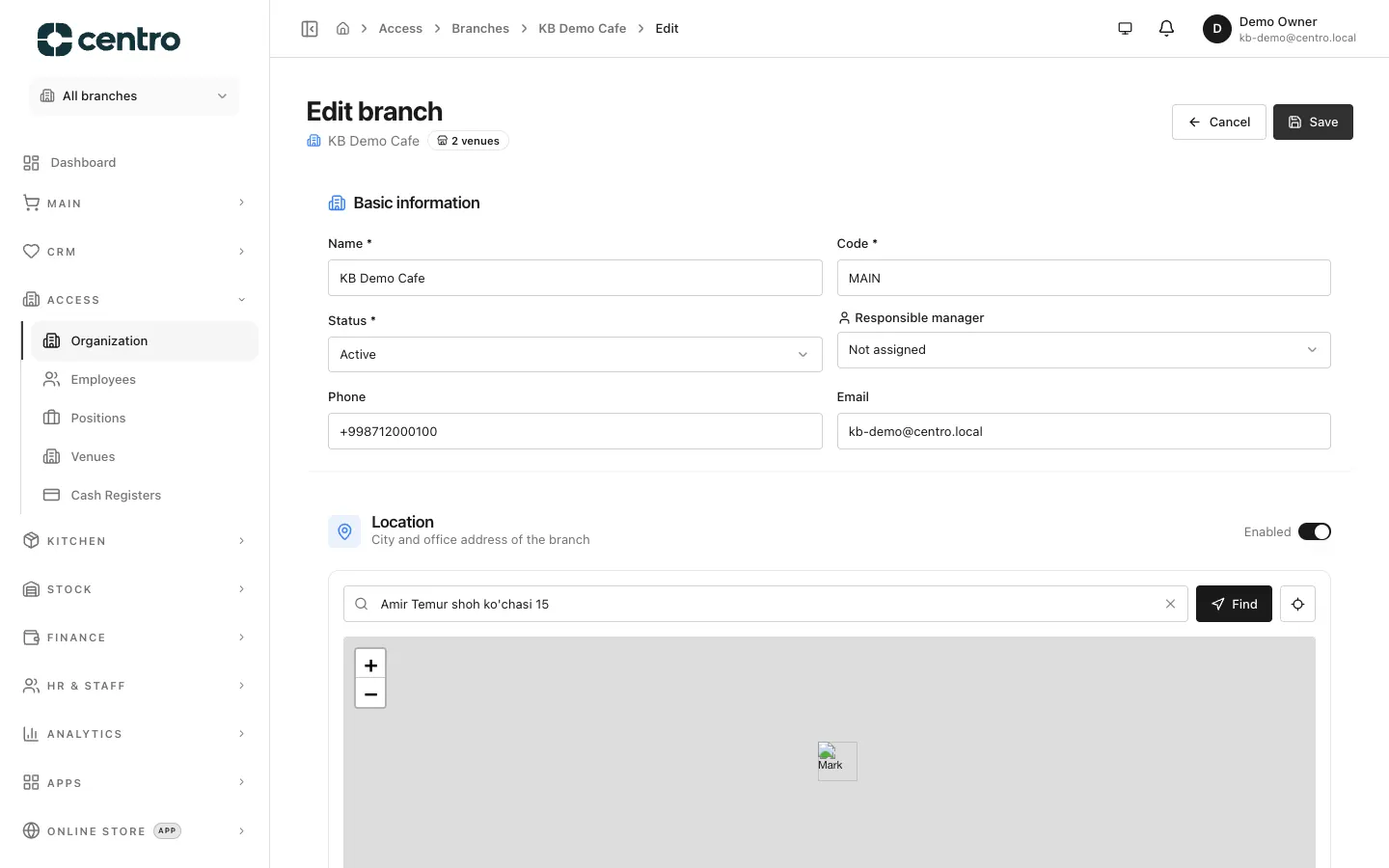
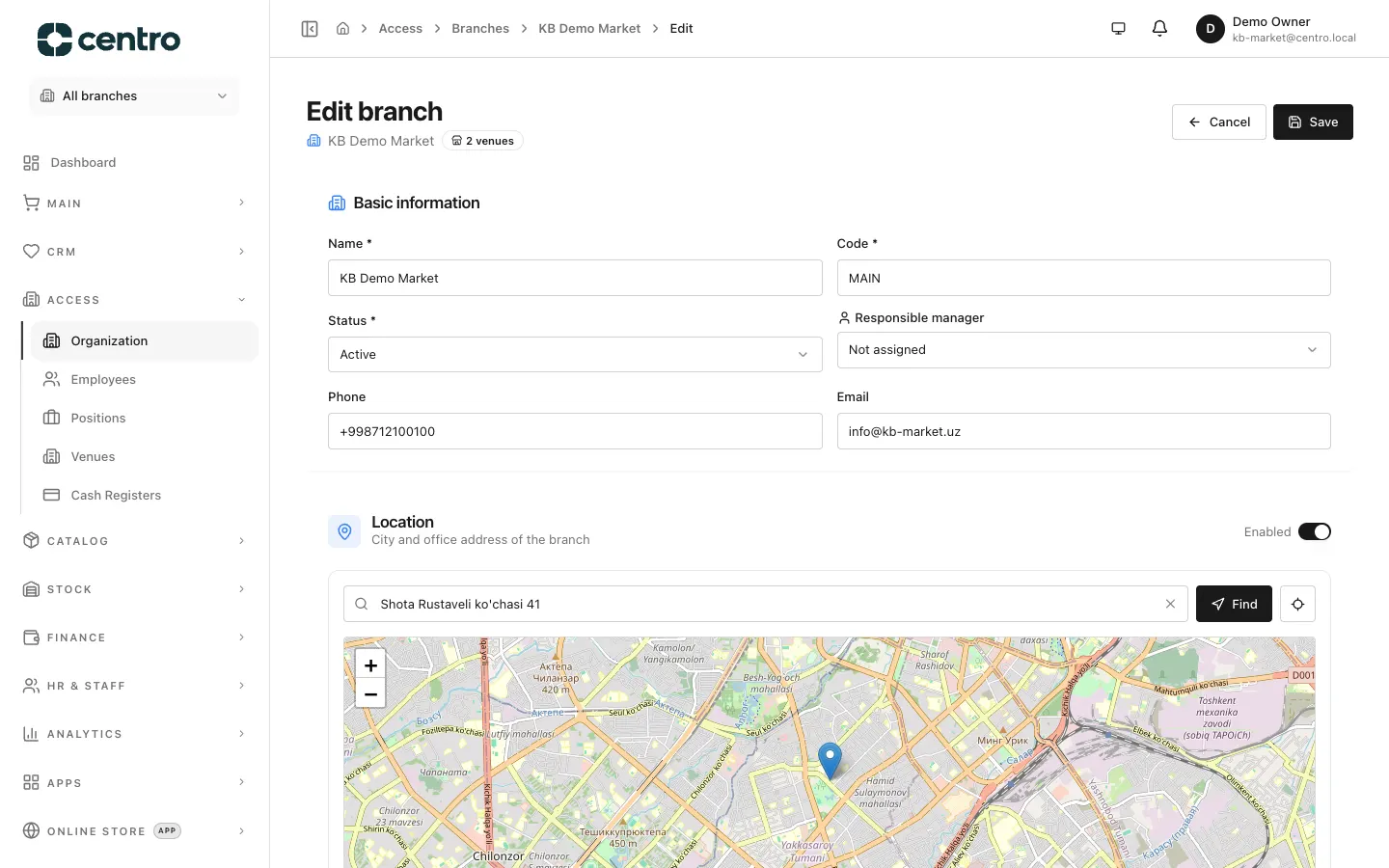
- Status *
- «Active», «Inactive» or «Archived». Use it to take a branch out of service without deleting it.
- Phone / Email
- Branch contacts (phone up to 50 characters, email in a valid format).
- Branch address in Centro
- Shown read-only when editing — it cannot be changed here.
Task Terminal is a shared tablet where employees sign in with their PIN and complete tasks. The card switch enables it for the whole organization. Once on, the «Terminal login *» and «Terminal password» (at least 4 characters) fields appear; they are saved with the separate «Save terminal settings» button. Leave the password empty to keep the current one.
Important: To turn the Task Terminal off, switch it off and press «Save terminal settings» — the general «Save» button does not save terminal settings.
On the «base + modules» tariff the switched-on Task Terminal card has a «Task Terminal device licences» block before the login fields: «A Task Terminal device works with a Task Terminal licence. A device appears here after its first sign-in.». Below it, the «N of M licensed · K free» line with the «Licences» link, then the list of devices — the most recently used first. For an organization on an old plan the block does not appear at all.
A device row
- Name and branch
- The device name or, without one, «Device …» with the last characters of the device key; below it, where the device signed in, or «Venue not recorded».
- Licence
- The «Licence» or «No licence» badge and the Apply / Move / Remove buttons (only with full access to «Billing»). Moving passes the licence to another device. Price and dialog: the «Applying, moving and removing a licence» topic in «Billing».
- Seen
- «First seen … · last seen …».
Tip: If the list is empty — «No Task Terminal device has signed in at this venue yet.»: sign in on the device once and it appears. If the server has no device registry, the block says «Licences for Task Terminal devices are not available yet. Devices keep working as they do now.» and «Not available yet». Once the tariff is paid, an employee cannot sign in with a PIN on a device without a licence; during the trial no licence is needed.
Deleting a branch #
Only a branch without venues can be deleted.
The bin in the row opens the «Delete branch?» dialog; once confirmed, it cannot be undone. If the branch still has venues, the «Cannot delete branch» dialog appears instead, showing how many were found.
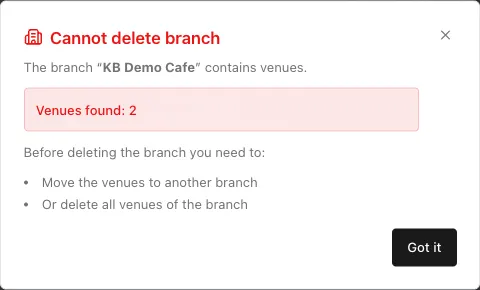
Before deleting
- Move the venues to another branch
- Or delete all venues of the branch
Tip: If you want to keep the branch and its history, set its status to «Archived» instead of deleting it.