How to turn the section on
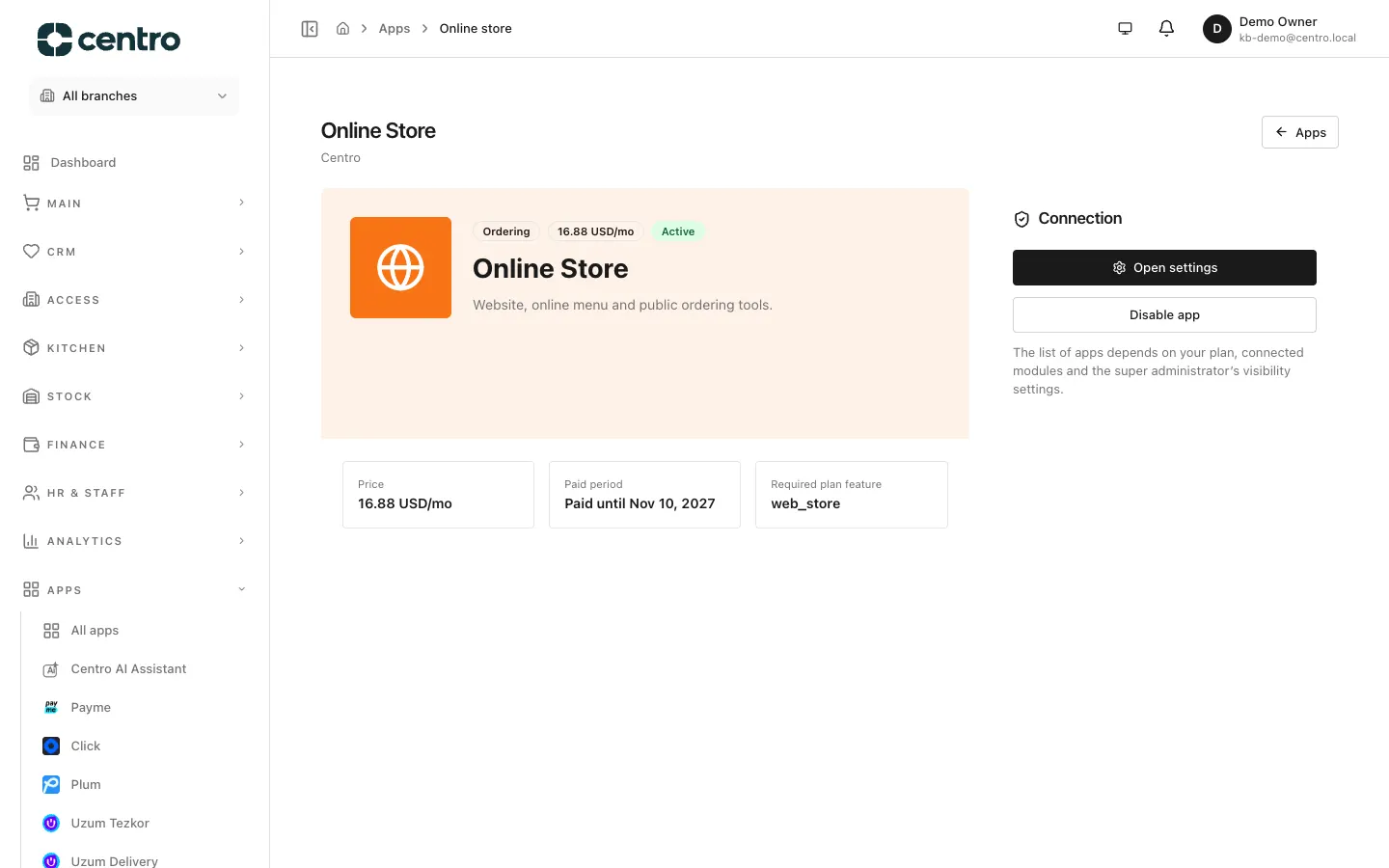
You need the «Online store» module, the Online Store app switched on in Apps and the «System settings» permission.
Three conditions
- The «Online store» add-on module is active (16.88 USD per month, on any plan, no trial).
- The Online Store app in Apps is not disabled («Active»).
- For all seven items: The «System settings» permission in the «Settings» group — at least «View».
How to connect the module
- Open Billing → Plans and scroll down to the «Additional modules» section.
- In the «Prepaid term» list on the right choose how many months to pay for, then press «Connect» on the «Online store» card.
- An unpaid invoice is created and its payment page opens — pay the invoice (see the «How to pay an invoice» topic in the «Billing» section).
- After payment reload the page — the Online store group appears with seven items: Settings, Design, Pages, SEO, Analytics & pixels, Domains, Preview. The same module can also be bought via Apps → Online Store → Buy.
What else depends on the module
- Kiosk
- The Kiosk item is part of the online store app: it is visible only while Online Store is active and kiosk places are paid.
- Telegram Bot, TV Menu
- These apps appear in the catalog only with the «Online store» module.
- News (CRM)
- Does not depend on the module.
Important: «Disable app» on the Online Store page hides both the group and the Kiosk item at once; the module stays paid. To bring them back, press «Connect» on the same page.
The storefront shows the catalog products: for a restaurant, the menu of dishes (delivery and pickup).
The storefront shows the catalog products with their variants; the menu items and the way to turn it on are the same as for a restaurant.
For a car wash the storefront shows the services set up as products; the way to turn it on is the same as for a restaurant.
Tip: After paying or connecting, reload the page (F5): the menu reads the plan and the list of apps when the panel loads.