Orders
The log of orders from every channel: search, filters, export, the order card and order actions.
Open in the admin panel/sales/orders This page gathers every order from POS, kiosk, website, mobile app, phone and aggregators in one table. Here you can find an order, choose columns, export the list to a file, open the order card, transfer it to another branch, complete, cancel or delete it.
How to open: in the sidebar expand the Main group and choose Orders.
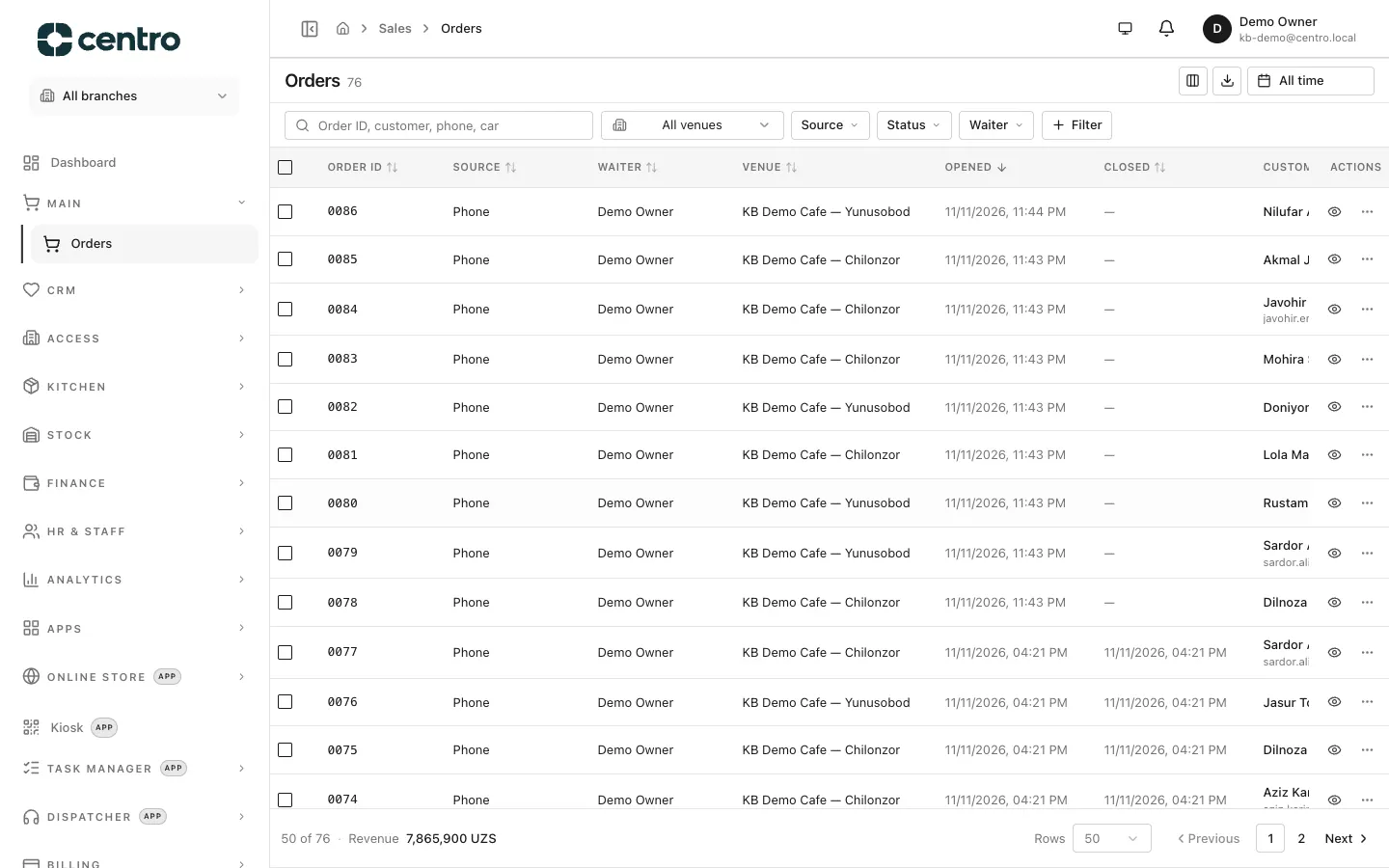
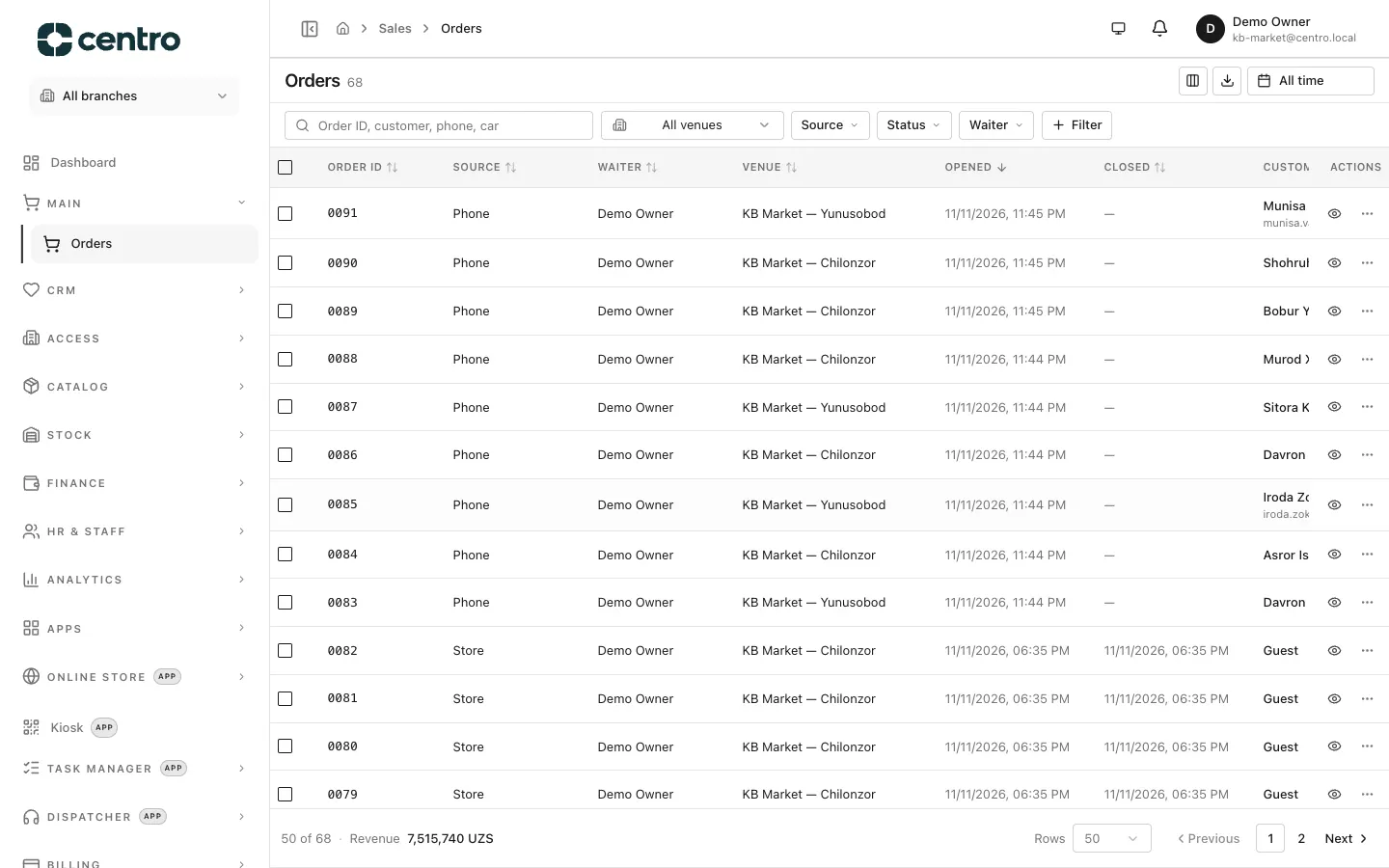
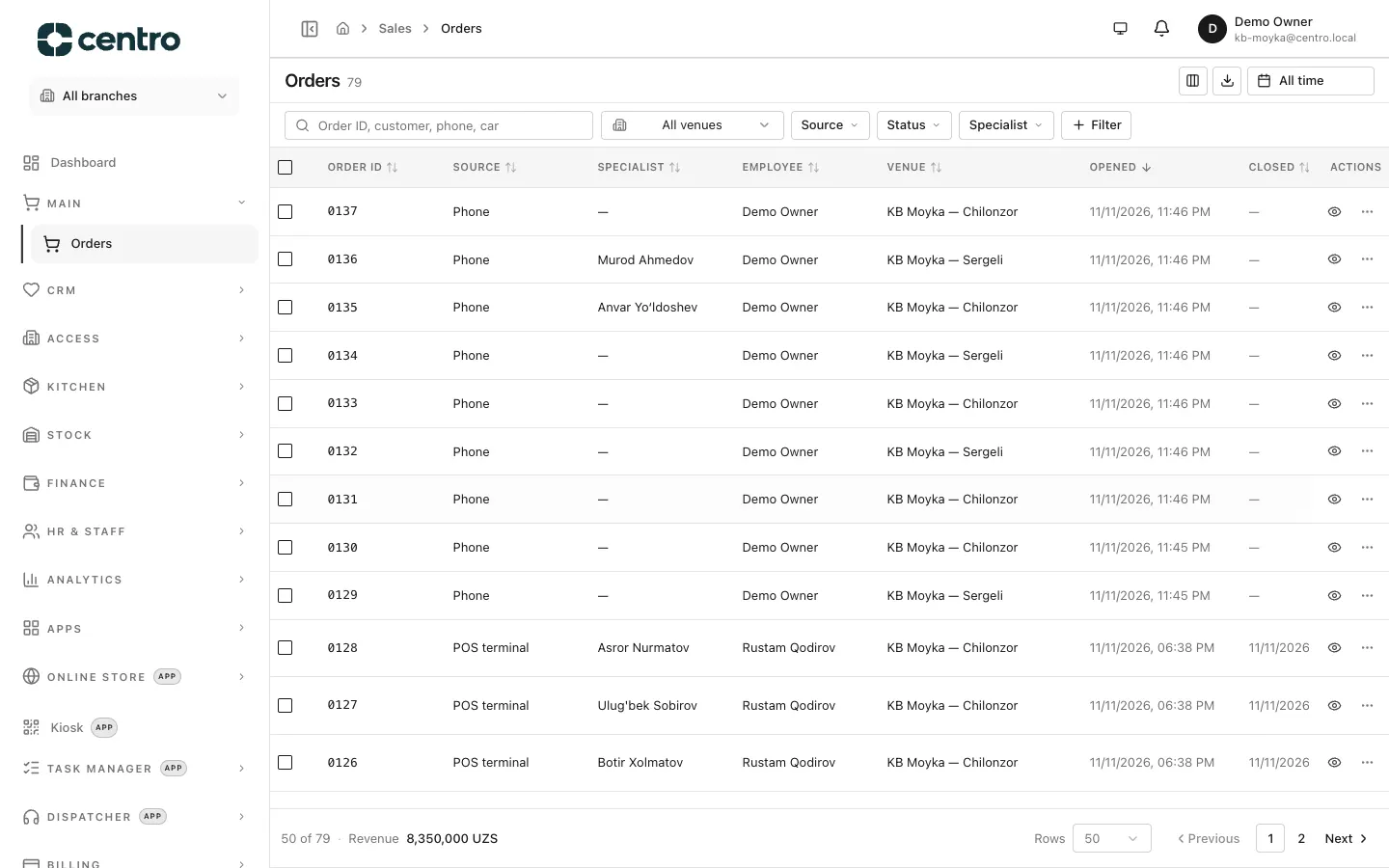
Tip: The list refreshes automatically when orders change. The default period is «All time».
Tip: In car-wash mode the list differs a little: the plate under the customer, «Specialist» instead of «Courier», no hall or delivery columns. See «Car-wash orders: vehicle and specialist» for details.
Tip: In a store order statuses use assembly wording: «Assembling» instead of «Preparing» and «Assembled» instead of «Ready».
Table and columns #
Default columns, column settings, sorting, row colours and the footer.
Default columns
- «Order ID»
- Order number — a link to the order card.
- «Source»
- Where the order came from: POS, kiosk, website, app, aggregator…
- «Waiter»
- The employee who took the order («Employee» in car-wash mode).
- «Venue»
- The venue the order belongs to.
- «Opened» / «Closed»
- When the order was opened and closed.
- «Customer»
- The linked customer.
- «Check total»
- Order total.
- «Status» / «Payment method»
- Order status and payment method.
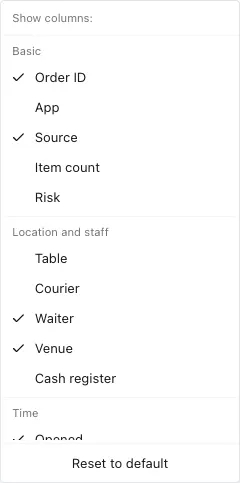
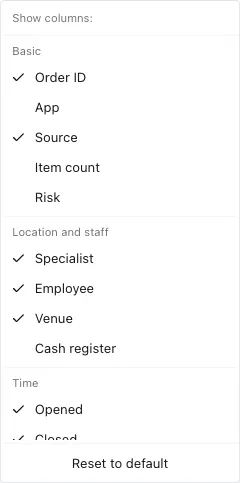
The «Columns» button adds more columns: timing («Time in kitchen», «Total service time»…), delivery, finance («Profit», «Cost», «Taxes»…), payment («Cash», «Card», «Bonuses redeemed», «Bonuses earned»…) and system columns («Cancellation reason», «Comment»…). «Reset to default» restores the default set. The choice is saved in this browser.
Sorting: click the header of a sortable column. Dates and amounts sort descending on the first click, other columns ascending; clicking again reverses the order.
Row colours and badges
- Grey row
- A deleted order (it stays in the list).
- Amber row
- «Closed without payment» — closed without payment (on the house).
- Red row
- A cancelled order.
- «Moved»
- The order was transferred from another branch.
- «… refund» / «Refunded» / «… review»
- Online-payment refund state: in progress / refunded / under review.
Footer
- «N of M»
- Rows on this page and total orders matching the filter.
- «Revenue»
- Total of completed and delivered orders on the page; deleted and closed-without-payment orders are excluded.
- «Rows»
- Rows per page: 50, 100, 150, 300, 500 or 1000.
- «Previous» / «Next»
- Page navigation.
Search and filters #
Search box, quick filters, advanced filters and period.
- Search box
- «Order ID, customer, phone, car» — by order number, customer, phone or car plate.
- «All venues»
- Venue selector (when you have access to several venues).
- Quick filters
- The «Source», «Status» and «Waiter» buttons — tick several values in a list (in car-wash mode «Specialist» replaces «Waiter»).
- «Filter»
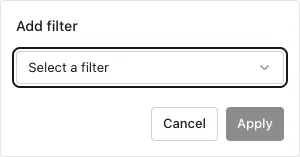
- Opens «Add filter» with groups «Basic», «Location and staff», «Customer», «Delivery», «Time», «Finance», «Payment», «Promo». Numeric filters use «Equals» / «Greater than» / «Less than» / «Between»; text filters use «Contains» / «Equals» / «Does not contain» / «Empty».
- Period
- Calendar button — the same presets and calendar as on the dashboard.
Add an advanced filter
- Click «Filter».
- Choose a field in «Select a filter» (e.g. «Check total» or «Courier»).
- Under «Show only those where:» set the condition and value.
- Click «Apply» — the filter appears in the «Active:» row.
Tip: Clicking a number or row on the dashboard opens the list with ready-made filters: the «Status» quick filter, «Period selected» (by order creation time), «On the house: No» and the channel filter «Delivery: …». See «From a number to the orders» on the dashboard for details.
Values of the «Status» filter
- «Draft (open check)», «New», «Awaiting confirmation», «Open»
- «Preparing / Assembling», «Processing», «Ready / Assembled»
- «Courier assigned», «Courier arrived», «On the way», «Delivered», «Closed»
- «Cancelled», «Returned», «Refunded», «Deleted»
Tip: The «Active:» row shows the search, «Quick filters: N», «Period selected» and each advanced filter with an ✕. «Reset» clears search, filters and period at once. Filters, page and sorting are kept in the page address, so they come back when you return to the list.
Export #
Download the filtered orders as CSV or Excel.
- Set the filters, period and columns you need.
- Click the «Export» button with the download icon.
- Choose «Export to CSV» or «Export to Excel».
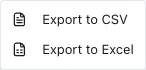
Tip: The file contains all orders matching the current search, filters and period (not just the visible page), but only the visible columns, in on-screen order. If nothing matches you get «No data to export».
Order actions #
Transfer, complete, cancel, delete and bulk delete — and their rules.
At the end of each row there is an eye icon («Open order») and a «⋯» button («More actions»).
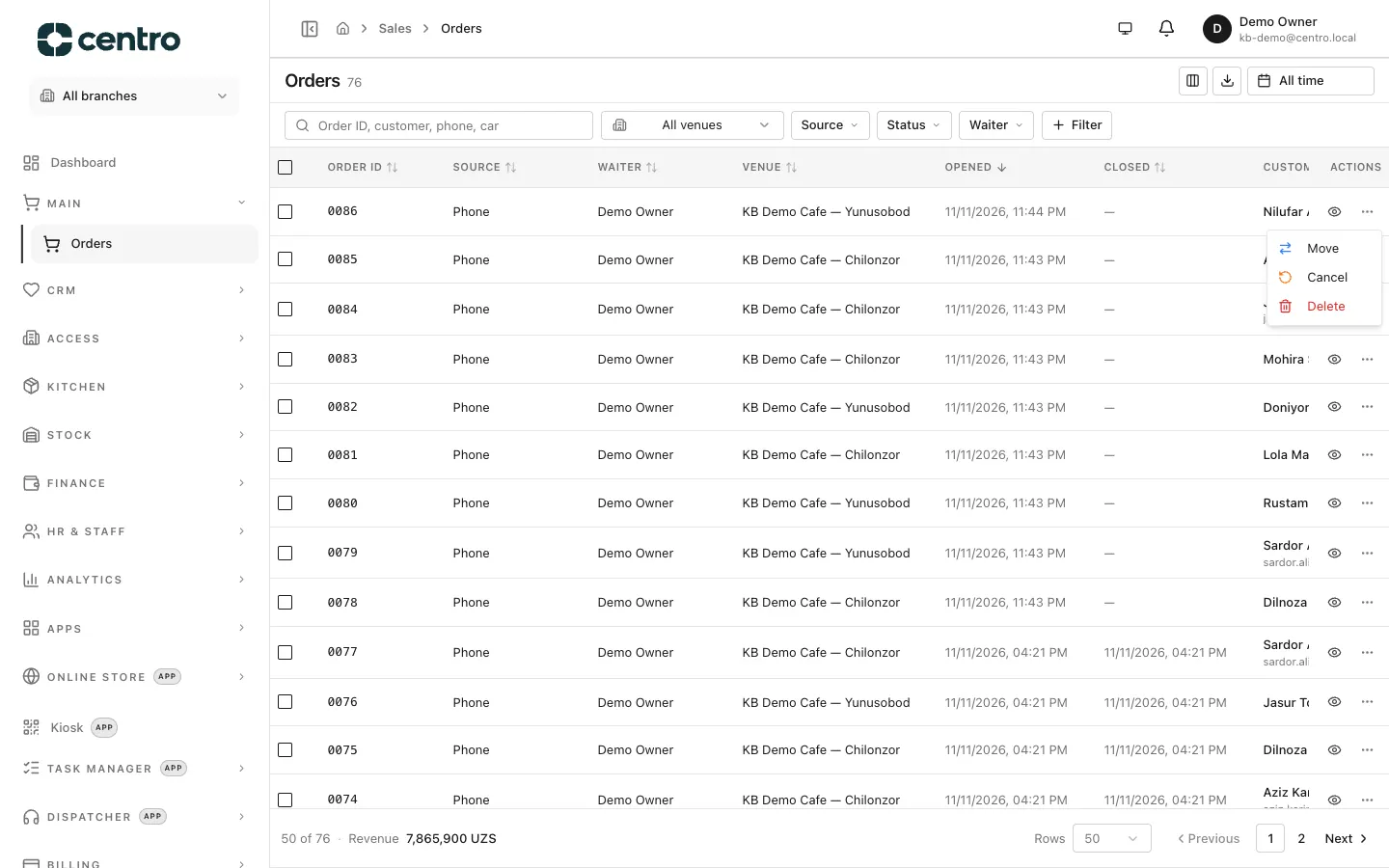
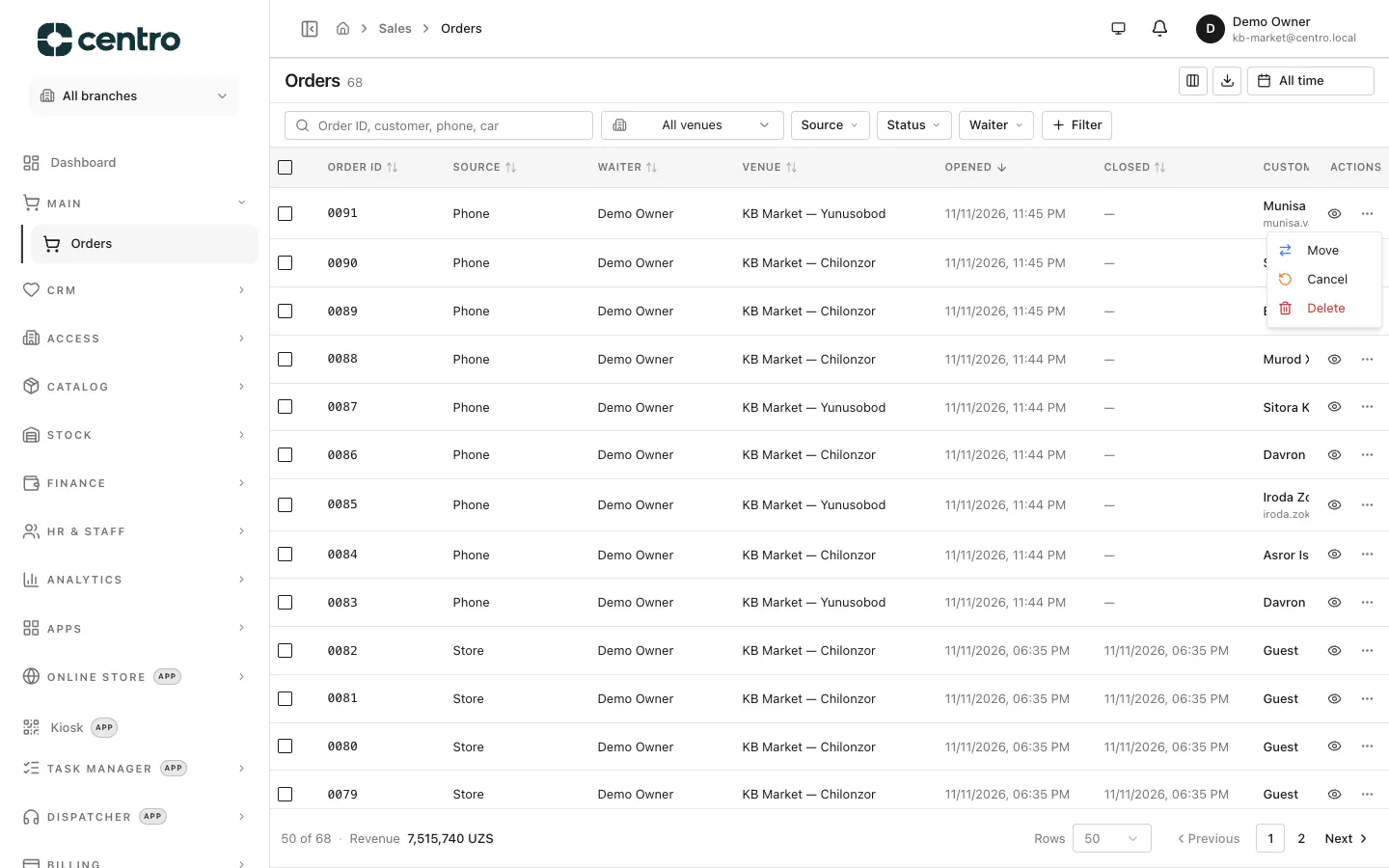
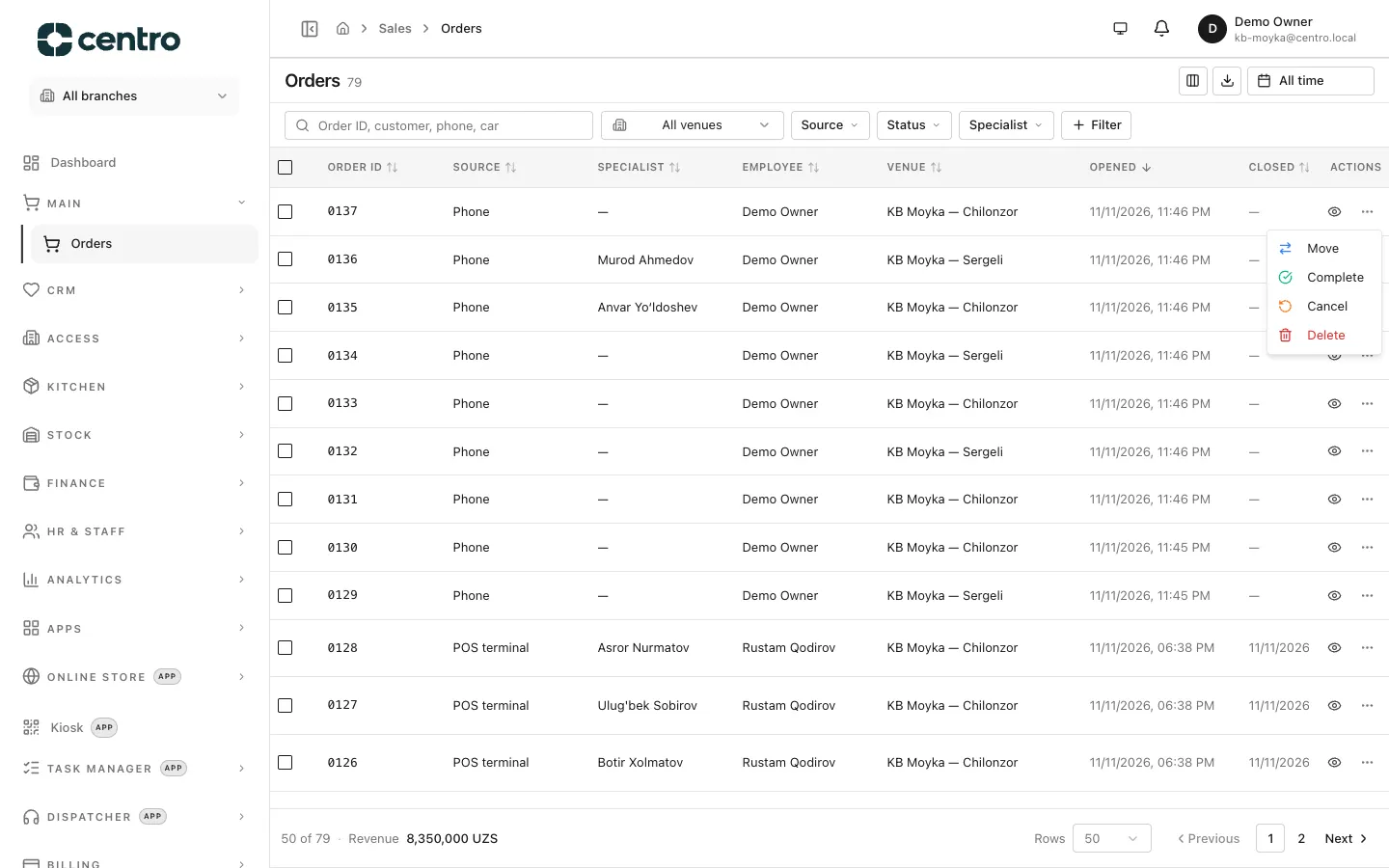
- «Move»
- For orders from online channels (website, app, Wolt, Yandex Eats, Glovo, Uzum Tezkor, Express24, Chocofood, Click Food, 2GIS Food) in an early status (draft, new, pending, awaiting payment). The organization owner or a super-admin can transfer any non-deleted order (super-admin mode).
- «Complete»
- Only for orders in the «Ready» status — closes the order.
- «Cancel»
- For any order except those already cancelled, refunded or deleted.
- «Delete»
- Soft delete: the order stays in the list as a grey row. When deletion is blocked, the item is disabled and the reason appears in its tooltip.
Transfer an order to another branch
- Click «⋯» → «Move».
- Choose the new branch in «Branch».
- Optionally fill in «Reason», e.g. that the order came to the wrong branch.
- Click «Move» — the order leaves the current list and appears in the chosen branch.
Tip: In super-admin mode the order moves «as is»: payment, total and delivery fee are kept, and kitchen items move to the station with the same name in the new branch.
Important: Cancelling an order paid online (e.g. via Payme or Click) opens «Cancel order and refund payment»: the provider starts the refund, which can take several business days. If the provider refuses, the order is cancelled anyway and the money has to be refunded manually from the provider’s dashboard.
Important: If the order has already started cooking («Preparing» or later), cancelling or deleting asks for «Cancellation reason». You may leave it blank, but the server may then refuse based on the branch rule.
Tip: The cancellation reason is stored exactly as typed and is not translated. If no reason is given, the order is cancelled with the Russian reason «Отменено администратором» (cancelled by an administrator) whatever the interface language, and that is how the «Cancellation reason» column and the order card show it.
Important: Deletion is blocked for: orders closed without payment (they must stay in the receipt archive); orders paid online — cancel them first and wait for the refund to finish; while a refund is processing, under review or unconfirmed.
Bulk delete
- Tick the rows (deleted rows cannot be selected).
- A «Selected: N · Revenue …» bar appears at the bottom.
- Click «Delete» and confirm in «Delete orders». «Clear selection» clears the selection.
- If any selected order has started cooking, one reason is asked for the whole selection.
Order card #
Full order details, status control and tabs.
The card opens from the order number or eye icon in the list, from the dashboard’s recent orders or from a customer card. The header shows «Order <number>» and «Created <date> • Receipt <number>».
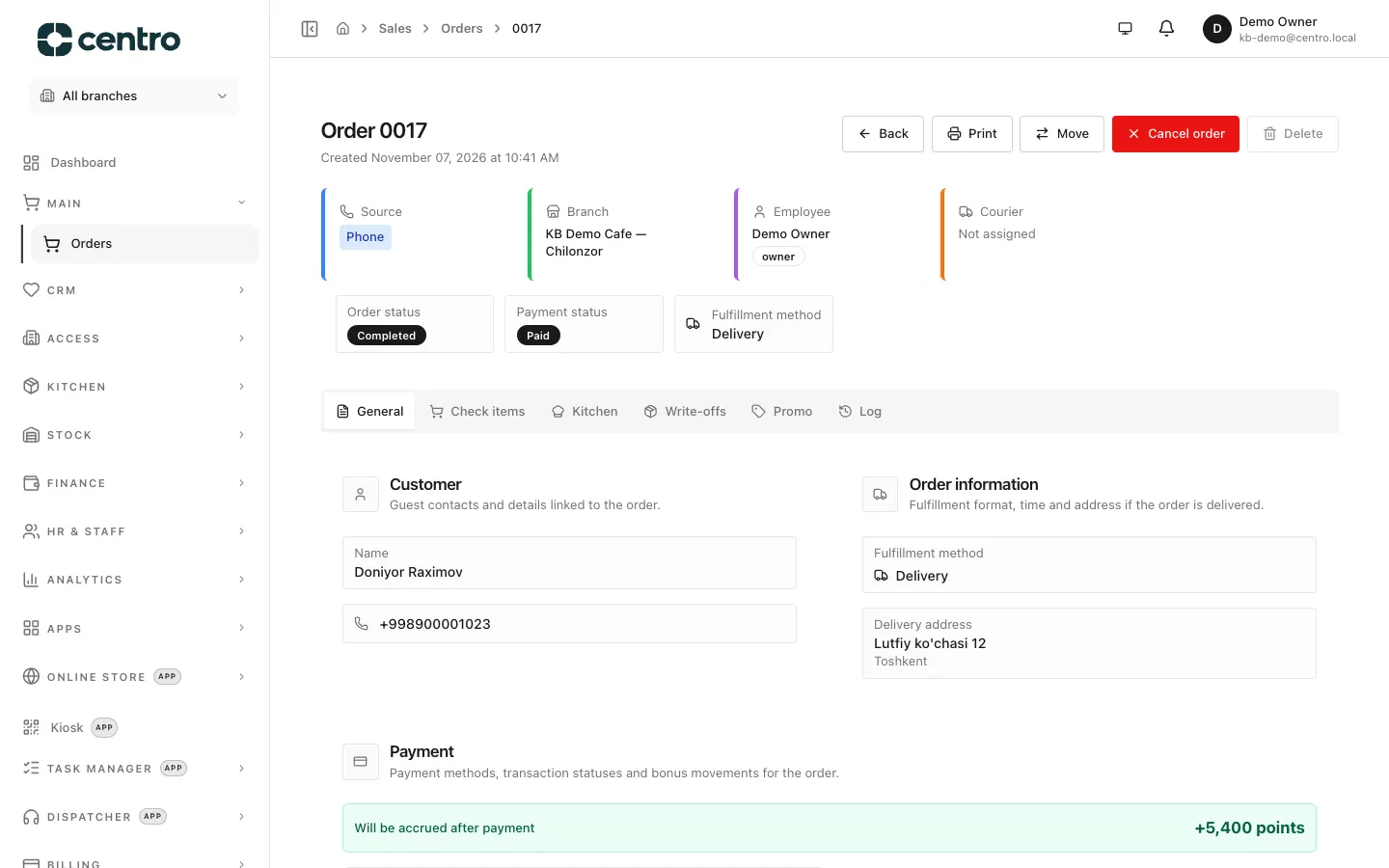
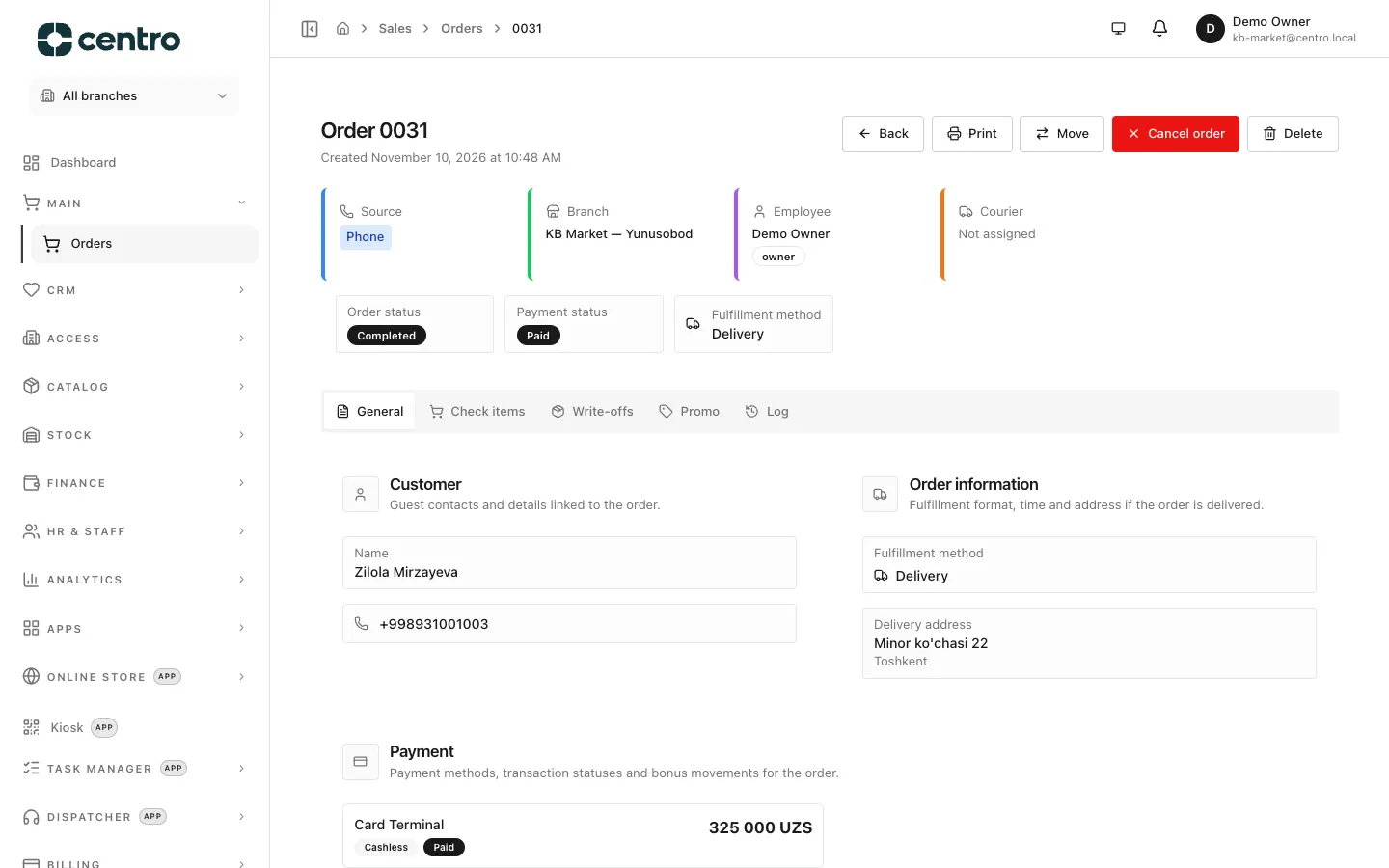
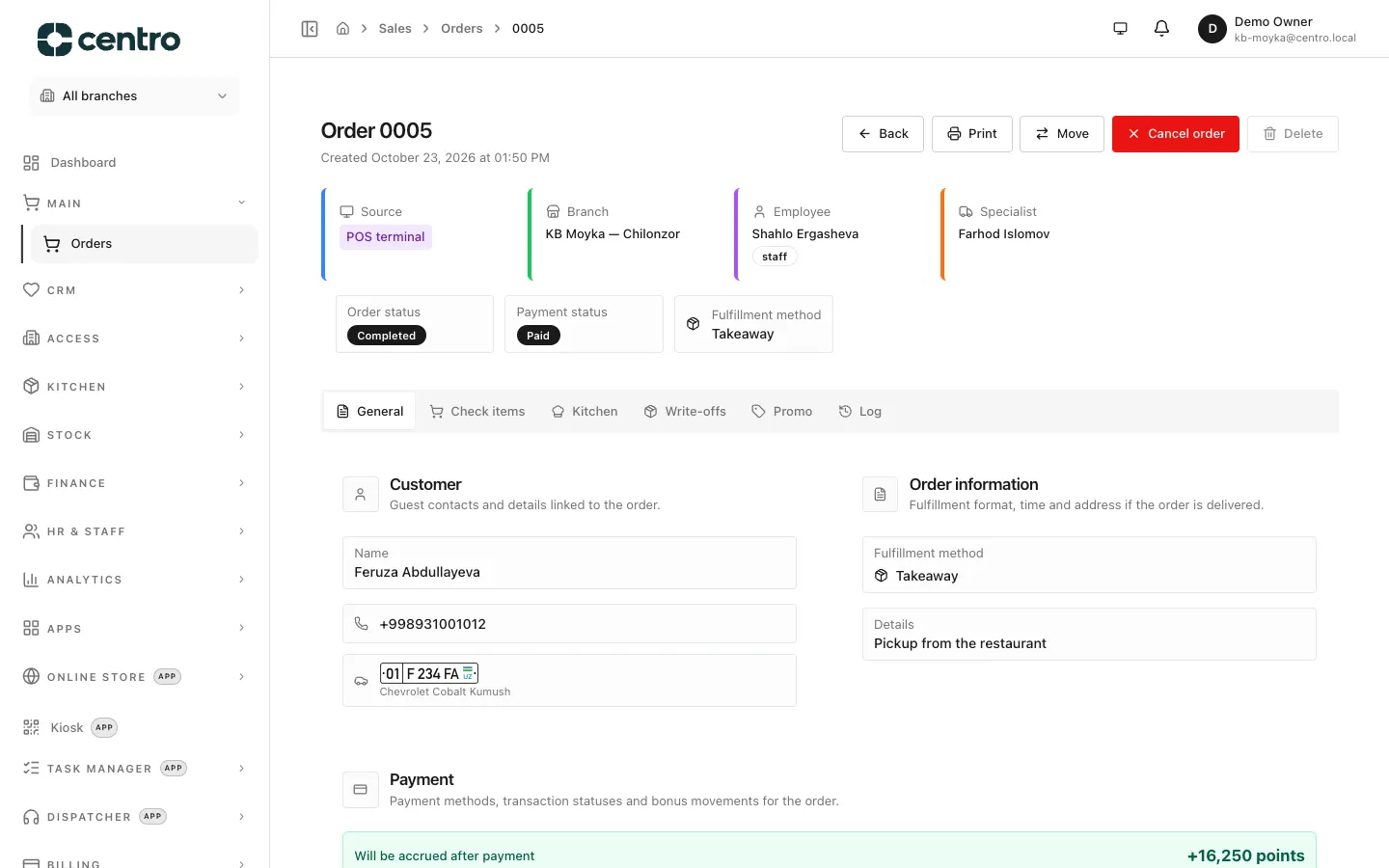
Header buttons
- «Back» / «Print»
- Go back and print via the browser.
- «Move»
- Transfer to another branch — same rules as in the list.
- «Cancel order»
- Hidden for cancelled, refunded and deleted orders.
- «Delete»
- Disabled with the reason in its tooltip when deletion is blocked.
Info cards
- «Source»
- Order source; for aggregators — external order number and commission.
- «Branch» / «Employee»
- Branch (with hall zone) and employee.
- «Courier»
- For delivery — the courier and phone, or «Not assigned». When Noor or Millennium carries the order, their block follows: the delivery status, «Noor rate:» or the Millennium price («Cost (estimate)» until the final price arrives, then «Delivery cost»), the Noor ID and the «Courier tracking» link; for Millennium — the driver’s car («Car: …») and «Millennium order: …». The courier’s name and phone come from that service.
- «Table» / «Cash register»
- Table and cash register, receipt number, «Offline» mark.
- «Cancellation reason»
- The reason for cancelled orders. System reasons are shown as readable text: «Payment waiting time expired», «Cancelled automatically: the customer did not show up», «Cancelled by Yandex Eats», «Cancelled by the aggregator», «Cancelled by the customer»; a reason typed by an employee is shown as is.
Status buttons
- «Confirm»
- In «Awaiting confirmation» — confirms the order.
- «To kitchen»
- Sends a confirmed order to the kitchen.
- «Ready»
- Marks an order in «Processing» as ready.
- «Complete»
- Closes a ready order.
The status card also shows «Order status», «Payment status» («Closed without payment» for orders closed without payment) and «Fulfillment method».
Tip: The «Change courier» button appears on delivery orders with an assigned courier (ready, courier assigned, on the way, etc.), except Yandex Eats orders, and requires full access to sales. The new courier is chosen from the branch’s online couriers; the delivery status is kept.
Important: An order with an online refund shows a banner: «… refund in progress» (the page refreshes every 30 seconds), «Payment refunded to the card», «… refund needs review» or «Order cancelled, but the … refund is not confirmed» — in the last case check the payment in the provider’s dashboard. A deleted order shows «This order was deleted on …».
Tabs: «General», «Check items», «Kitchen», «Write-offs», «Promo», «Log». The selected tab is written to the page address (?tab=…), so you can share a link to a specific tab.
A store has the tabs «General», «Check items», «Write-offs», «Promo», «Log» — there is no «Kitchen» tab. The selected tab is written to the page address (?tab=…), so you can share a link to a specific tab.
Tip: In a store an order is assembled rather than cooked: the «Preparing» and «Ready» statuses are shown as «Assembling» and «Assembled». The «To kitchen» button keeps its name and moves a confirmed order to «Assembling»; then «Ready» makes it «Assembled».
«General» tab #
Customer, fulfilment, comment, delivery photos and payment.
- «Customer»
- Customer contacts. If no customer is linked — «Guest order».
- «Order information»
- The «Scheduled order» mark, «Fulfillment method» and, for delivery, «Delivery address».
- «Order comment»
- Internal notes or guest wishes.
- «Delivery photos»
- Only for delivery orders when photo reports are enabled: «Pickup photo» and «Delivery photos», with «Has photo» / «Skipped» / «No photo».
- «Payment»
- Payment methods and transaction statuses, «Discounts / promo», «Bonuses redeemed», «Will be accrued after payment», «Total savings» and, for split payments, «Split payment (N parts)».
«Check items» tab #
Receipt lines, totals, recipe composition and financial metrics.
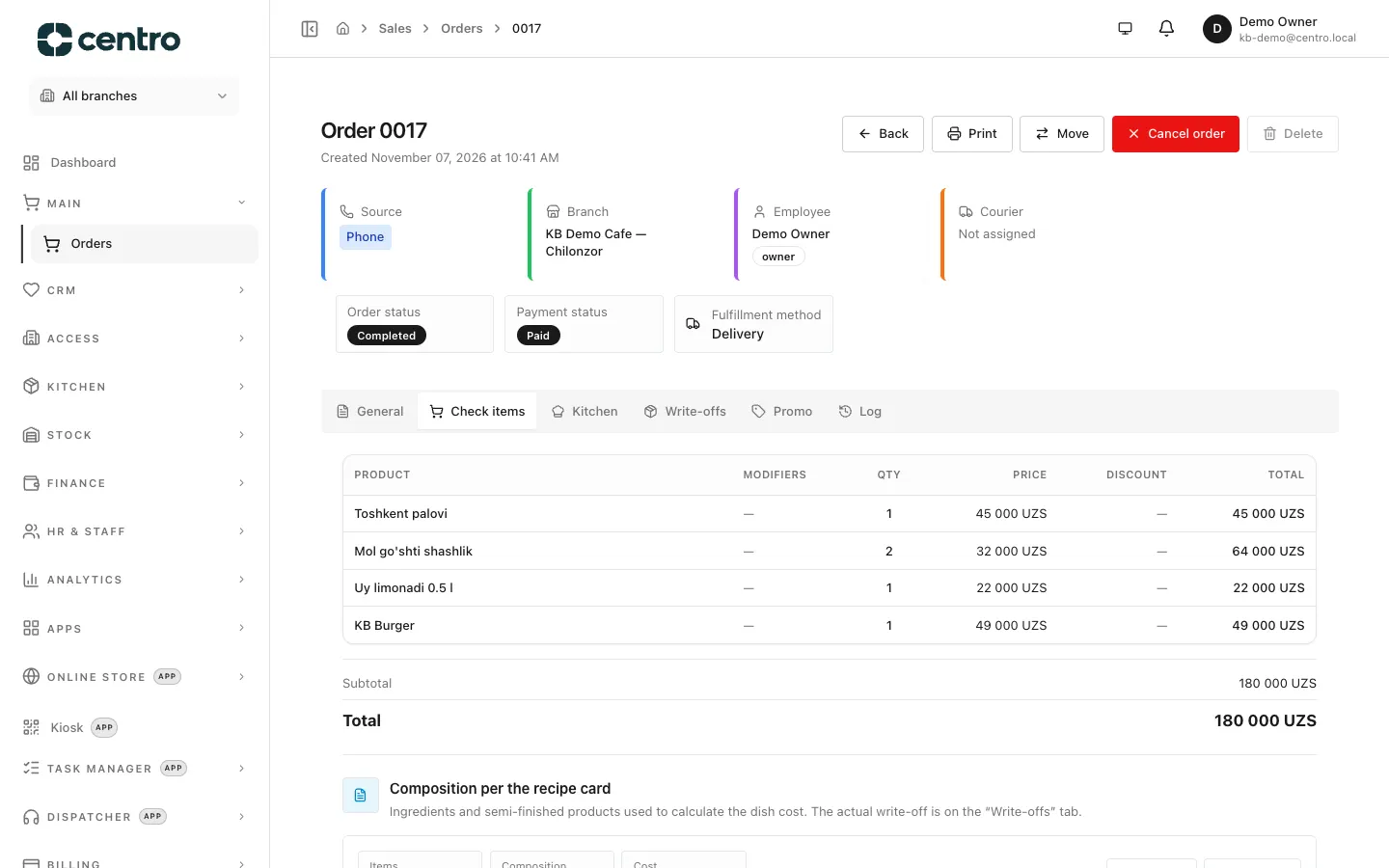
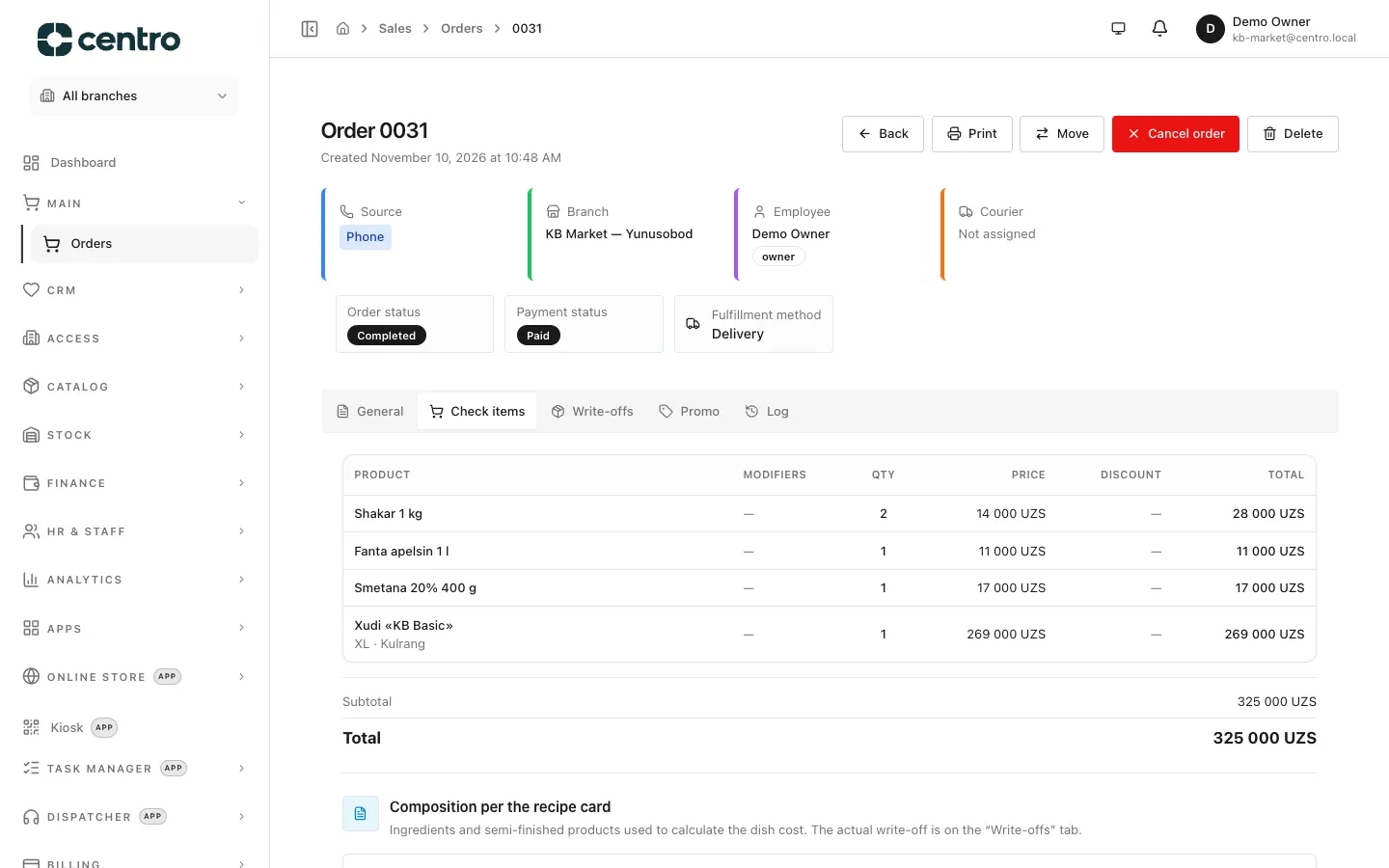
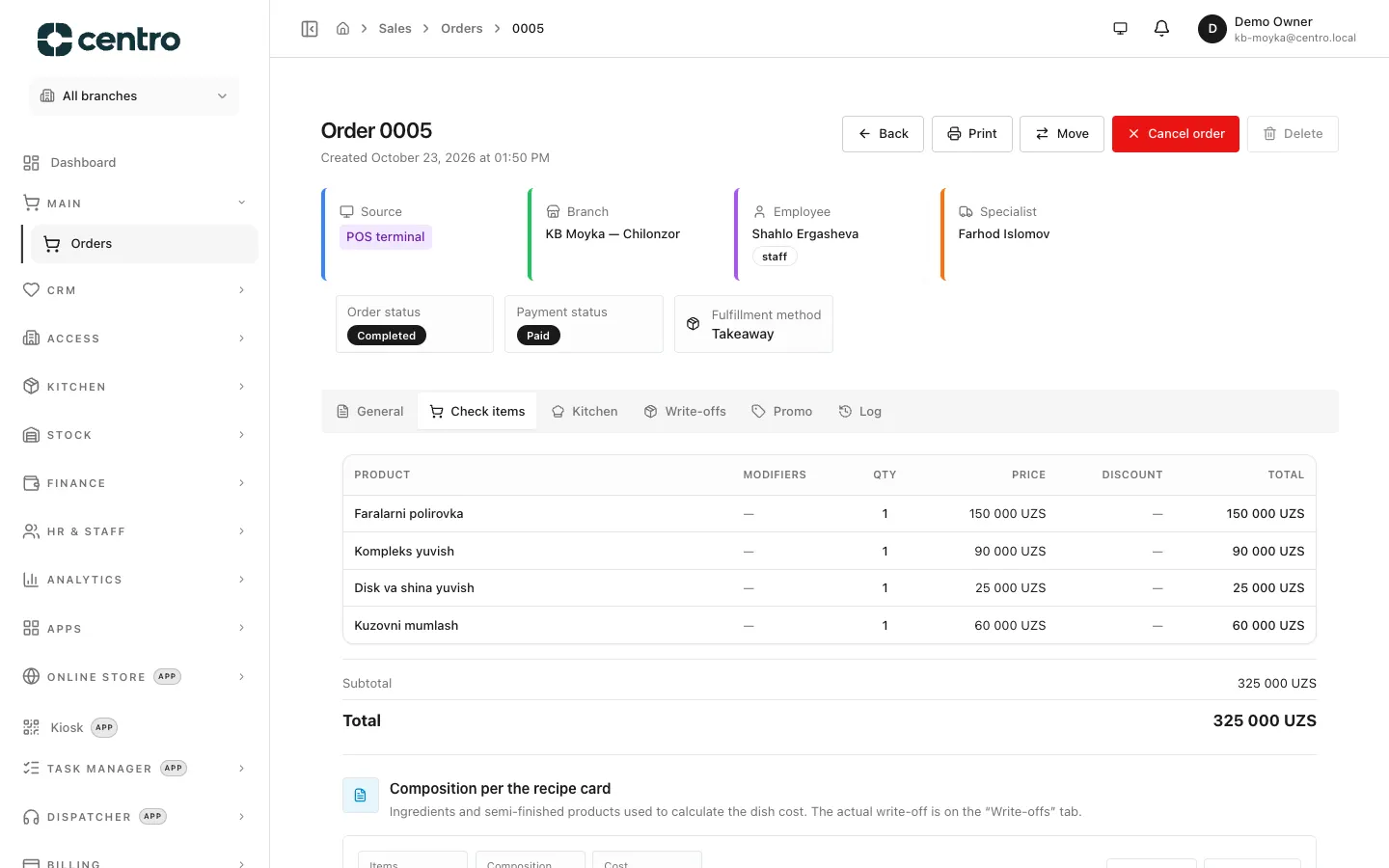
- Items table
- «Product», «Modifiers», «Qty», «Price», «Discount», «Total».
- Totals
- «Subtotal», «Discount», «Bonuses», «Tax», «Delivery», «Service charge», «Total»; for aggregator orders — «Aggregator commission» and «Income after commission».
- «Composition per the recipe card»
- Ingredients and semi-finished goods used to calculate the dish cost. The actual stock write-off is on the «Write-offs» tab.
- «Financial metrics»
- «Revenue», «Cost», «Commission (N%)», «Net margin», «Margin rate».
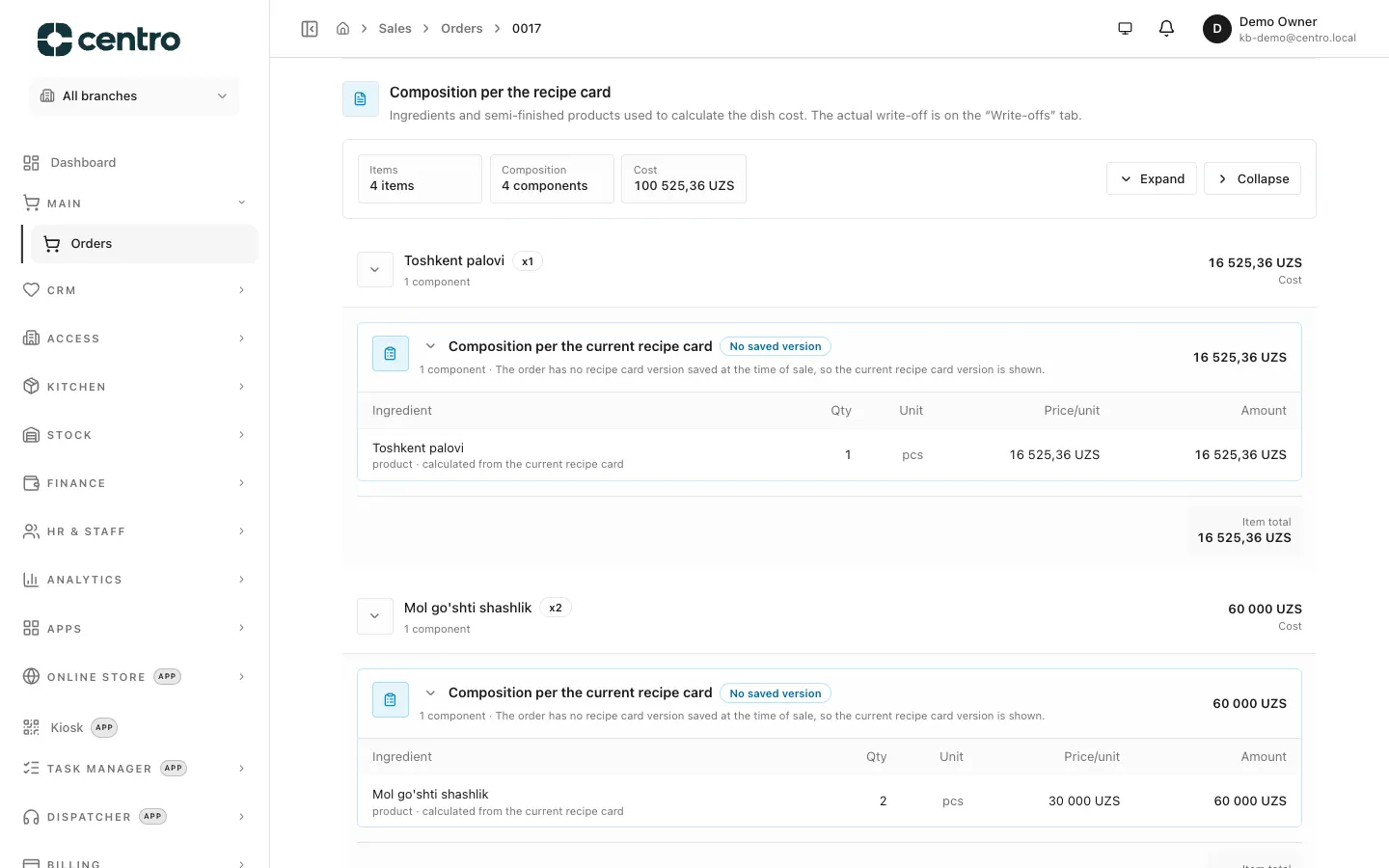
The «Composition per the recipe card» block
- Item card
- The dish, quantity and «Recipe card: name vN» — the recipe card and version applied at sale time; «No recipe card» when none is linked. On the right — the item’s cost.
- Groups
- Each dish inside a combo is a separate group (the «Combo» badge), ingredients added by a modifier form a «Modifier» group. A semi-finished row expands to its own composition.
- «No saved version»
- If the order has no recipe card saved at sale time, «Composition per the current recipe card» is shown — if the card was edited later, the numbers can differ from those at sale time.
- «Item total», «Item margin:»
- The item’s cost and the margin left after it (amount and percent).
«Kitchen» tab #
Who prepared each unit, at which station and when.
Kitchen history: who prepared each unit, at which station and when; hand-overs, returns, packing and pickup. The tab exists only for restaurant organizations (not for stores). The data comes from the kitchen display (KDS) log: it appears once the order is sent to the kitchen.
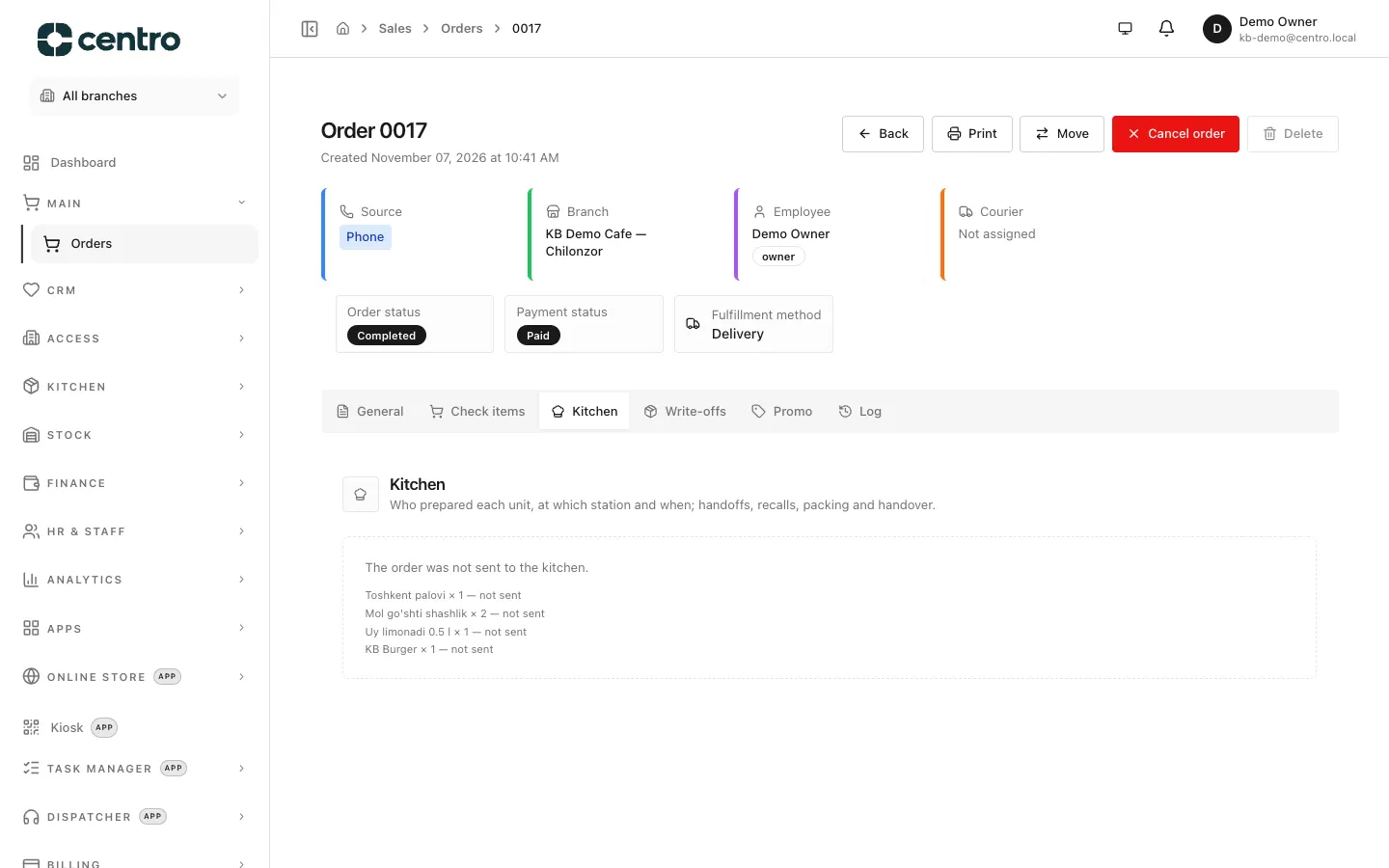
Summary at the top
- «State»
- «Not sent to the kitchen», «Cooking», «Handoff between stations», «Packing», «Ready», «Issued» or «Cancelled».
- «Done», «Cooking», «Waiting»
- Unit counts: done (X/Y), in progress and waiting (returned ones included).
- «Packing»
- Checked at packing / to be checked, and «issued» once the order is handed over.
- «Time», SLA
- Time in the kitchen; an SLA chip when the deadline is breached or at risk.
- «Bottleneck»
- The station holding the most unfinished units, how many, and how many have no cook.
- Badges and refresh
- «Recall», «Rework» — the order had such events. An active order shows «live» — the history updates by itself from kitchen events; «updated HH:MM» and a refresh button.
Filters and events
- «All»
- All units.
- «Problems» (N)
- Units with problem badges or an incomplete history.
- «Recalls»
- Recalled and reworked units.
- «Packing»
- Units marked at packing or standing at the packing/expo station.
- «N of M events»
- How many events are loaded; with «(more available)» the «Load more events» button below the list fetches the next part.
Unit card
- Header
- Status («Waiting», «Cooking», «Ready», «Served», «Recalled», «Cancelled»), the dish and #1/3 for several portions, «from «…»» for a dish inside a combo, the current station, the cook, problem badges, data completeness and the actual cooking time. Click the header to expand the card; with up to four units all of them are expanded at once.
- Problem badges
- «SLA breached», «SLA at risk», «No cook», «Recall», «Rework», «Reassignment», «Step skipped», «Manager decision», «Served without cooking», «Auto-start», «Closed without start».
- «Path:»
- The stations the unit passed: the cook and the time at each; «now» at the current one.
- Steps table
- «Step», «Status», «Started by», «Completed by», «Time» (actual / expected by the recipe card), «Data» — how complete each step’s history is.
- «Checked at packing»
- Who checked it; without a check — «Not checked at packing».
- «Events (N)»
- The unit’s events in time order: created, routed to a station, assigned to a cook, step started/completed, ready, recalled, packed, issued, etc.; each shows the time since the previous event.
Lower blocks
- «Packing and handover»
- The packing checklist (X/Y, «(required)» when mandatory), who opened, packed, sealed, verified and issued; per-line checks and who removed a check.
- «Participants»
- Employees who worked on the order: role (cook, packer, manager, sent to kitchen), number of events and units.
- «Facts and gaps»
- Recorded deviations and spots without evidence («No evidence: …»). A dashed «(auto)» label is an action the system attributed to the unit owner, not a personal confirmation by the employee.
Important: Orders created before the kitchen log was switched on show «Older order: current state only» — only the current snapshot is shown and the people involved are not reconstructed. With «Incomplete data» the gaps are listed and never filled with guesses.
Tip: Access depends on the position permission «Access» → «Positions» → «Kitchen history (employee names)». With «No access» the tab shows «Kitchen history is unavailable: your position does not have the “Kitchen history (employee names)” permission. It is turned on in Access → Positions.». If the order belongs to a branch outside the employee’s scope, the message is different: «…the order belongs to a branch outside your scope» — the employee has no access to that branch; with «View» or «Full access» the whole history with names is visible. Accounts allowed only the short summary see no details or names («Employee names are hidden…»). You can also reach the tab with the «Kitchen history» button on the dispatcher board — the right unit or event is then expanded and scrolled into view.
At a car wash the «kitchen» is the wash bays and detailing stations: a unit is a service in the order, the cook is the washer or technician, and the steps are the stages of the service recipe card (e.g. «Oldindan yuvish», «Faol ko‘pik»).
«Write-offs» tab #
What actually left the stock after the sale.
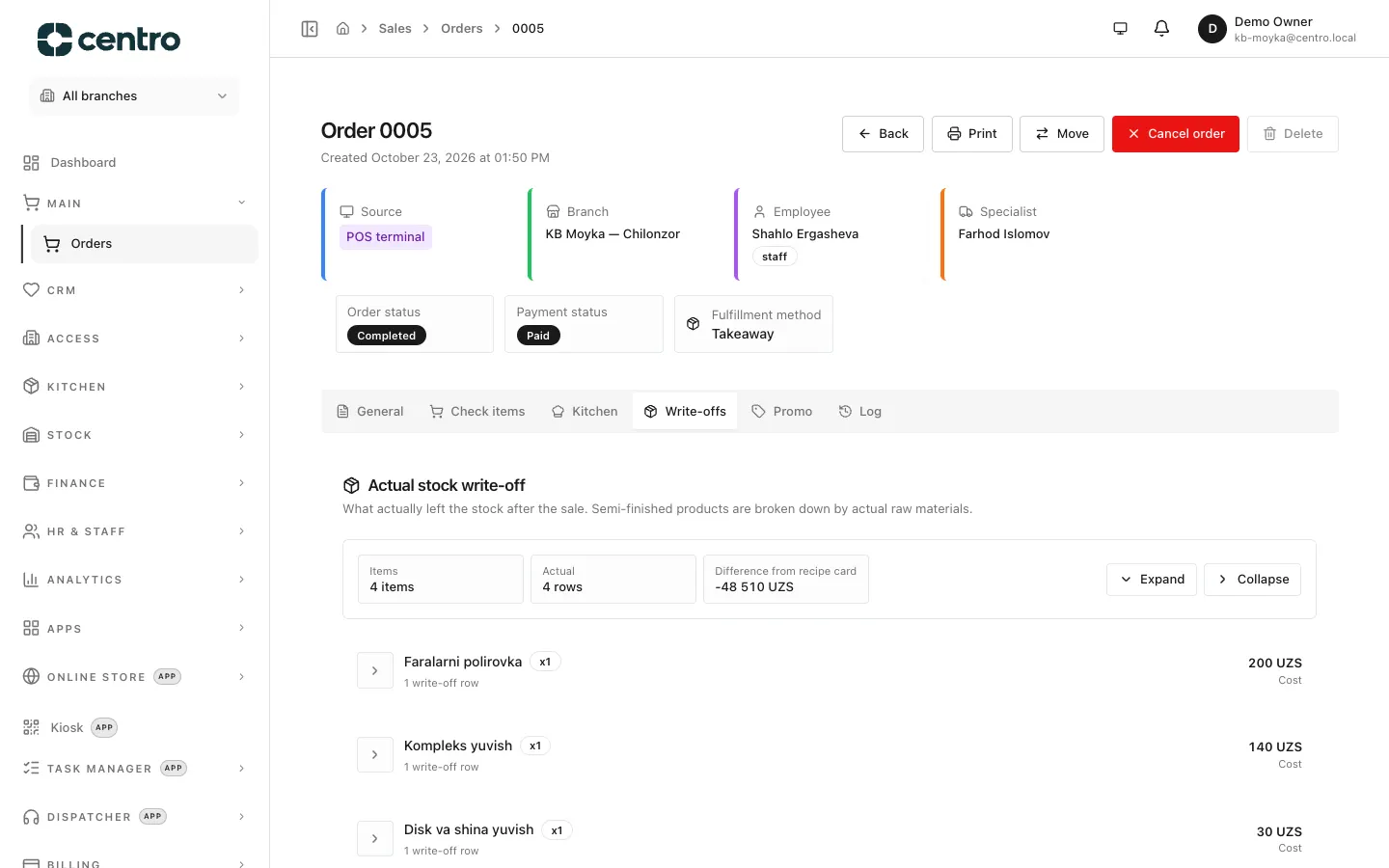
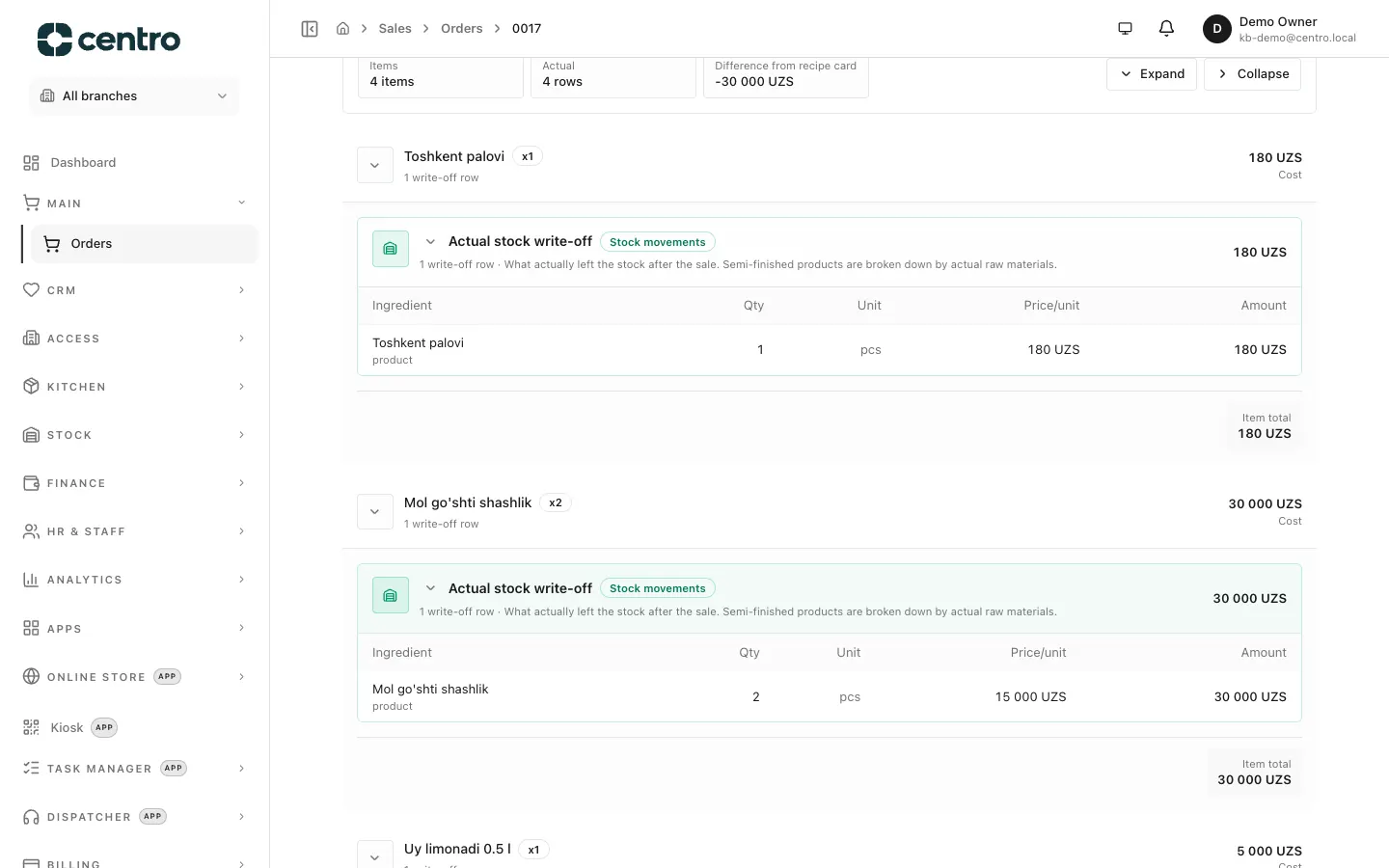
«Actual stock write-off» — what actually left the warehouse after the sale. Semi-finished goods are expanded down to the actual raw materials.
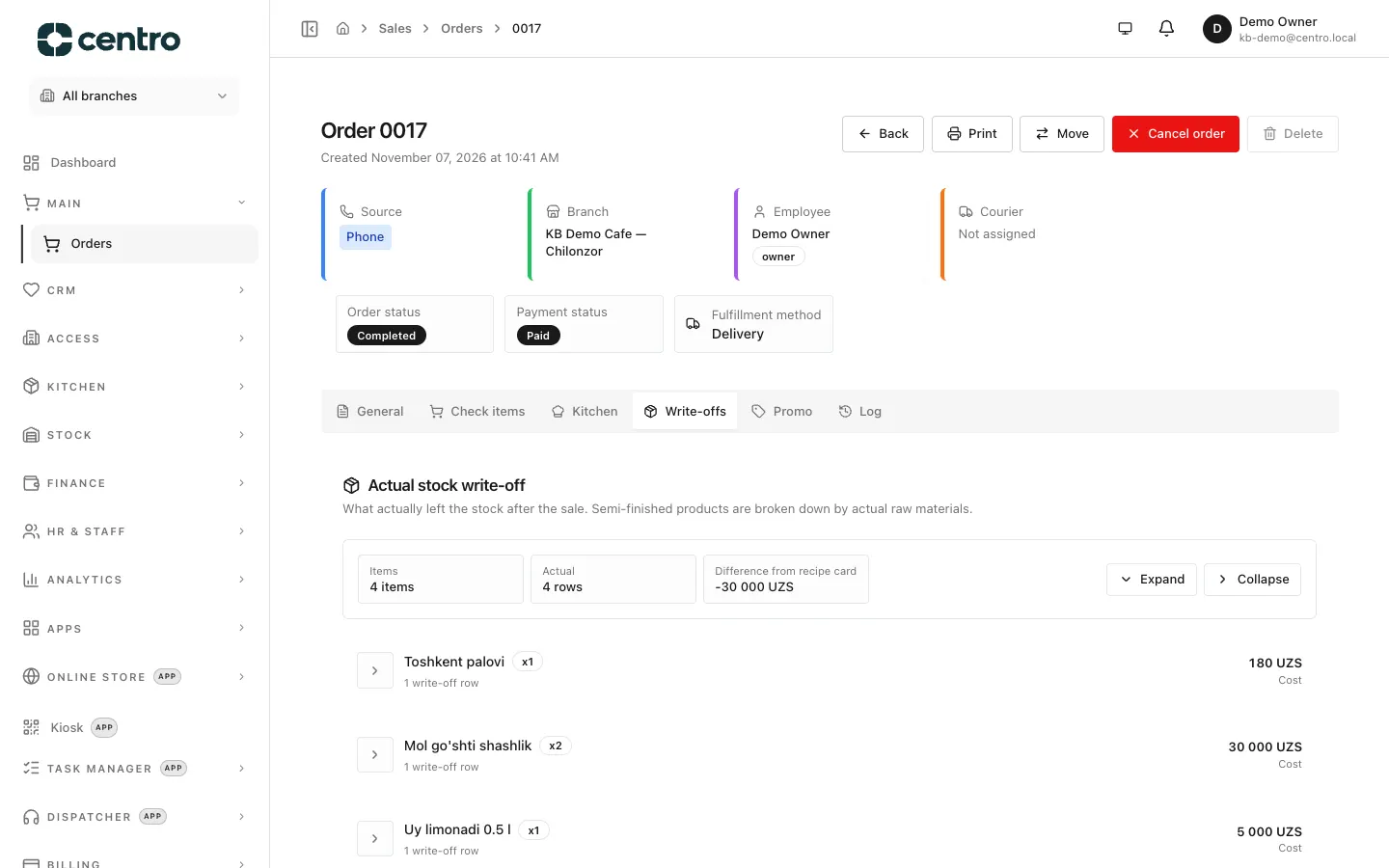
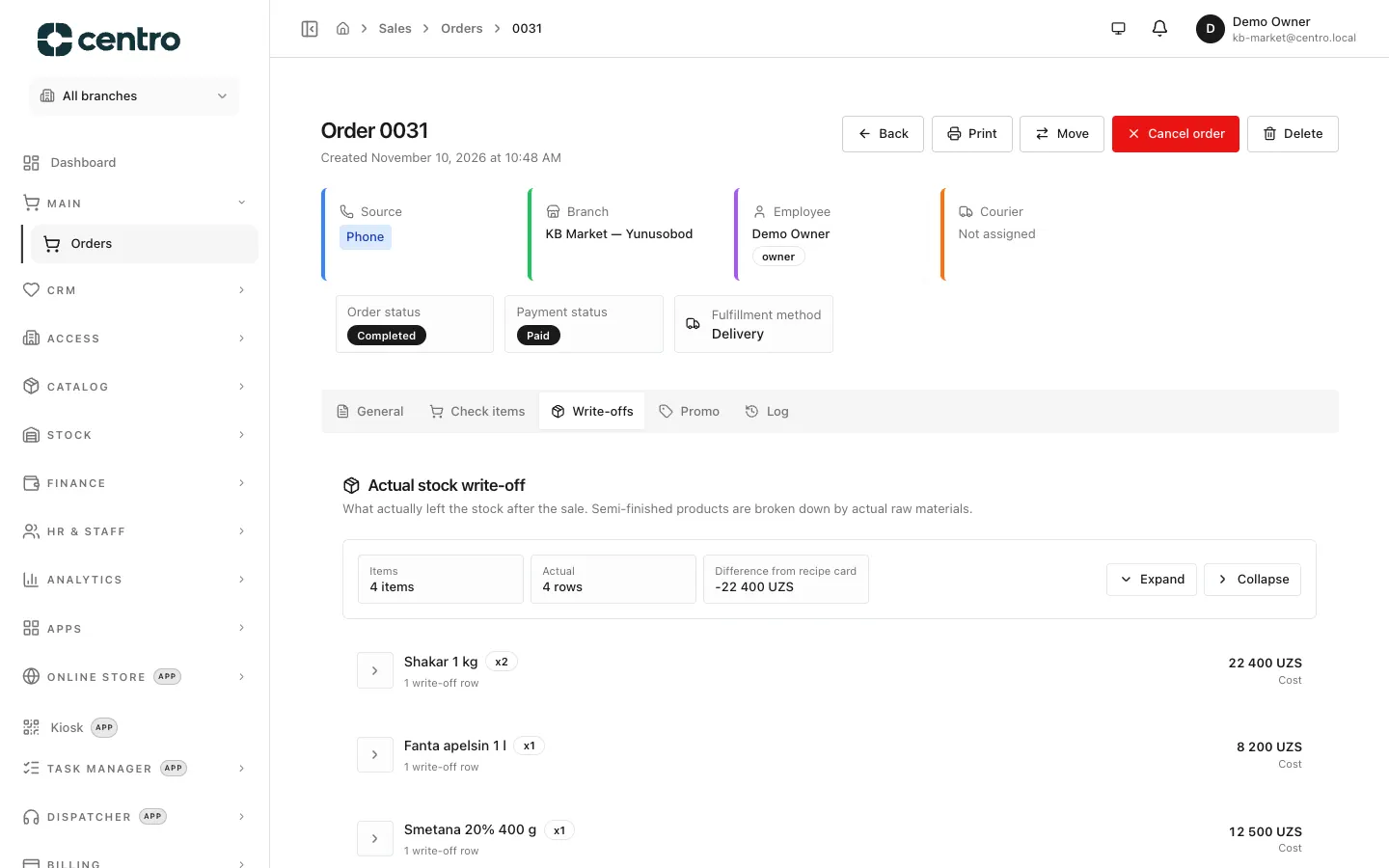
What the tab shows
- «Items», «Actual»
- How many items the order has and how many write-off rows.
- «Difference from recipe card»
- The cost of the actual write-off minus the cost per the recipe card: positive — more was used than the card says, negative — less.
- «Expand» / «Collapse»
- Expands or collapses all items at once. Inside an item: «Ingredient», «Qty», «Unit», «Price/unit», «Amount»; combo and modifier rows are separate groups.
- «Total cost», «Revenue», «Margin»
- The total at the bottom. For a cancelled order or one closed on the house the revenue is 0, so the margin is negative (red).
Tip: An open order (new, confirmed, preparing…) may have no write-off yet — «Order in progress» is shown then: ingredients are written off at the moment chosen in the production settings (for example, when the order is closed). If a closed order has no rows, the product has no recipe card or the stock movement is not linked to the order.
Tip: In a store products have no recipe cards: each product sold is written off the stock itself — one write-off line per item with its cost. There are no semi-finished goods.
Tip: At a car wash the rows are services (e.g. «Kompleks yuvish»). Expand a row to see the consumables written off by the service’s recipe card (shampoo, wax, wipes…) and their cost.
«Promo» tab #
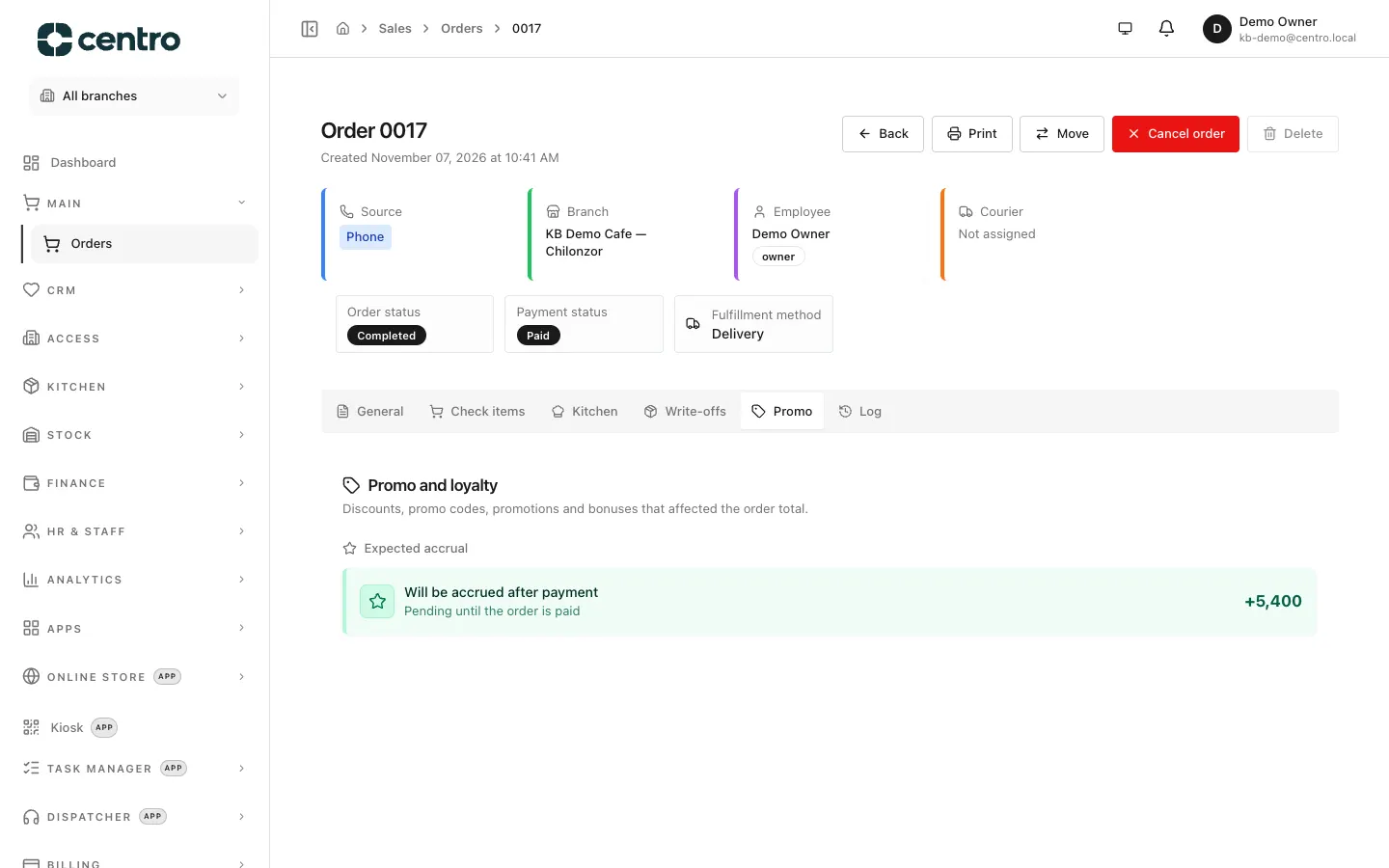
Discounts, promo codes, promotions, bonuses and returns that affected the total.
- «Applied promotions»
- Applied promotions, including gift items («Gift: …»).
- «Promo code»
- The promo code used and its campaign («Campaign: …»).
- «Applied discounts»
- Discounts and their source: «Promo code», «Promotion», «Bonuses», «Tier discount», «Manual discount», «Negotiated discount», «Certificate», «Aggregator discount».
- «Loyalty»
- Bonus movements for the order.
- «Returns and combo decisions»
- Returns: the amount paid out in cash, credited to the deposit or deducted from debt; for each line, whether it went back «To stock» or was «Written off».
«Log» tab #
A timeline of every change to the order.
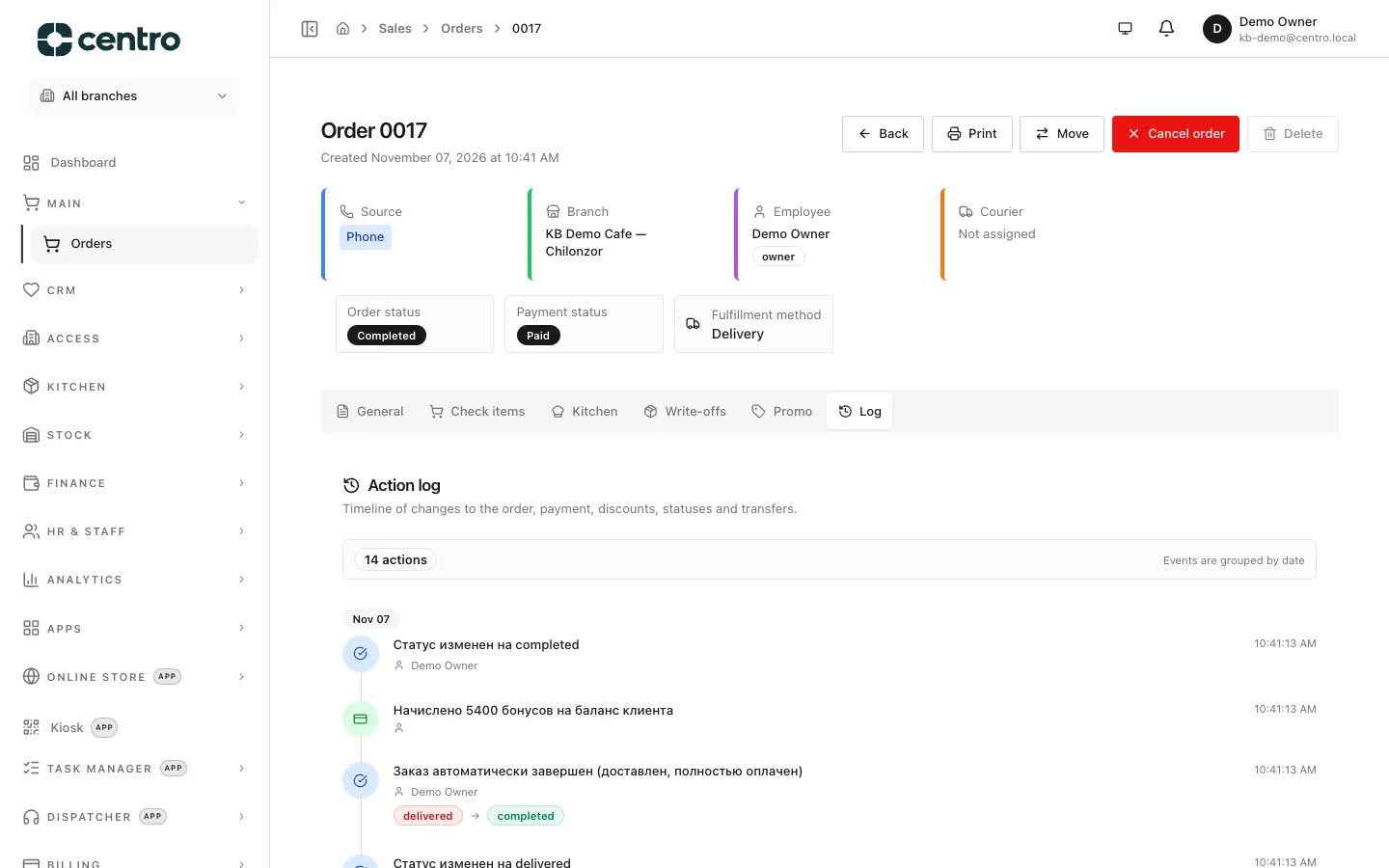
«Action log» — a timeline of changes to the order, payment, discounts, statuses and transfers, grouped by date. Each entry shows who changed what (e.g. «Old status» / «New status», «From branch» / «To branch», «Reason»).
Car-wash orders: vehicle and specialist #
In car-wash mode orders show the customer’s vehicle, and a specialist takes the courier’s place.
Car-wash mode is switched on in the organization settings with the customer car-number option. The order list and the order card then revolve around the vehicle: the plate number appears under the customer’s name, and the «Courier» field becomes «Specialist» — the washer who did the job. Everything about halls, tables and delivery is hidden.
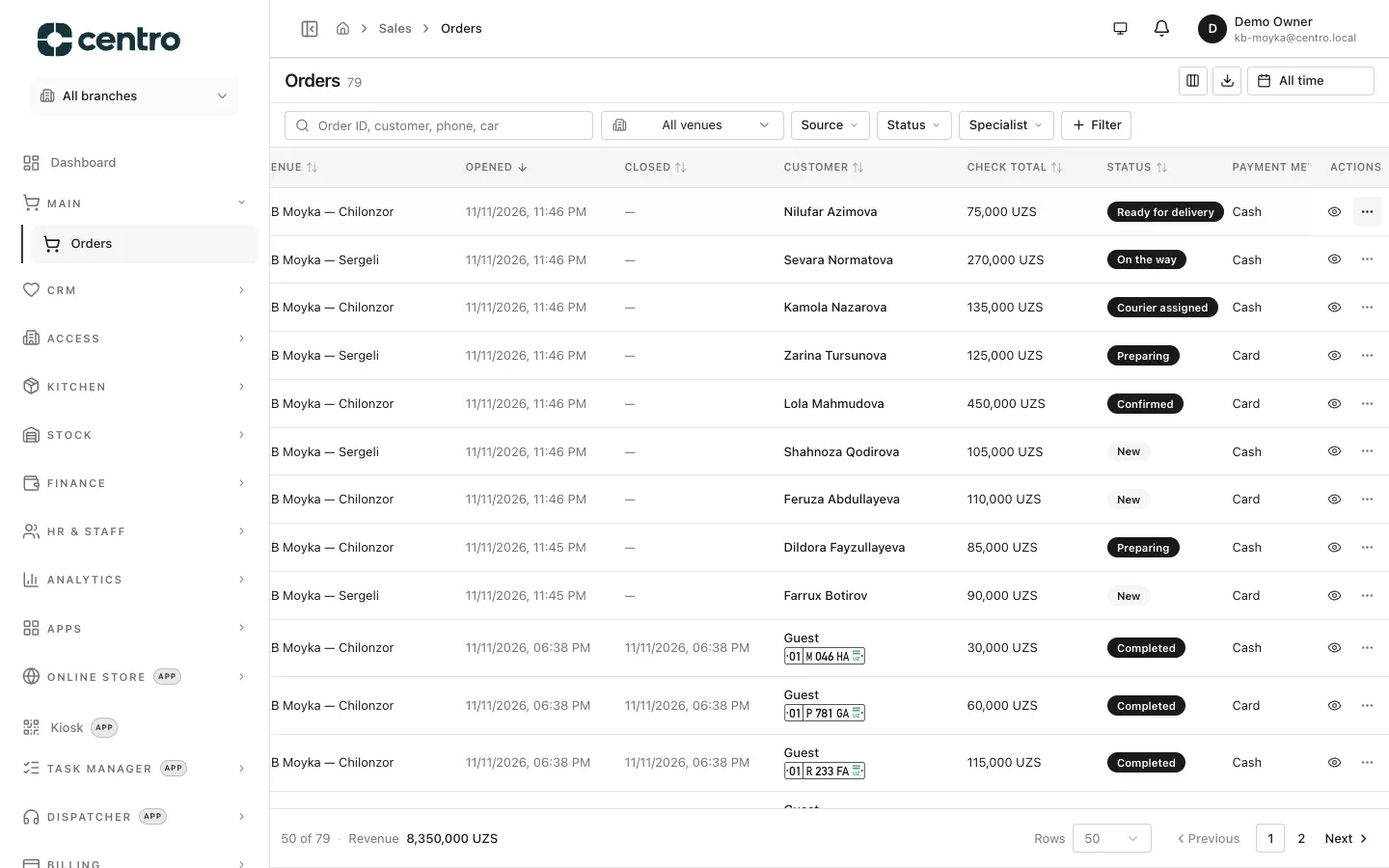
Orders list
- «Customer»
- Under the name — the vehicle number drawn as a licence plate and the vehicle description (make, model, colour). The plate is stored on the order itself, so it stays visible even after the car is removed from the customer’s card.
- «Order ID, customer, phone, car»
- Type a plate number into the search box to keep only that vehicle’s orders.
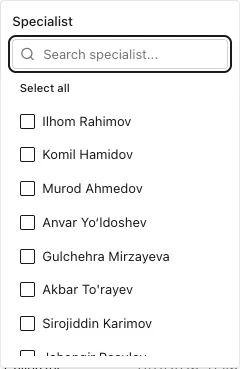
- «Specialist»
- A quick filter and a column in place of «Courier»; the column is on by default. Its value list contains the organization’s employees and couriers.
- «Employee»
- This is what the «Waiter» column and filter are called — the employee who took the order. The filter is no longer a quick filter; add it via «Filter».
- Hidden columns and filters
- «Table», «Delivery», «Delivery zone», «Delivery address» and «Guest count» are not shown; such filters that were already applied are removed automatically.
Order card
- «Specialist» card
- Always shown in the row of info cards (not only for delivery): the specialist’s name and phone, or «Not assigned».
- The «Customer» block on the «General» tab
- The licence plate and the vehicle description below the customer’s contacts. A plate recorded on the order is shown even for a guest order («Guest order»).
Tip: How many times each vehicle came and how much revenue it brought — see the «Sales by vehicle» report in the «Analytics» section.